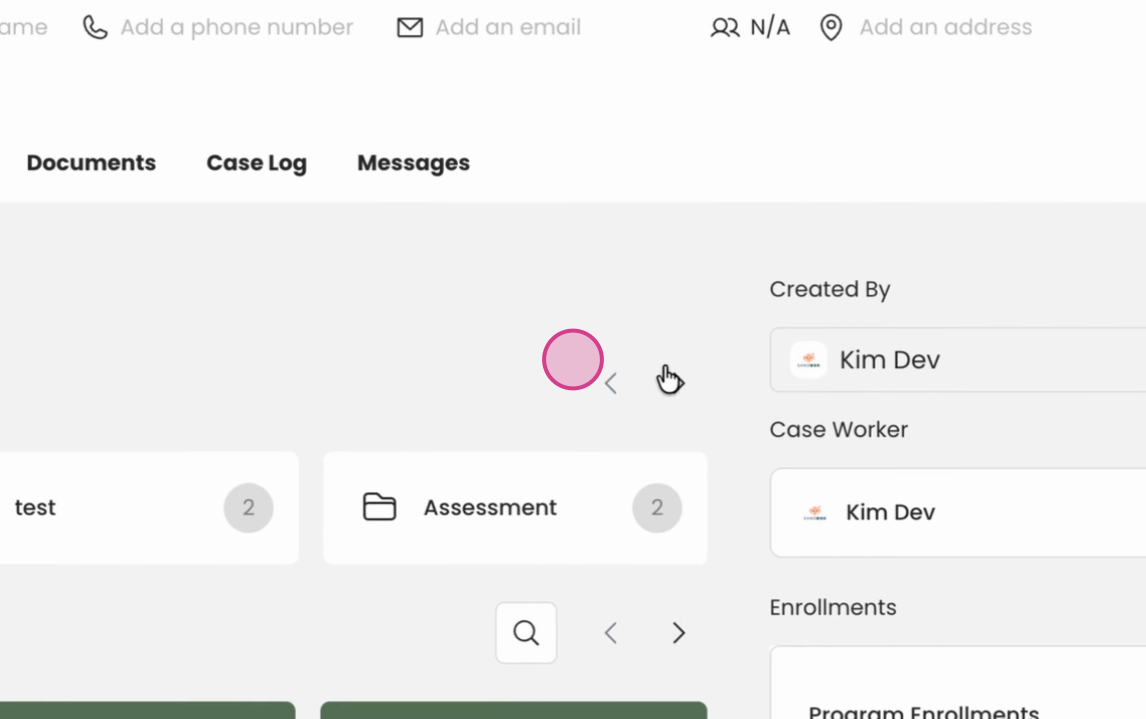
In this article, you'll learn how to add a folder and connect forms to it.
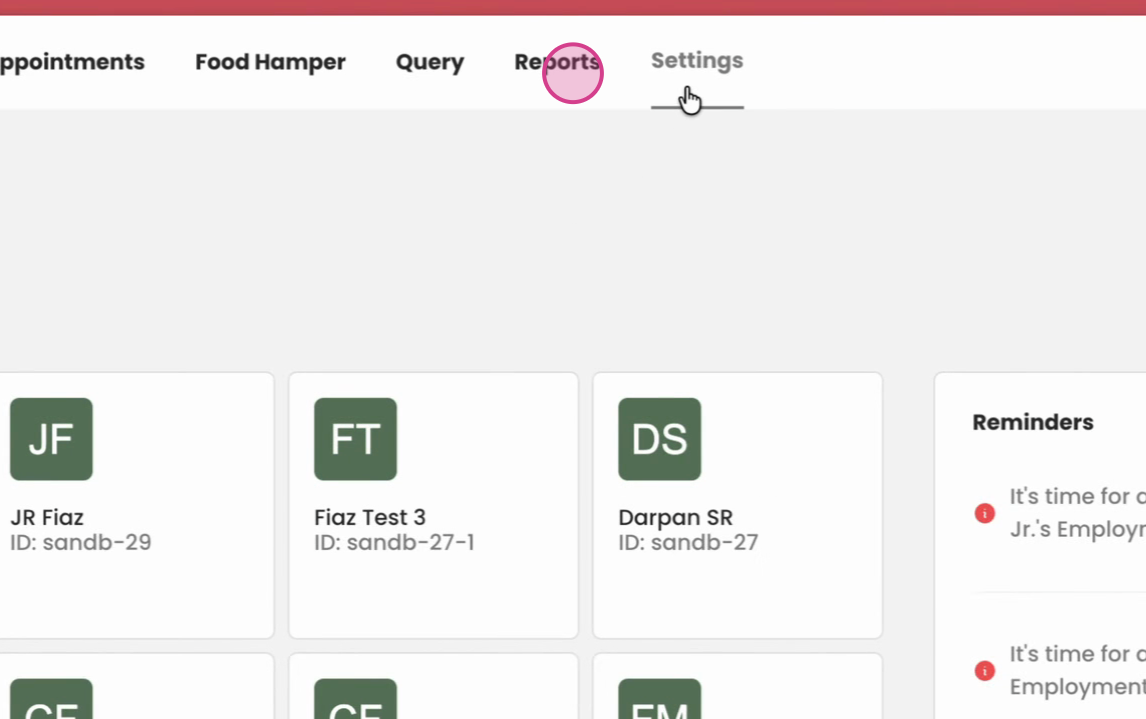
Step 1: Navigate to the settings.
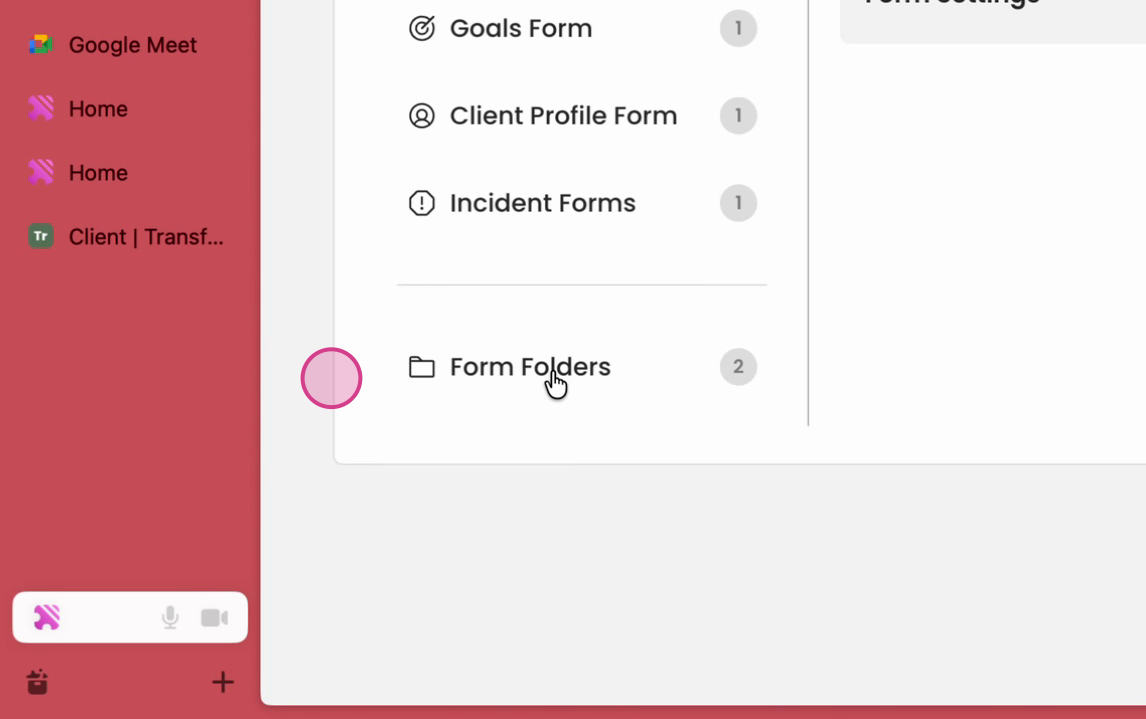
Step 2: Select the Form Folders option.
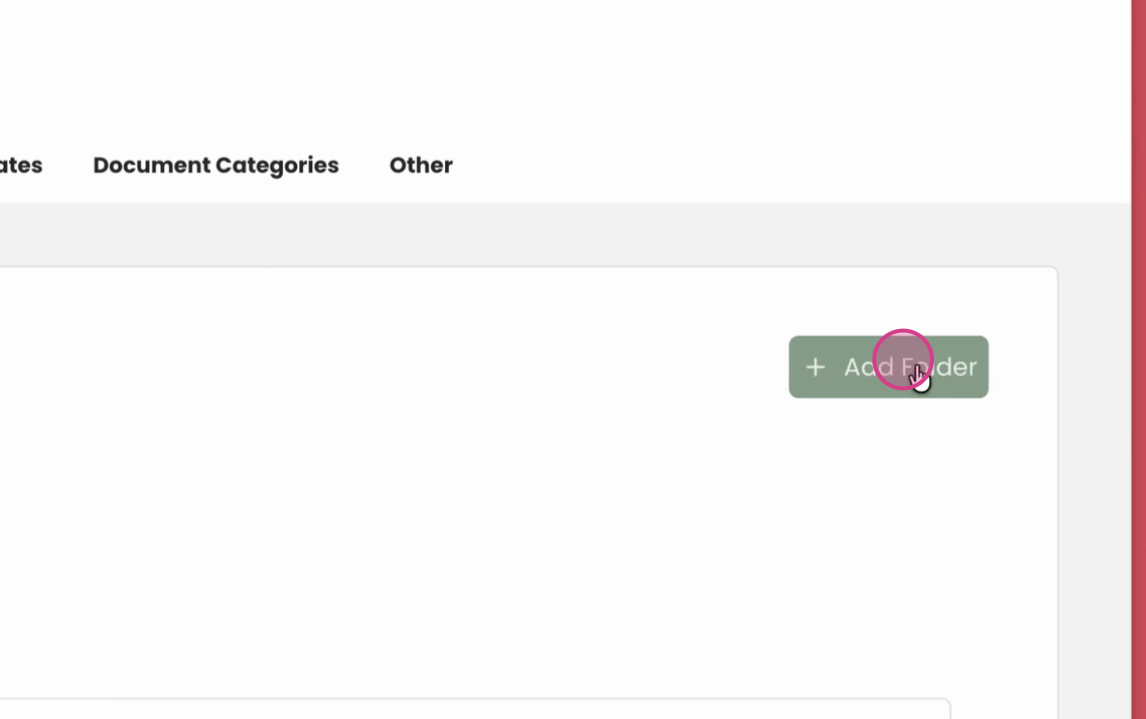
Step 3: Click on Add a Folder.
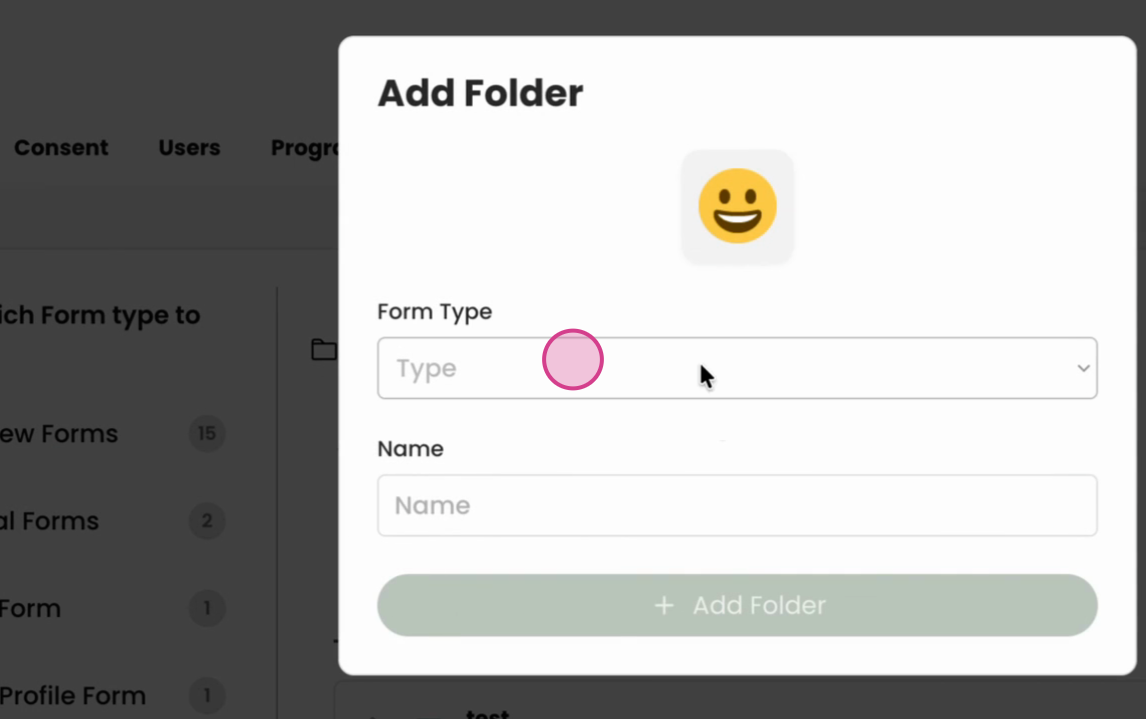
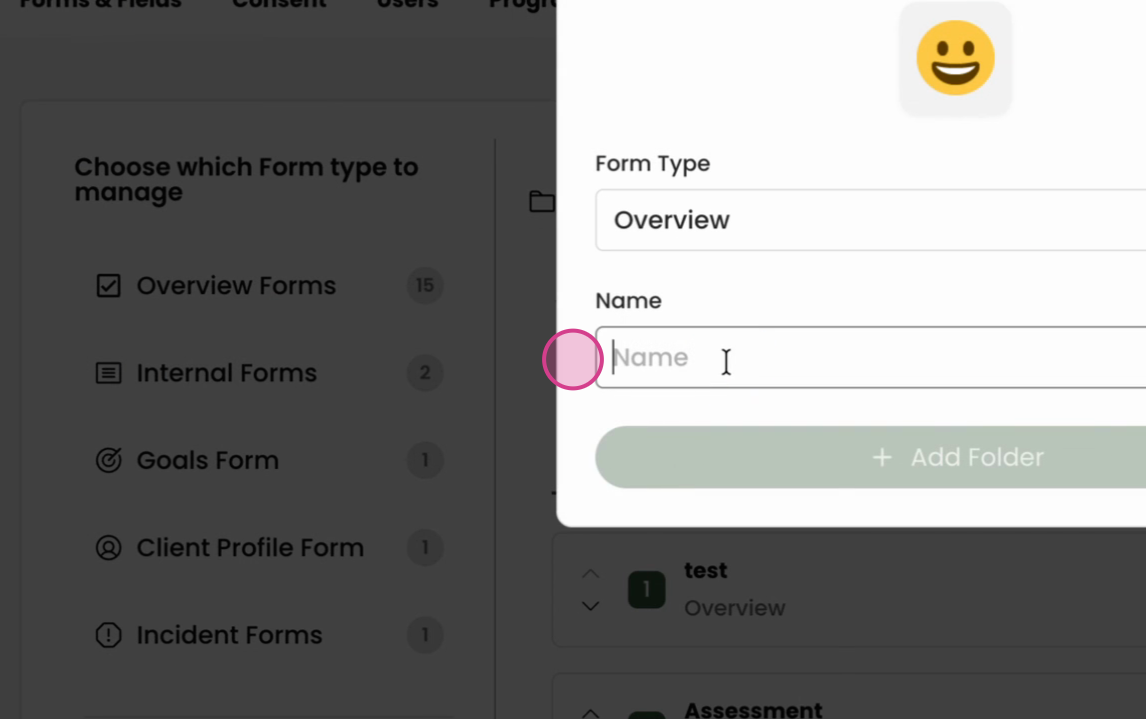
Step 4: Name your new folder. For this example, we're naming it "Intake".
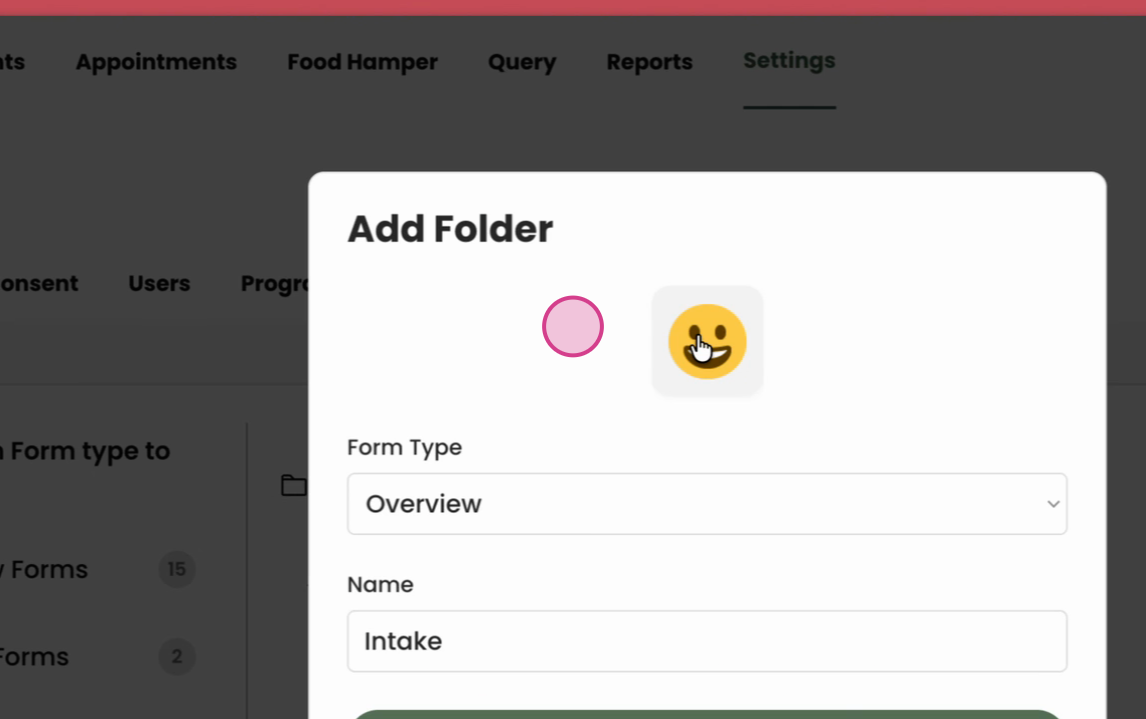
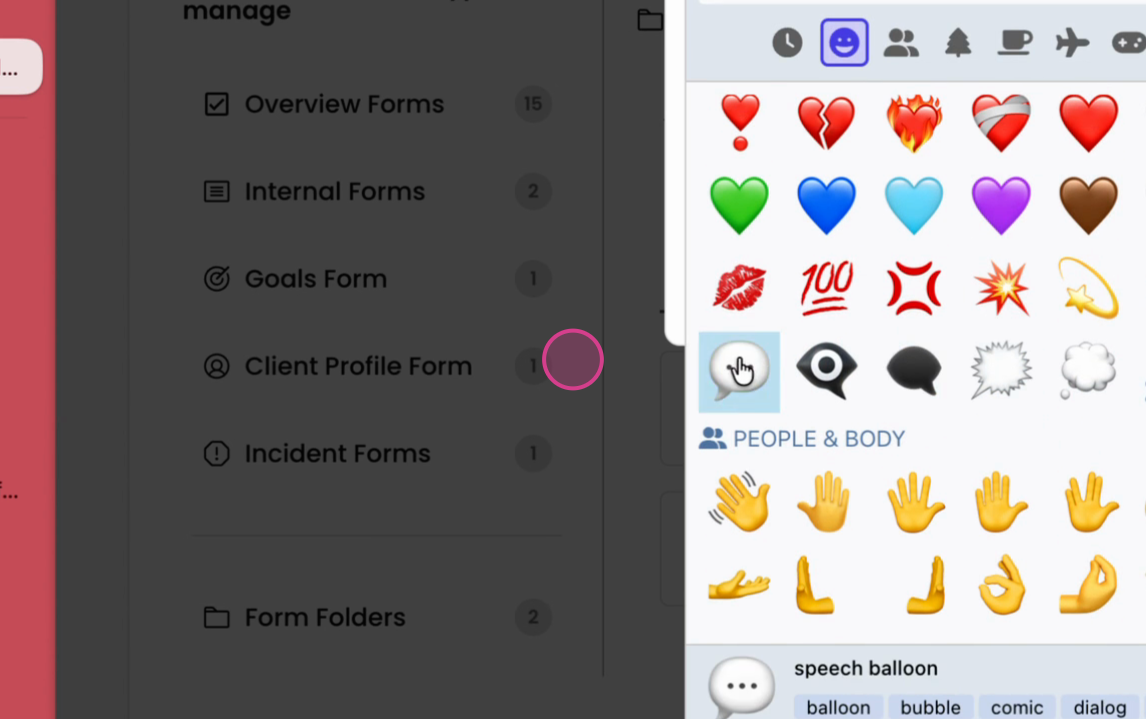
Step 5: Choose an emoji for your folder.
Step 6: To connect forms to your new folder, navigate to the Overview Form from the settings.
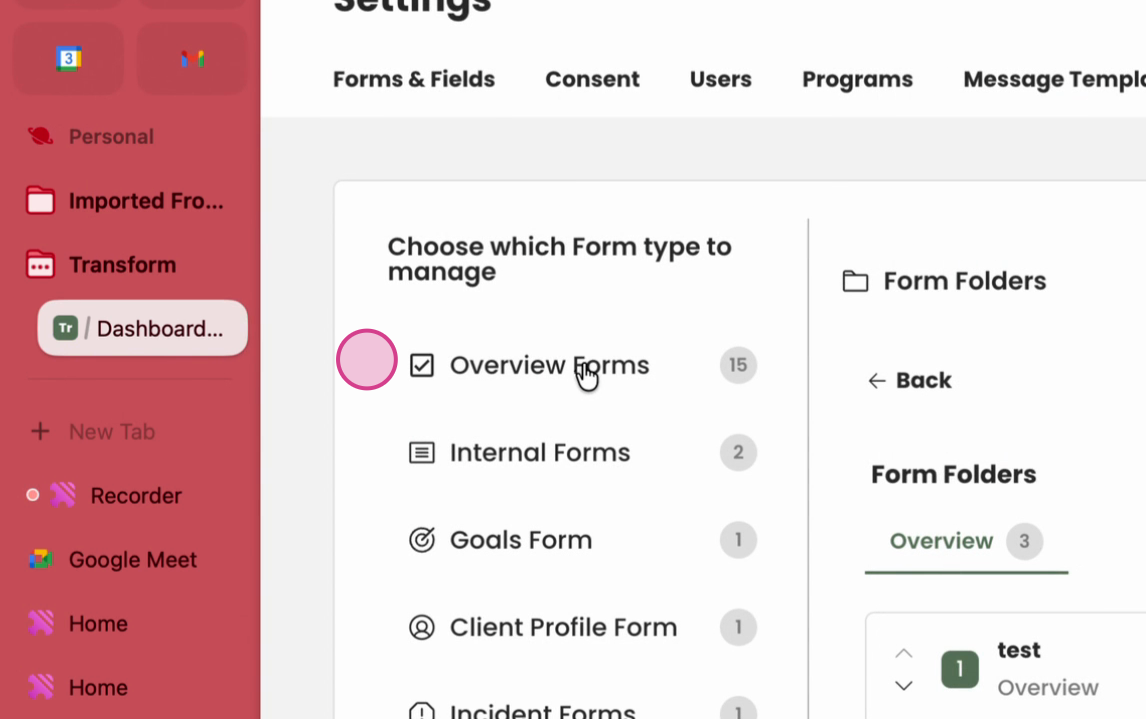
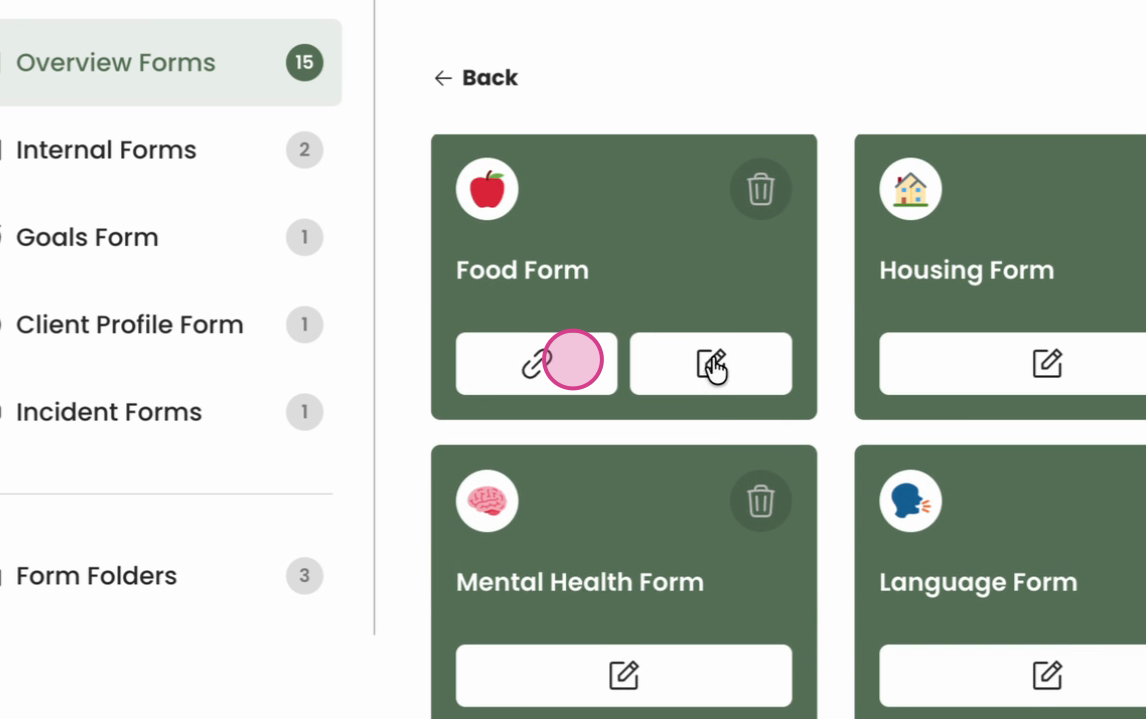
Step 7: Select the form you want to add to the folder. In this example, we're adding the "Food" form.
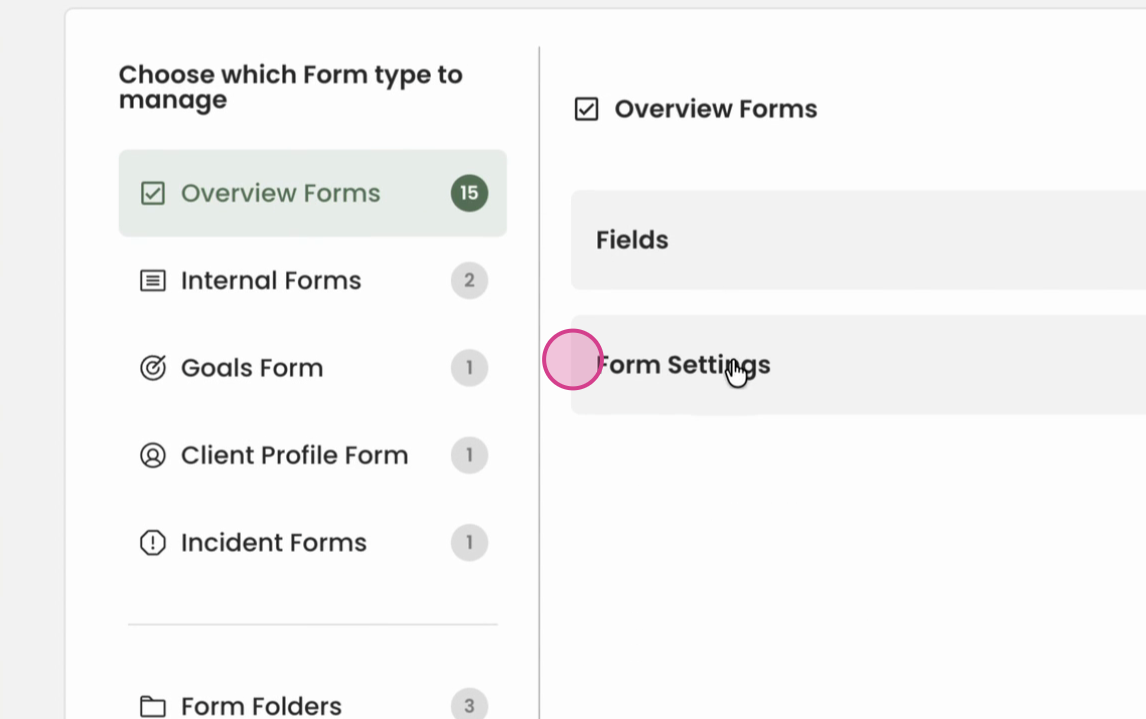
Step 8: Go to the Folders section.
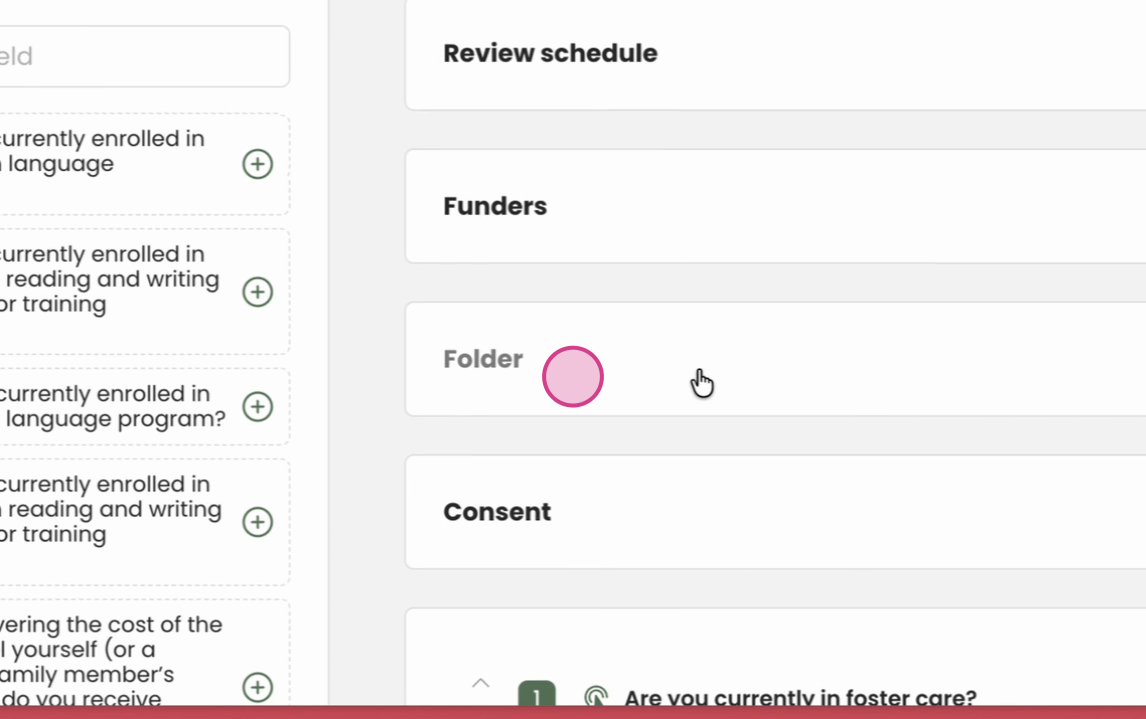
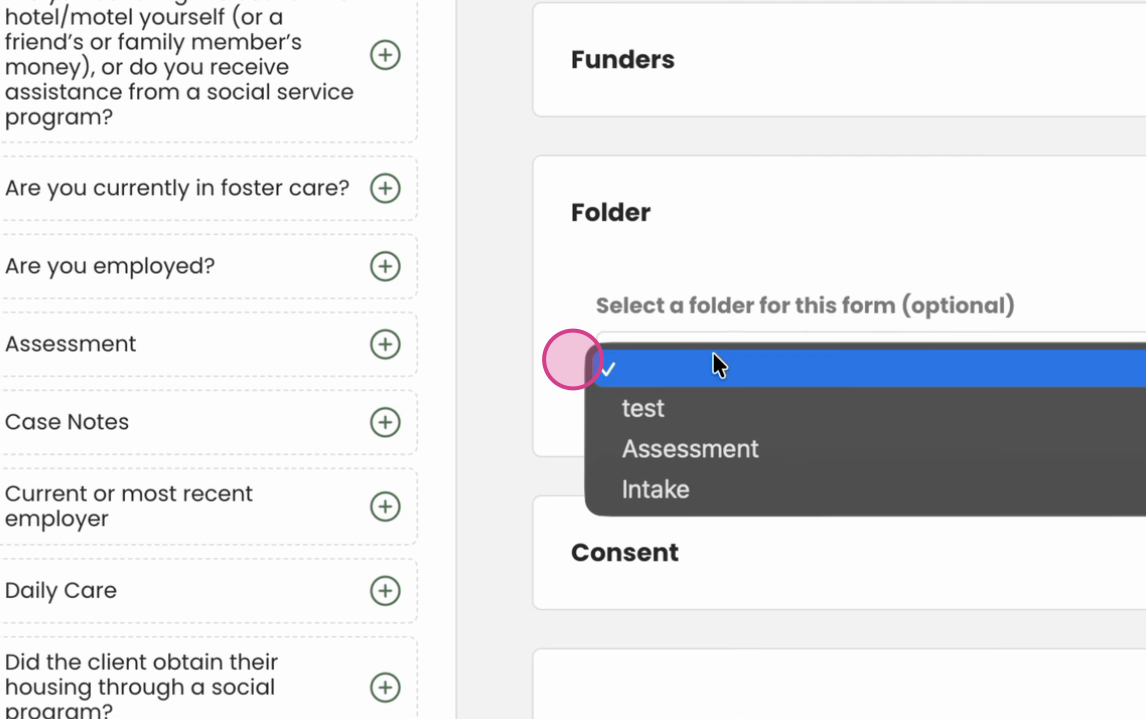
Step 9: From the list of folders, select "Intake".
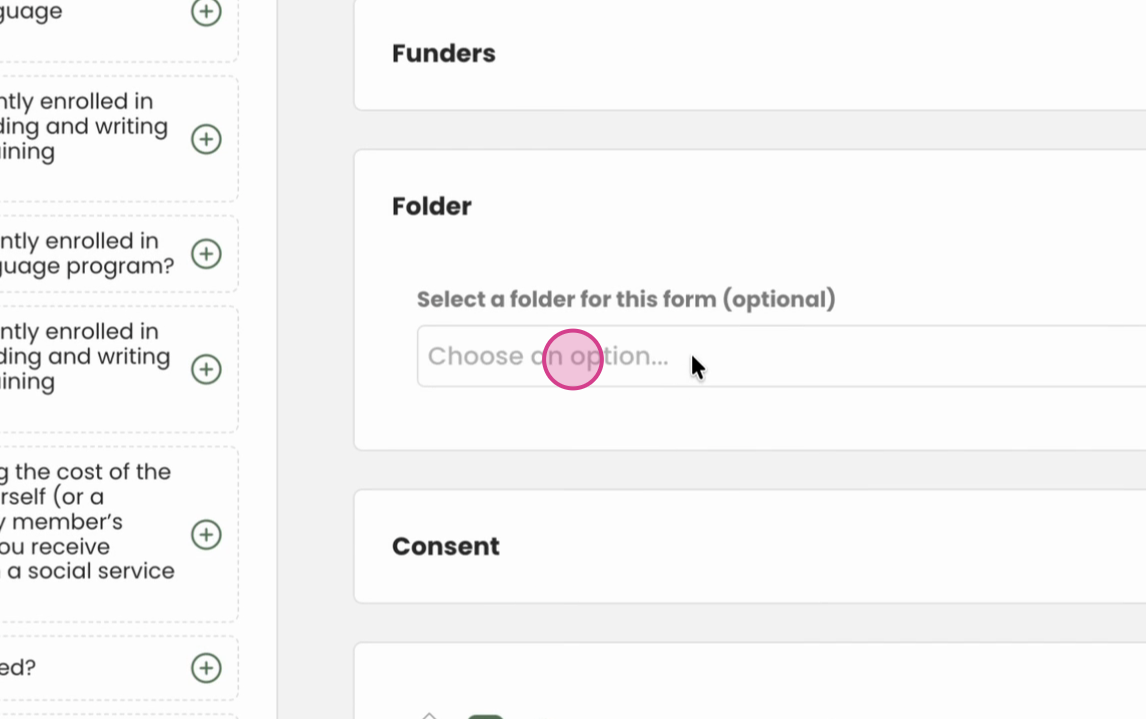
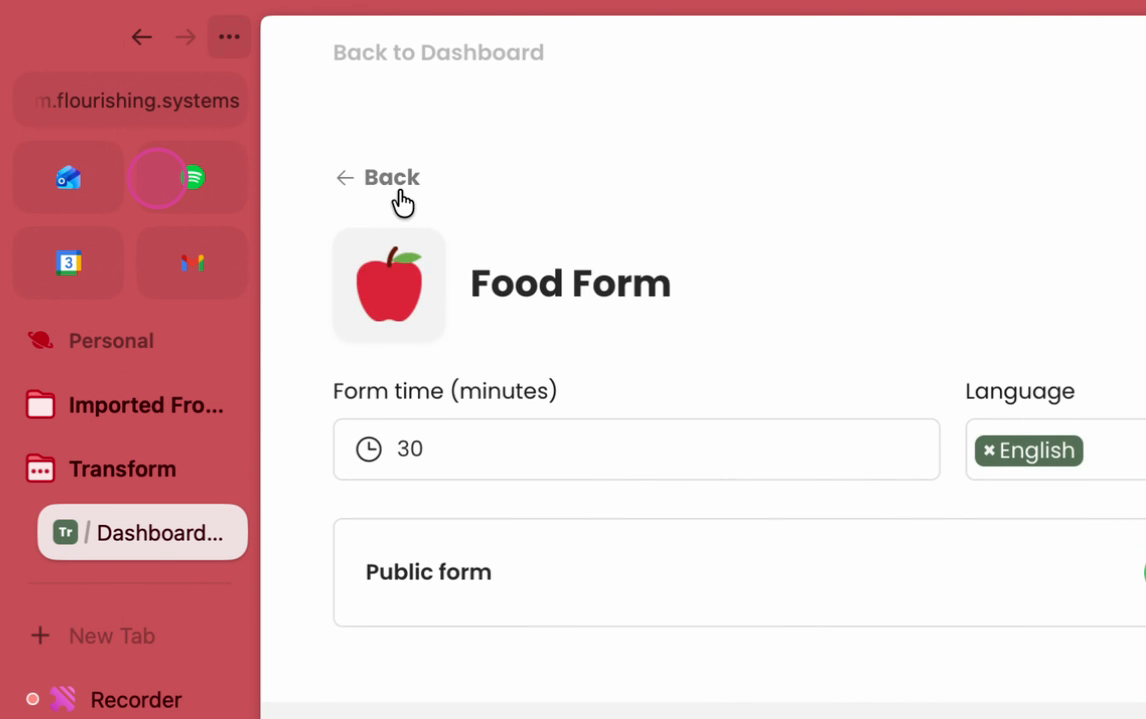
Step 10: You're free to select as many forms as you want to add to the folder.
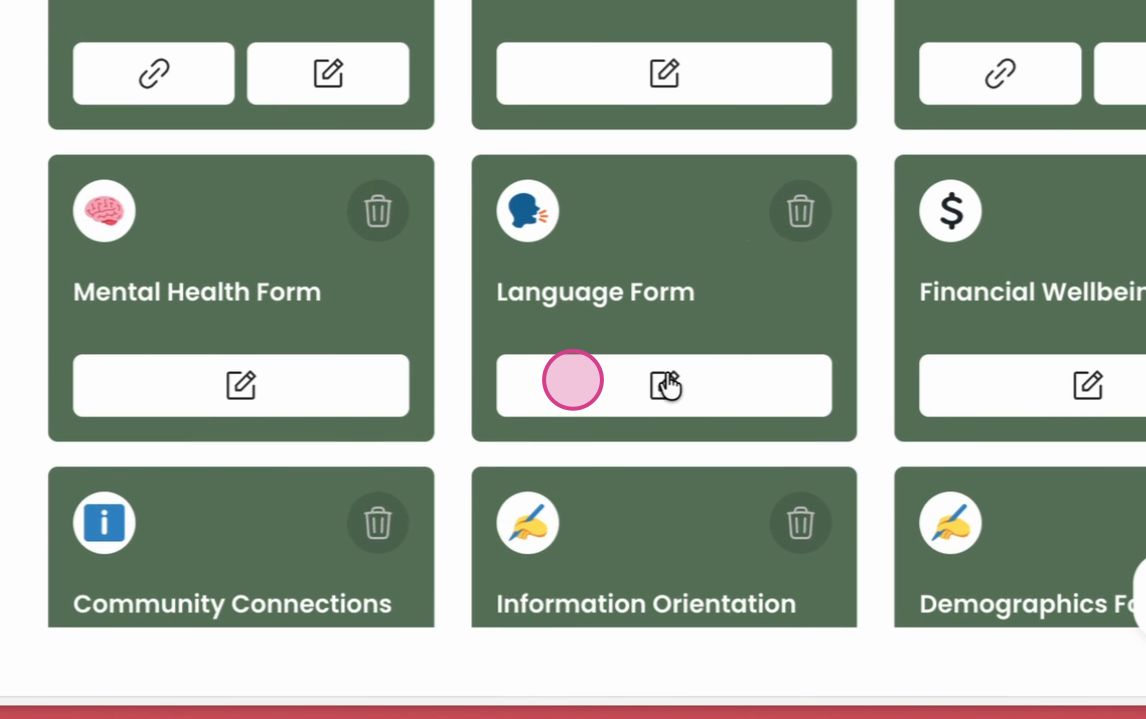
Step 11: Add another form to the folder. In this example, we're adding the "Financial Well Being" form.
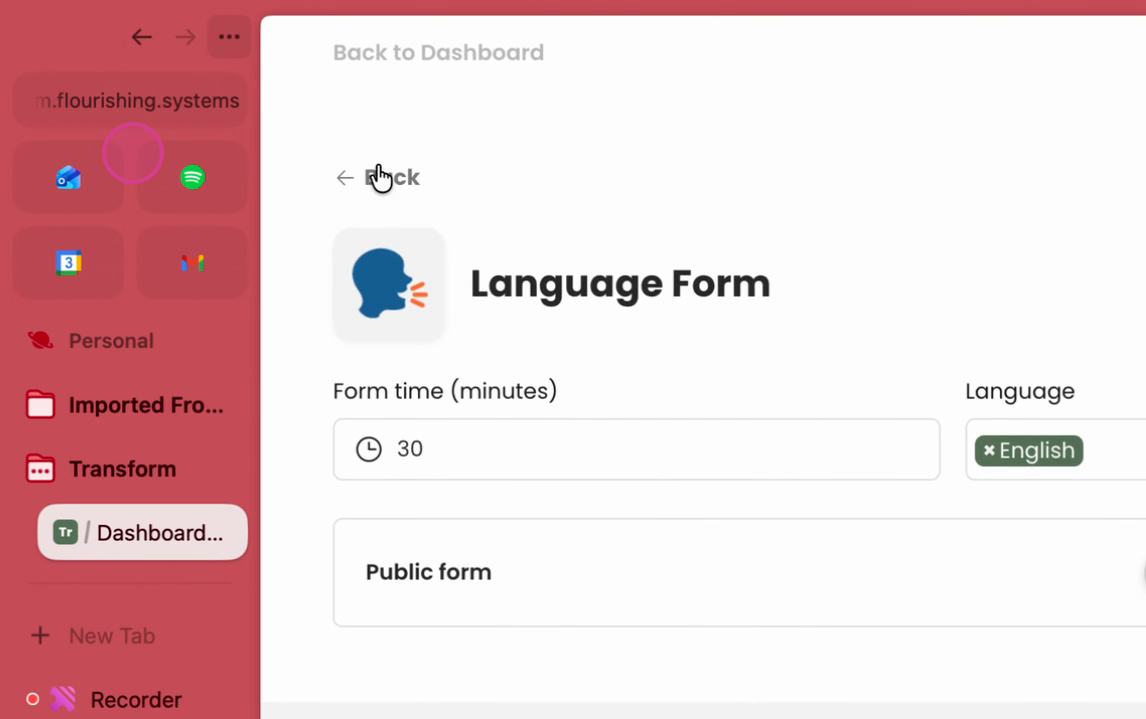
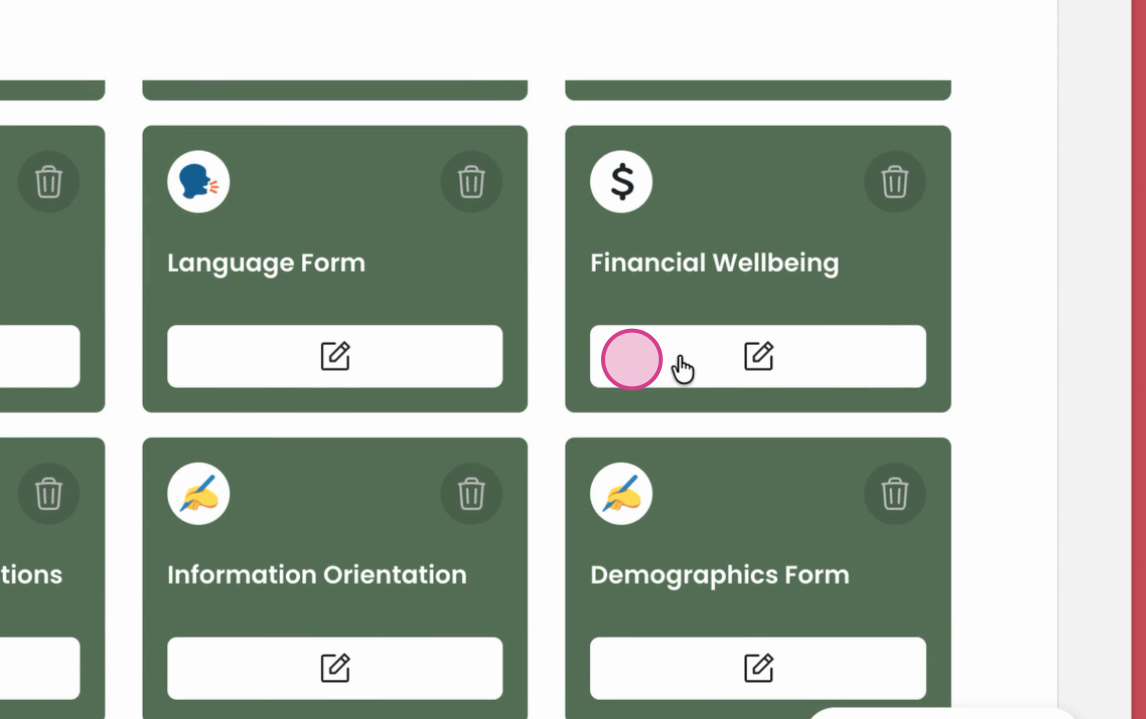
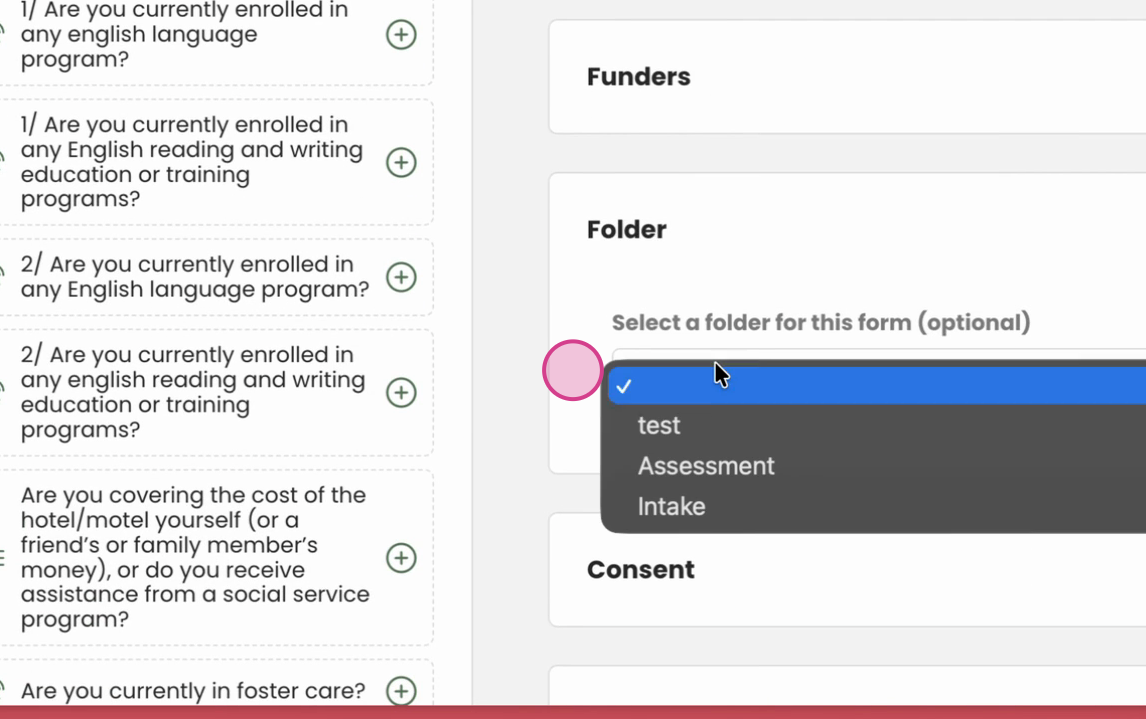
Step 12: Select the form you want to add.
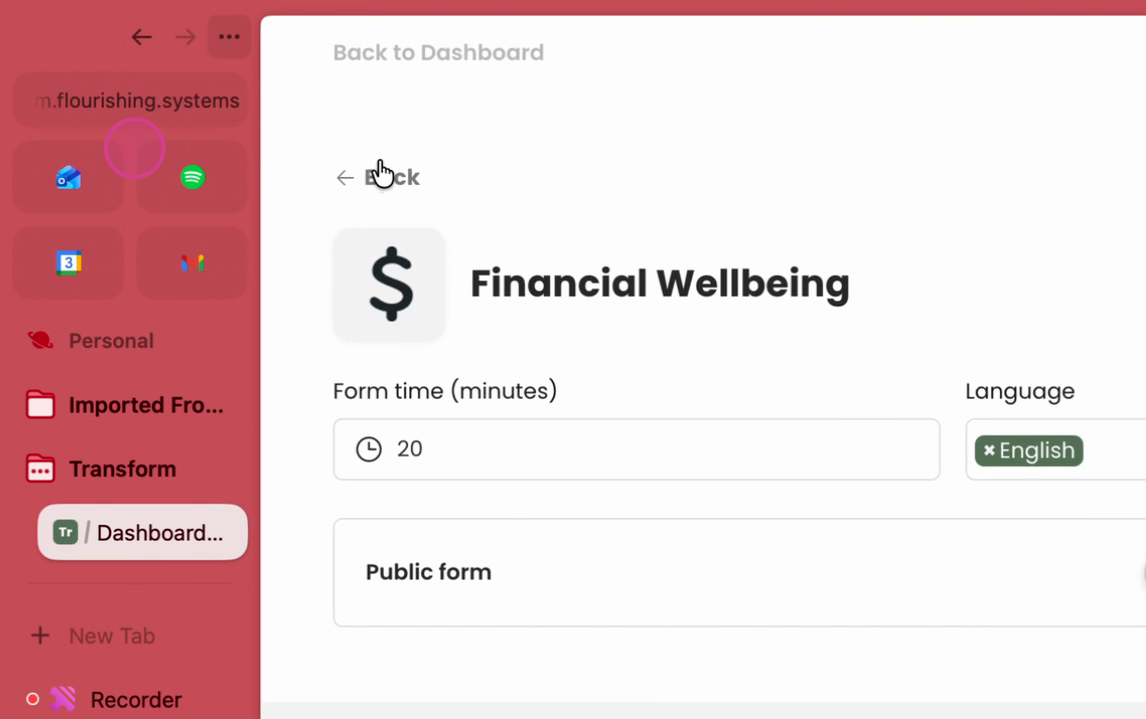
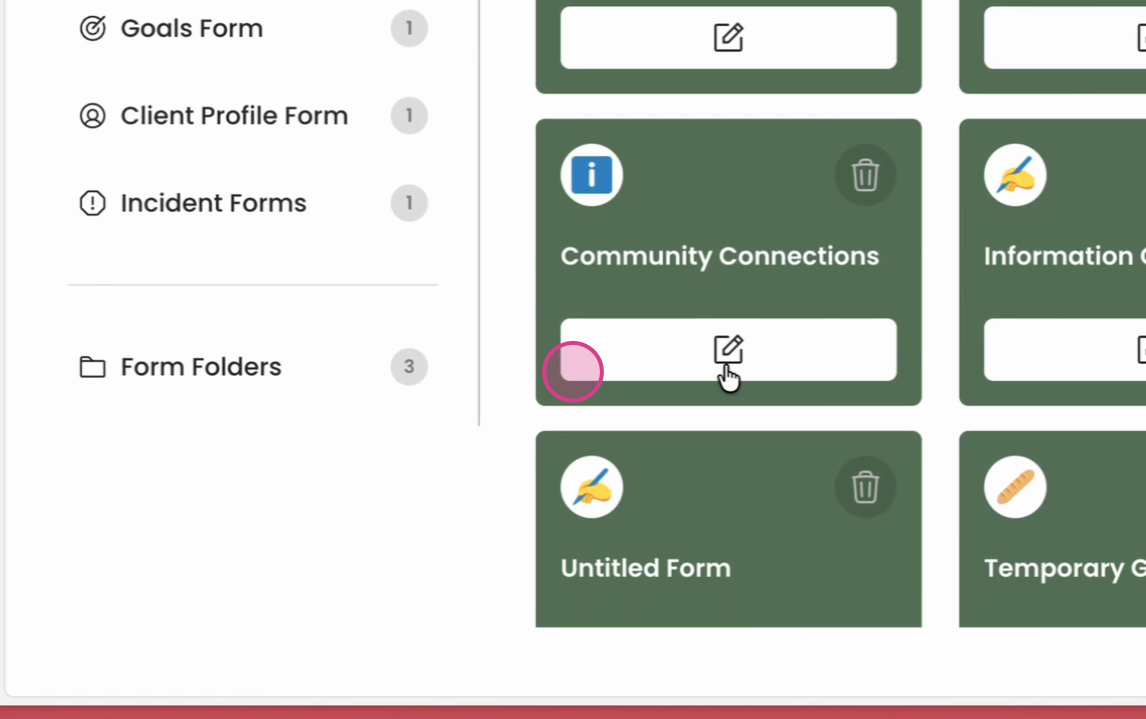
Step 13: Navigate to the form and select it.
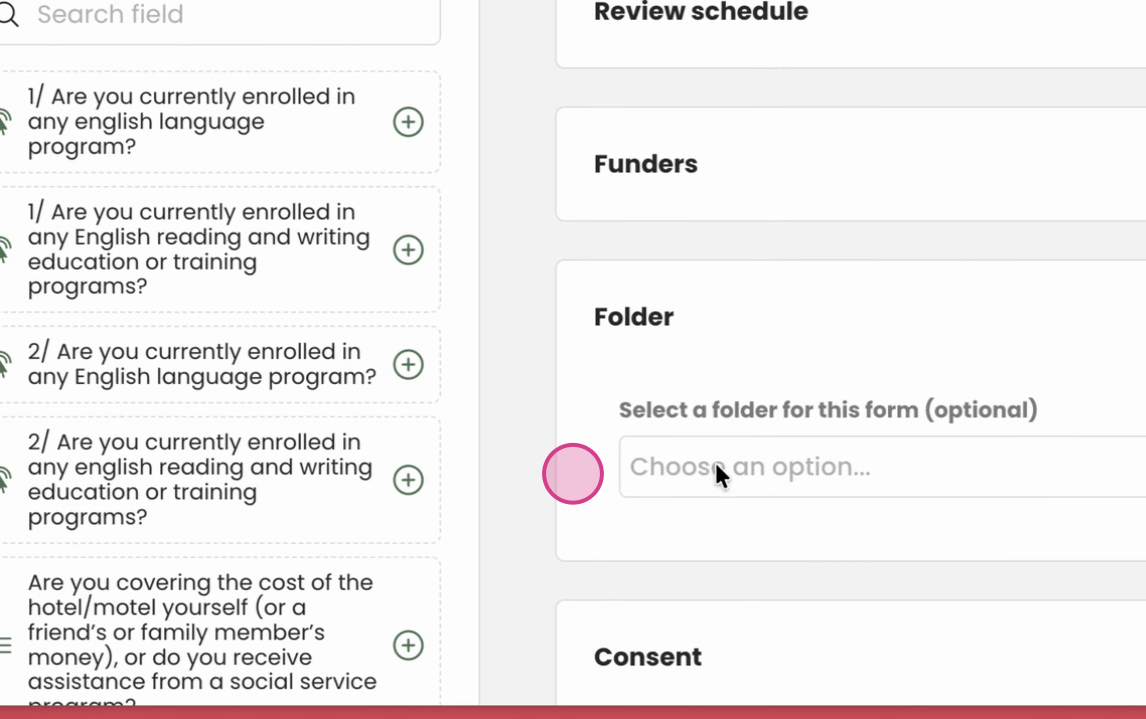
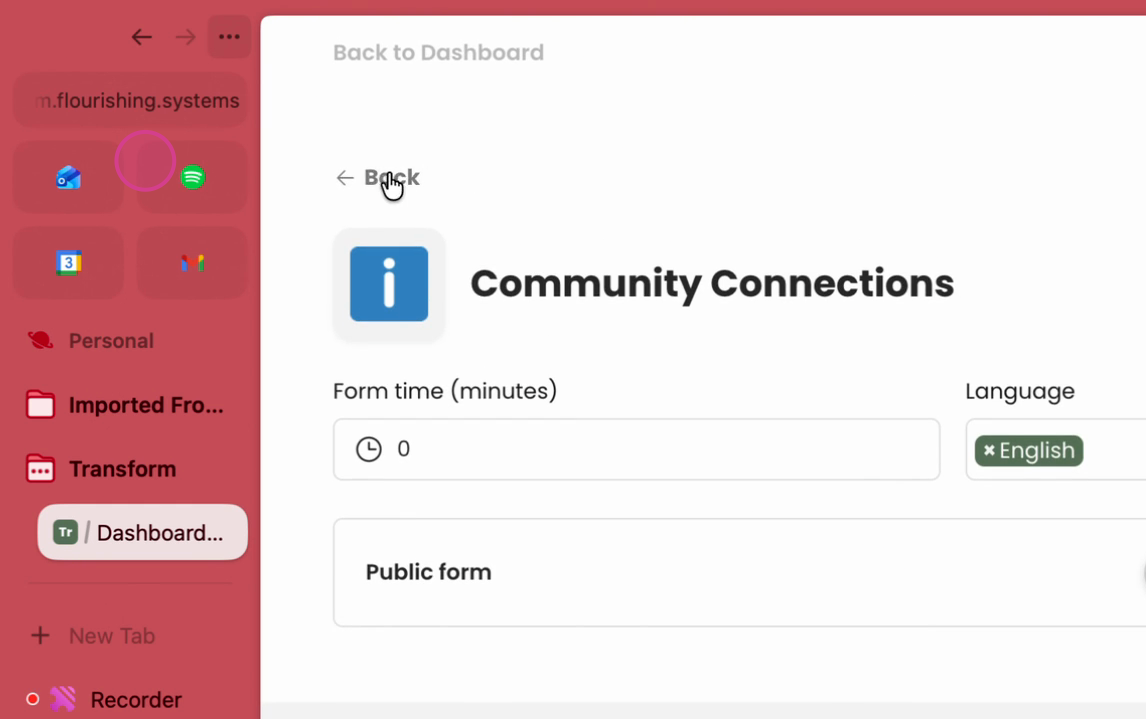
Step 14: Review your forms.
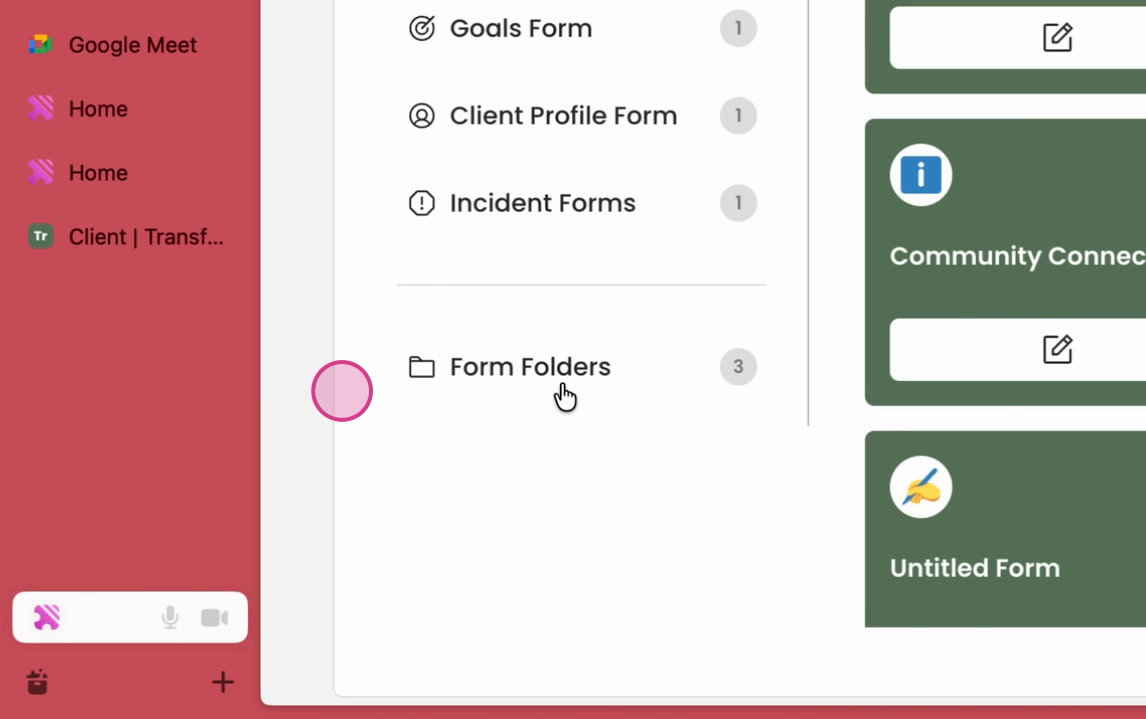
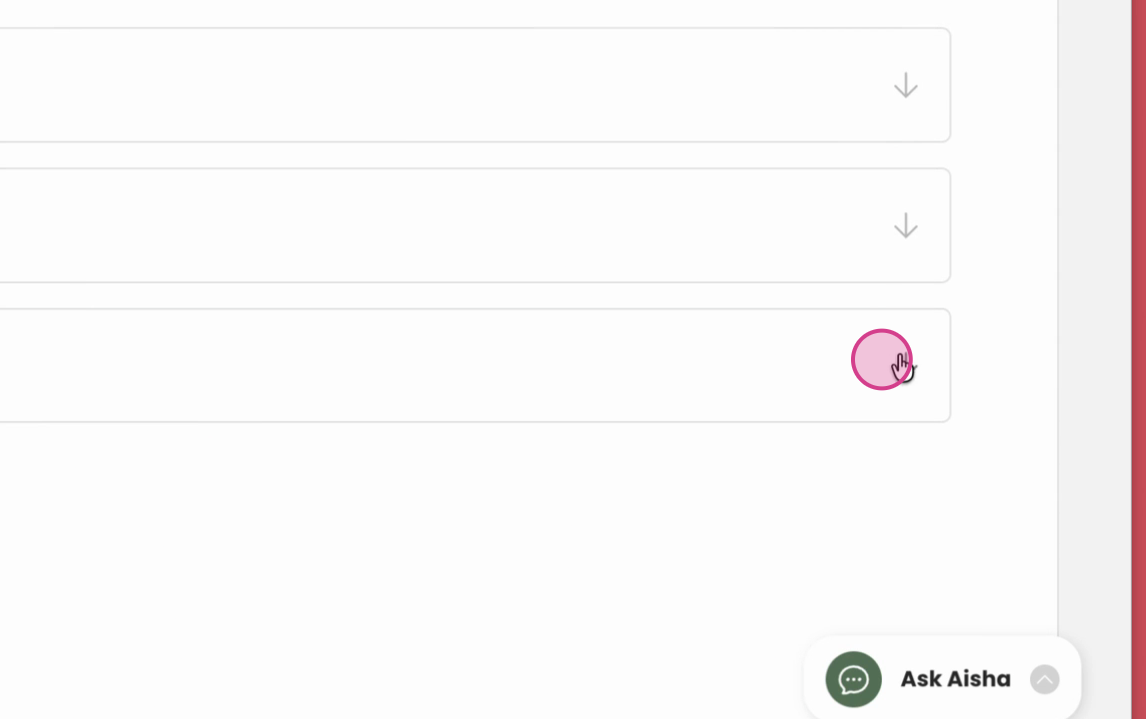
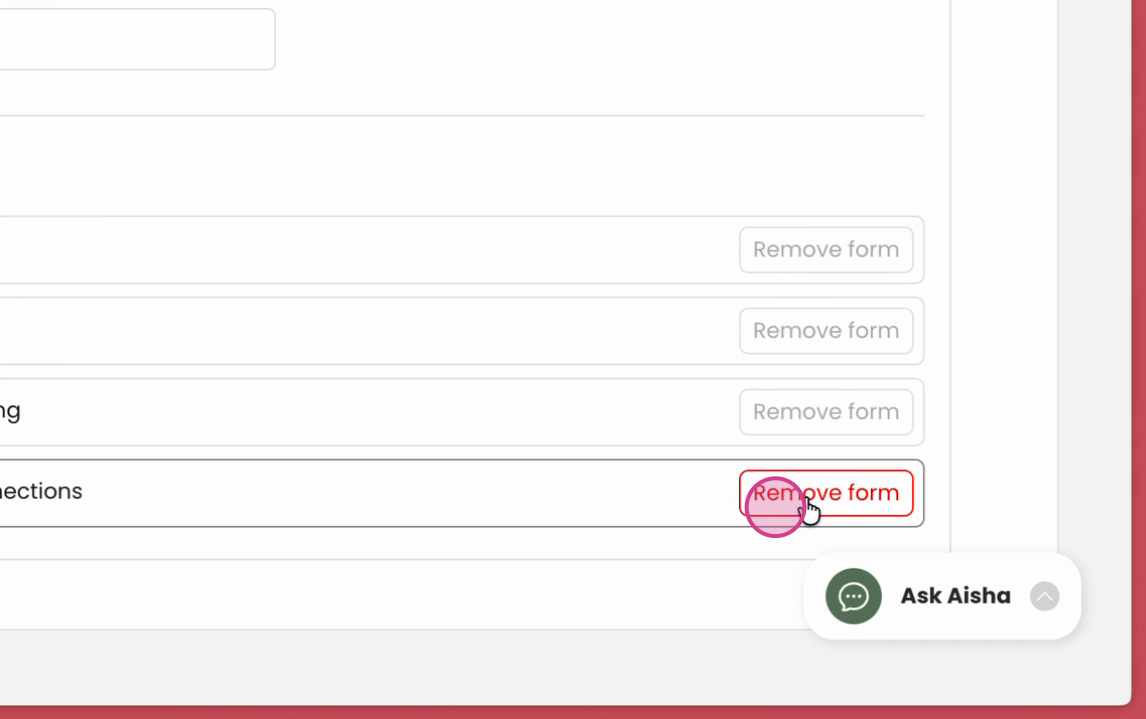
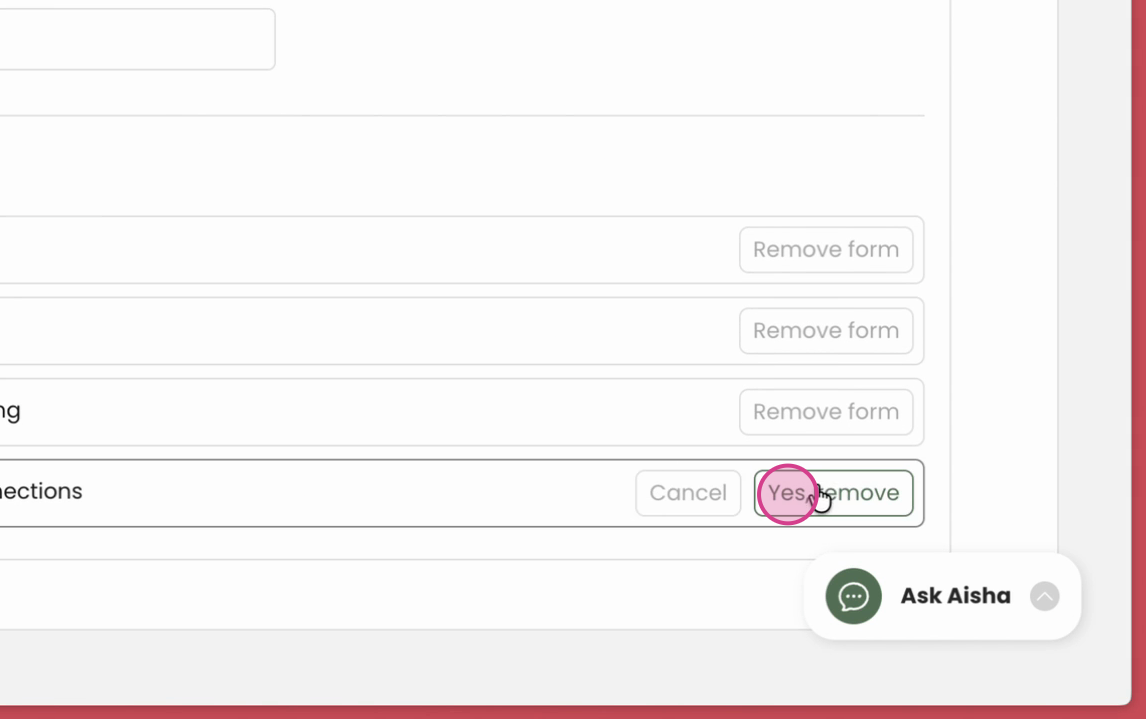
Step 15: If you want to delete a form, remove it from the folder.
Step 16: Navigate back to the dashboard.
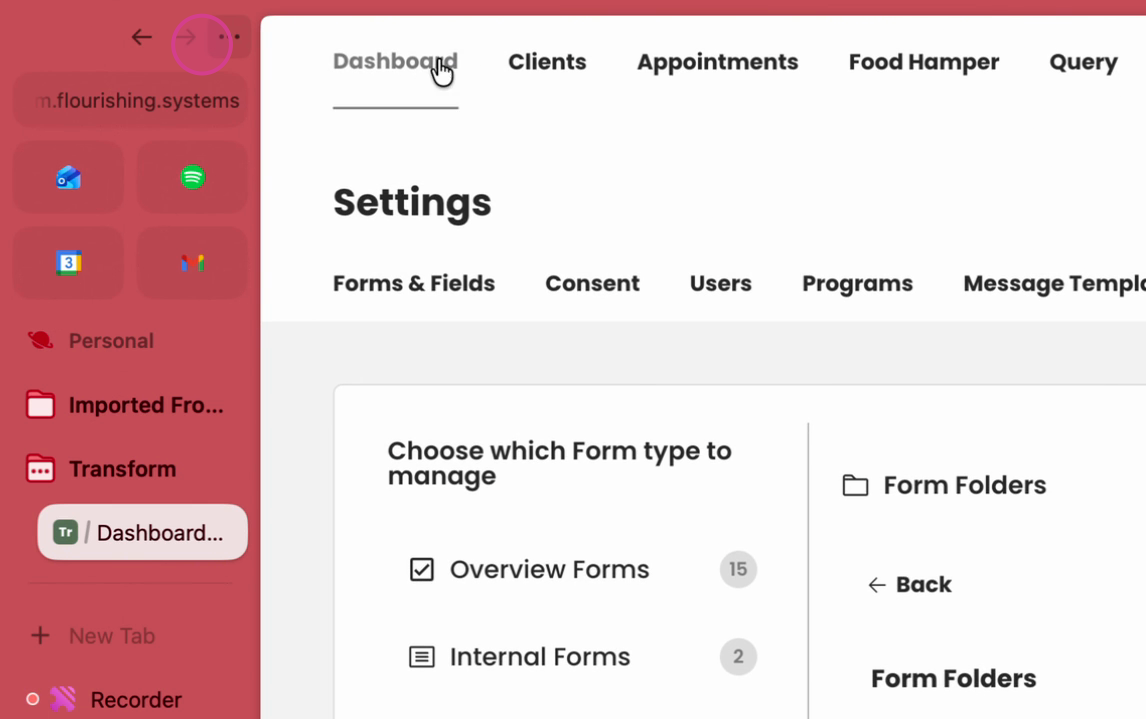
Step 17: Go to your client section.
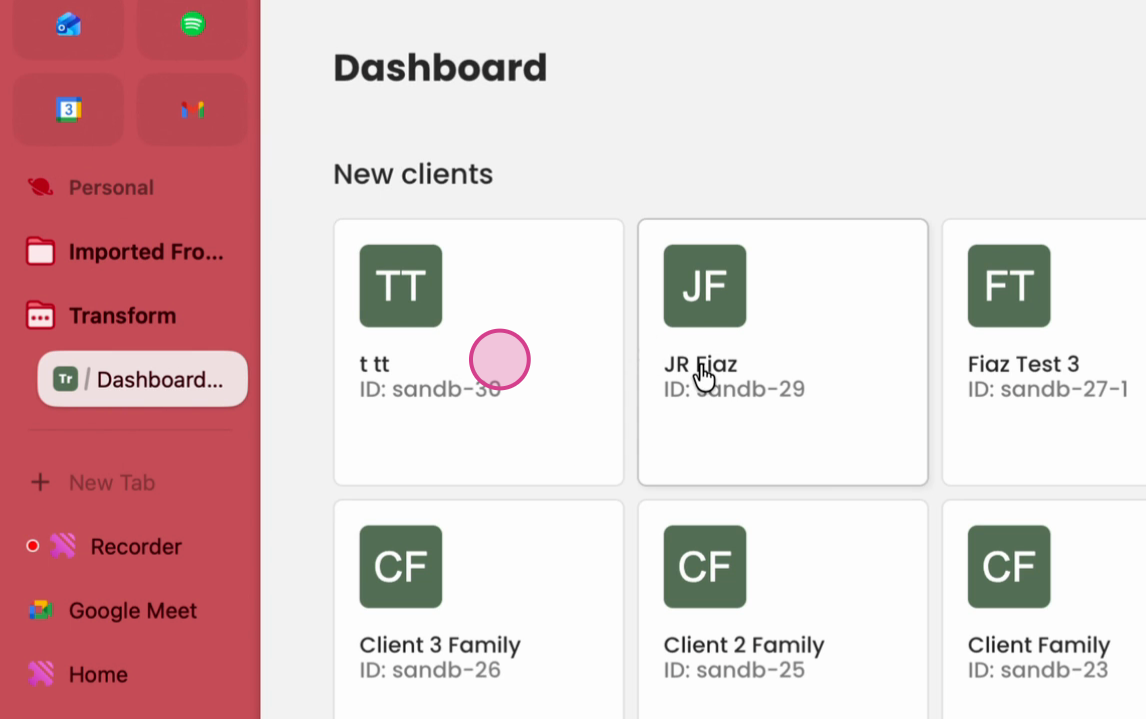
Step 18: You'll see the "Intake" folder you created with the connected forms.