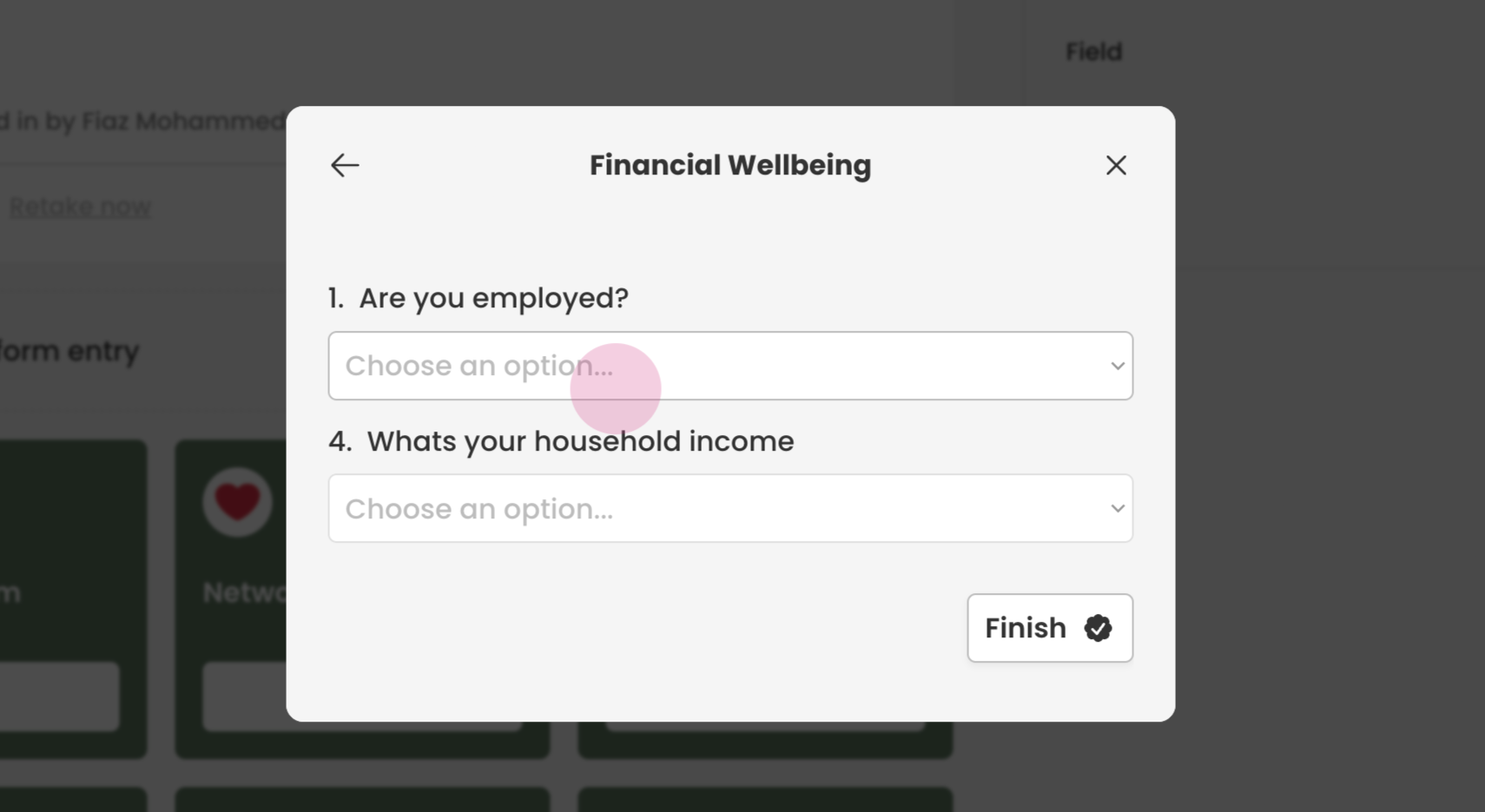
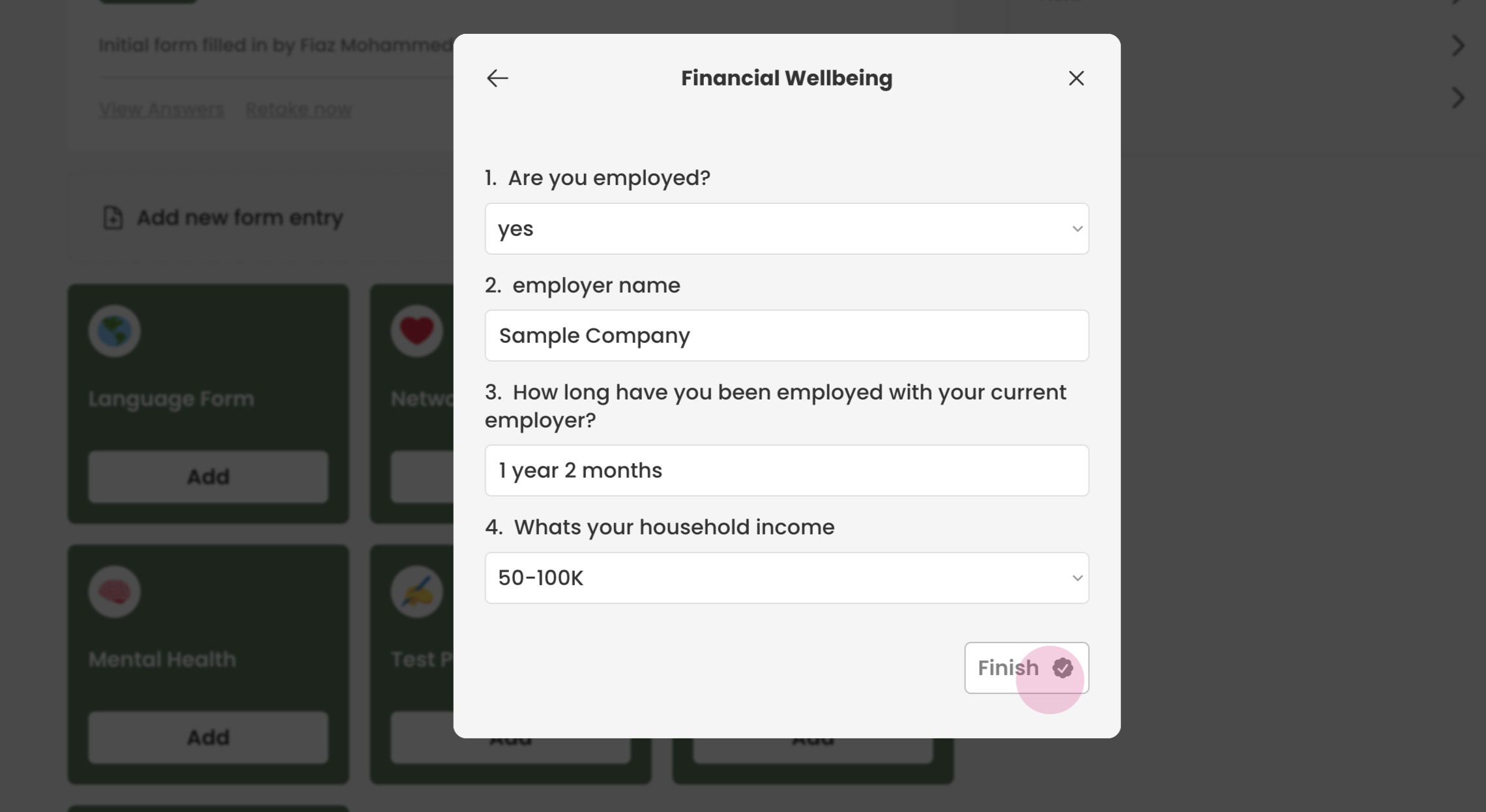
This guide demonstrates the process of setting up a form in Transform.
¶ Creating Questions
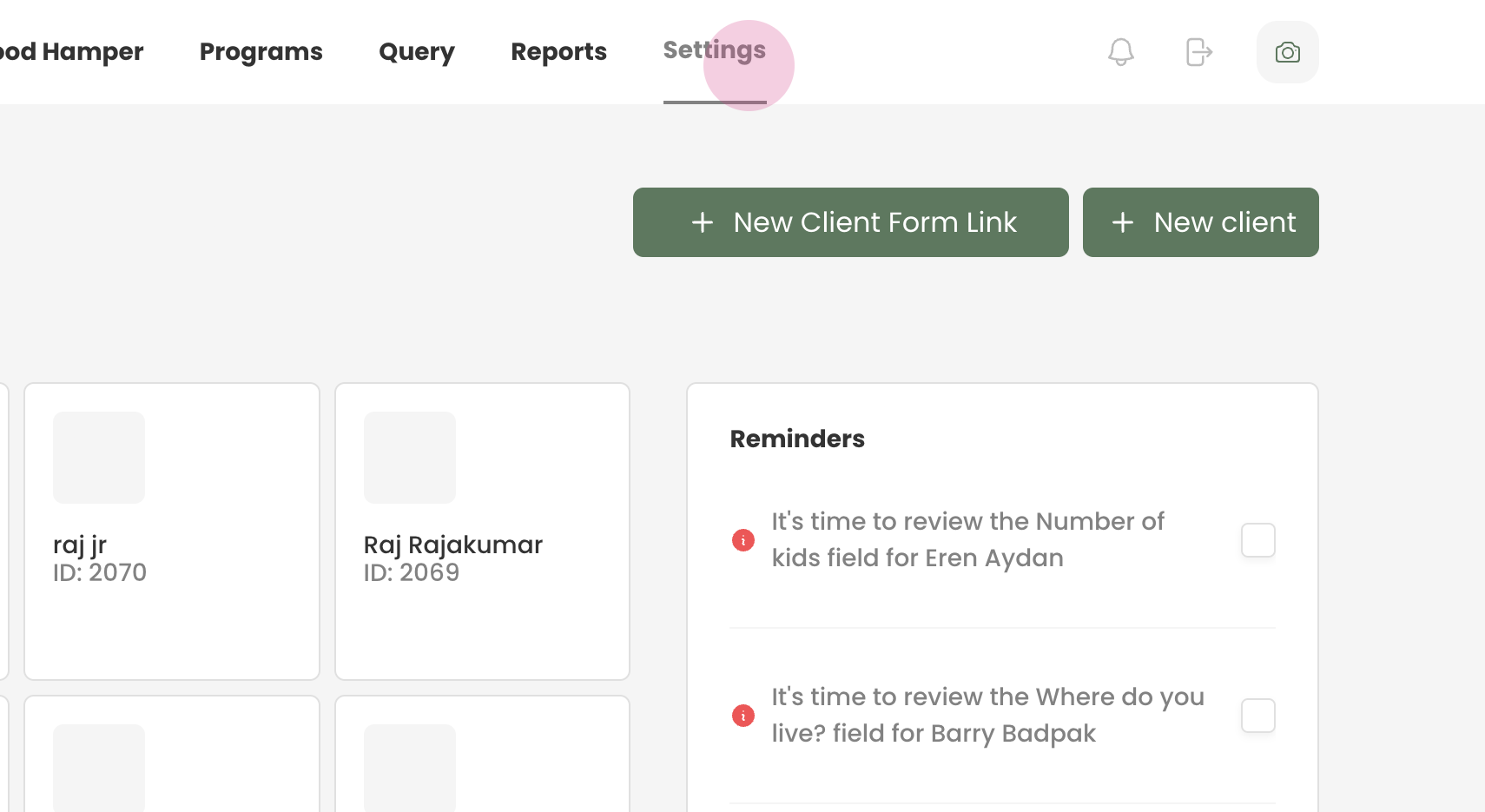
Step 1: Proceed to settings.
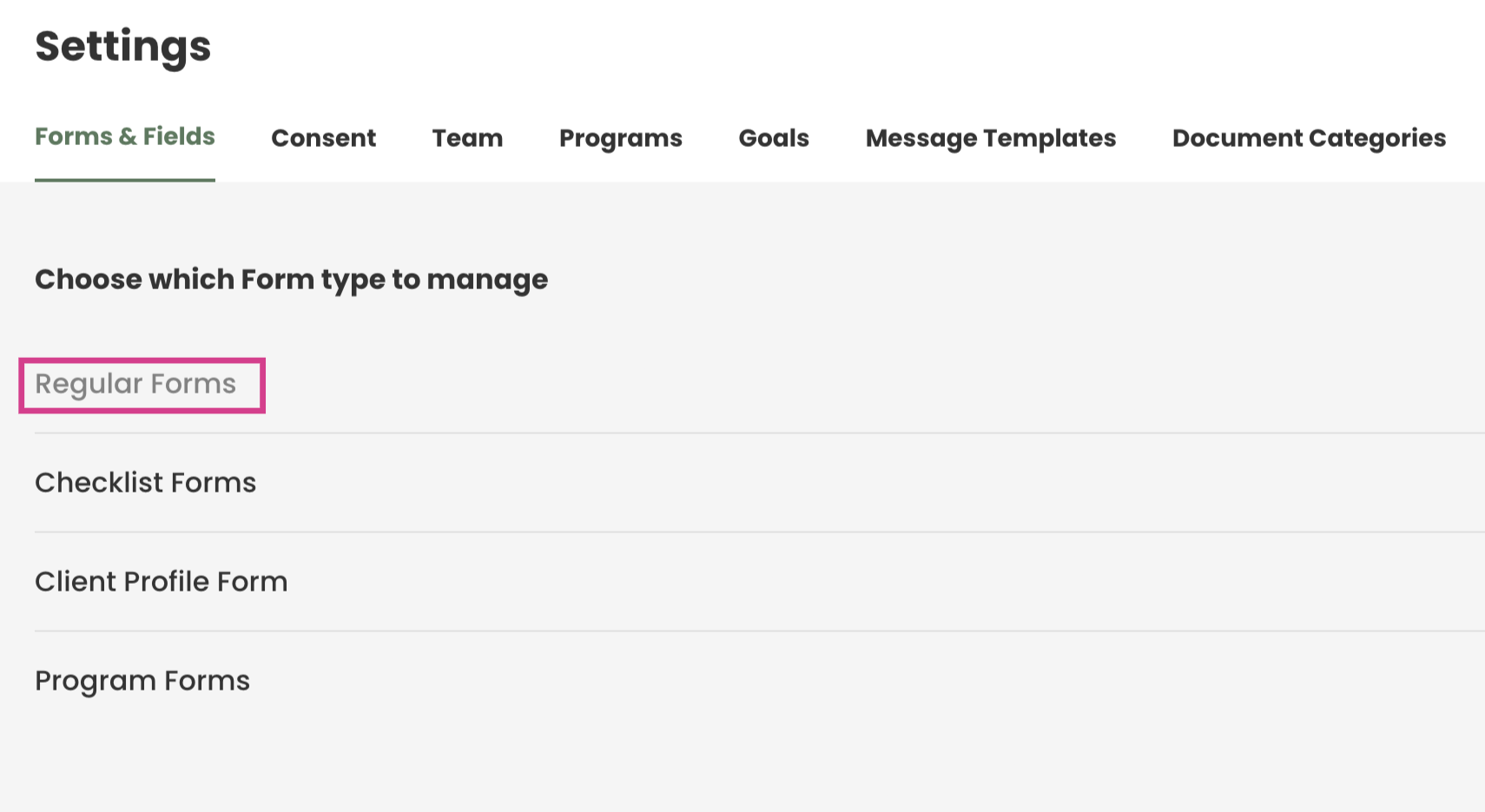
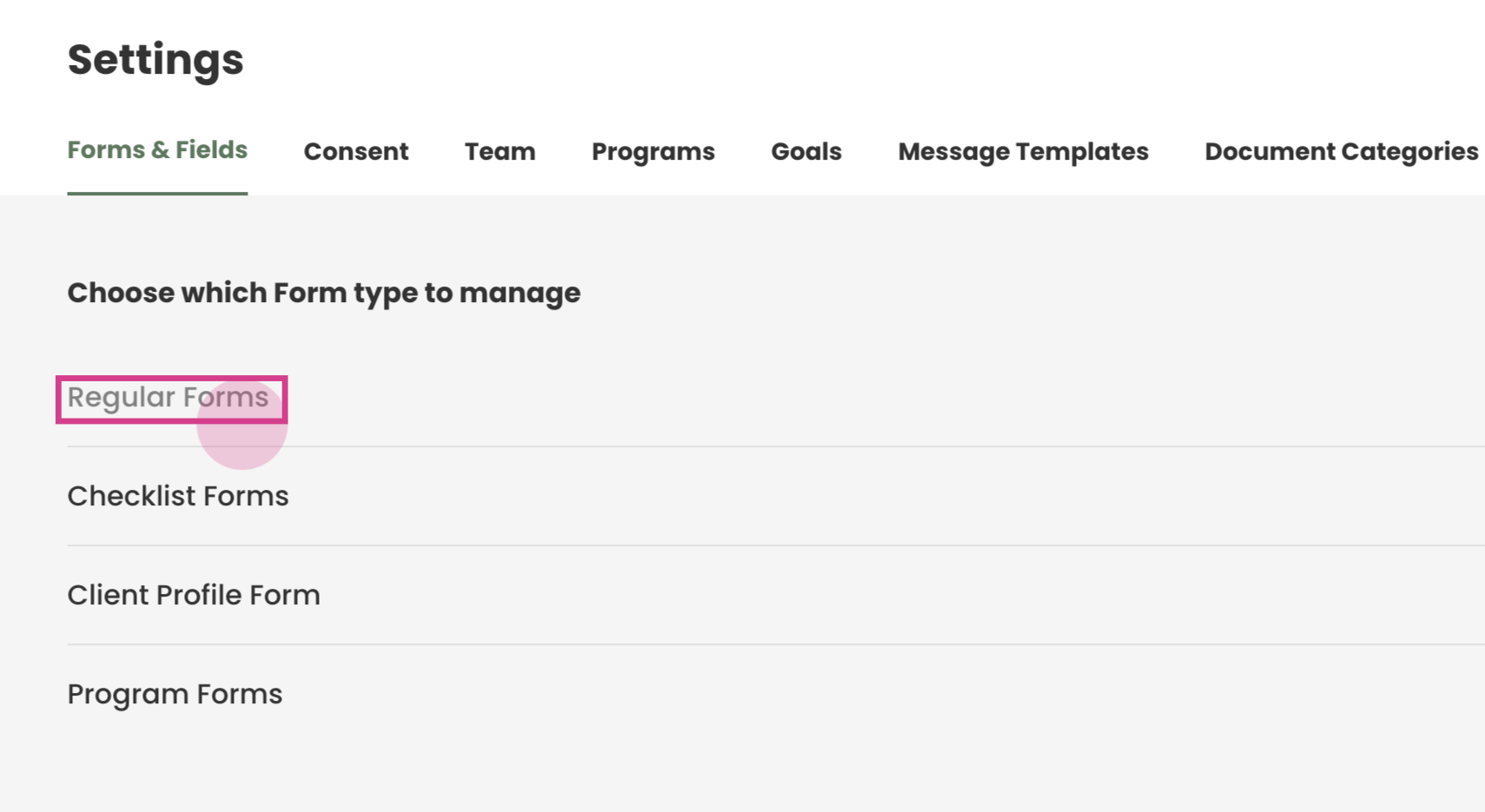
Step 2: Select Regular Forms.
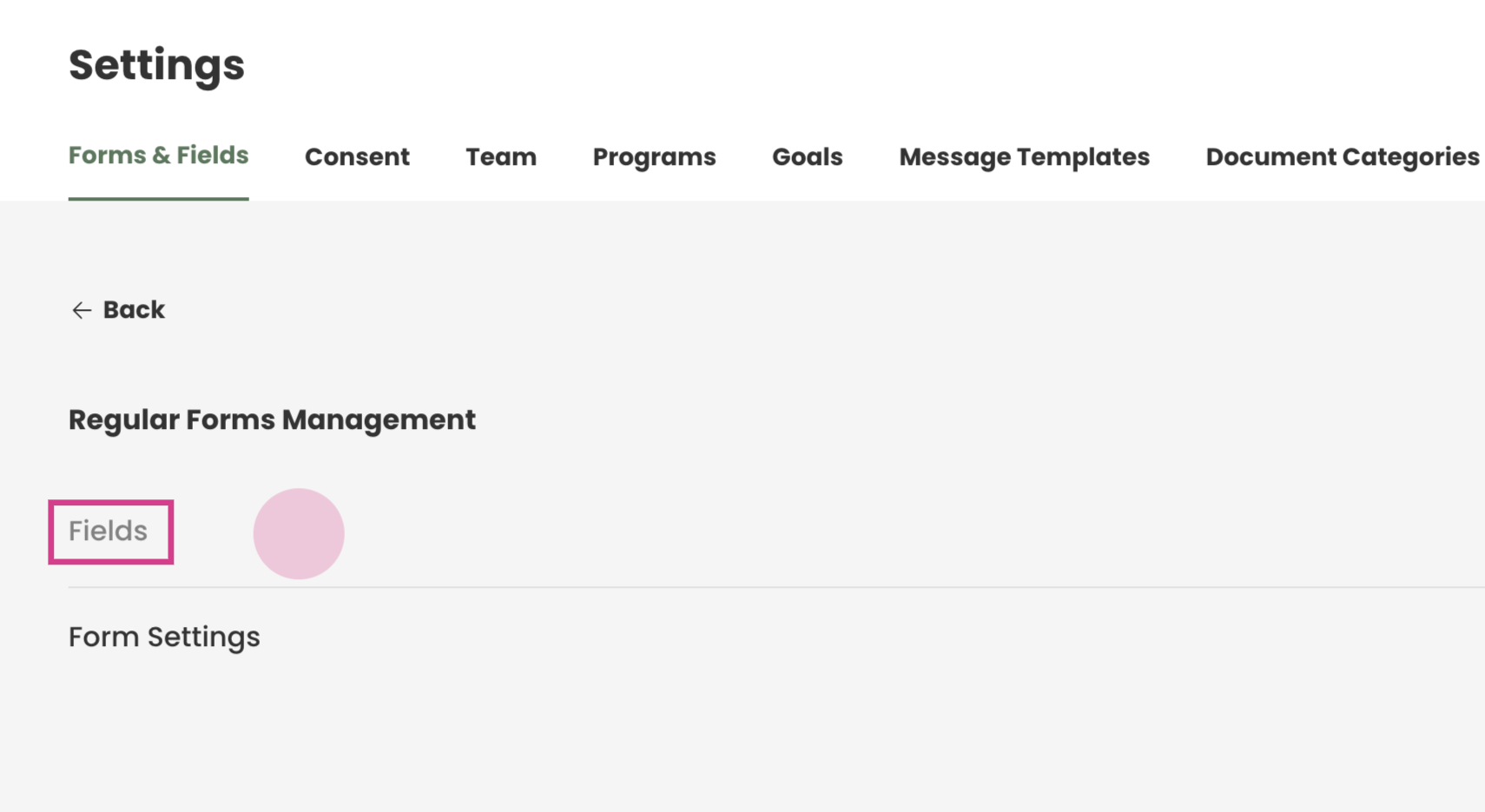
Step 3: Click on Fields.
This is where all the form questions are added. This example will create a financial well-being form with four questions.
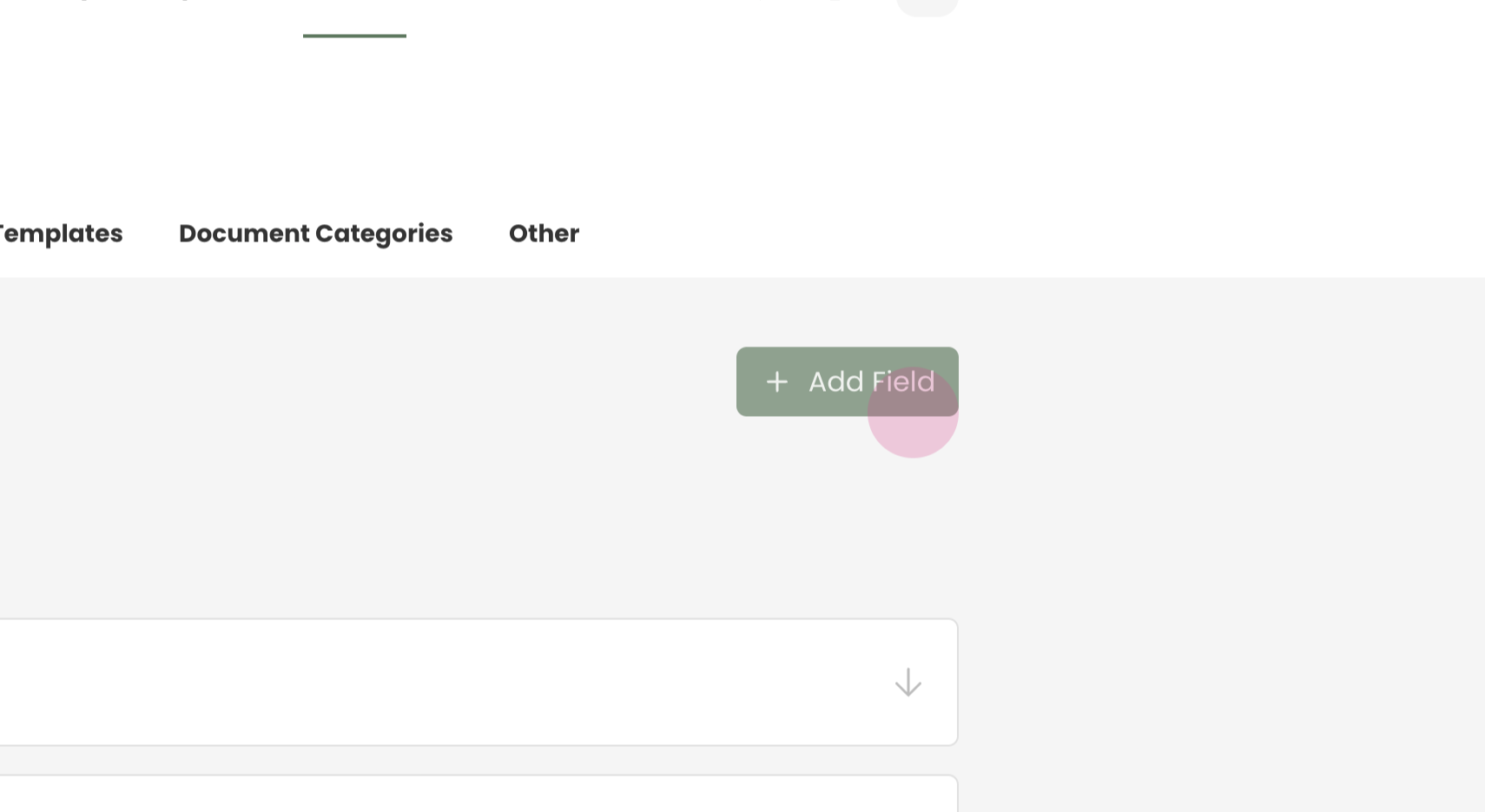
Step 4: Press Add Field.
Step 5:
Type the question in the provided NAME space.
For the type, this question will use Single Select since the answer will either be yes or no
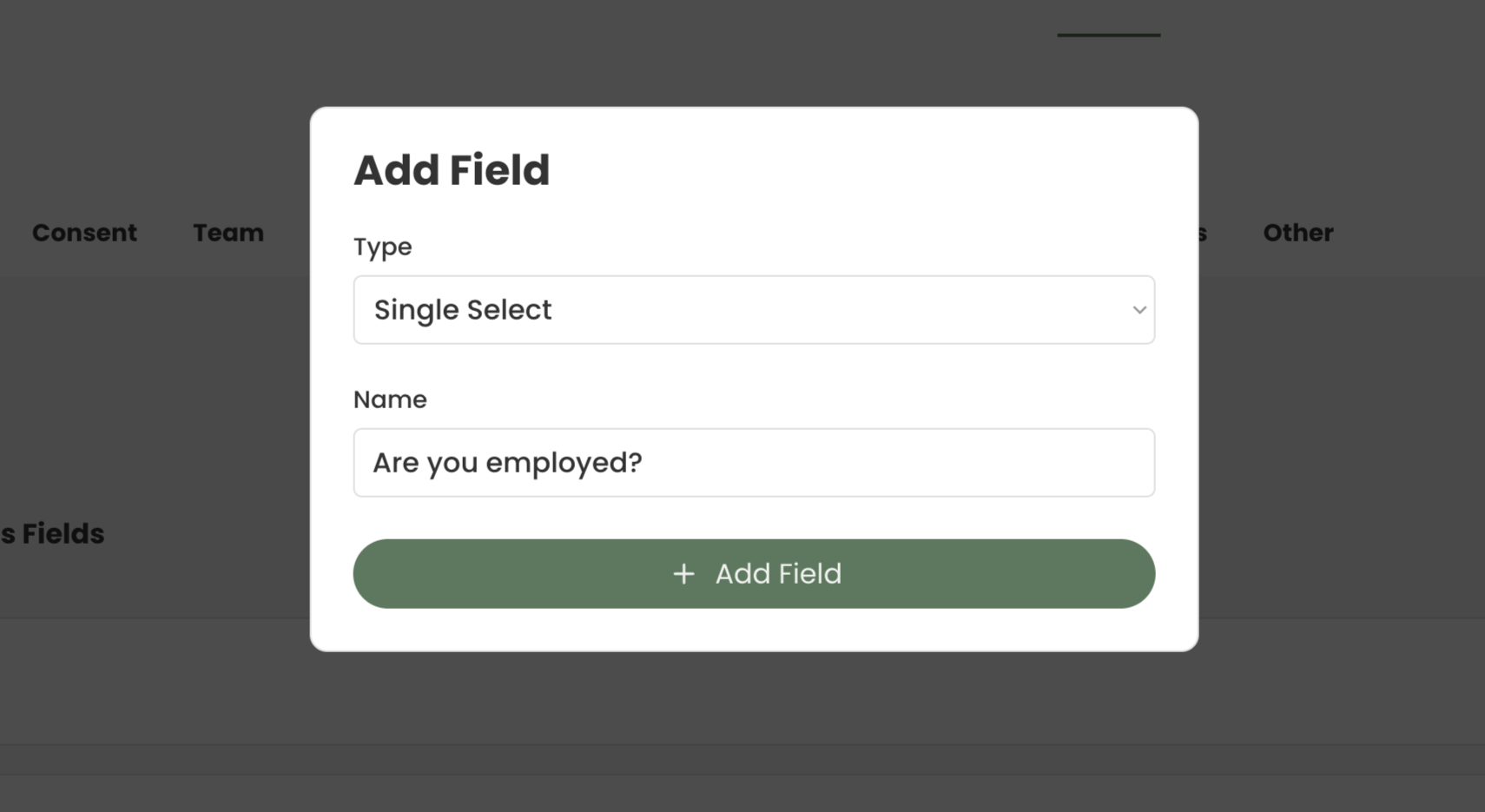
Press Add Field
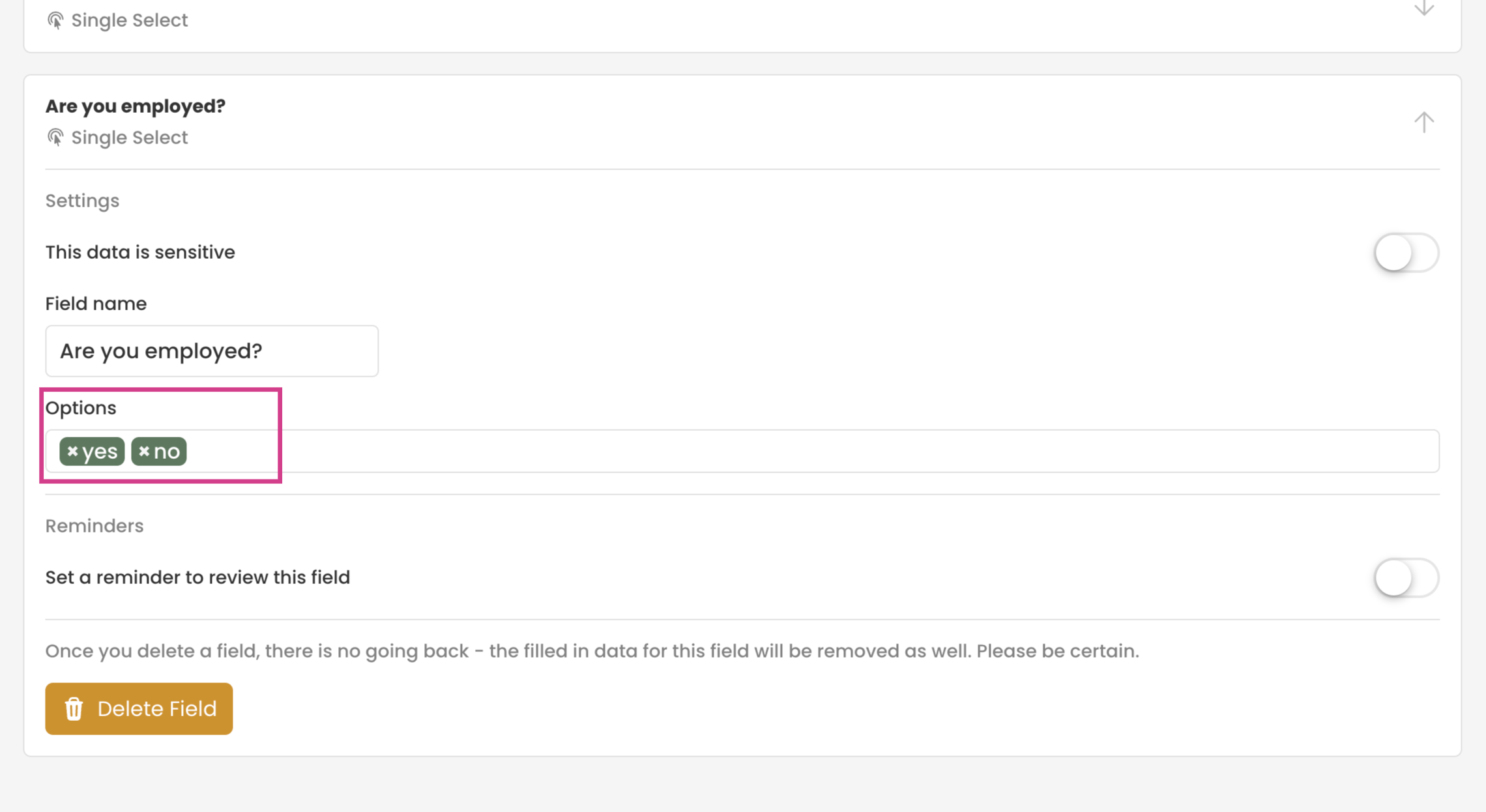
Step 6: Locate the newly added question. It will be at the bottom of the page.
Type the options "Yes" and "No", pressing enter after each to save them.
Step 7: Press Add Field again.
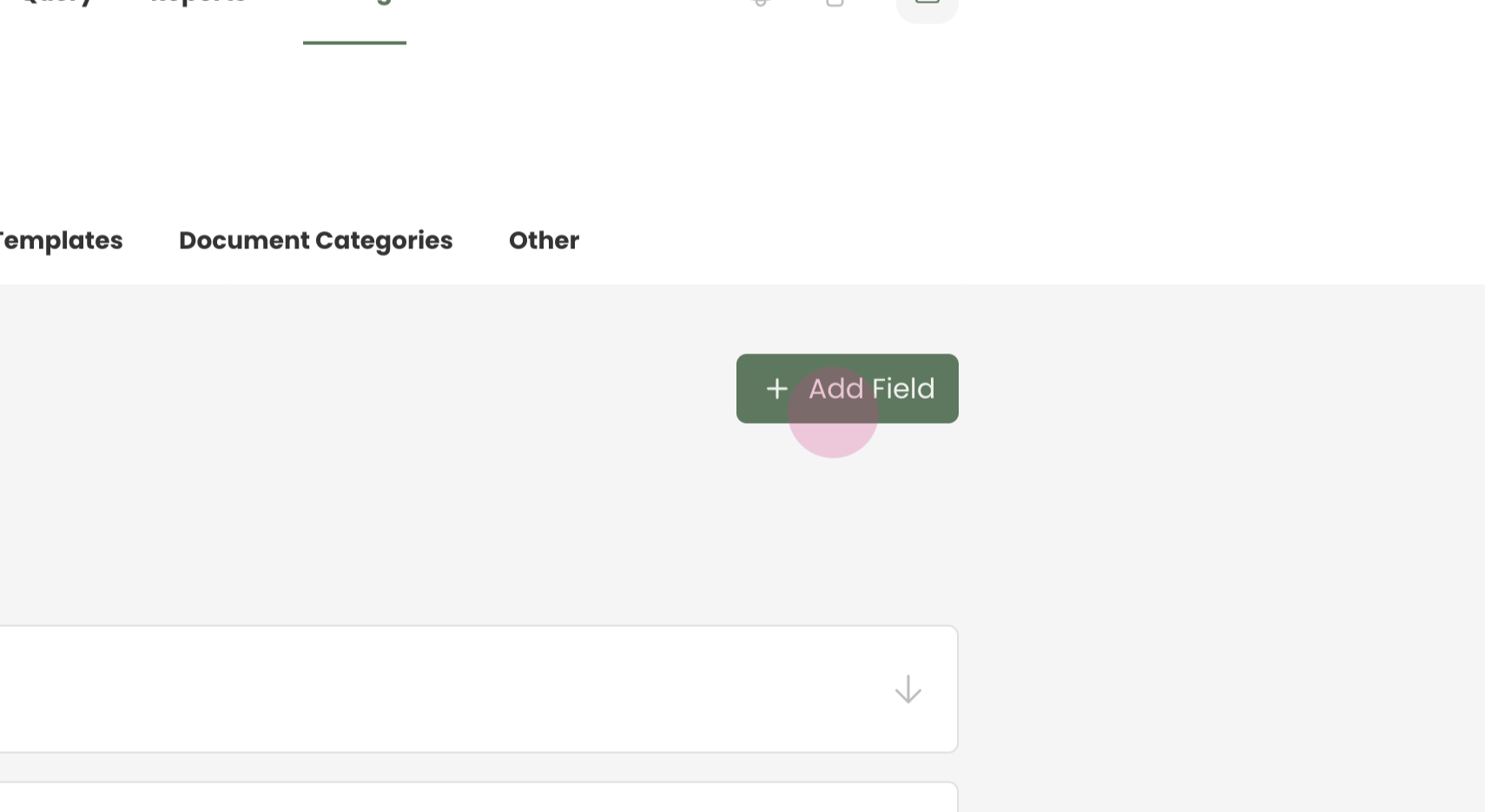
Step 8: Now were going to add some logic to the above question, if clients answer yes then I want to ask additional questions.
Were going to add the question Employers Name? if they responded yes
Press Add Field and type the questions and the type as Short Text
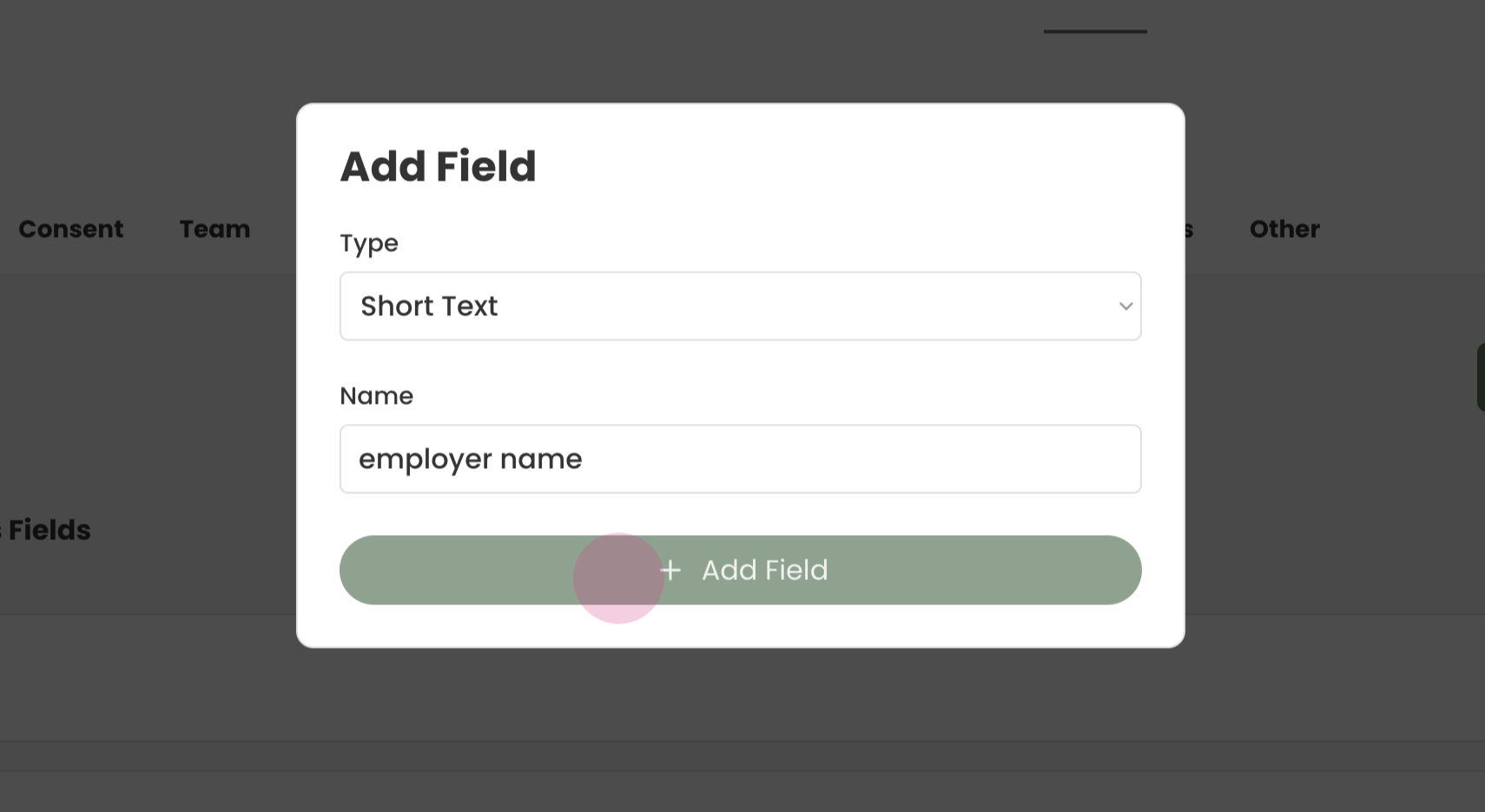
Step 9: The next question is "What's your household income?"
Press Add Field and type the questions and the type as Single Select since we will be adding some options
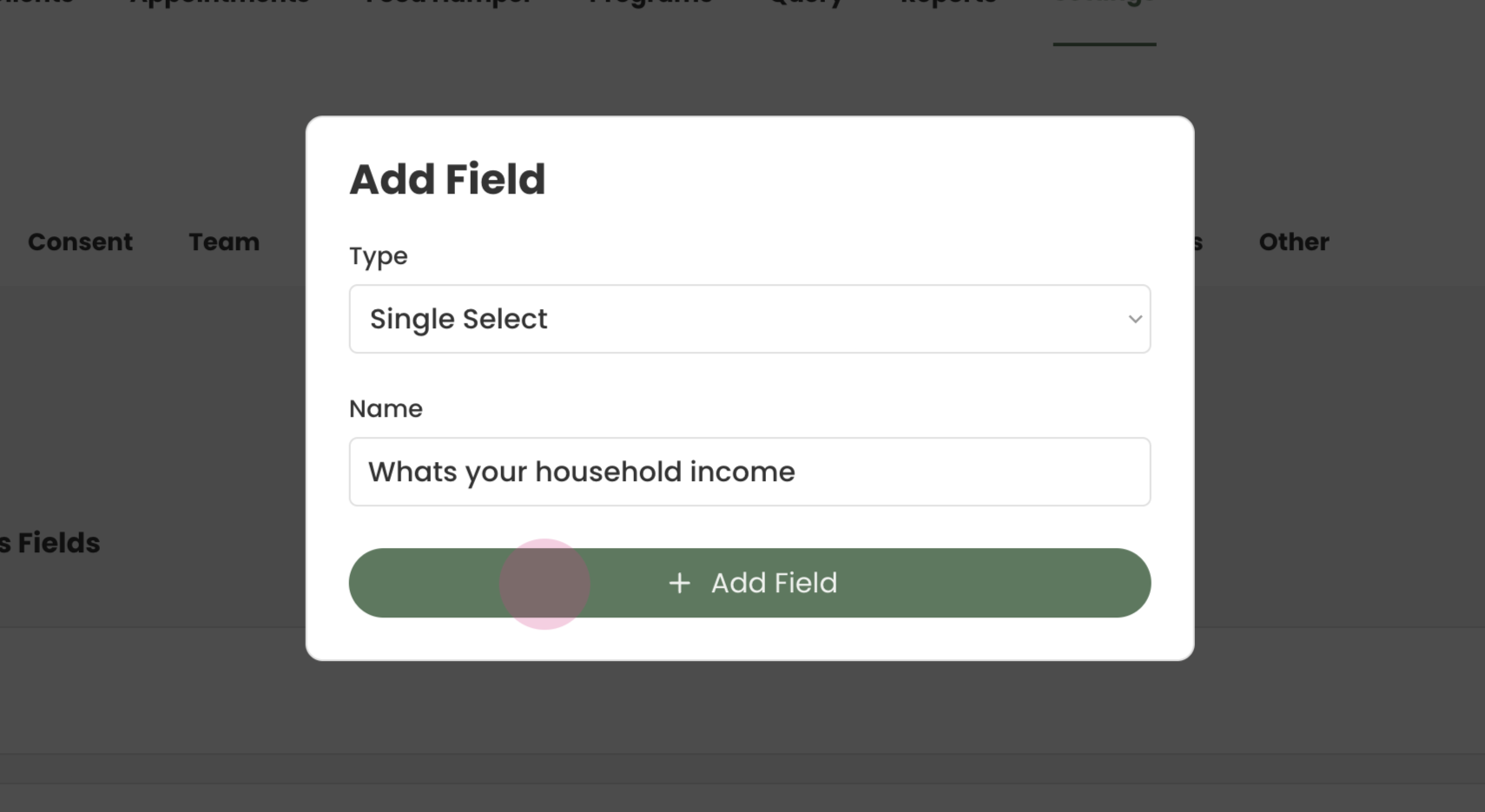
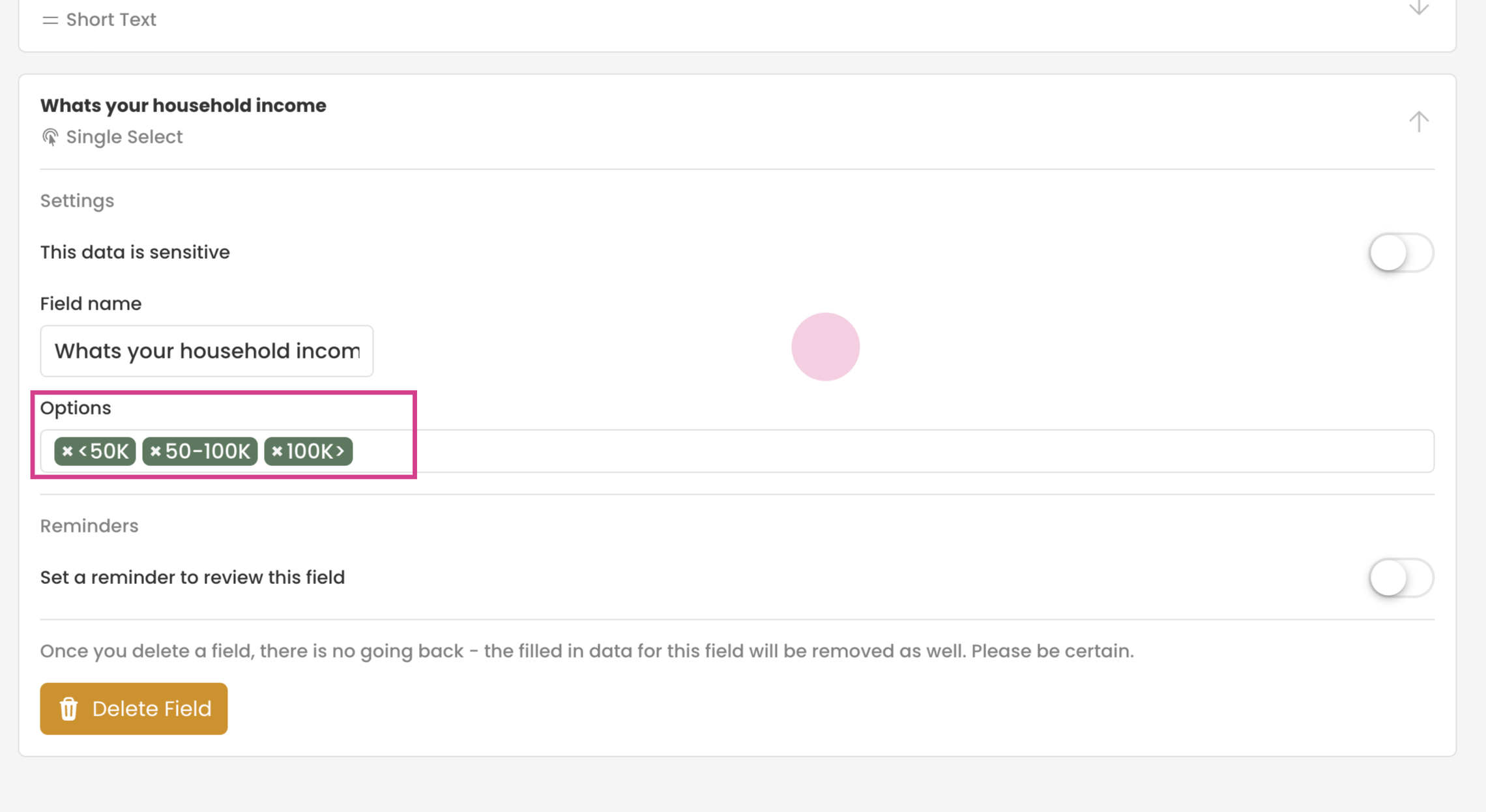
Step 10: Go to the bottom of the page and locate the question "What's your household income?".
These are the options for this question.
"Under 50K "
"50-100K"
"100K and above"
Step 11: The final question to be added is "How long have you been employed with your current employer?".
This will be a short text where the client can specify the duration in months or years.
for exmaple and answer can be "1 year, 2 months"
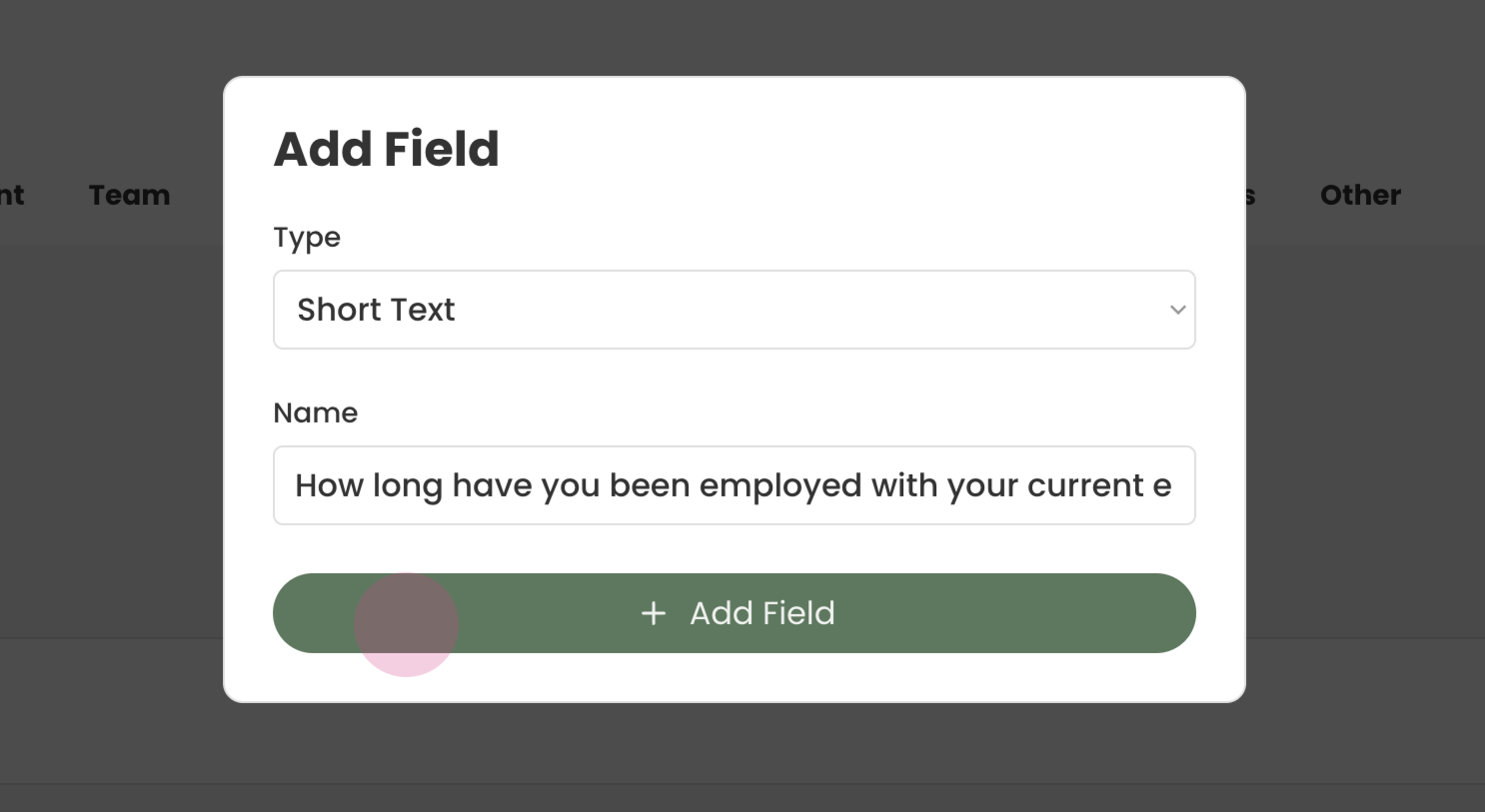
Press Add Field
¶ Creating the Form
Step 1: Return to Regular Forms.
Press Forms & Field
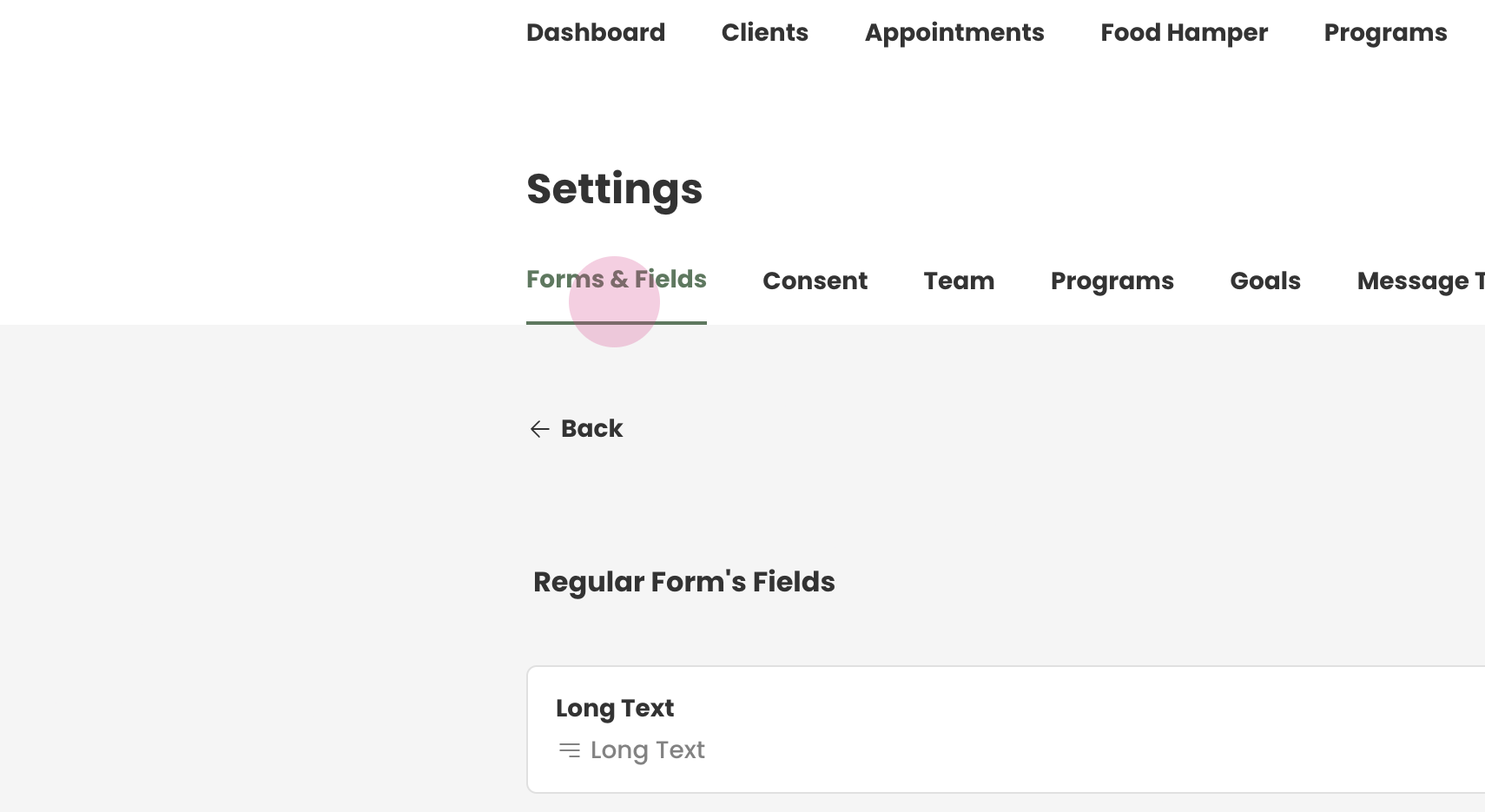
Step 2: Go to Regular Form Settings.
Step 3: Press Form Settings
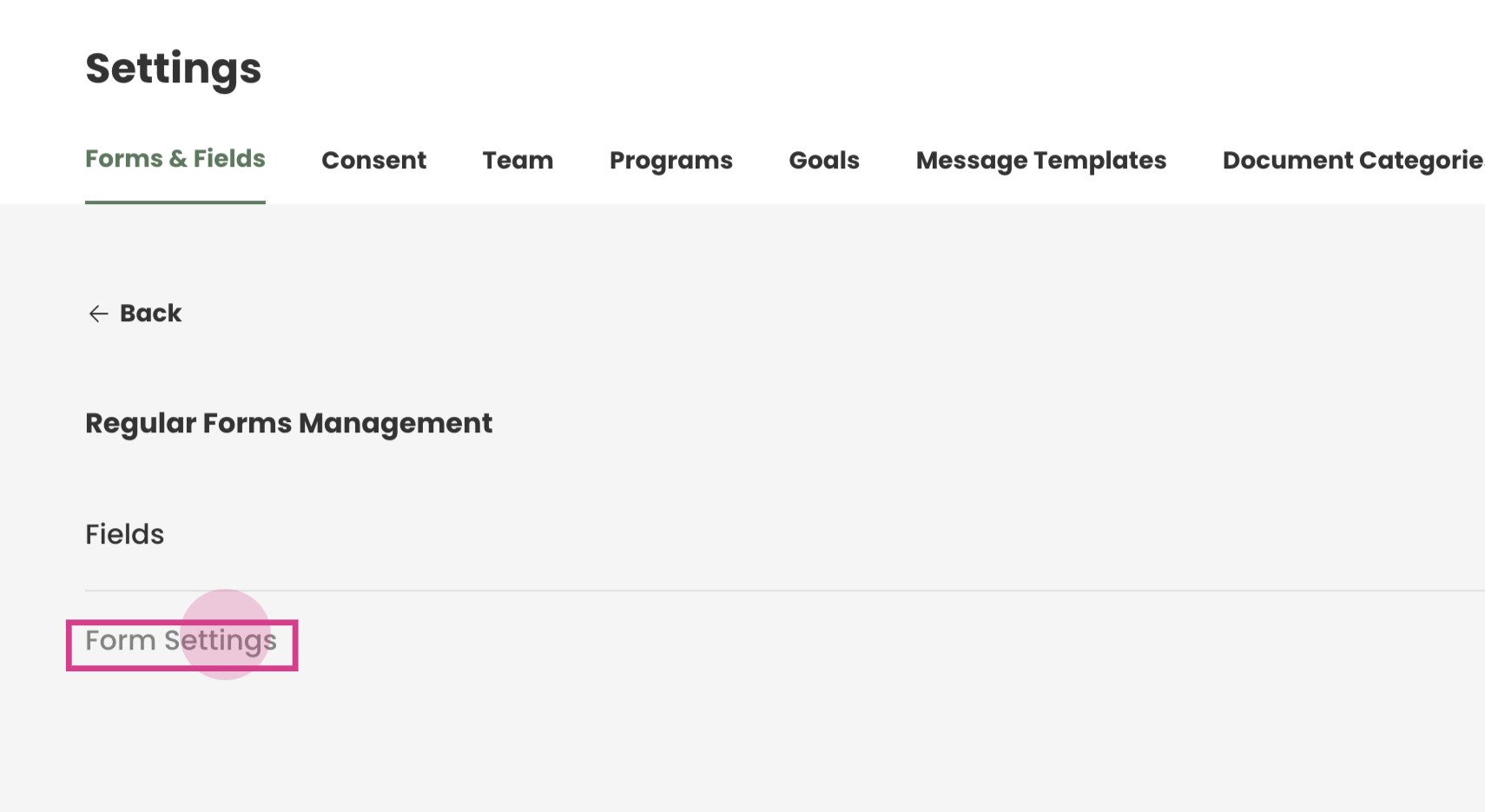
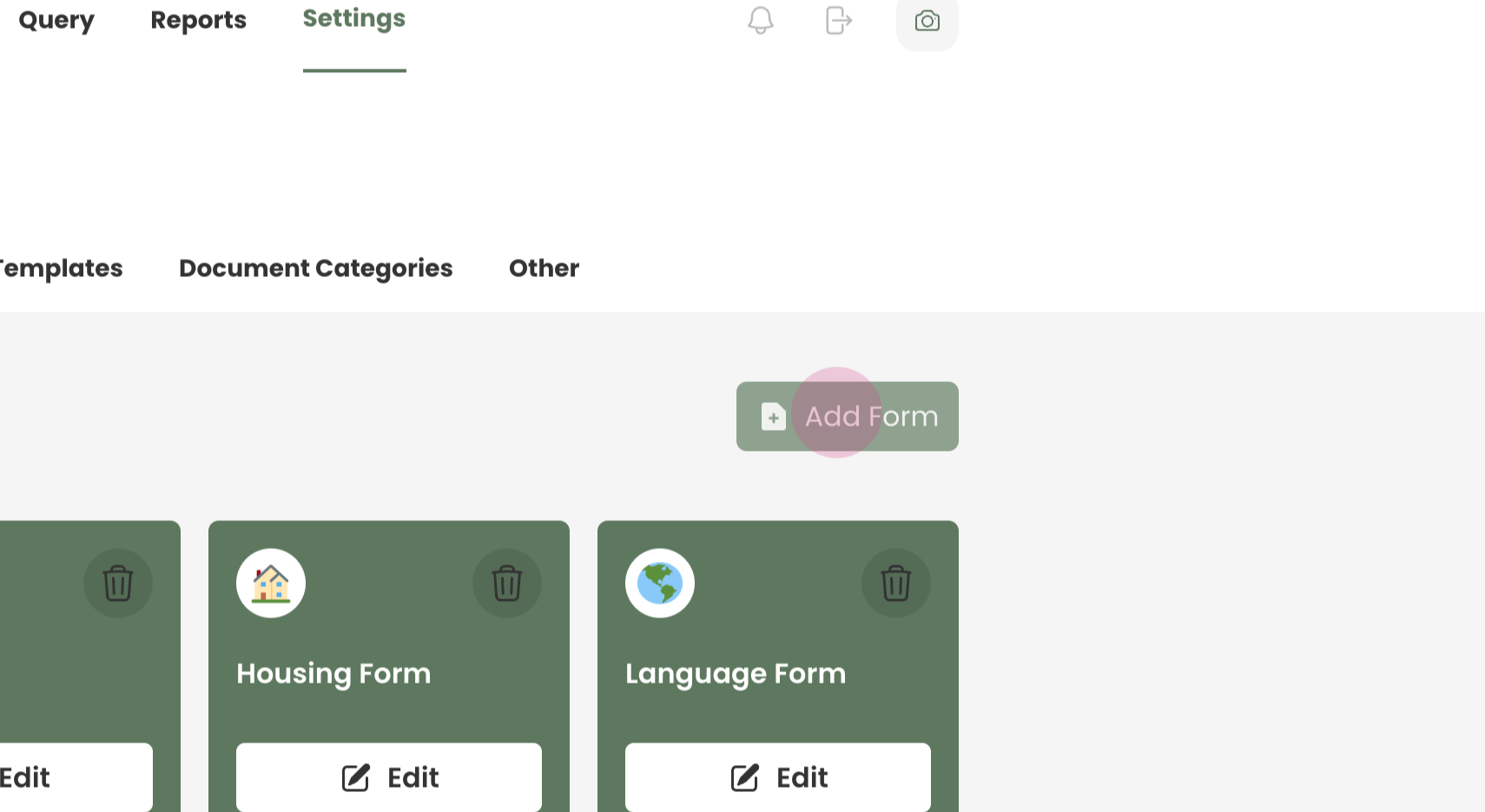
Press Add Form
Step 4:
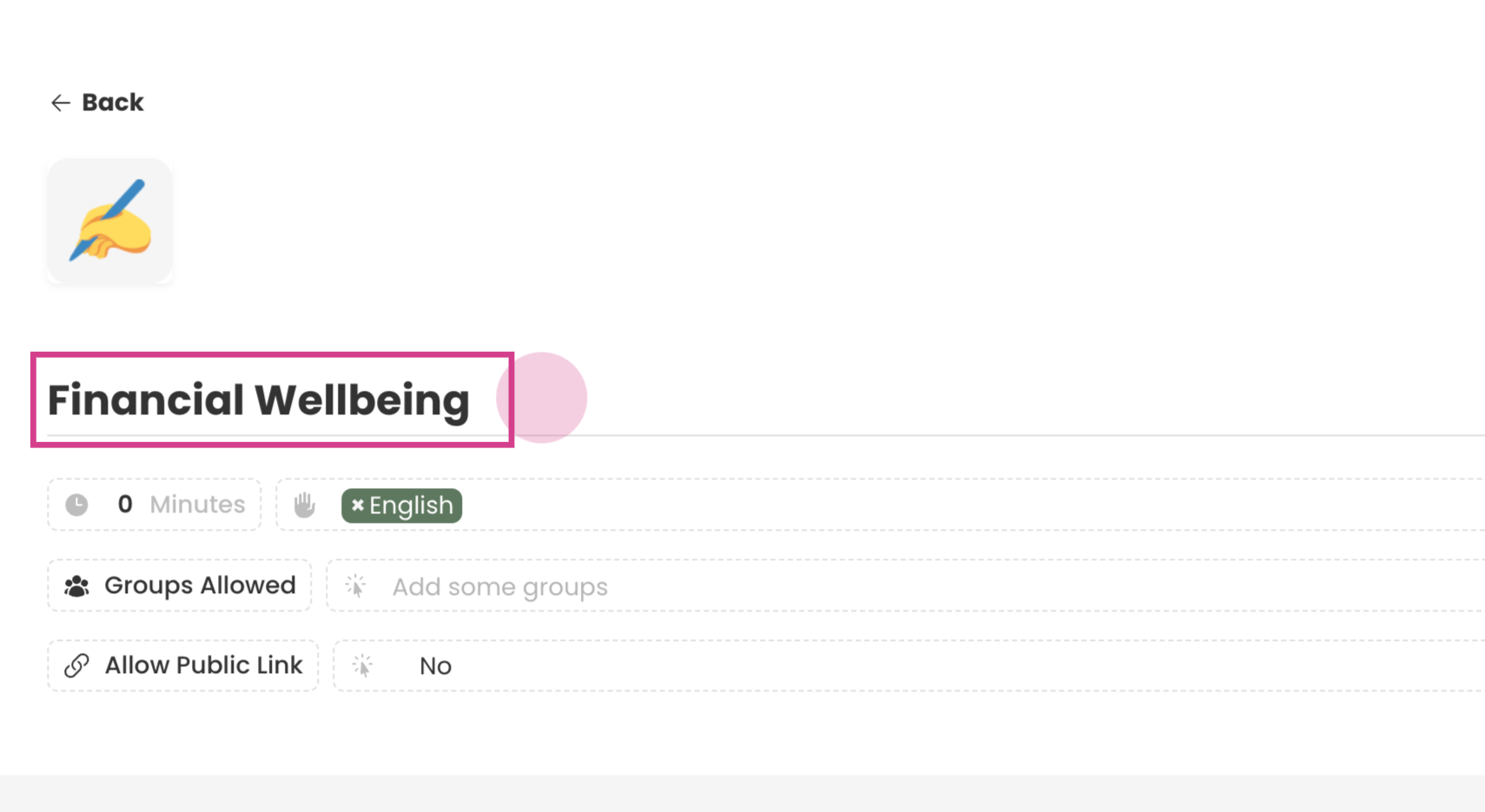
In this example we will be creating a "Financial Wellbeing" form
Start by creating a title as Financial Wellbeing
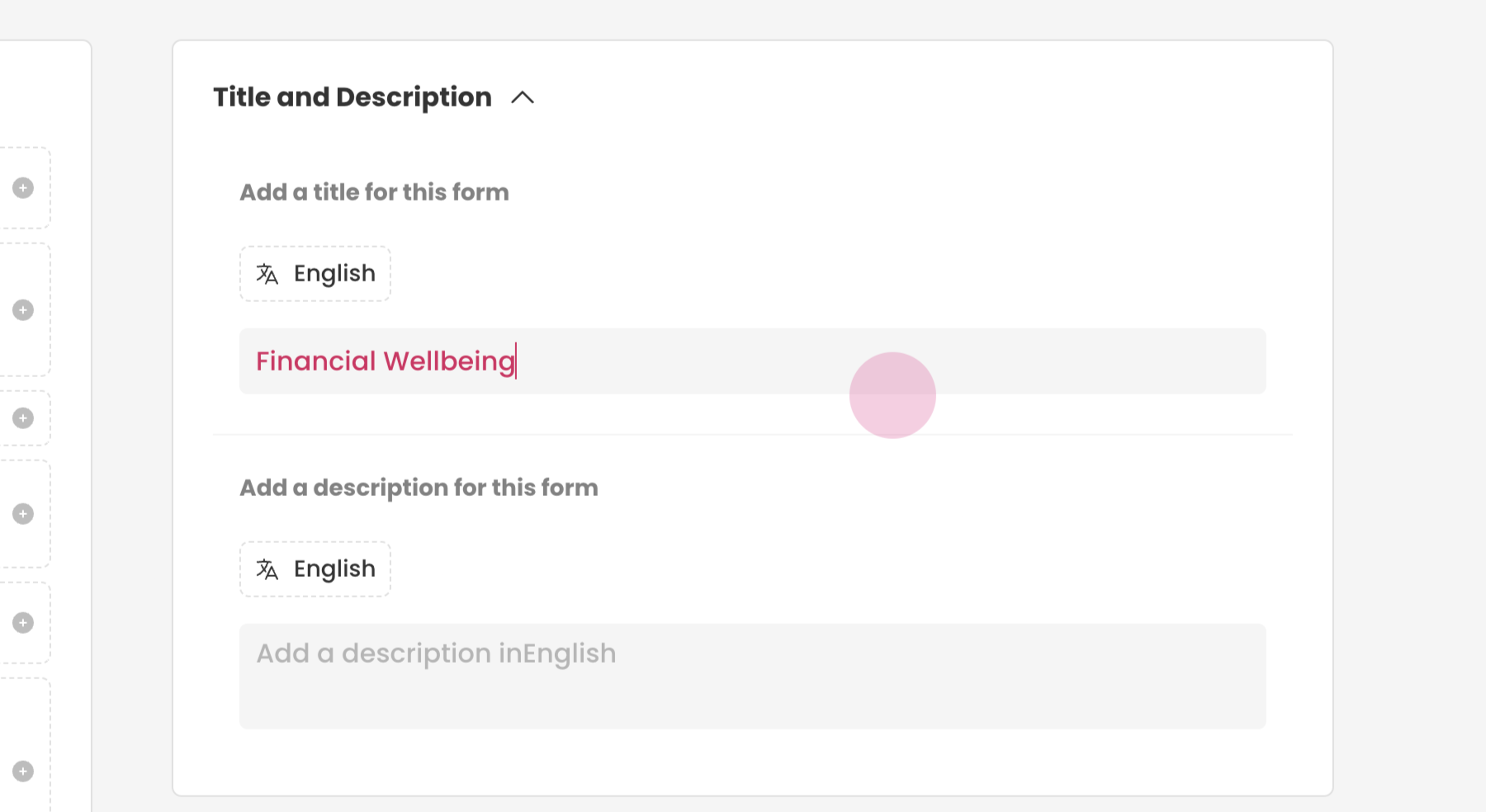
Step 5: Add Title and Description as needed
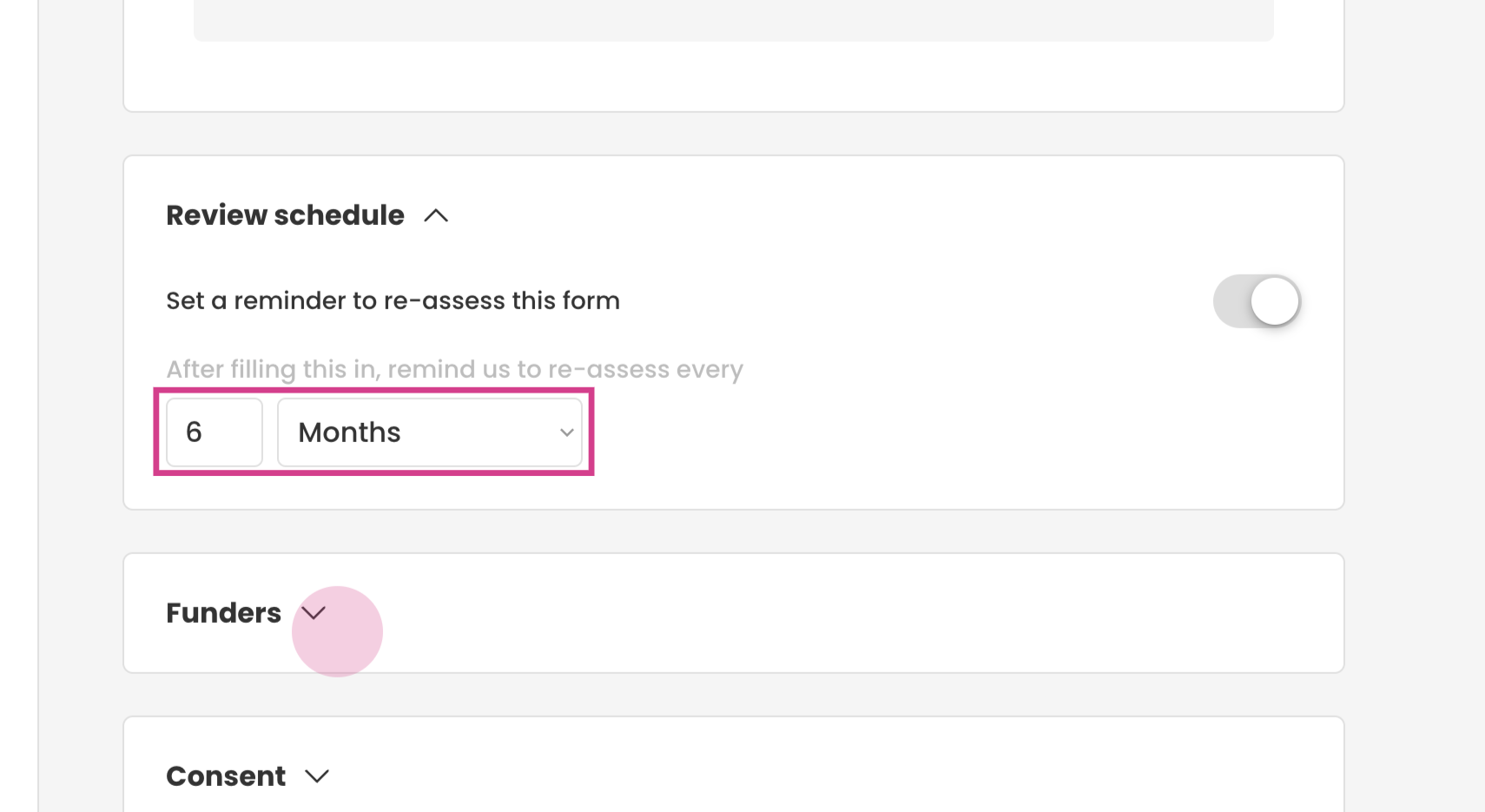
Step 6: Set a review schedule.
For example if the form needs to be reviewed every six months, enter "6" and select "Months". Other options include weeks, quarters, or years.
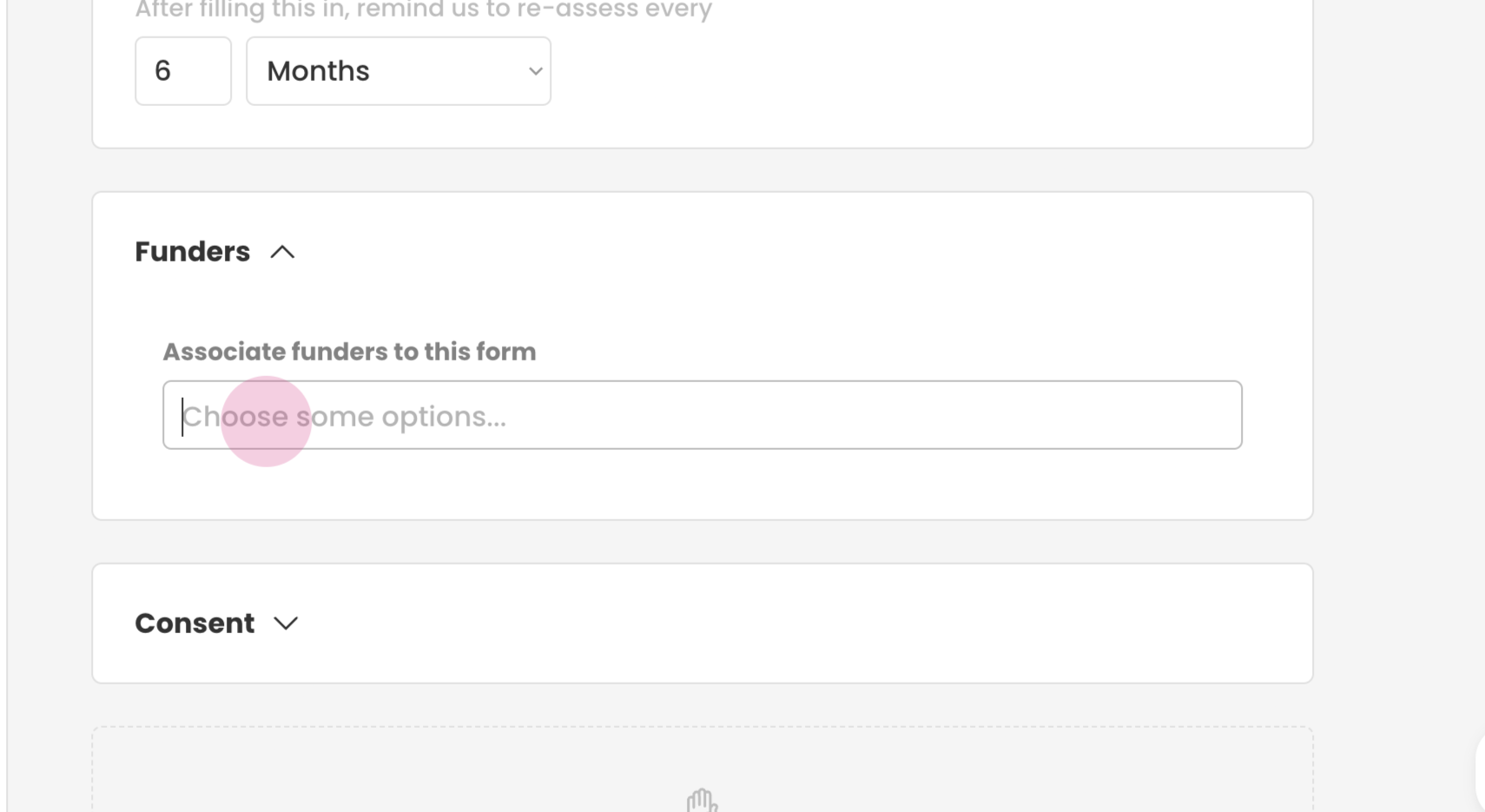
Step 7 : If a specific funder needs reporting on this form, add that funder in the provided space to help with reporting.
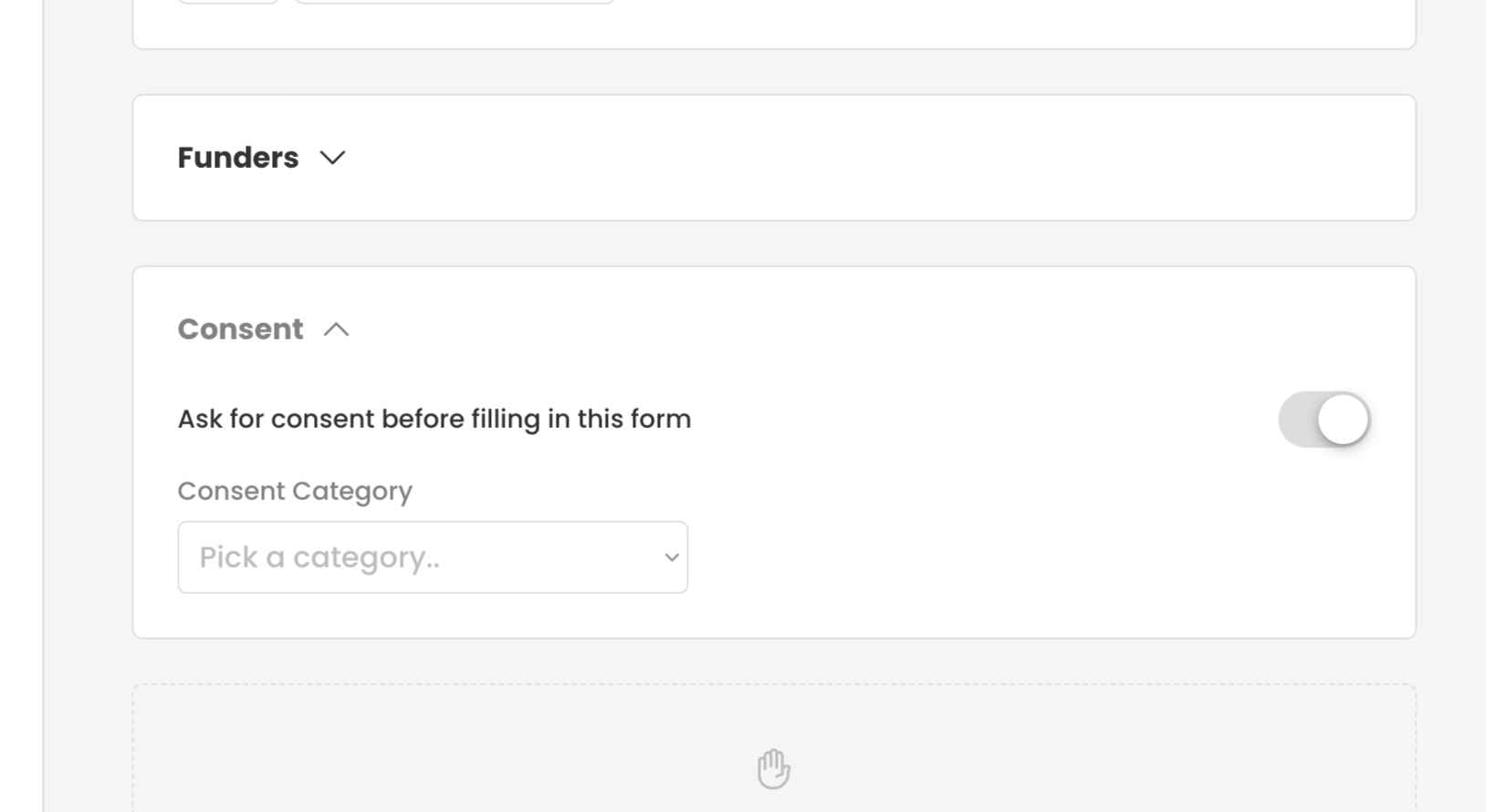
Step 8: If consent is required before starting the form with the client, select the consent category. The consent will be added at the beginning of the form.
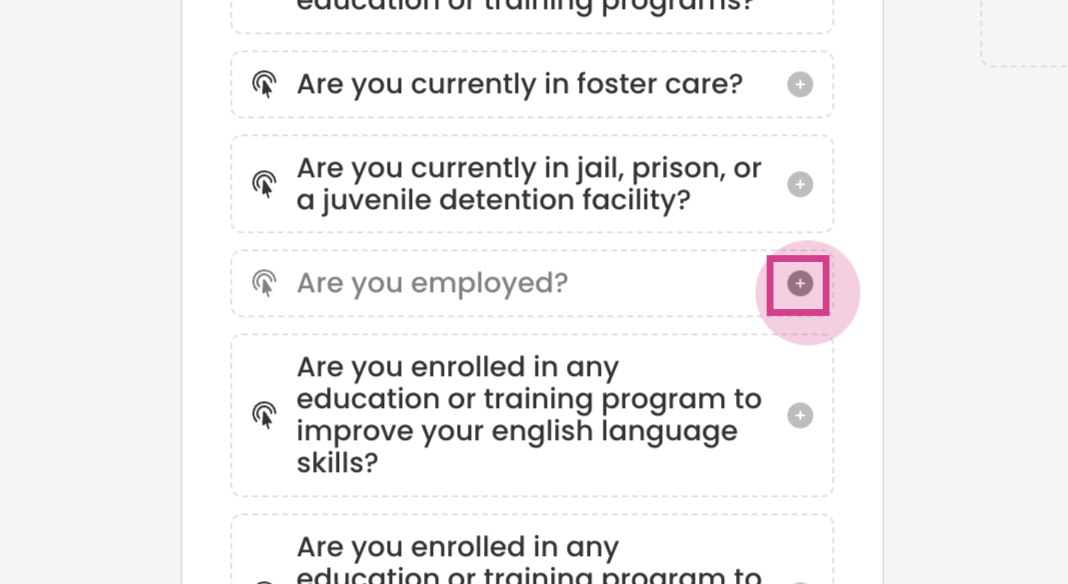
Step 9: Add the first question, "Are you employed?".
Find it on the left and press the plus icon to add it.
Step 10: You will see the question is now added on the right side.
Copy the question and paste it in the provided space.
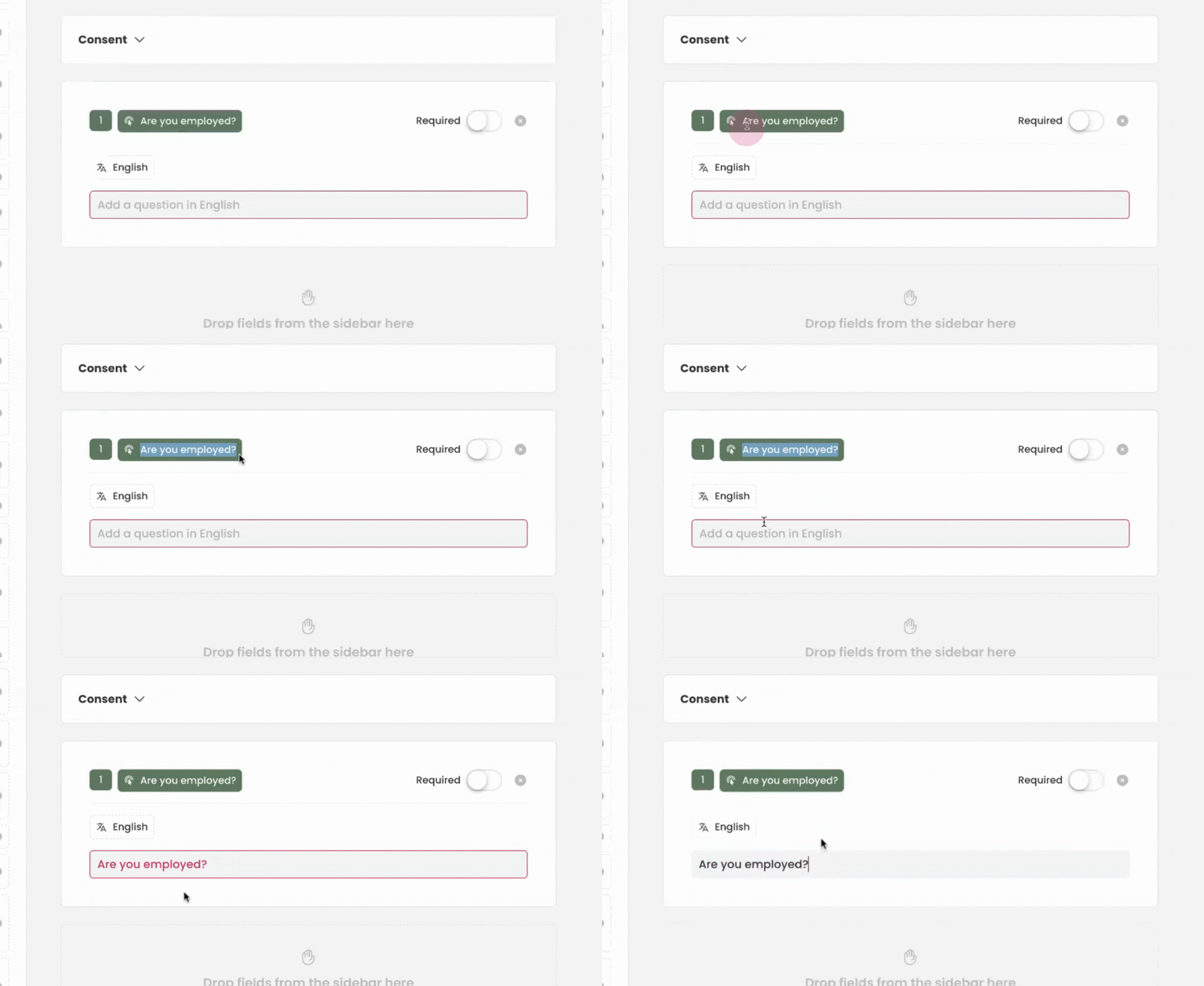
If necessary, reformat the question. This is what will be shown on the case workers screen.
Step 11: Add the next questions, "Employer Name" and "How long have you been employed?".
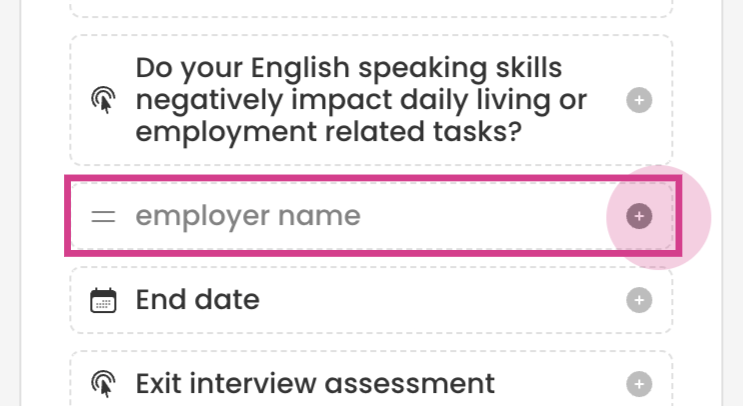
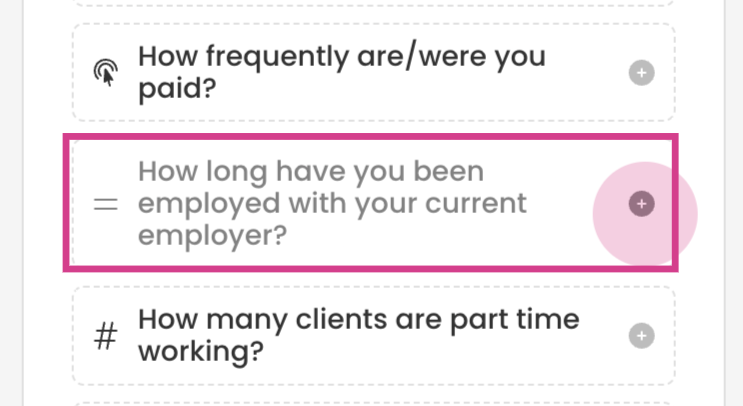
Step 12: Copy and paste the titles of these questions into the provided spaces.
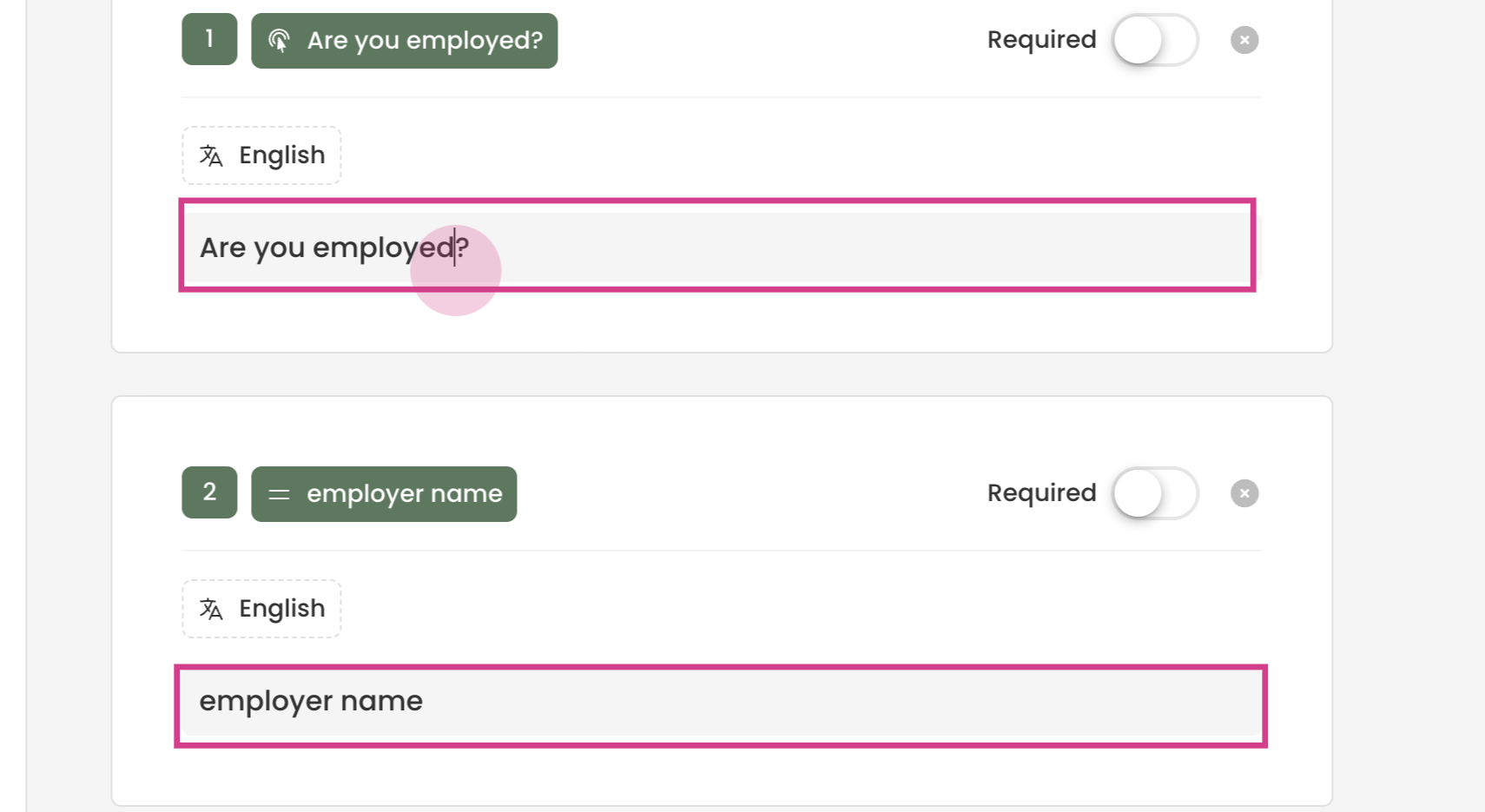
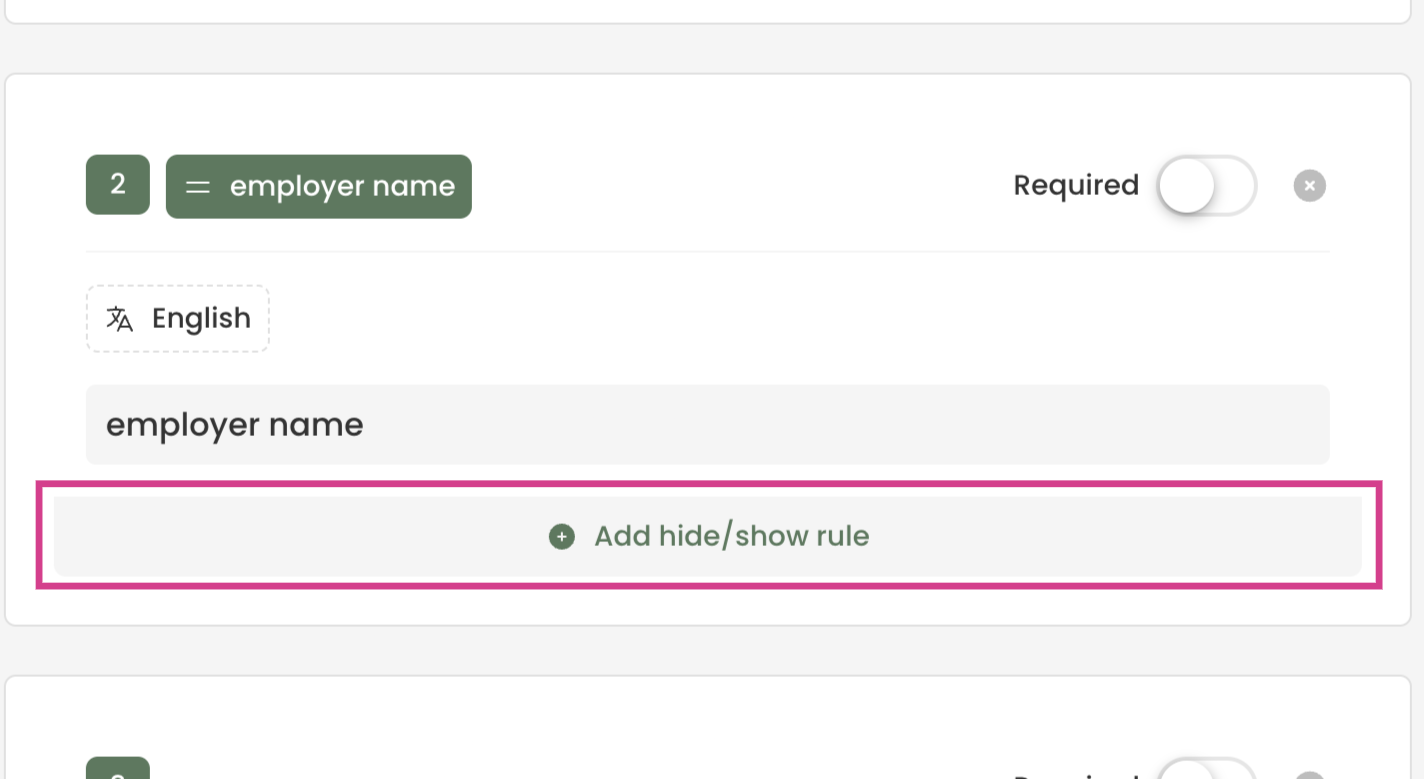
Step 13: Add logic to these questions.
If the answer to "Are you employed?" is "Yes", these questions will be shown.
To do this press, "add hide/show rule".
Show the field "Are you employed?" and set it to equal "Yes".
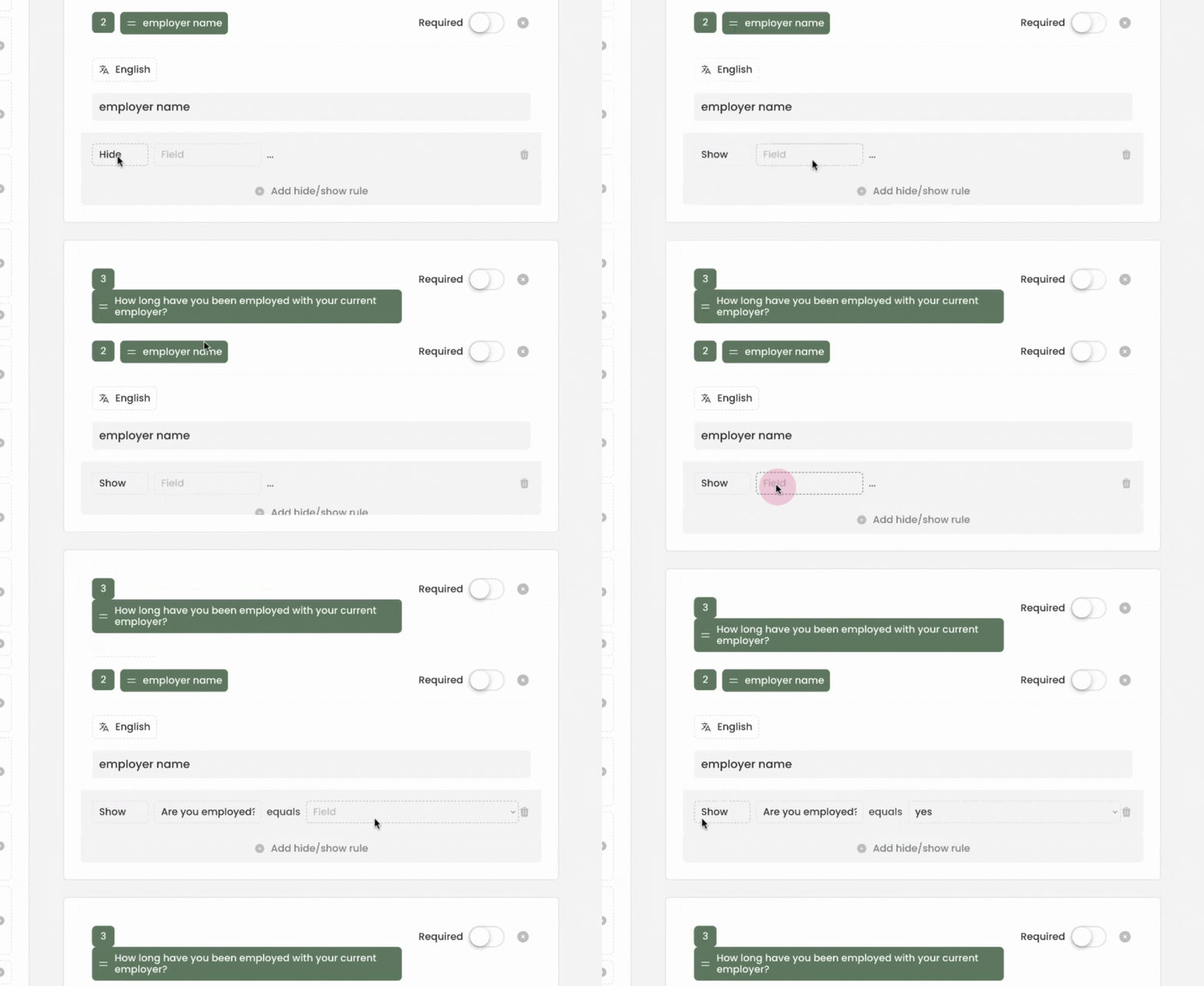
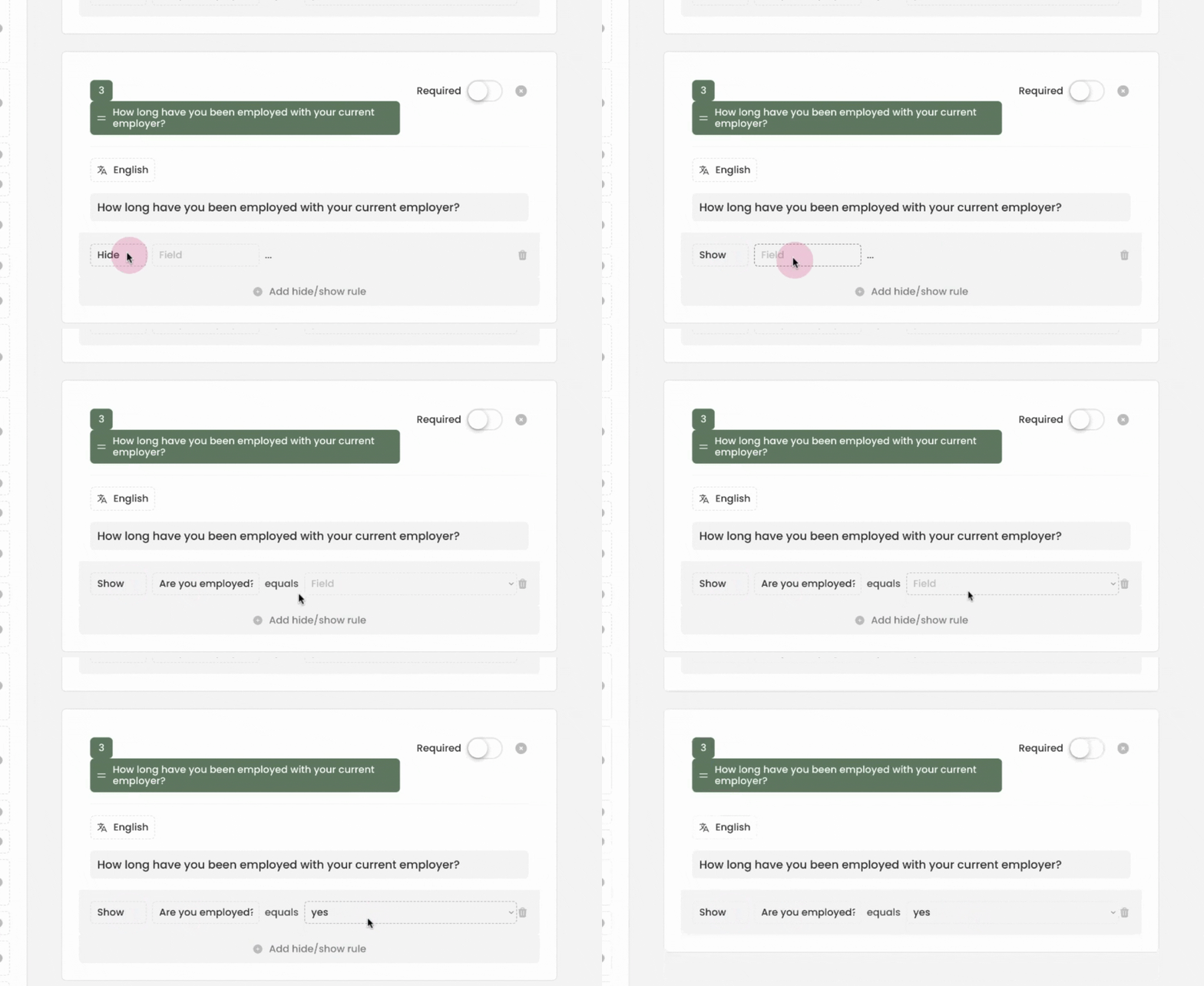
Step 14: Apply the same rules to the other questions.
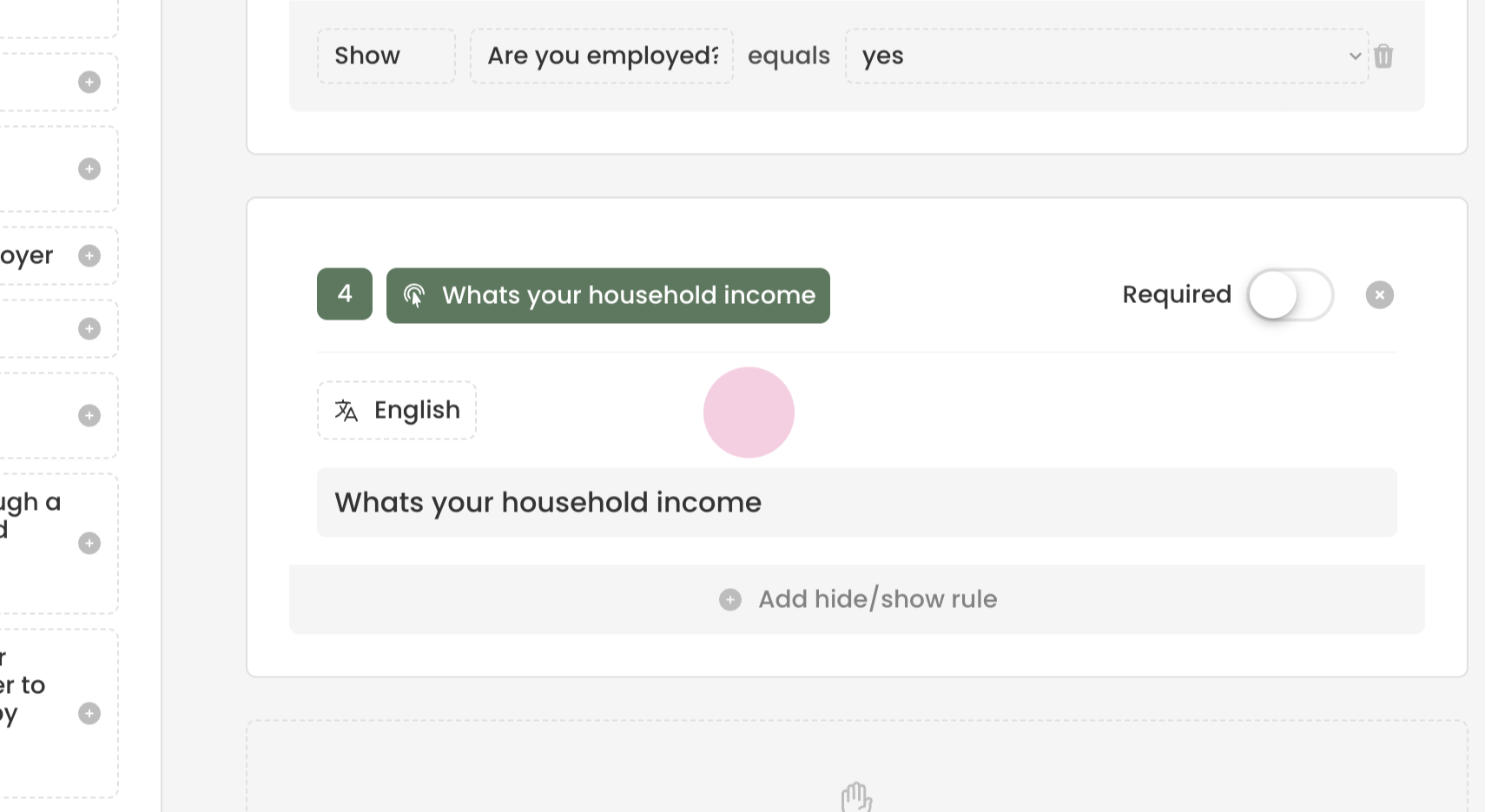
Step 15: Add the final question, "What's your household income?". Find it on the left side and press the plus icon to add it.
Copy and paste the title of the question into the provided space.
The form "Financial Well-being" has now been created. The next step is to see how it displays to clients.
¶ Form on Client Profile
Step 1: Go to a client profile.
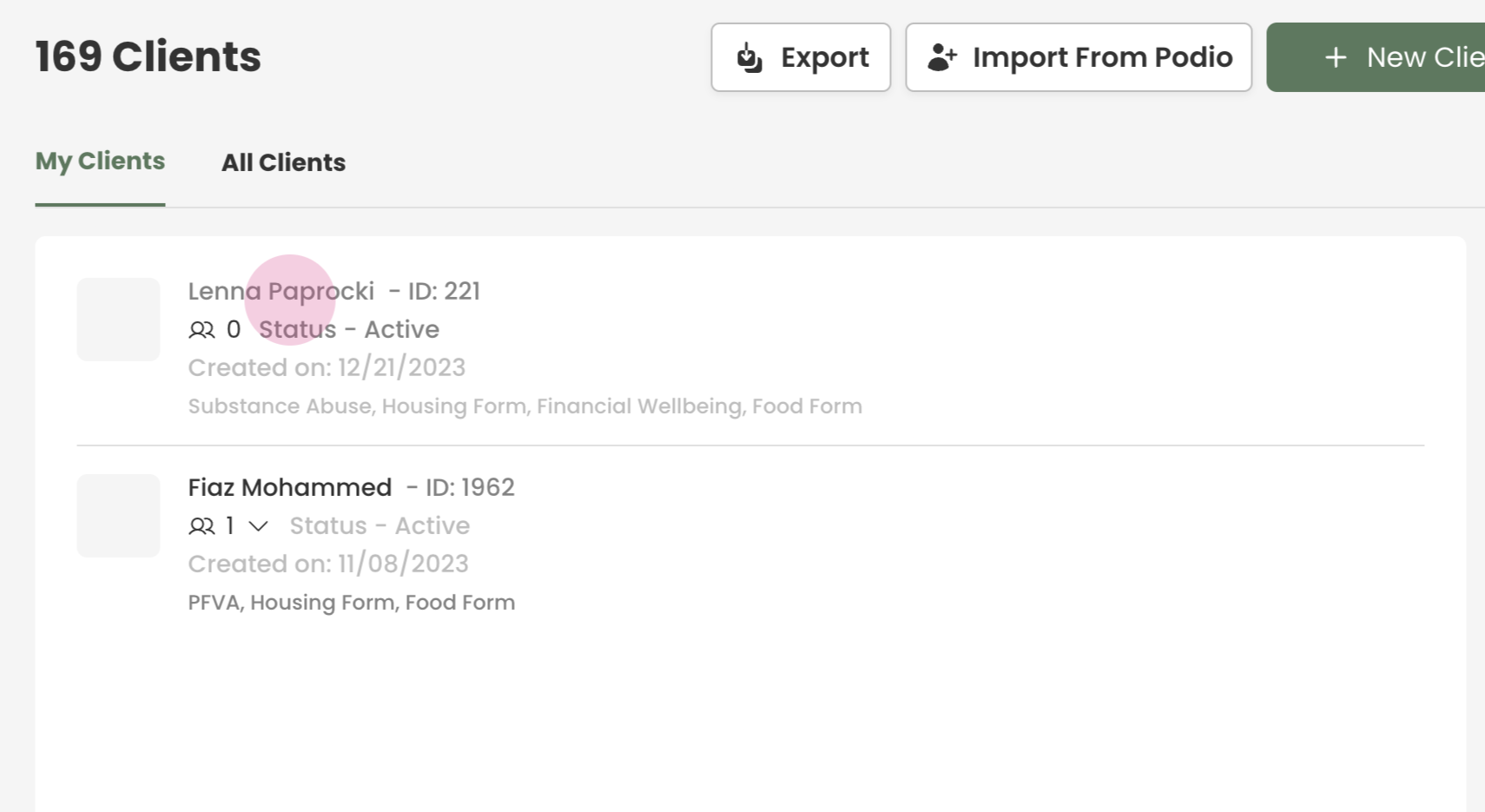
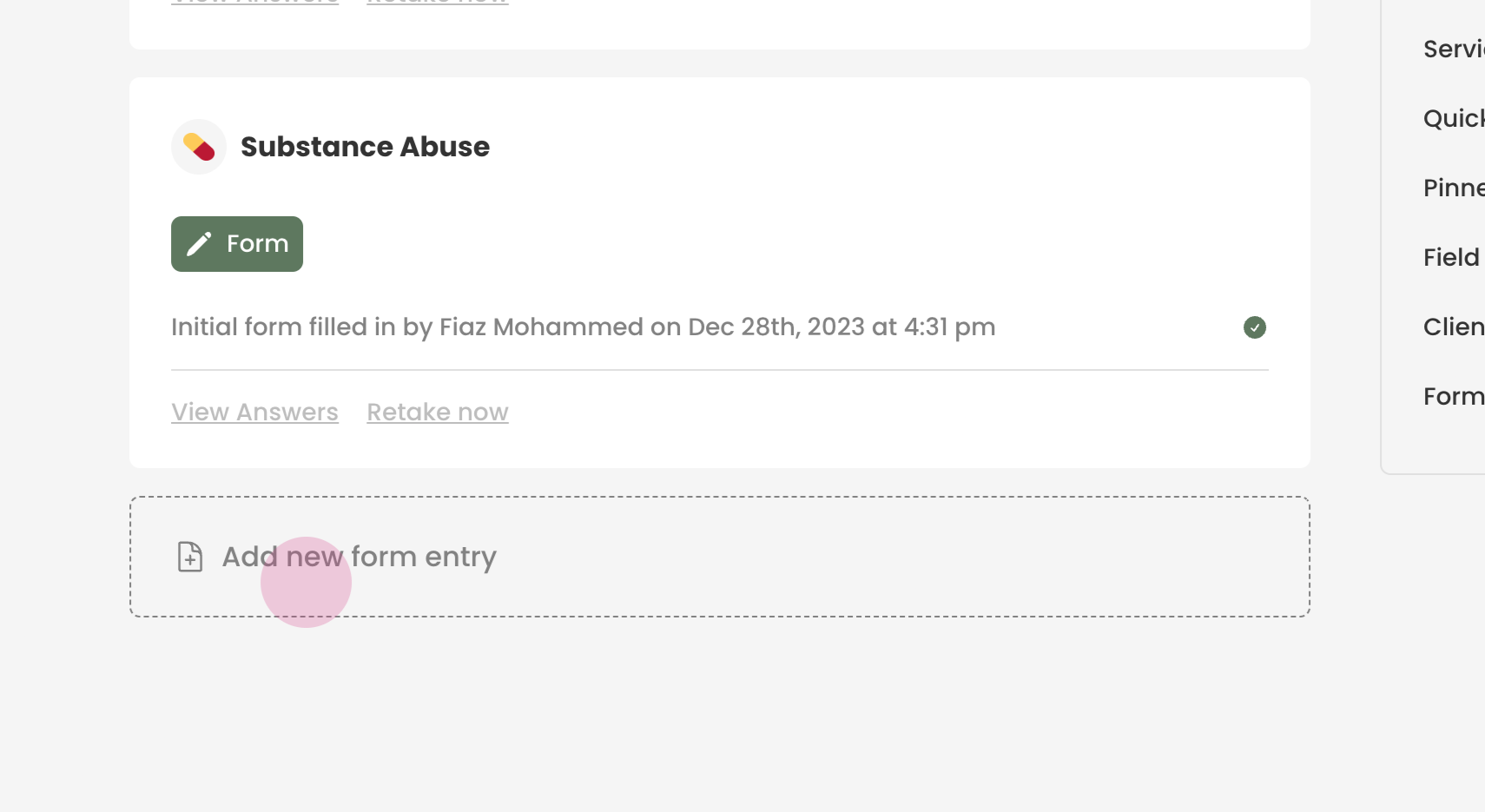
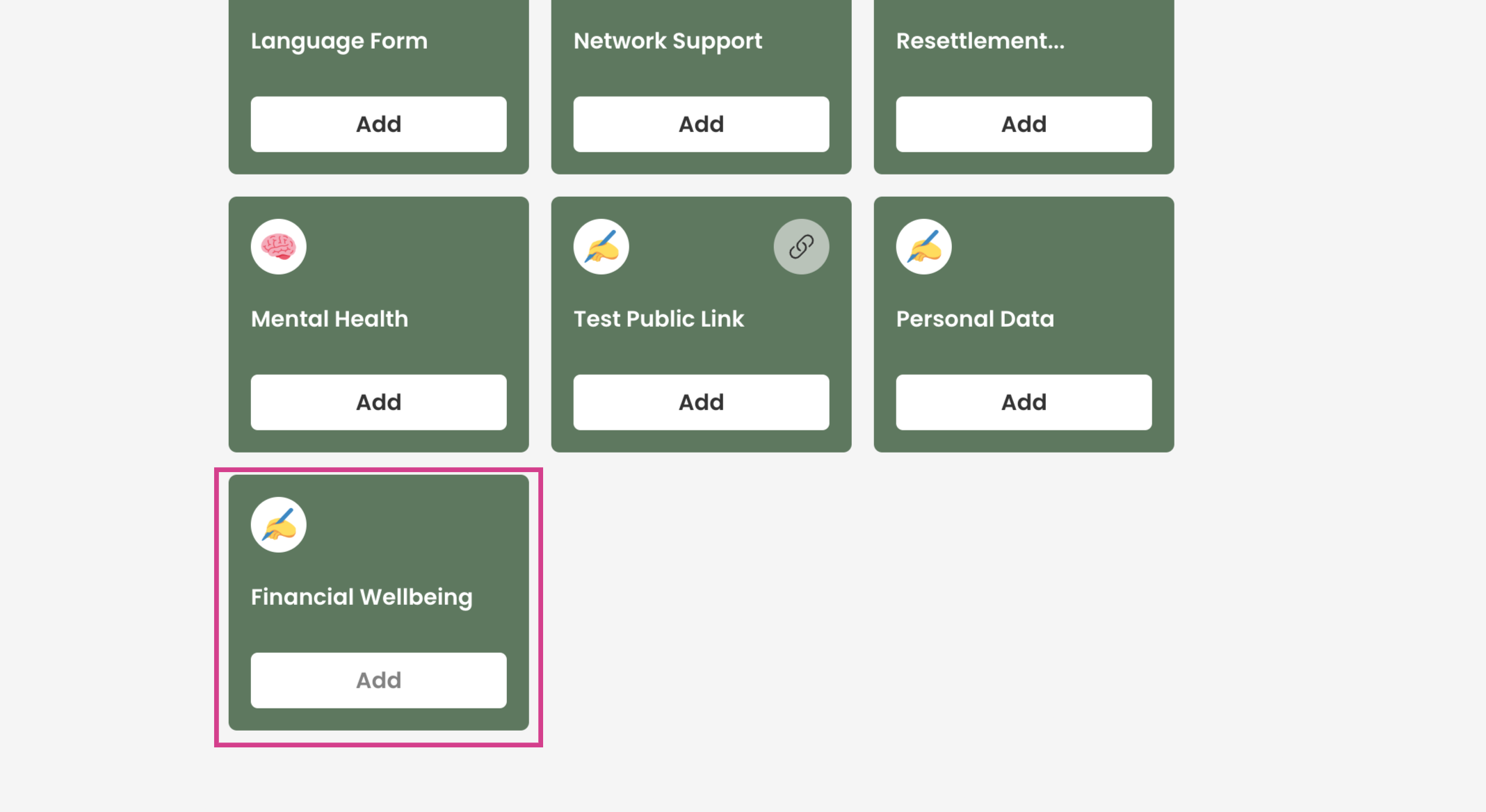
Step 2: Click on Add New Form Entry and select the newly created form, "Financial Well-being".
Step 3: Start the form and answer the questions.