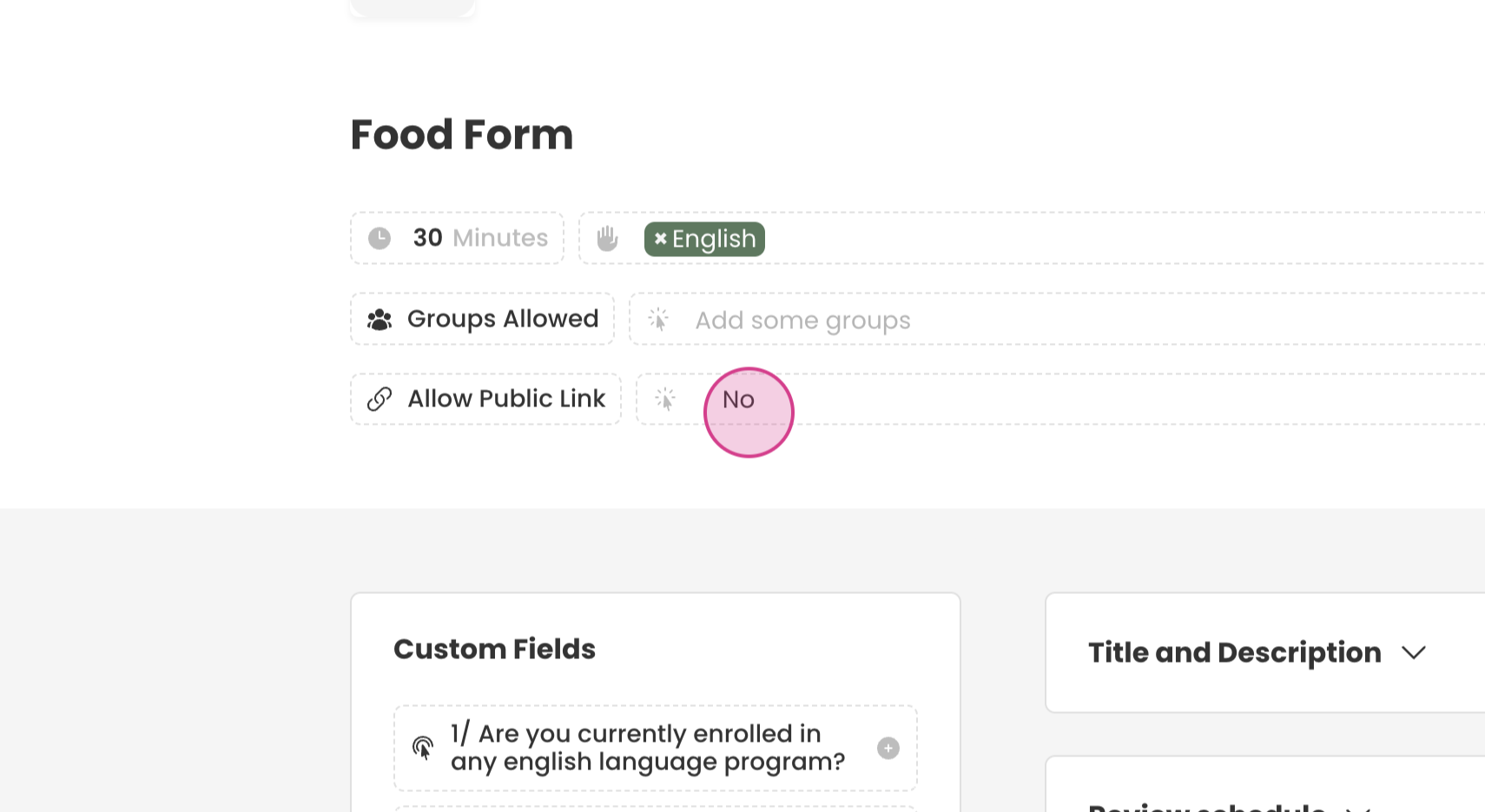
This tutorial provides a step-by-step guide on activating public links for forms.
Public links are particularly useful when sharing a form with a client who isn't physically present. By providing a public link, clients can view and fill out the form independently.
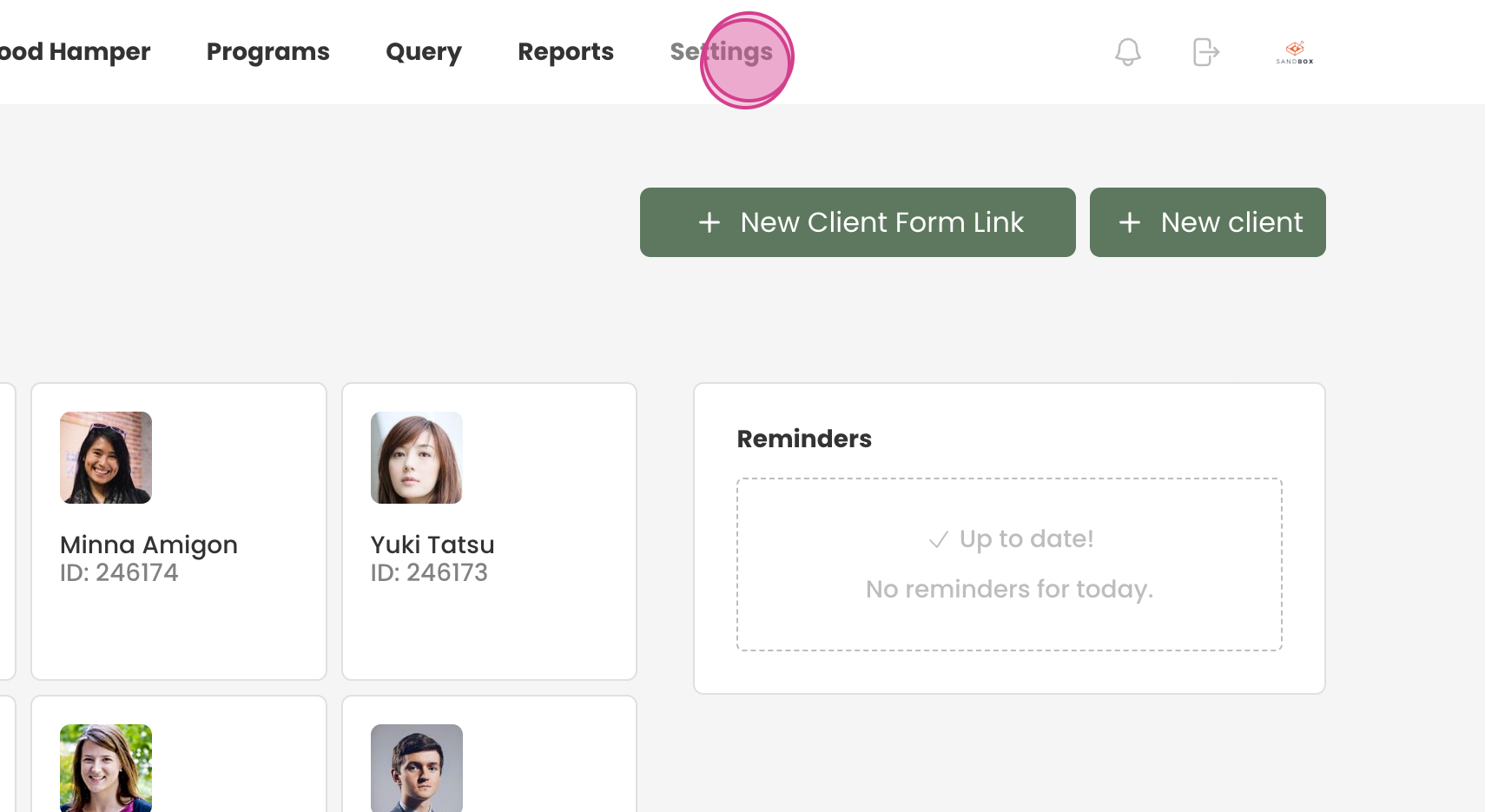
Step 1: Navigate to Settings.
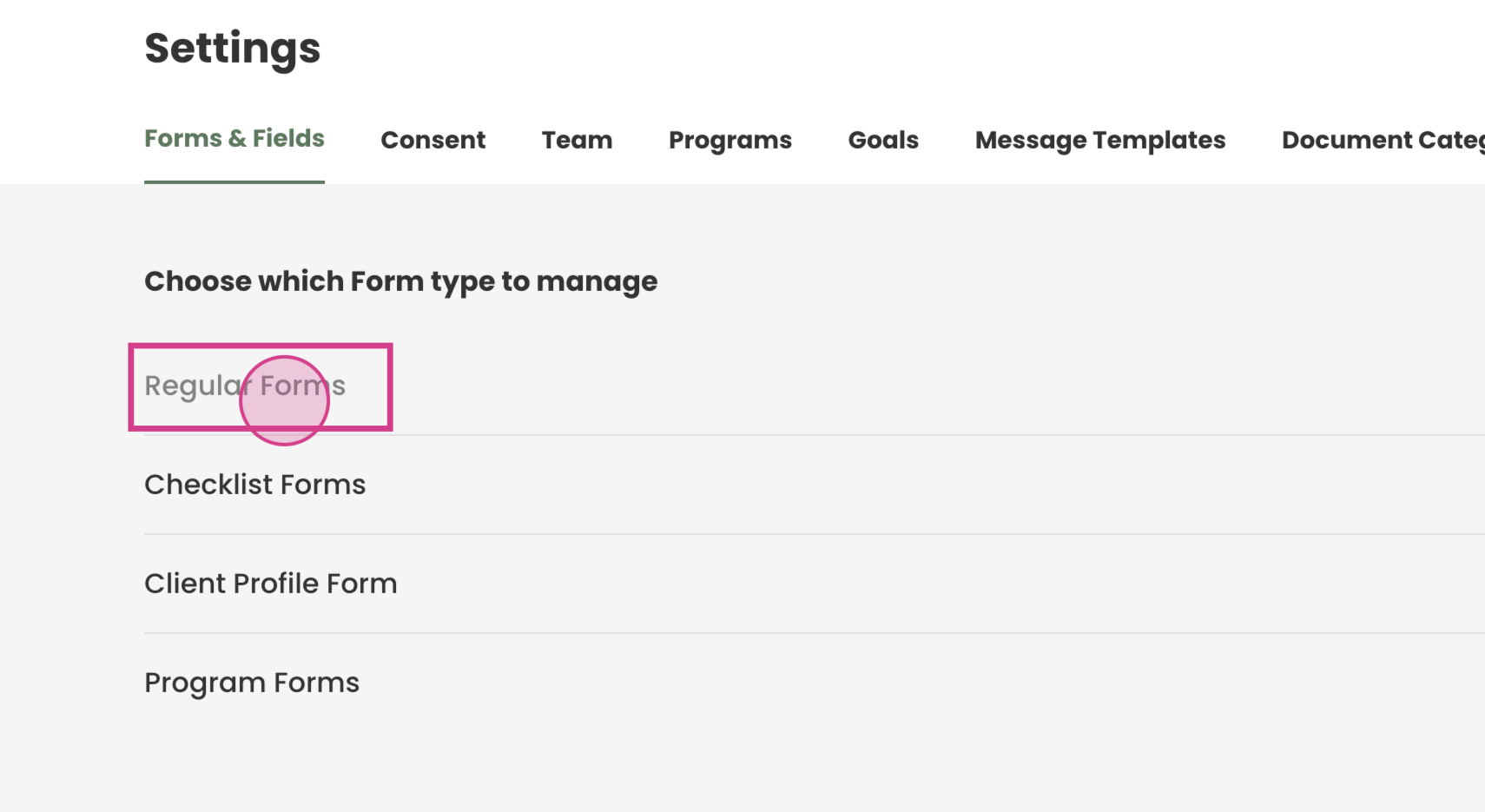
Step 2: Select Forms and Fields, then Regular forms.
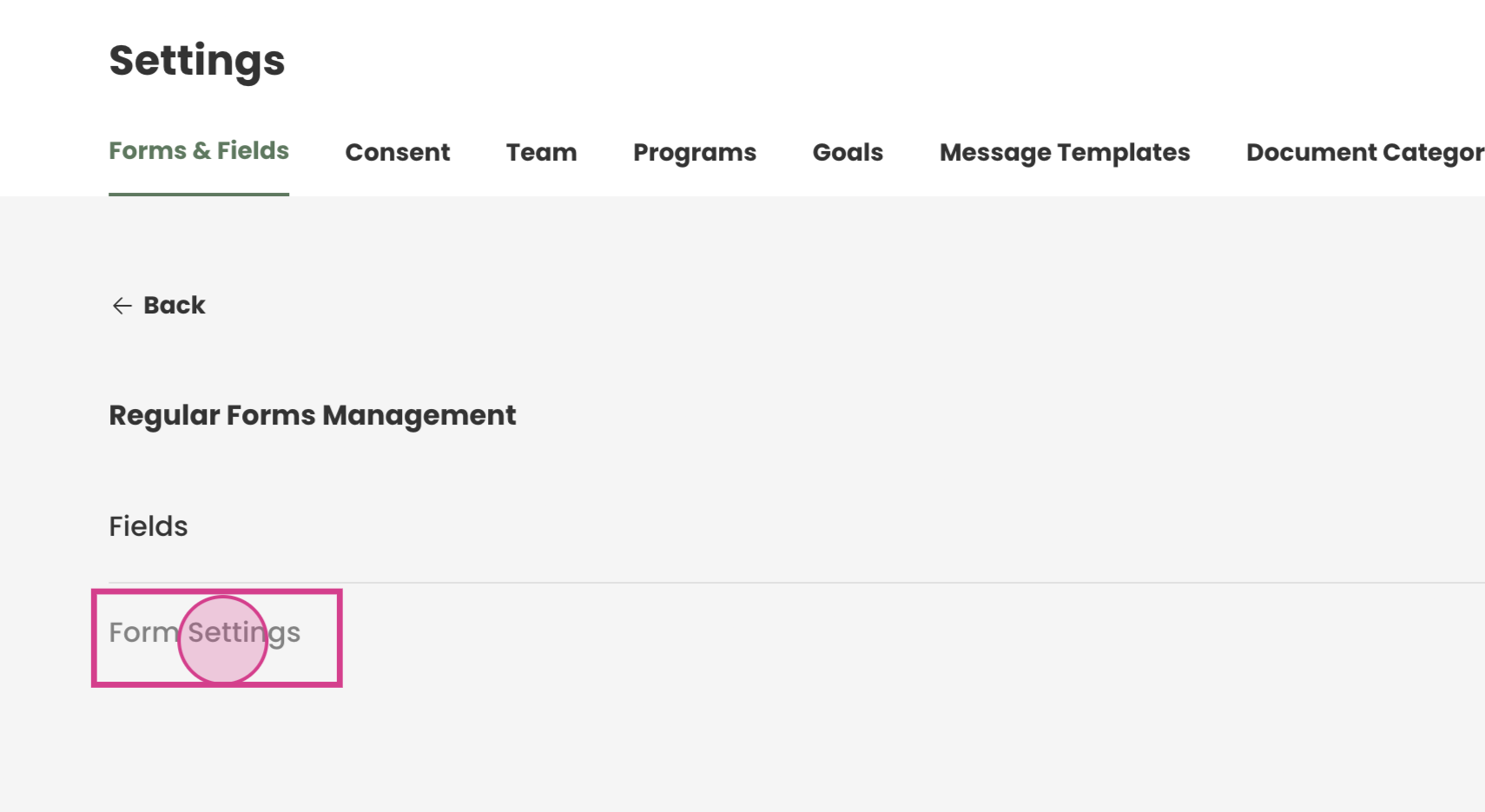
Step 3: Proceed to Form settings.
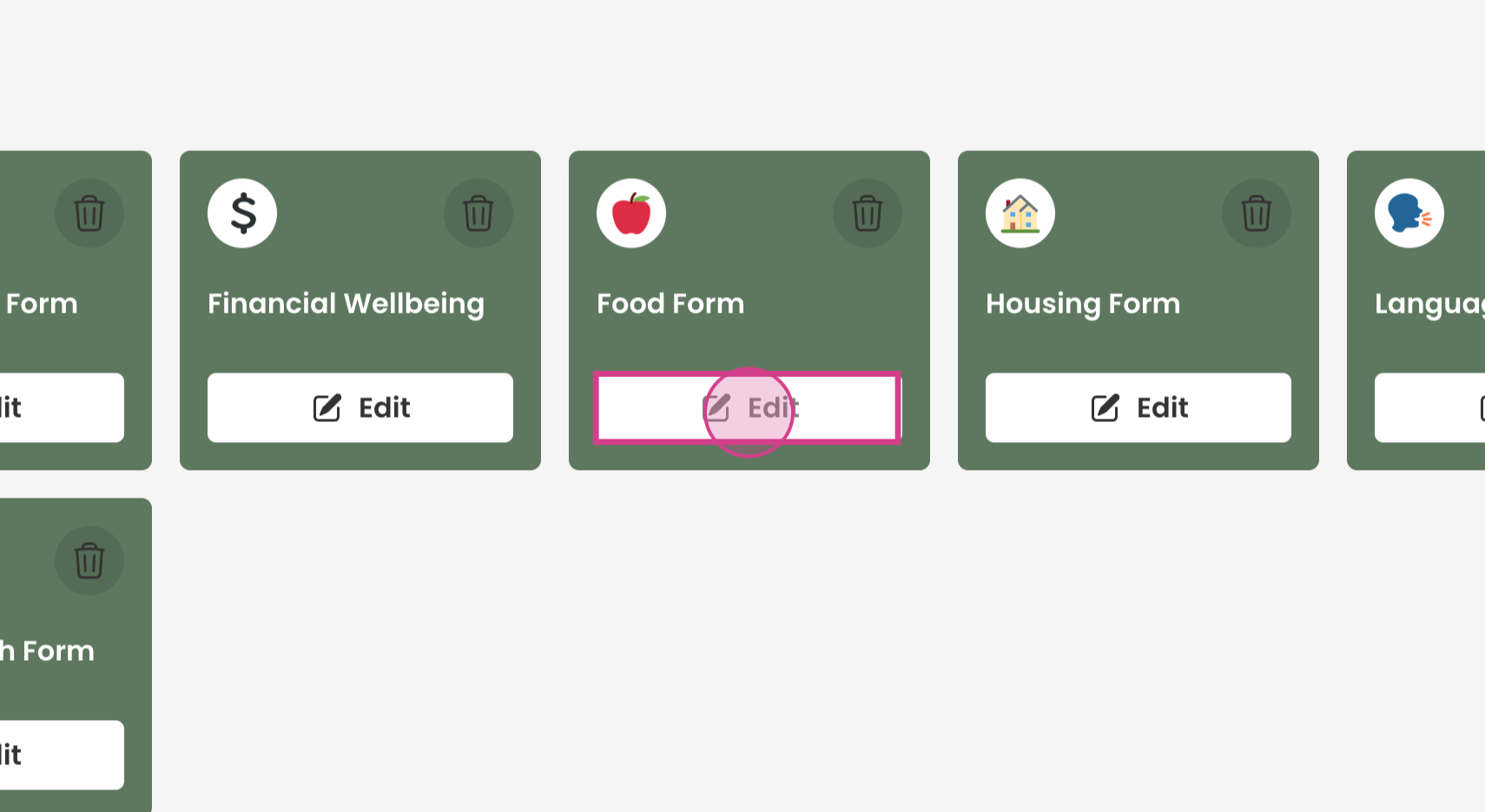
Step 4: Choose the form to add a public link to. In this example, it's the Food form. Click Edit on the chosen form.
Step 5: At the top of the form, find the Allow public links option.
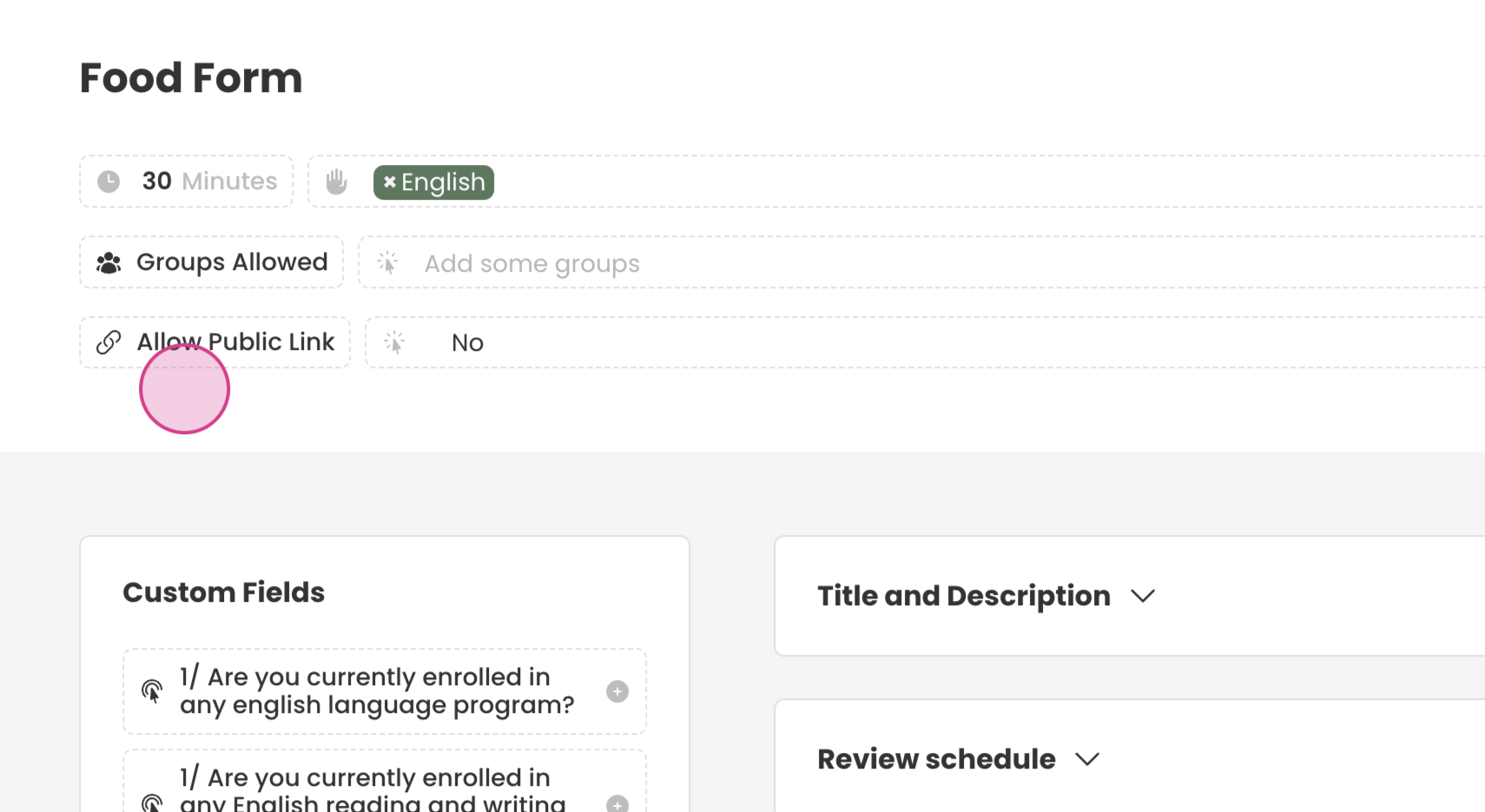
Step 6: Change the setting to Yes. This action activates the public link for the selected form.