This tutorial outlines the process of exporting client responses into a PDF form, a feature that aids in visualizing past responses and enhancing client support.
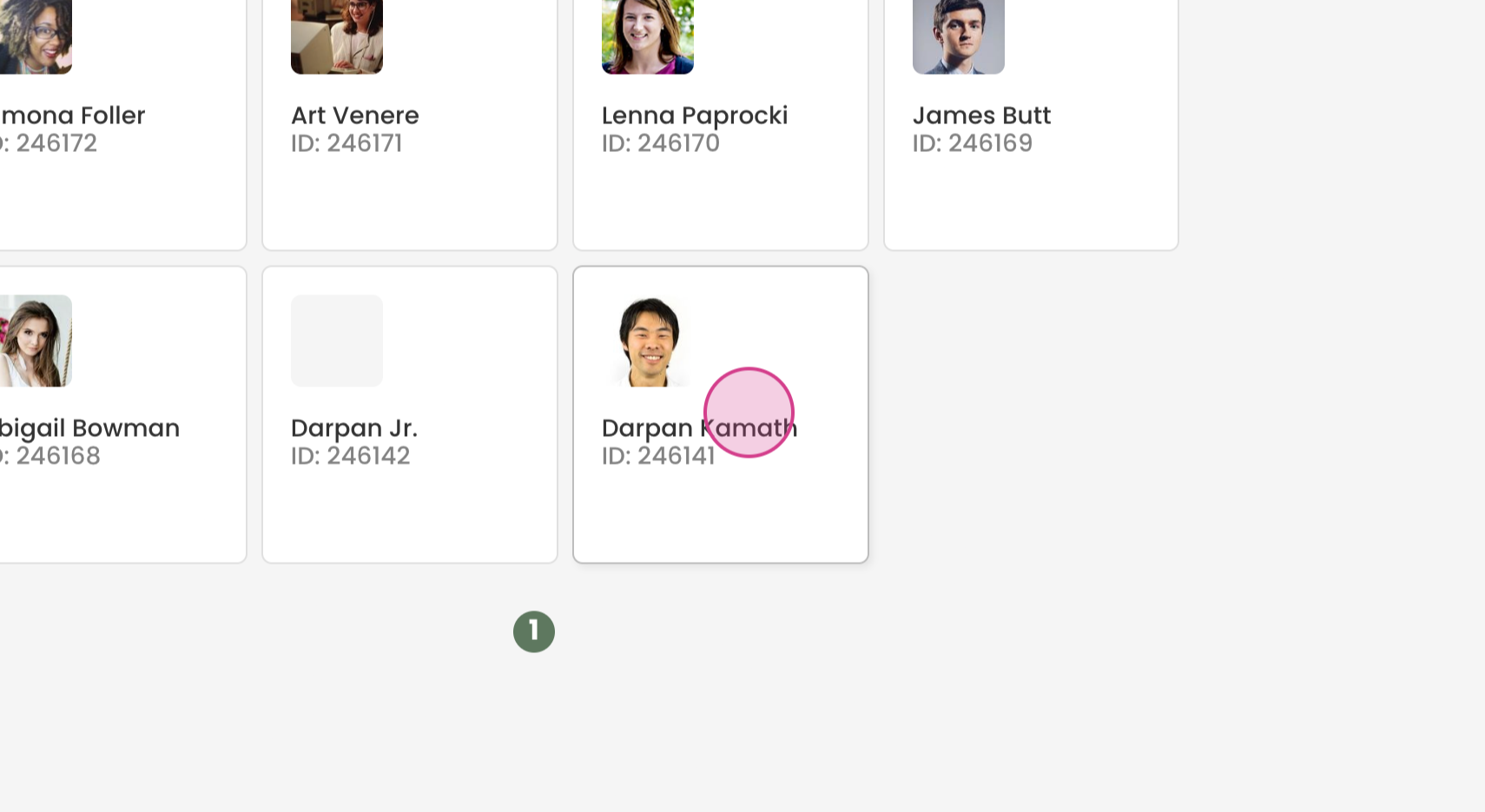
Step 1: Navigate to the specific client whose data needs exporting.
Step 2: Identify the form from which to export data.
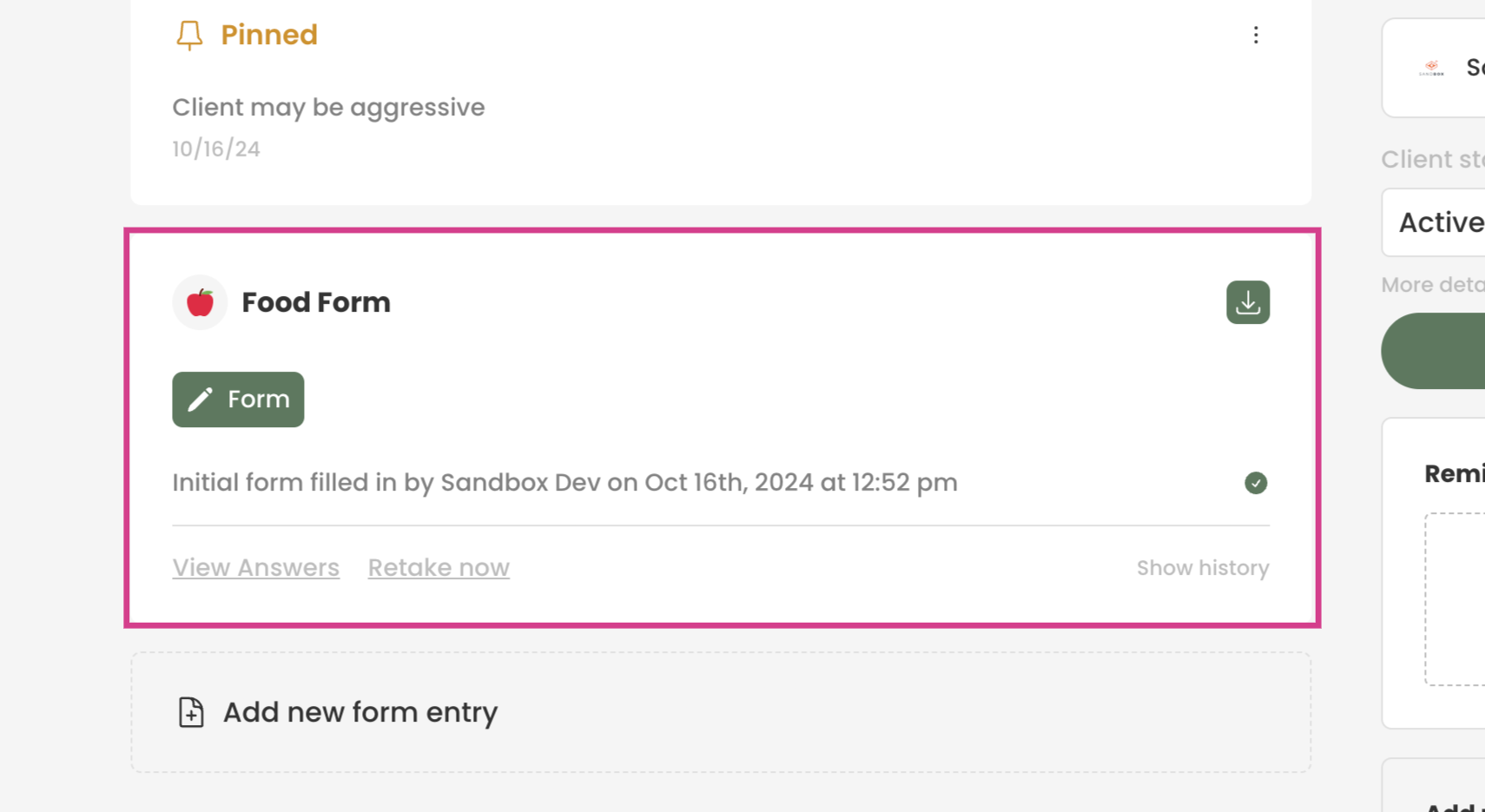
Note: In this example, the form pertains to food.
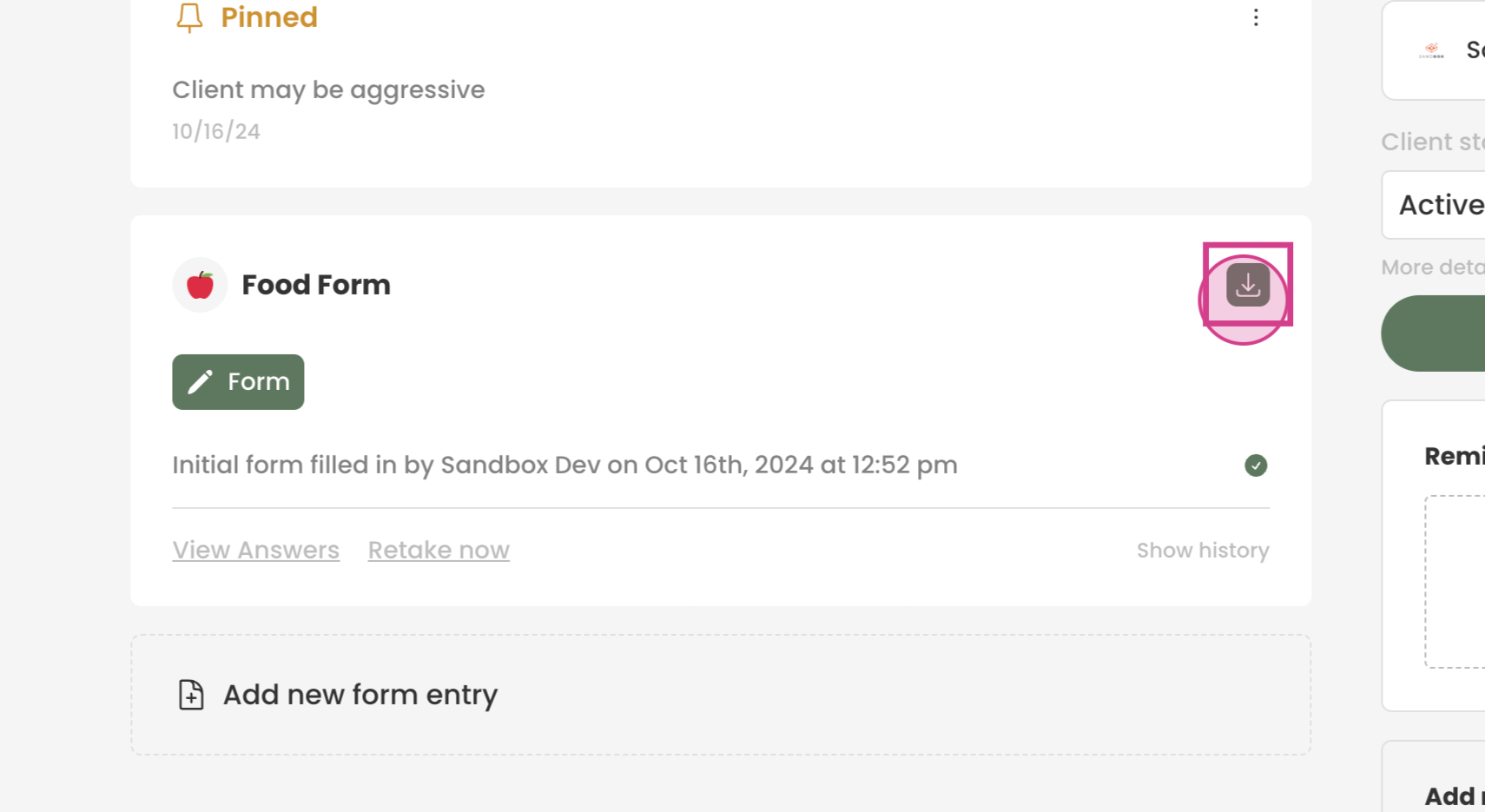
Step 3: Click on the Download option, found at the top right of the form.
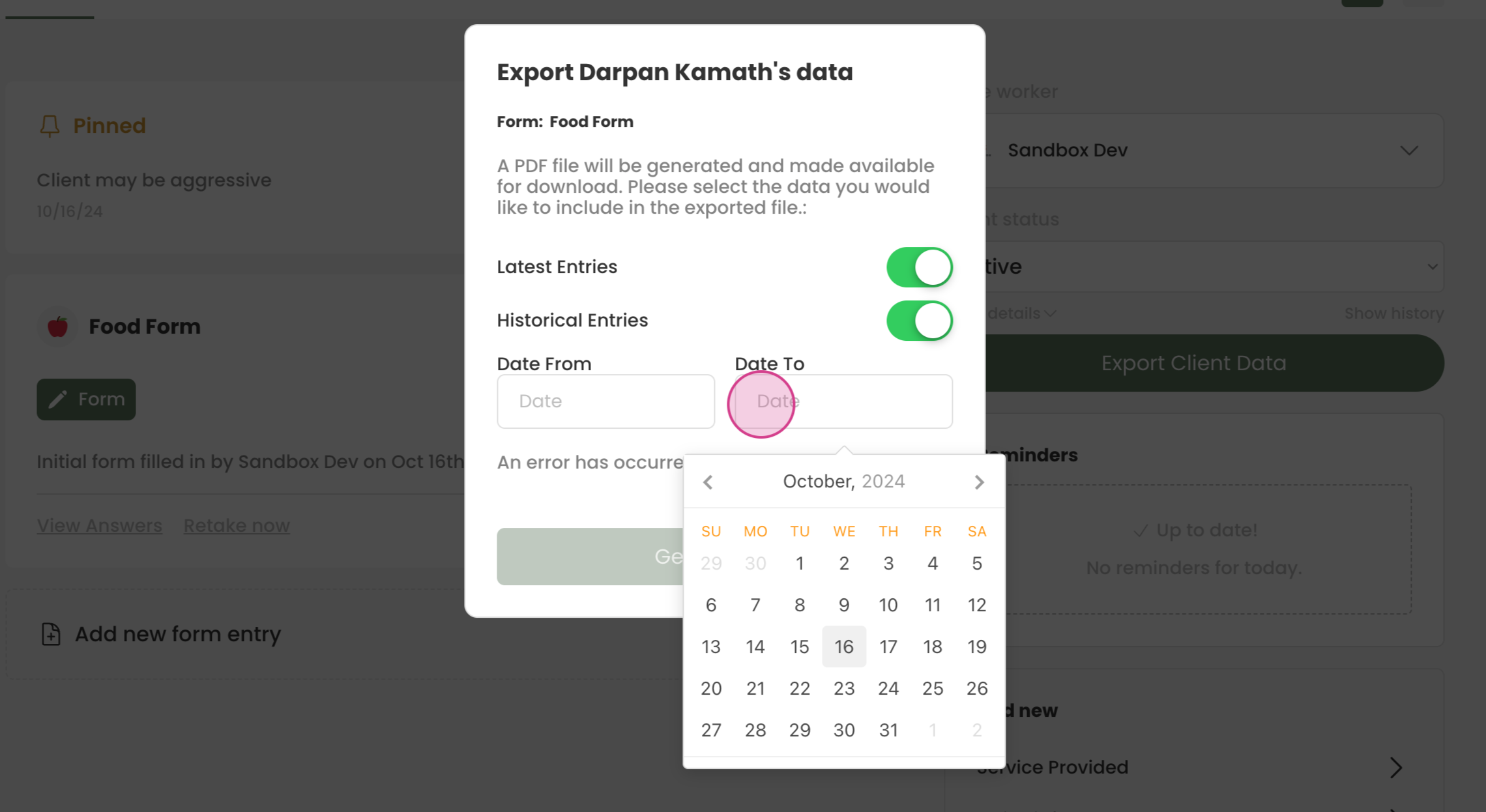
Step 4: Decide whether to export the most recent entries, past entries, or both.
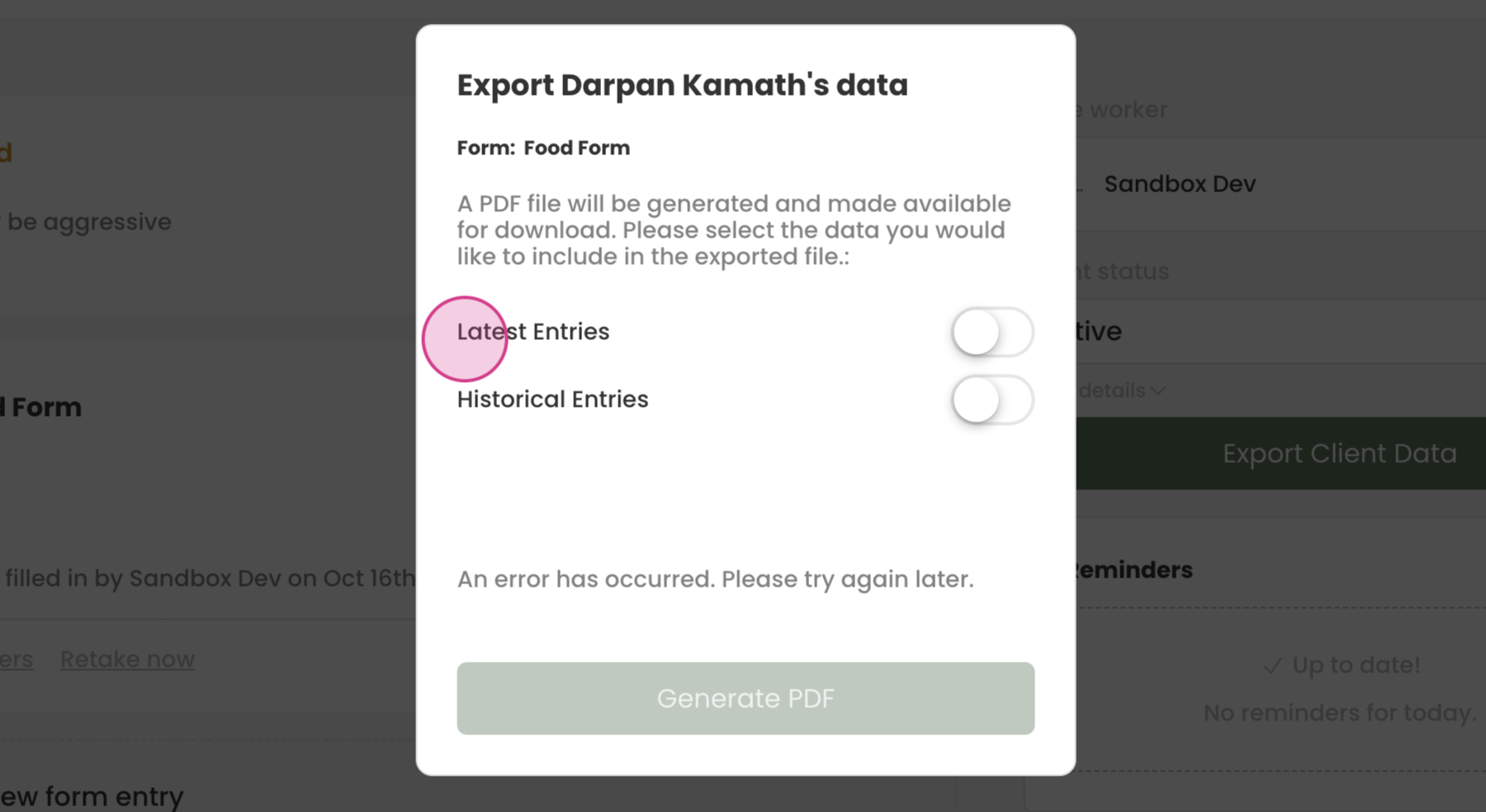
Note: In this scenario, both recent and past entries are chosen.
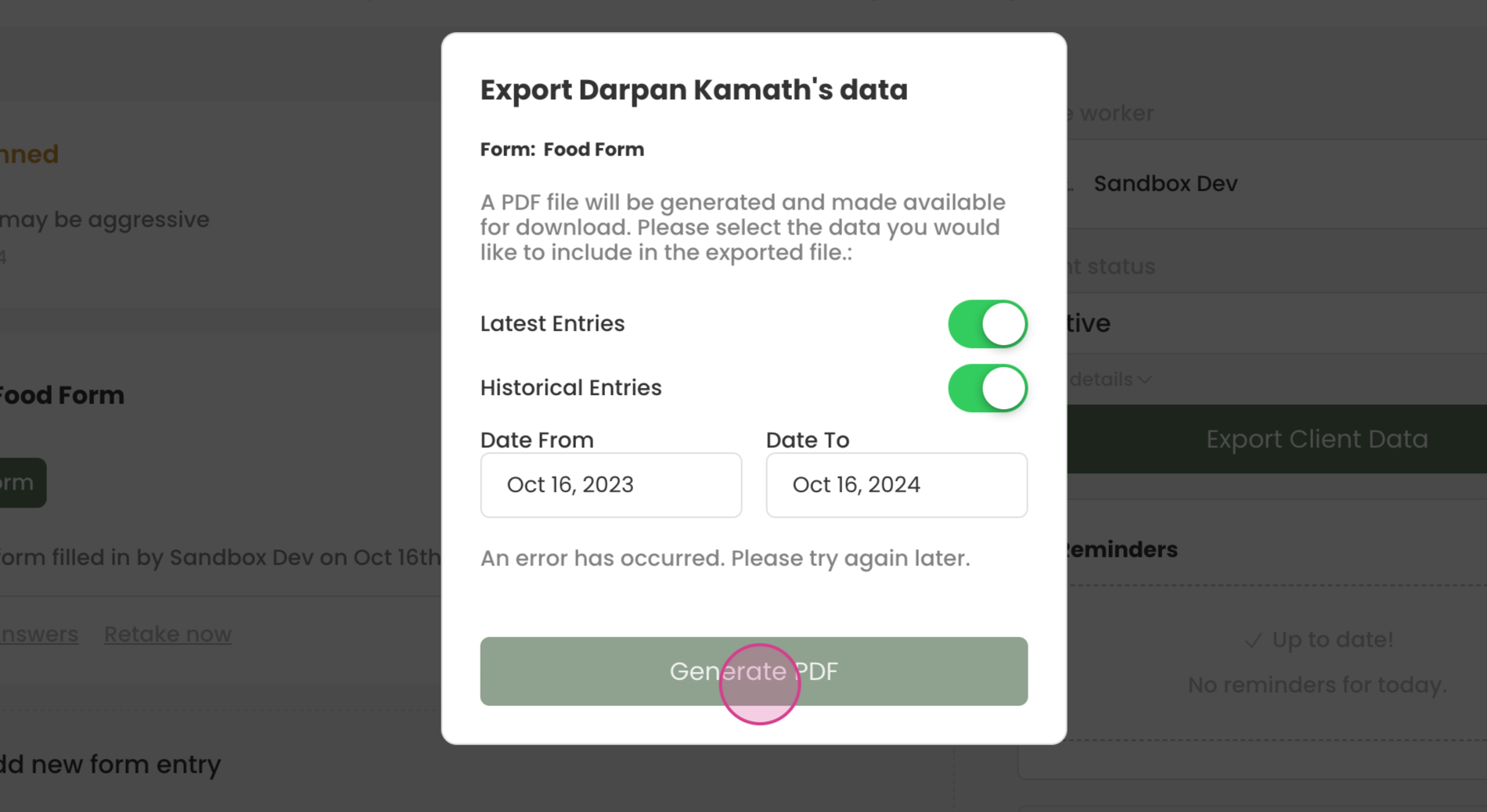
Step 5: When opting for historical entries, define a date range.
Step 6: Click on Generate PDF and save it to the computer. The PDF will then download.
By following these steps, exporting forms into PDF format to assist clients becomes a straightforward task. Appreciation for using Transform.