Introduction:
This tutorial provides a step-by-step guide on how to fill out a form, update it, and check the form's history for a client using Transform.
¶ Filling Out New Form
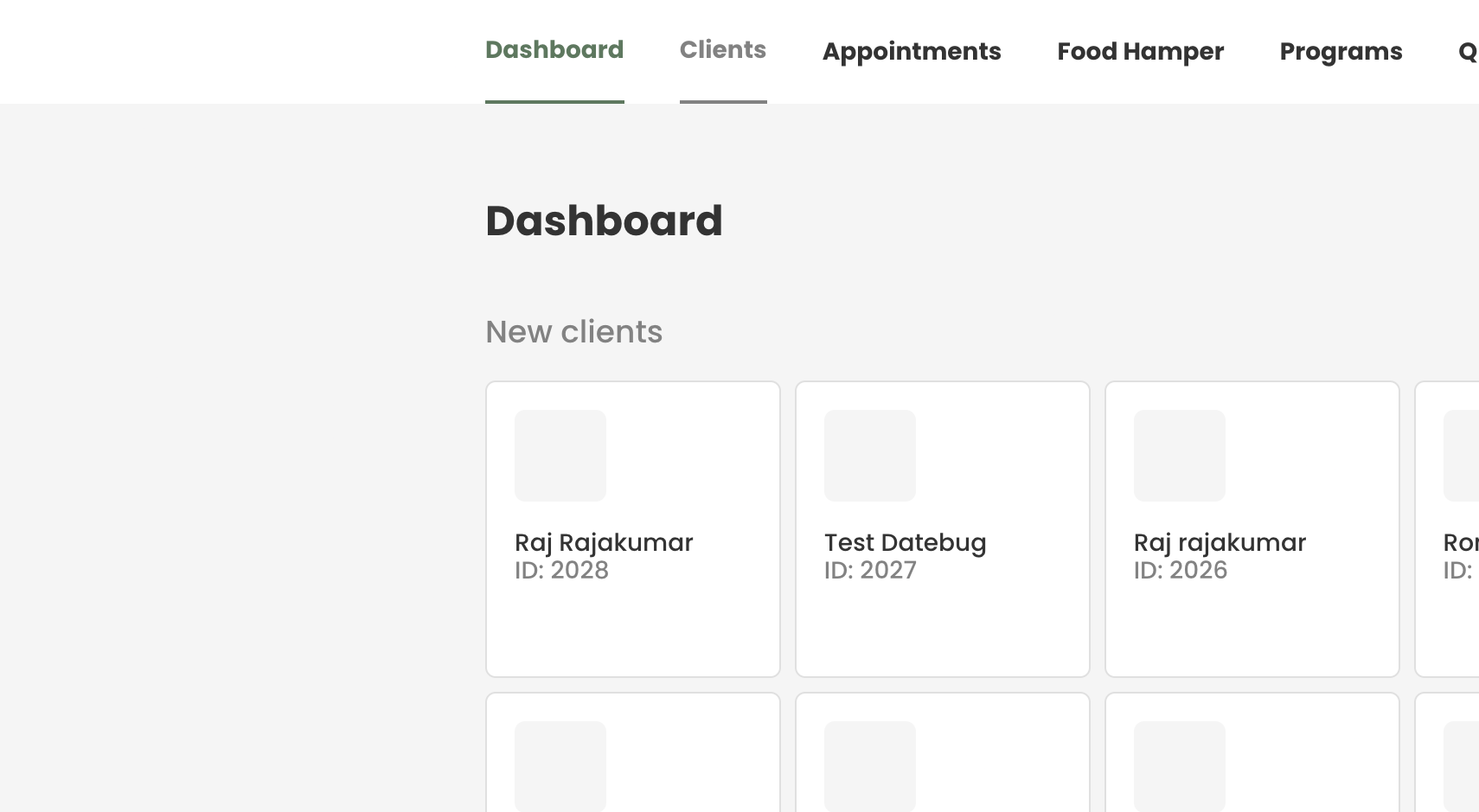
Step 1: Navigate to the Clients tab.
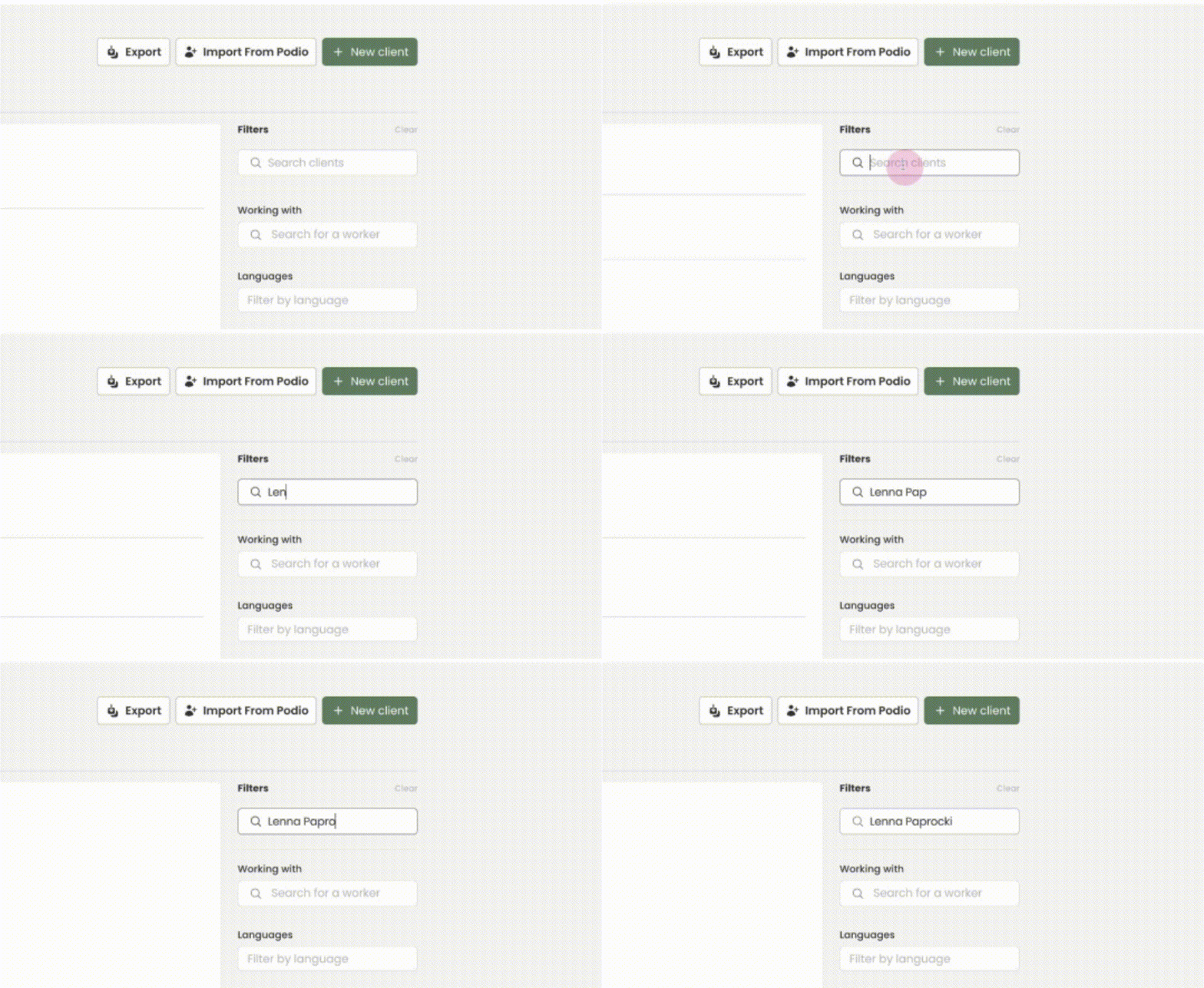
Step 2: Search for the desired client.
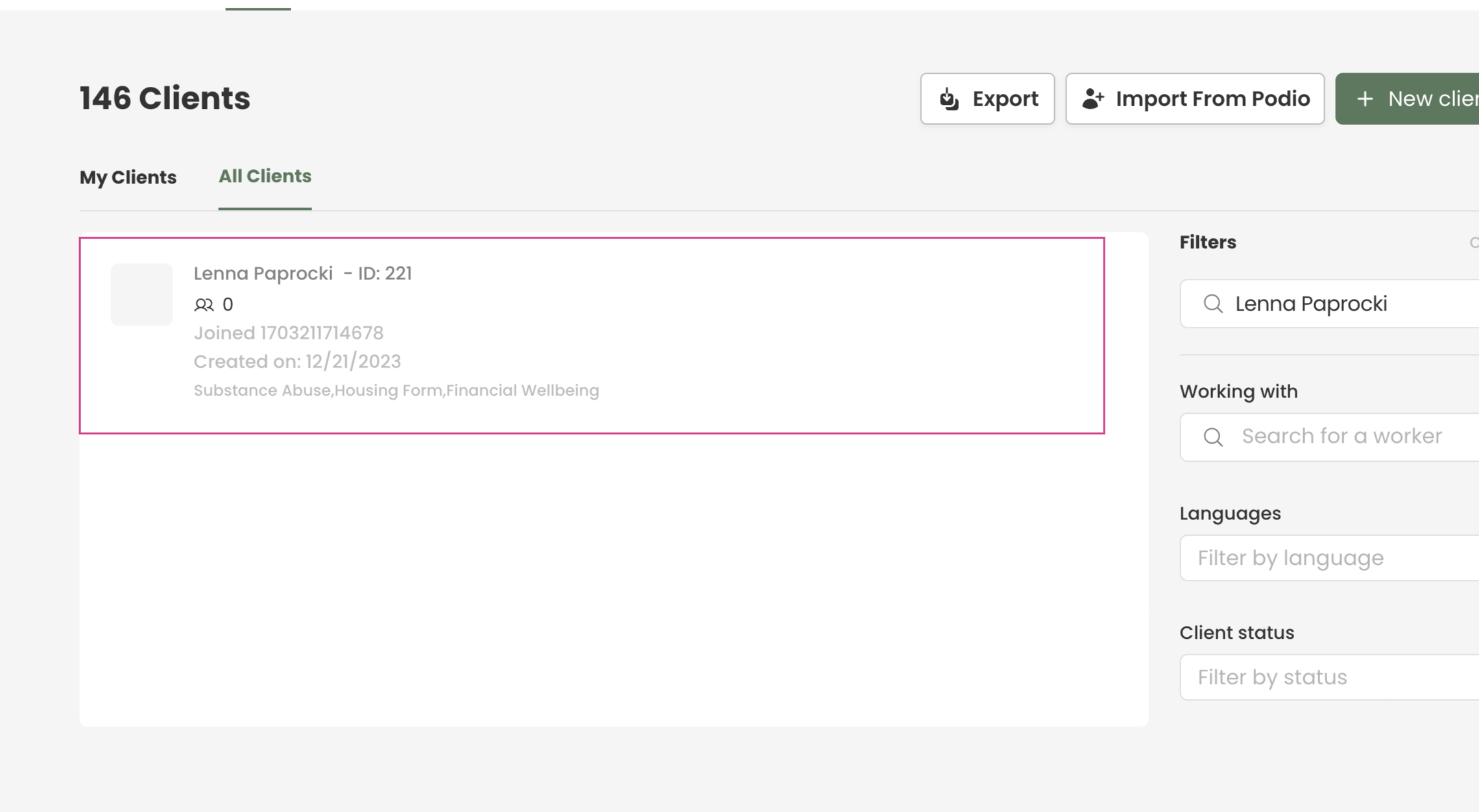
Step 3: Select the client.
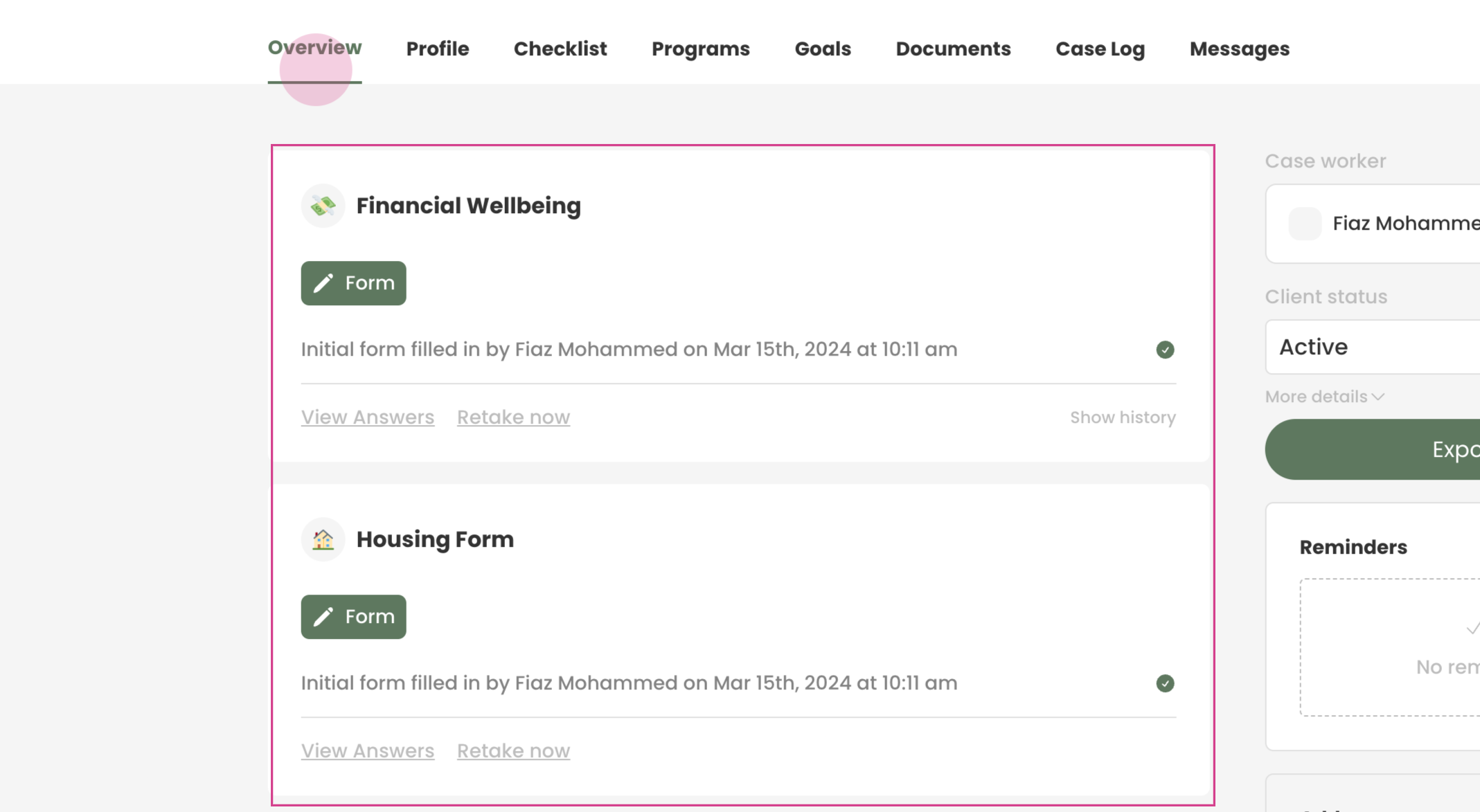
Step 4: In the Overview tab, view all the forms that have already been filled out.
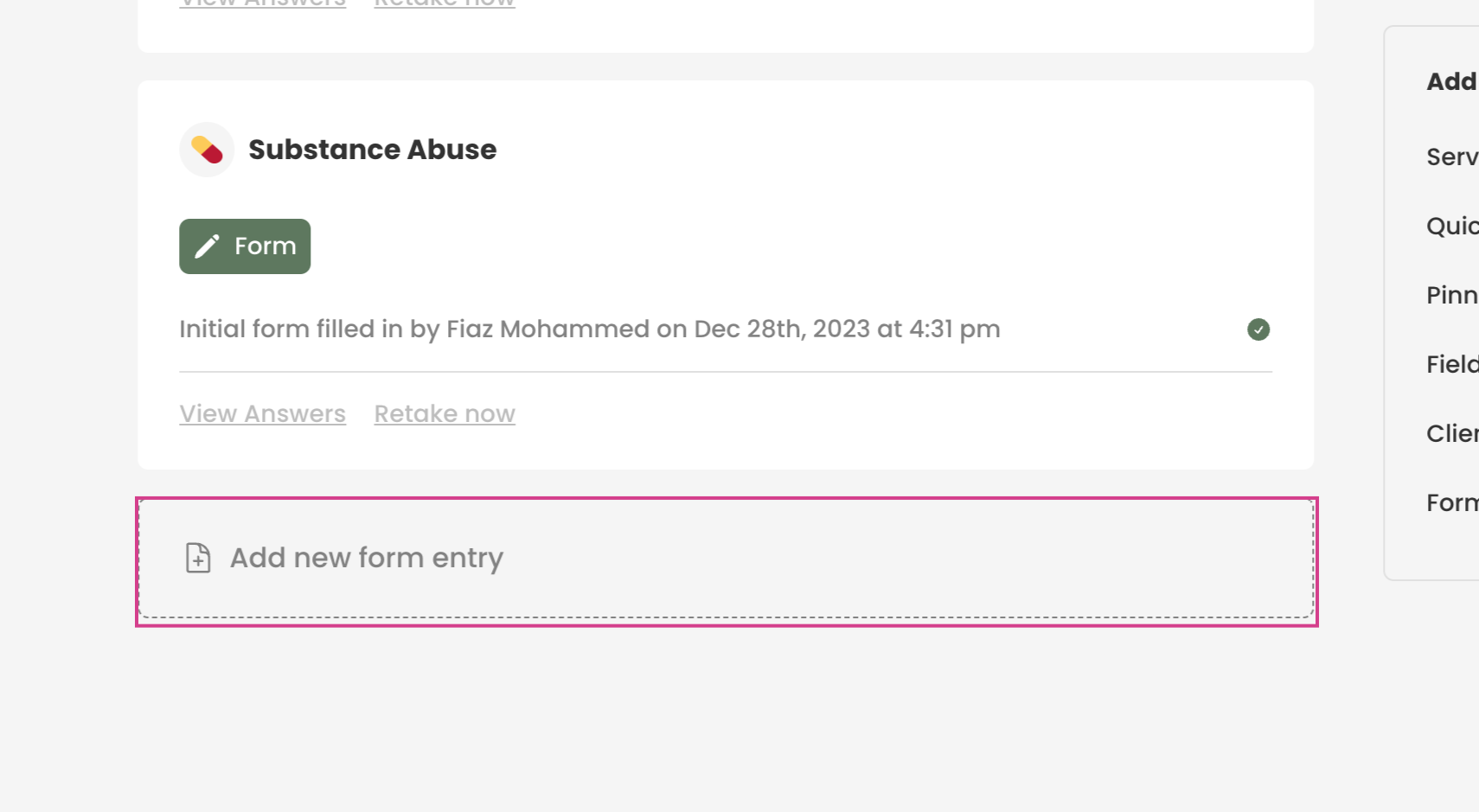
Step 5: Add new forms by clicking on Add New Form Entry at the bottom.
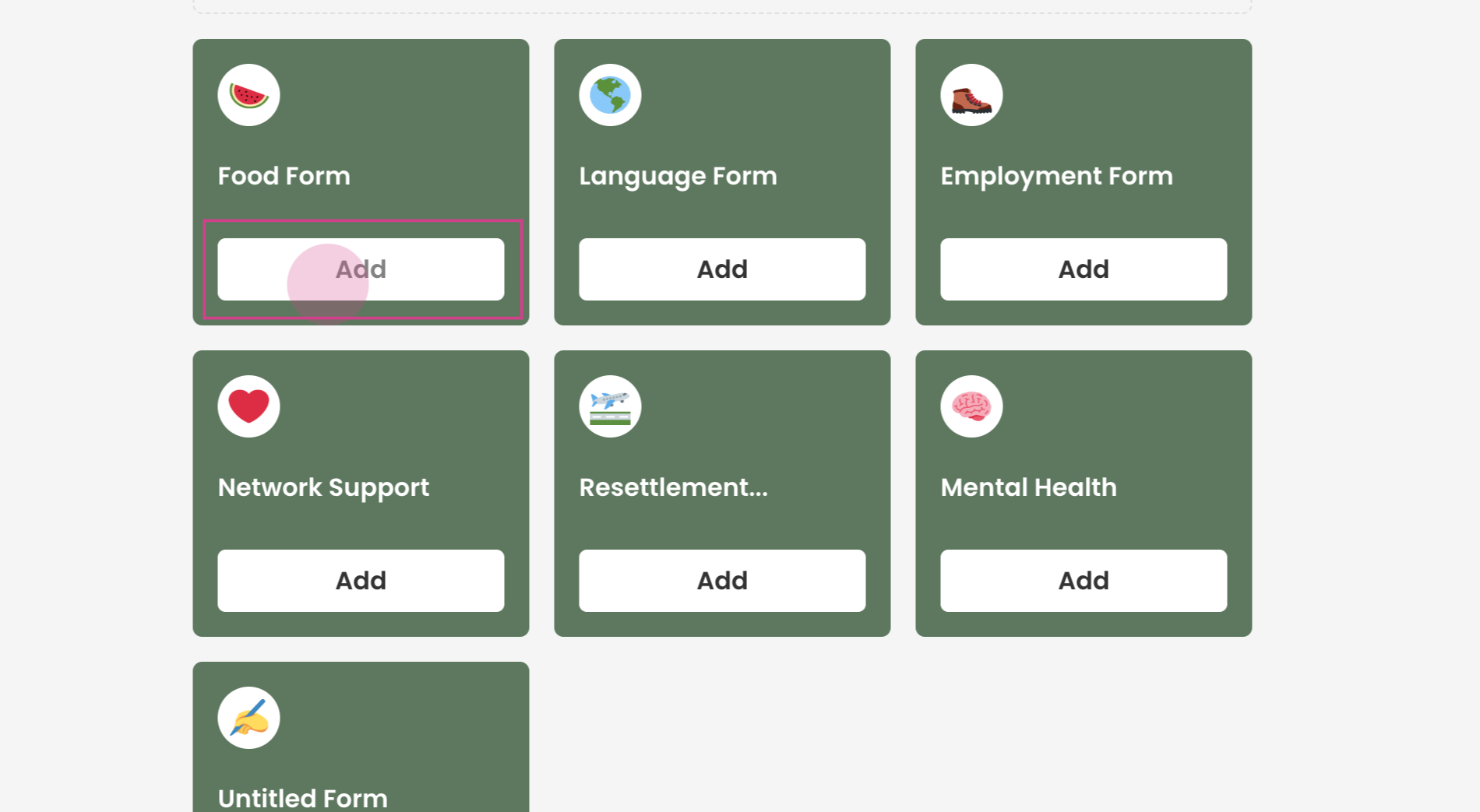
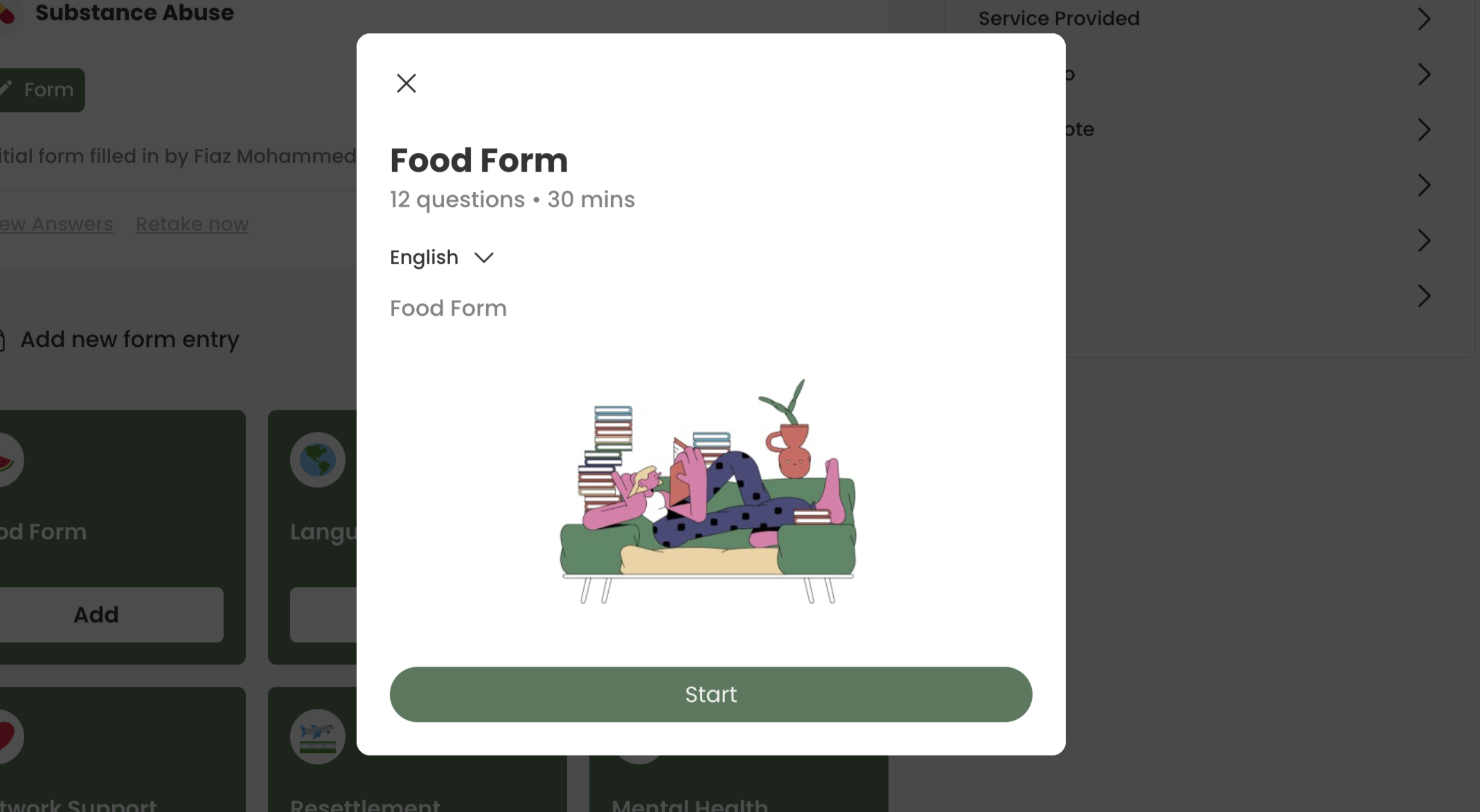
Step 6: Select the form to fill out. In this case, it's the Food Form.
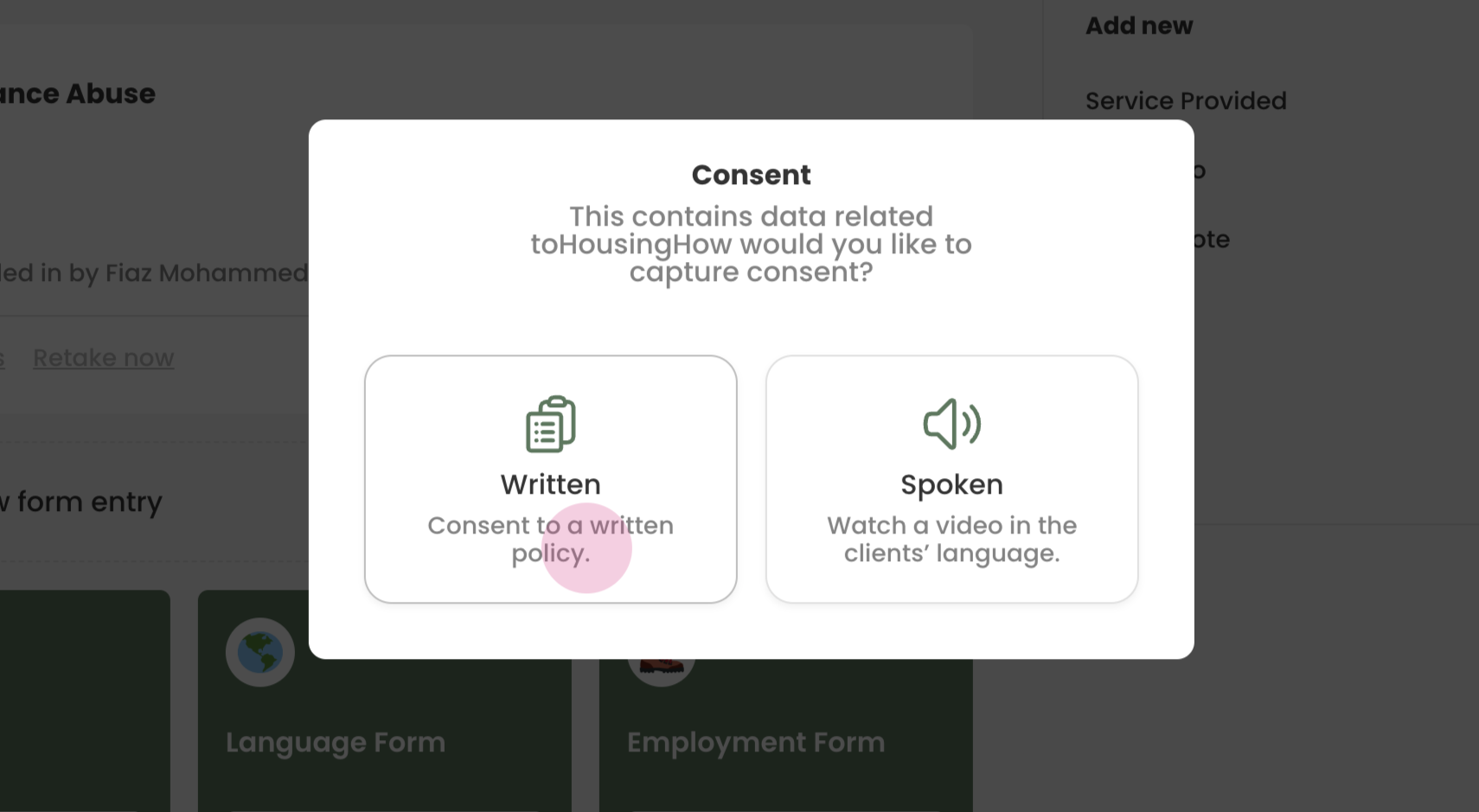
Step 7: Provide consent. It can be either written or spoken. For this tutorial, we're using the written form.
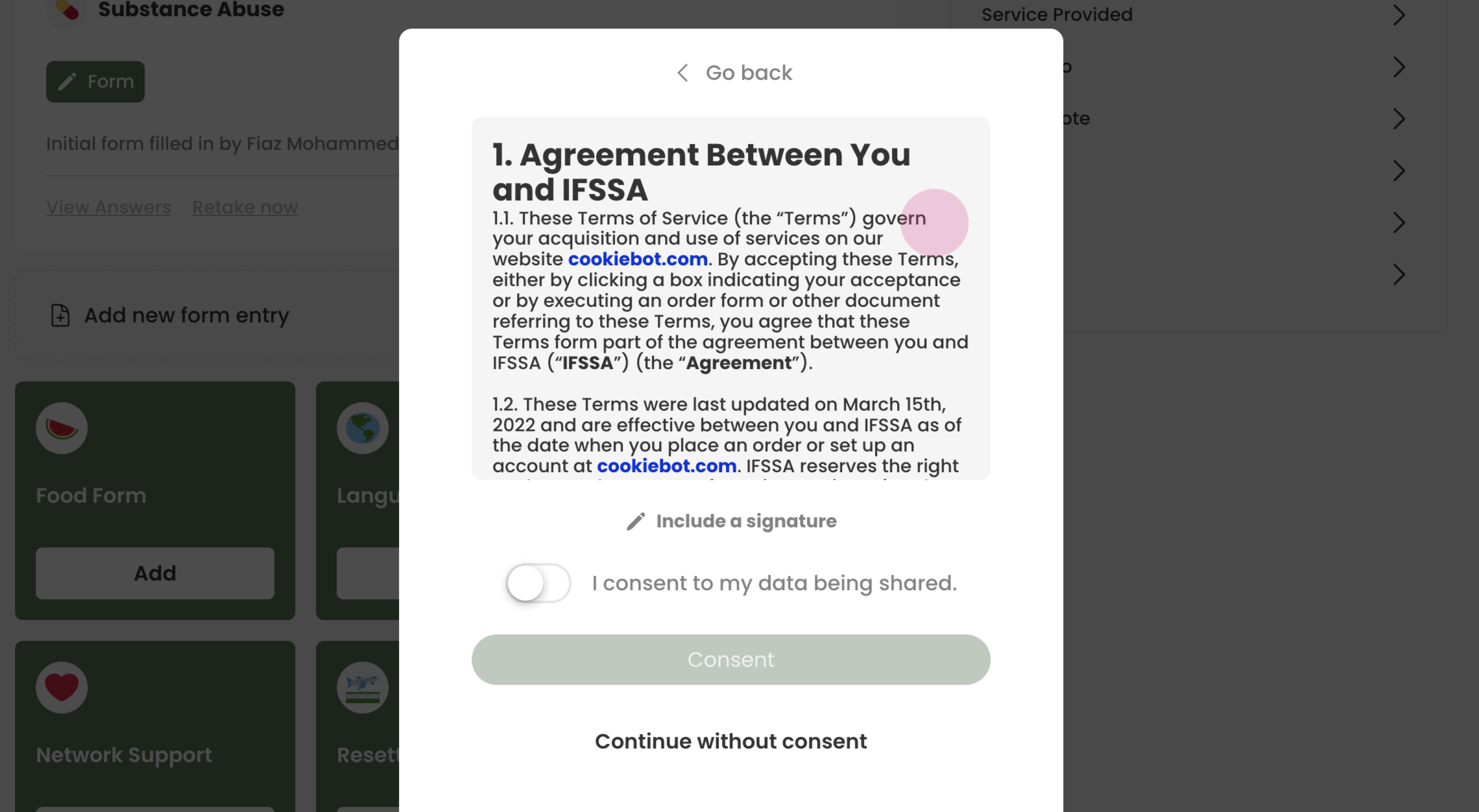
Step 8: Allow the client to read the agreement.
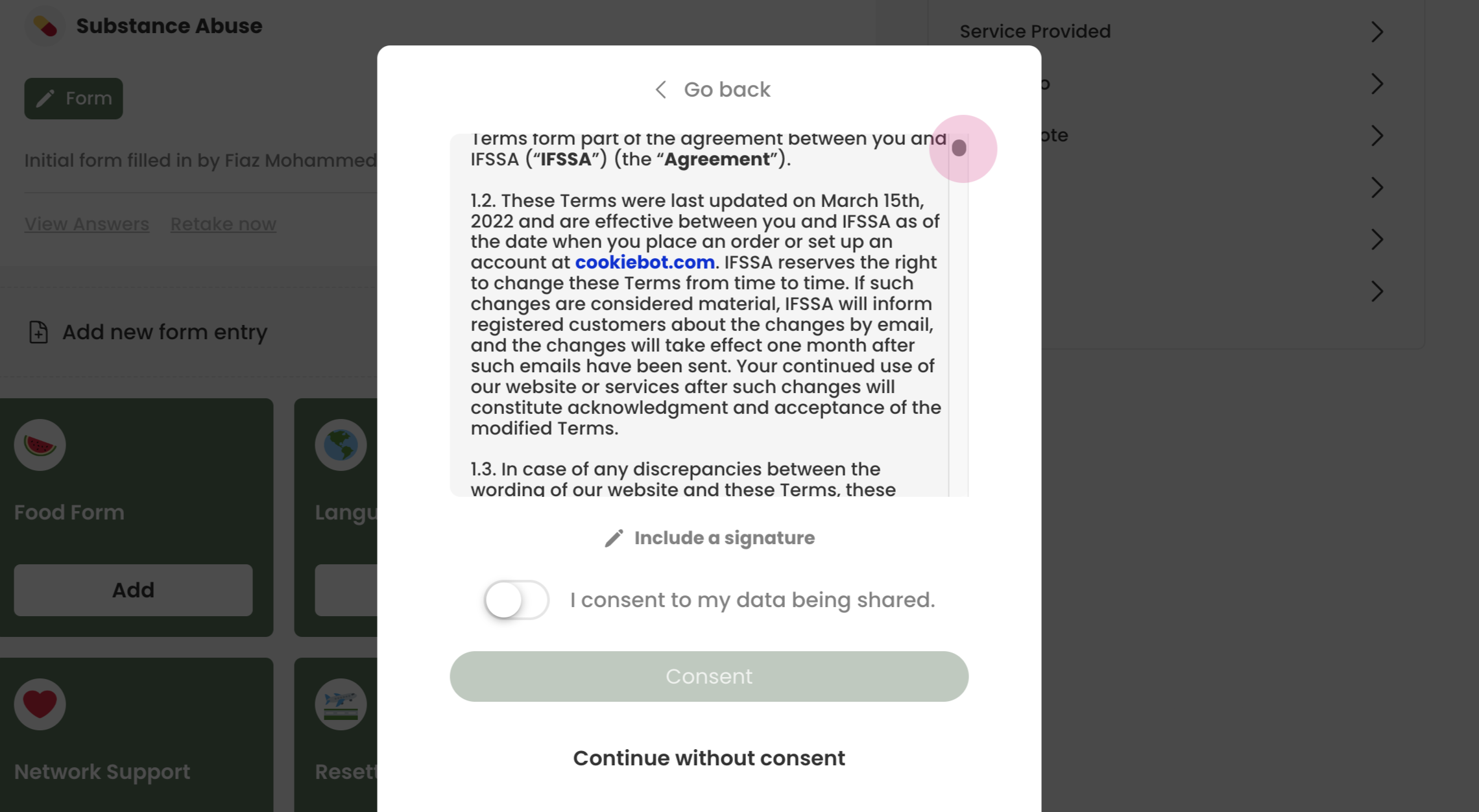
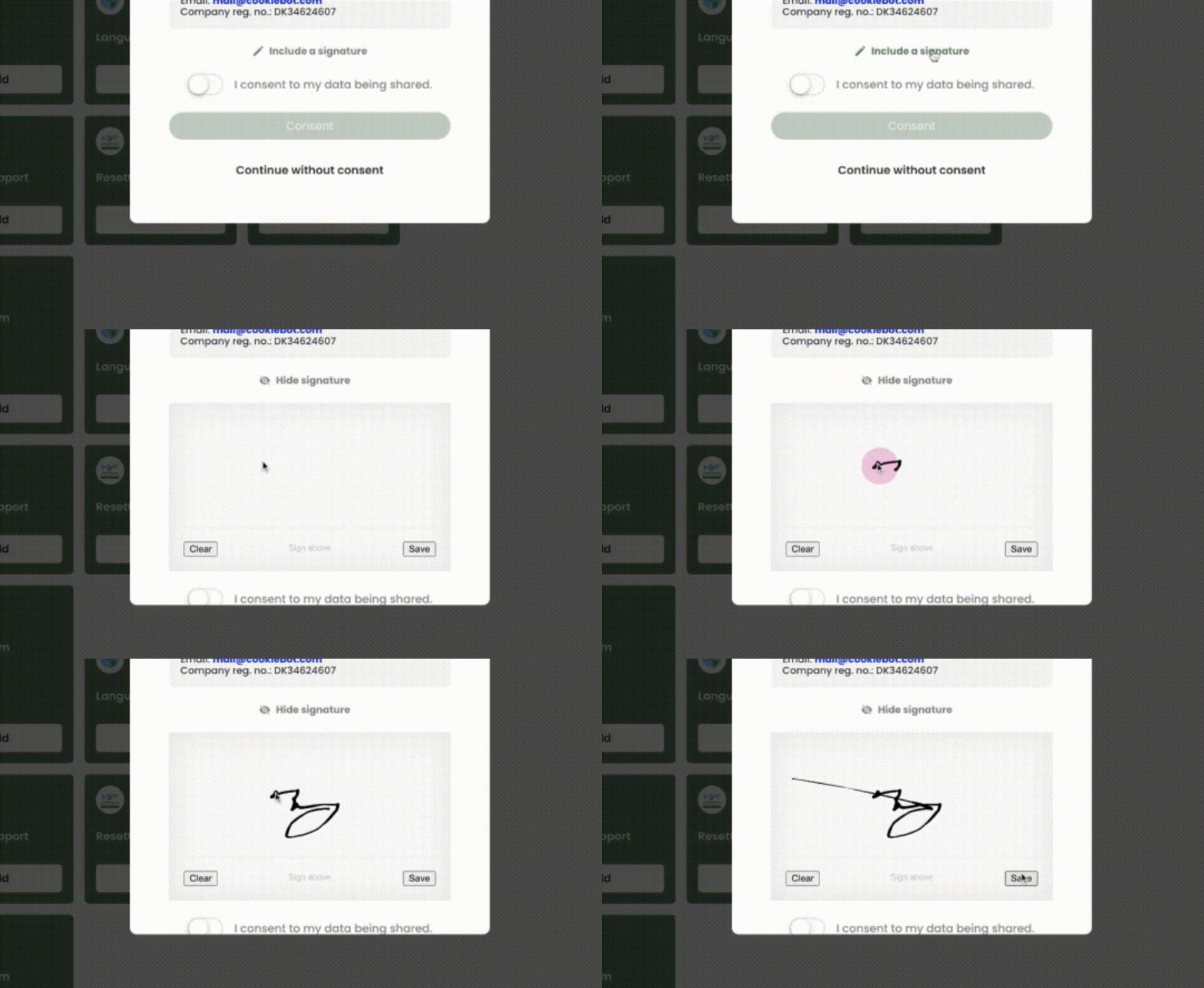
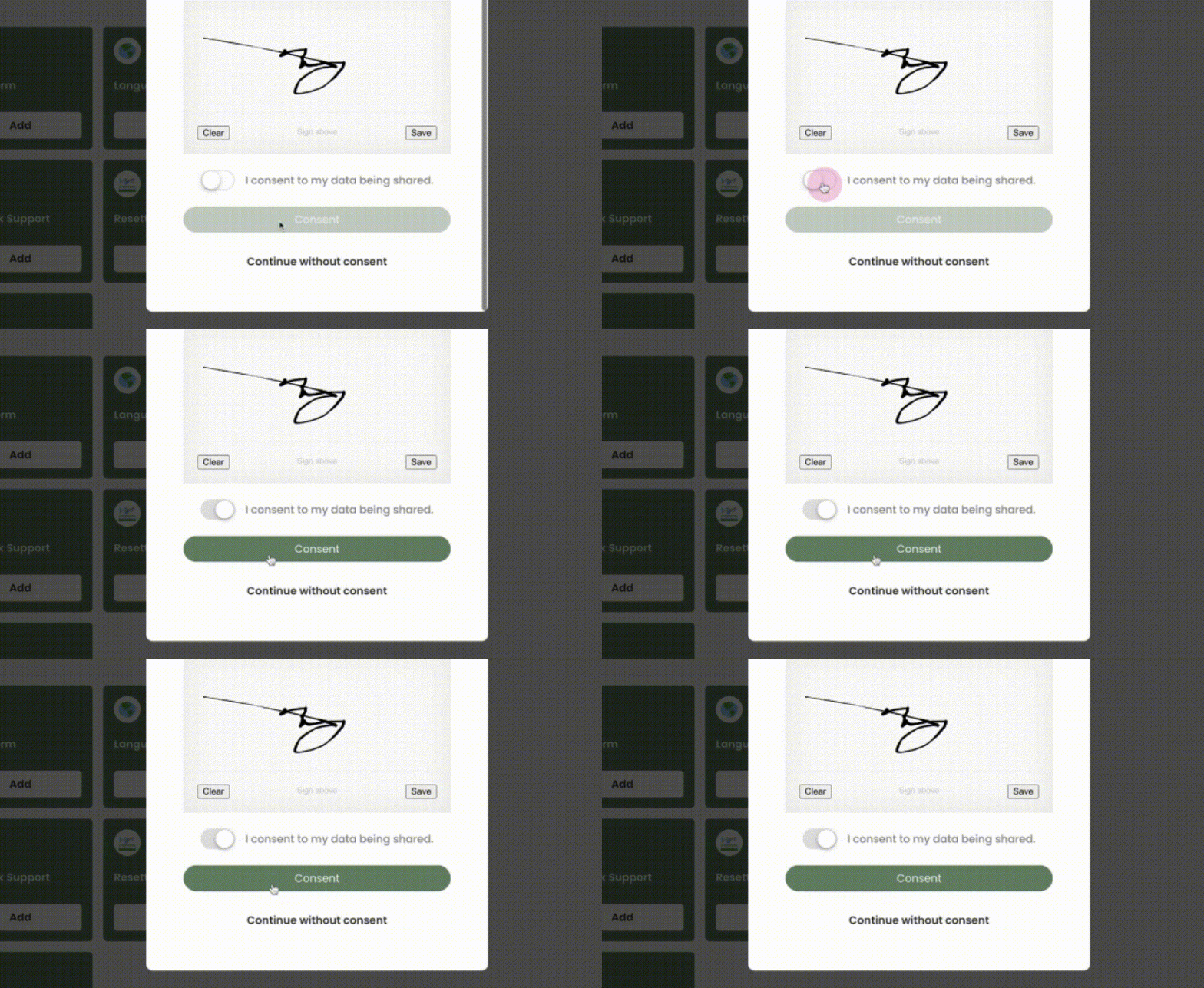
Step 9: The client should include a signature and provide consent.
Step 10: Confirm the client's consent by clicking the Consent button.
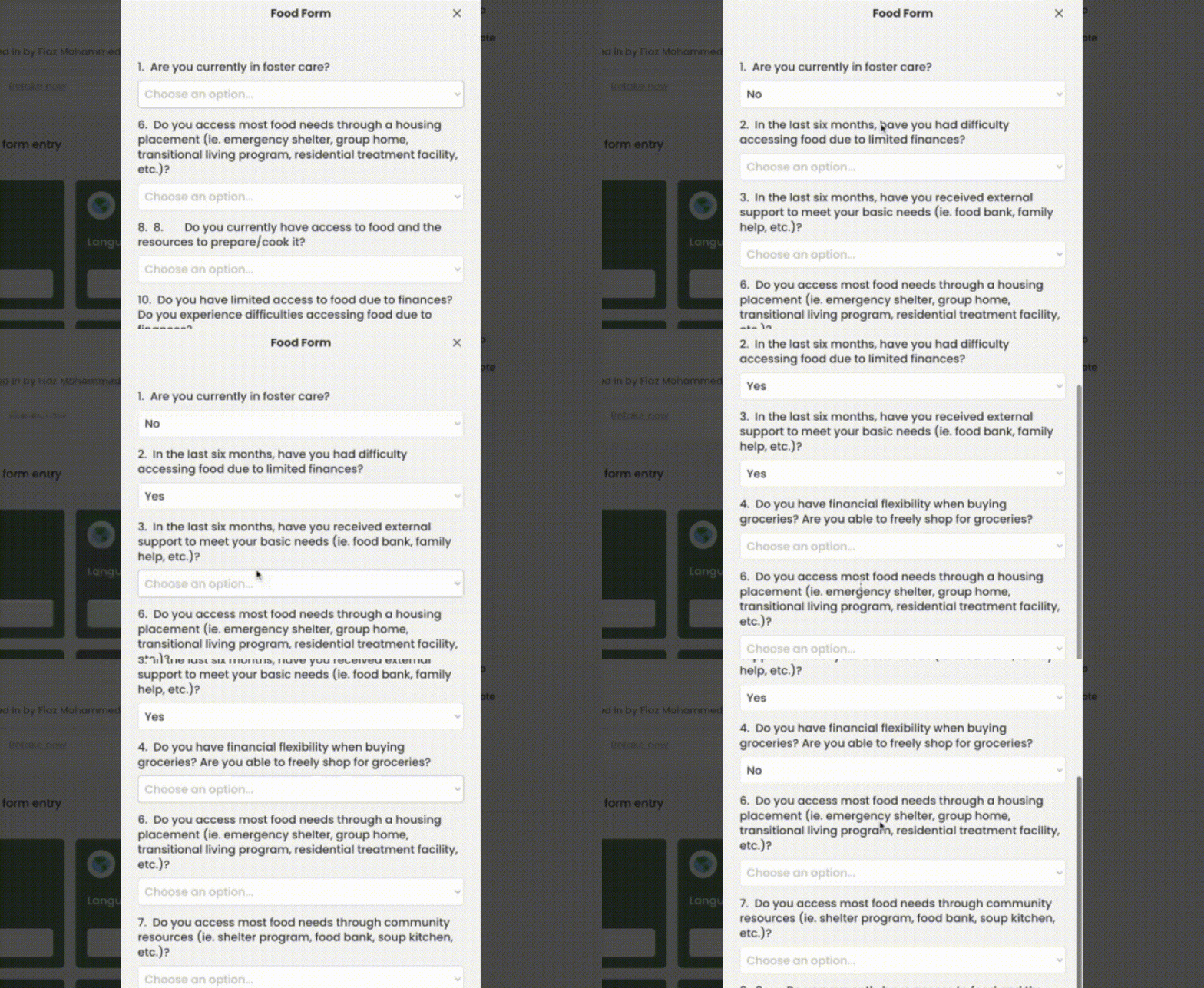
Step 11: Answer the applicable questions.
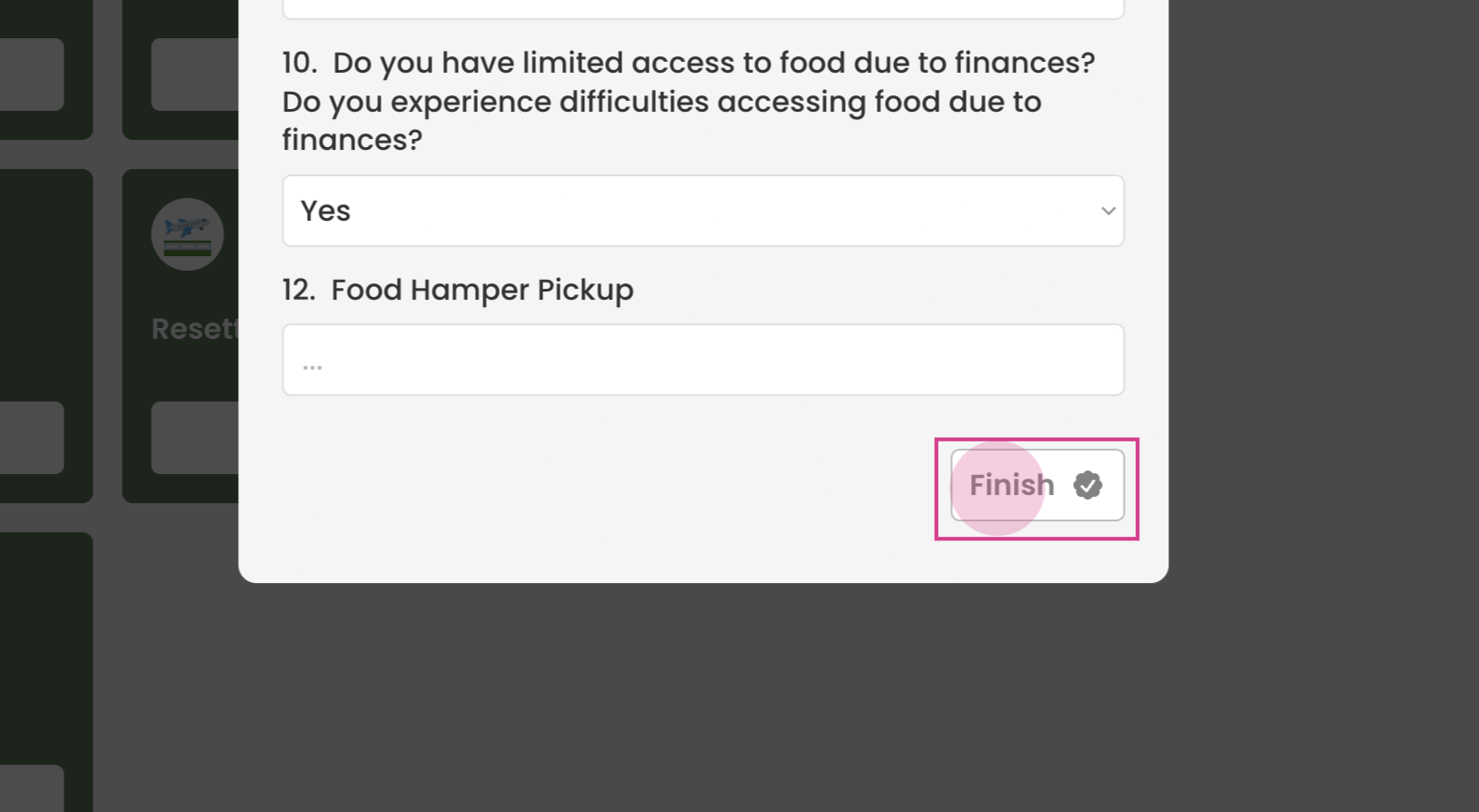
Step 12: Click Finish to complete the form.
¶ Updating form in the future
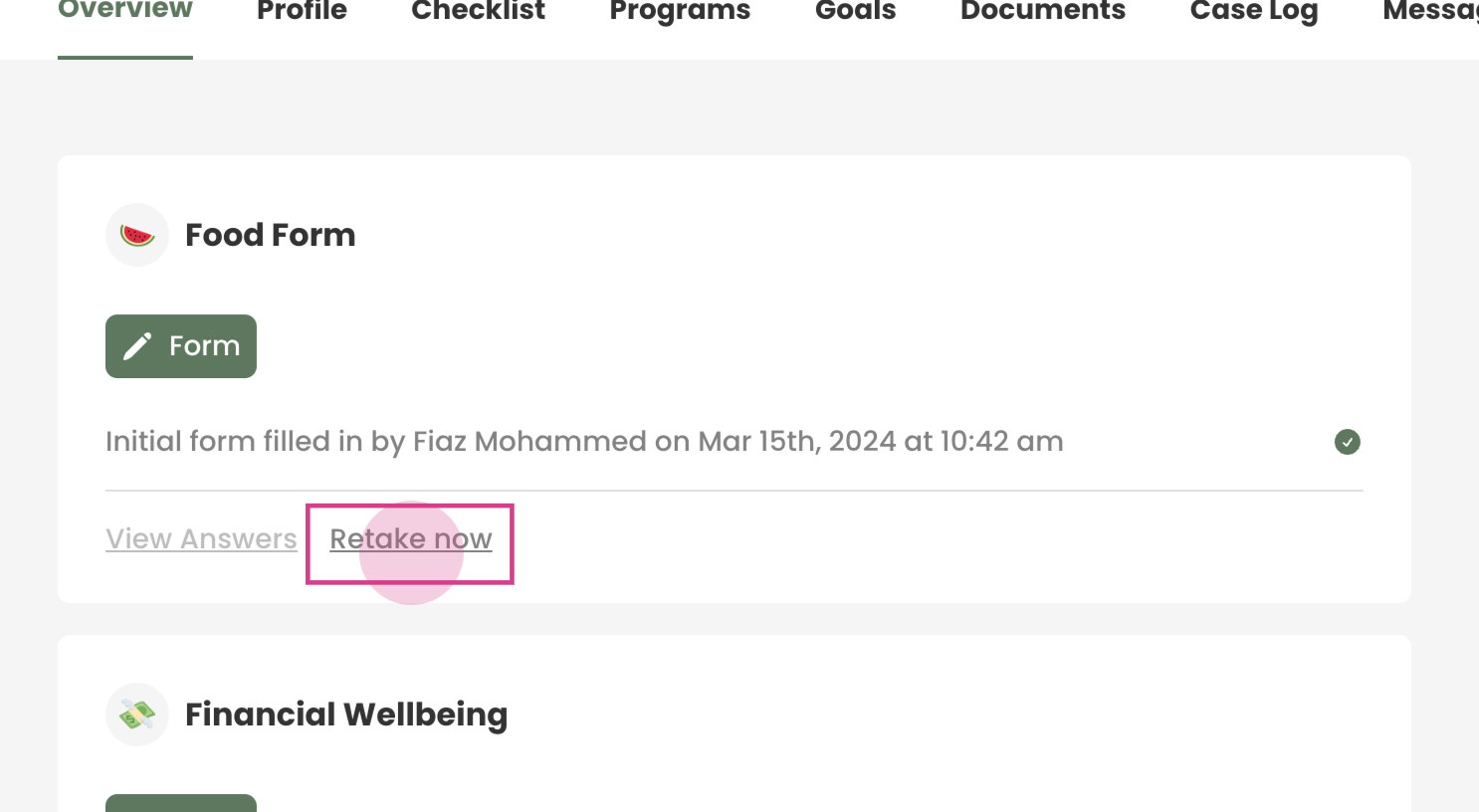
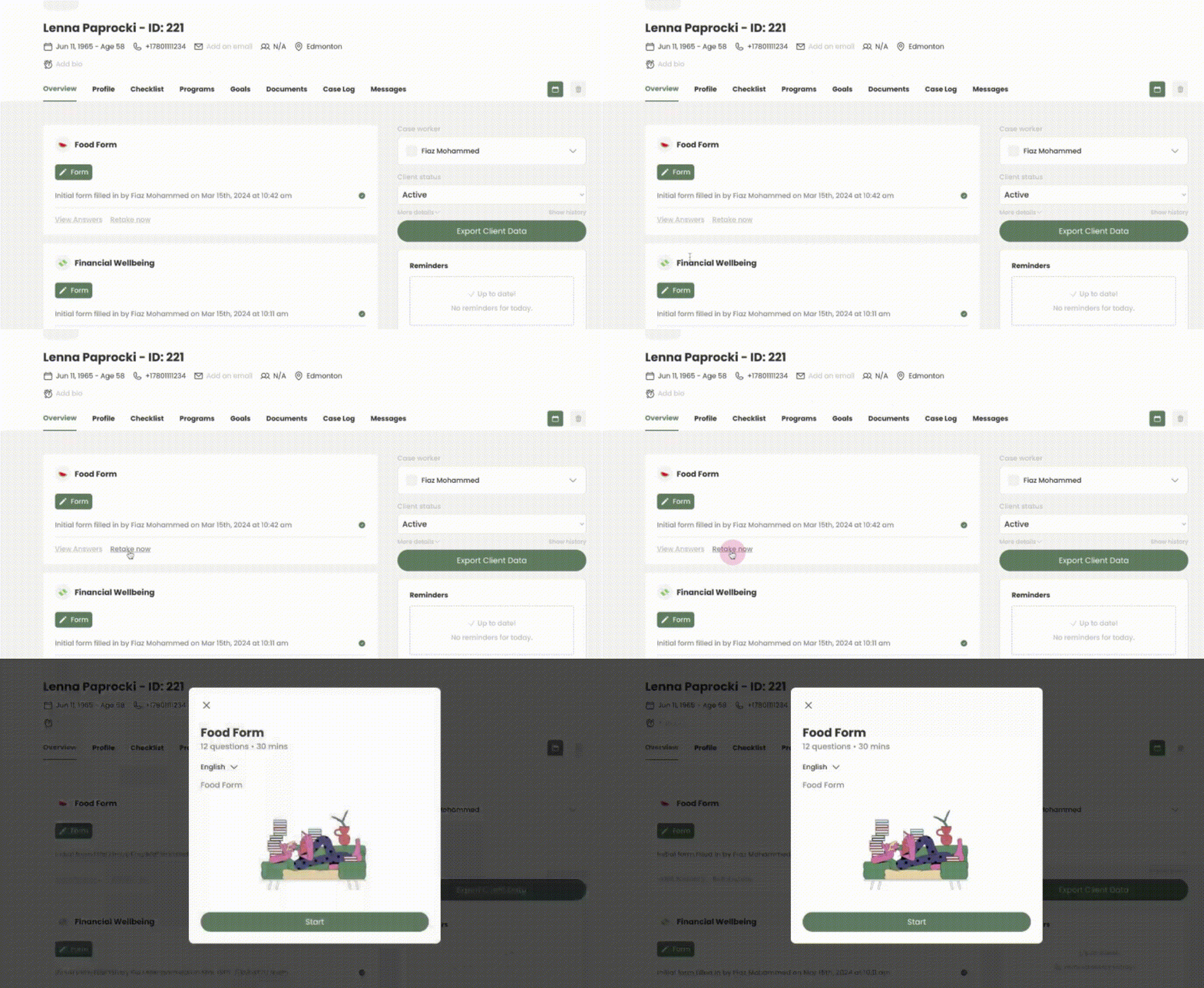
Step 1: If necessary, update the form by clicking Retake Now. This will prompt for consent and allow the form to be retaken.
¶ Checking Form History
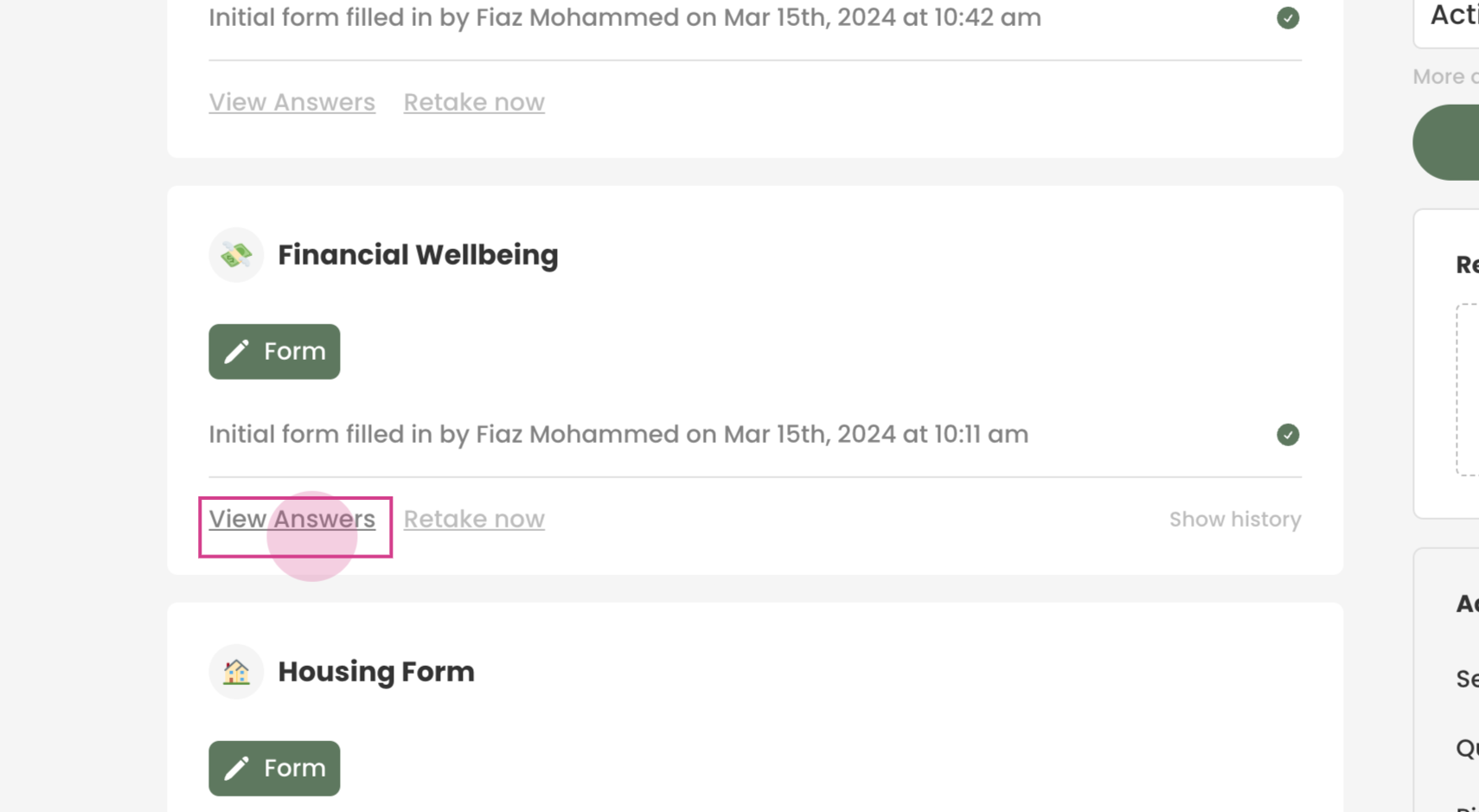
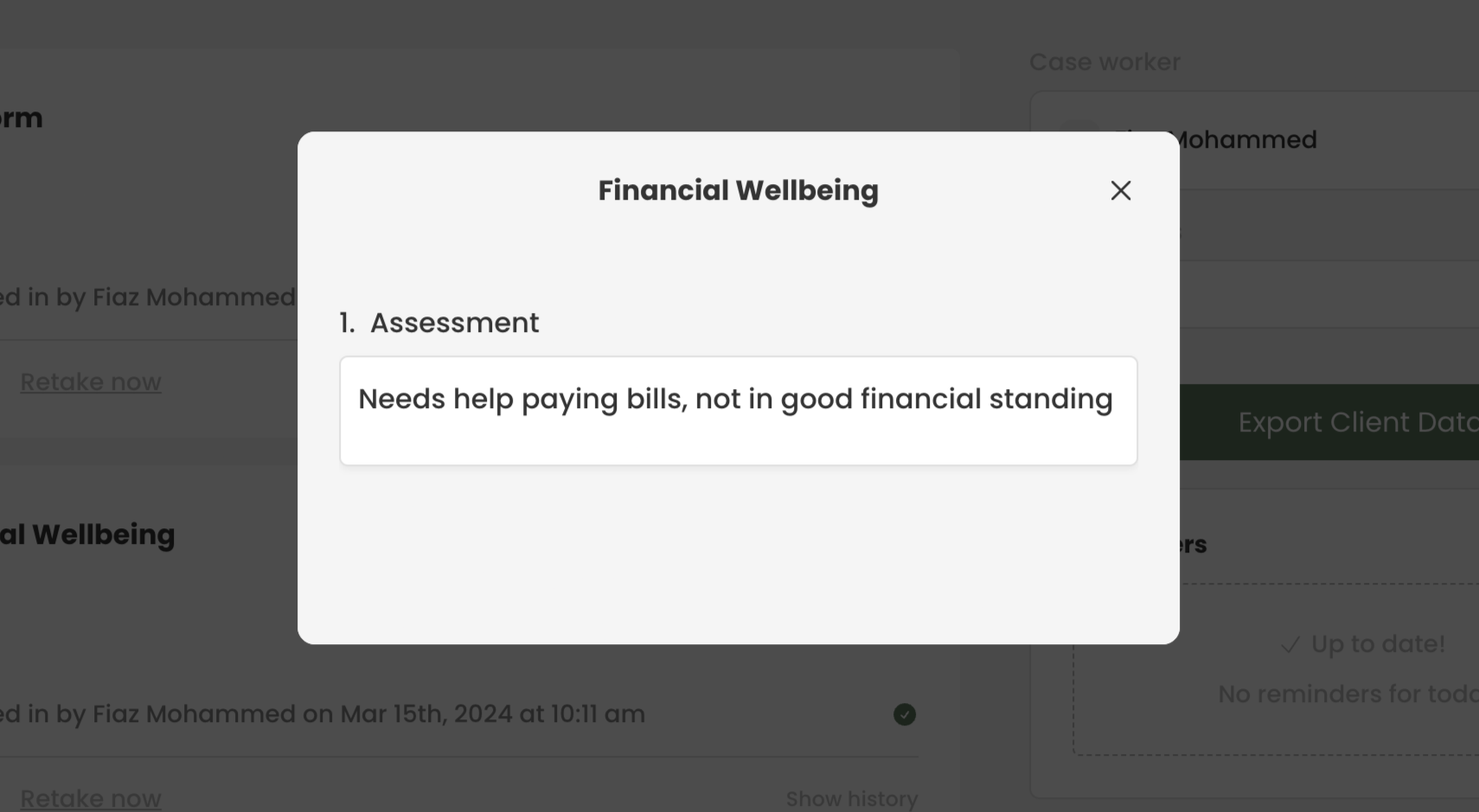
Step 1: To check the form history, view the current form answers by clicking View Answers.
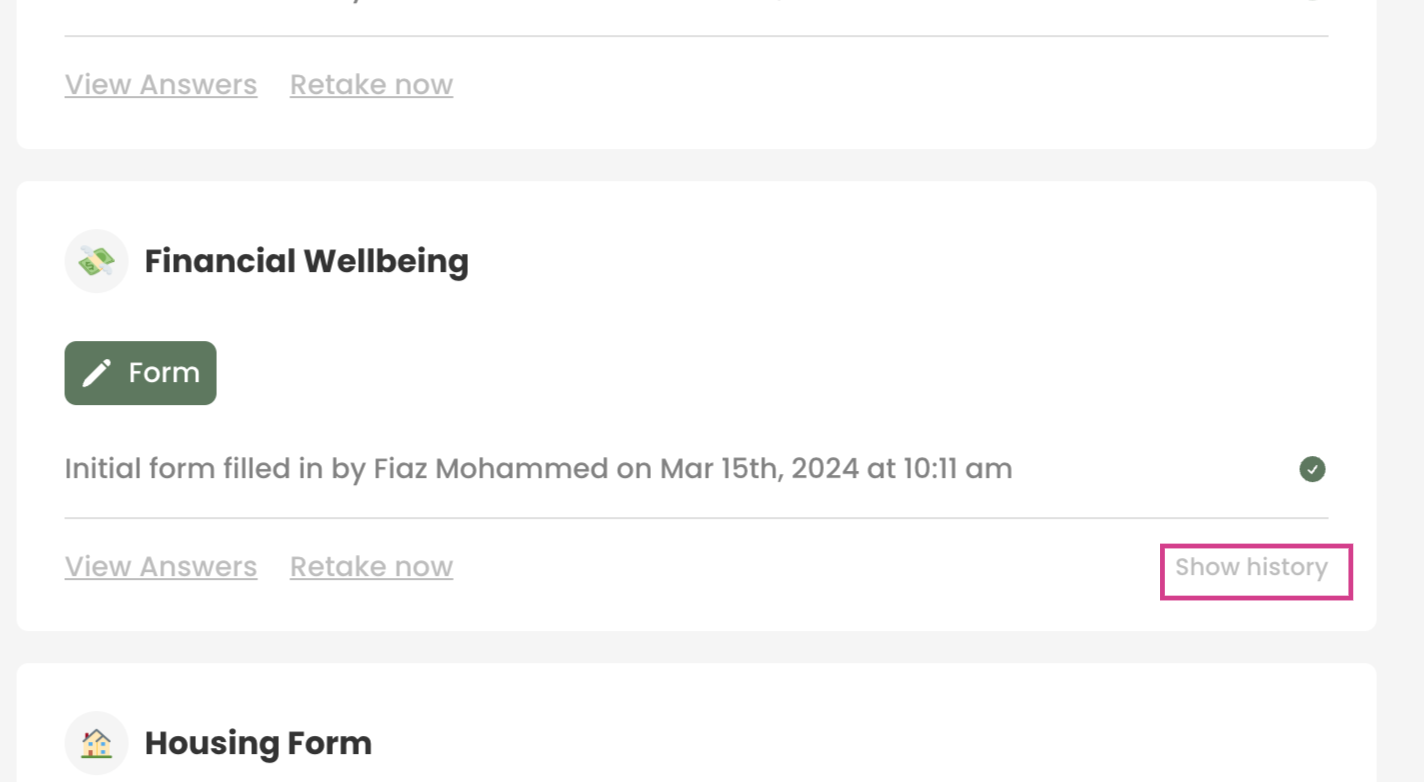
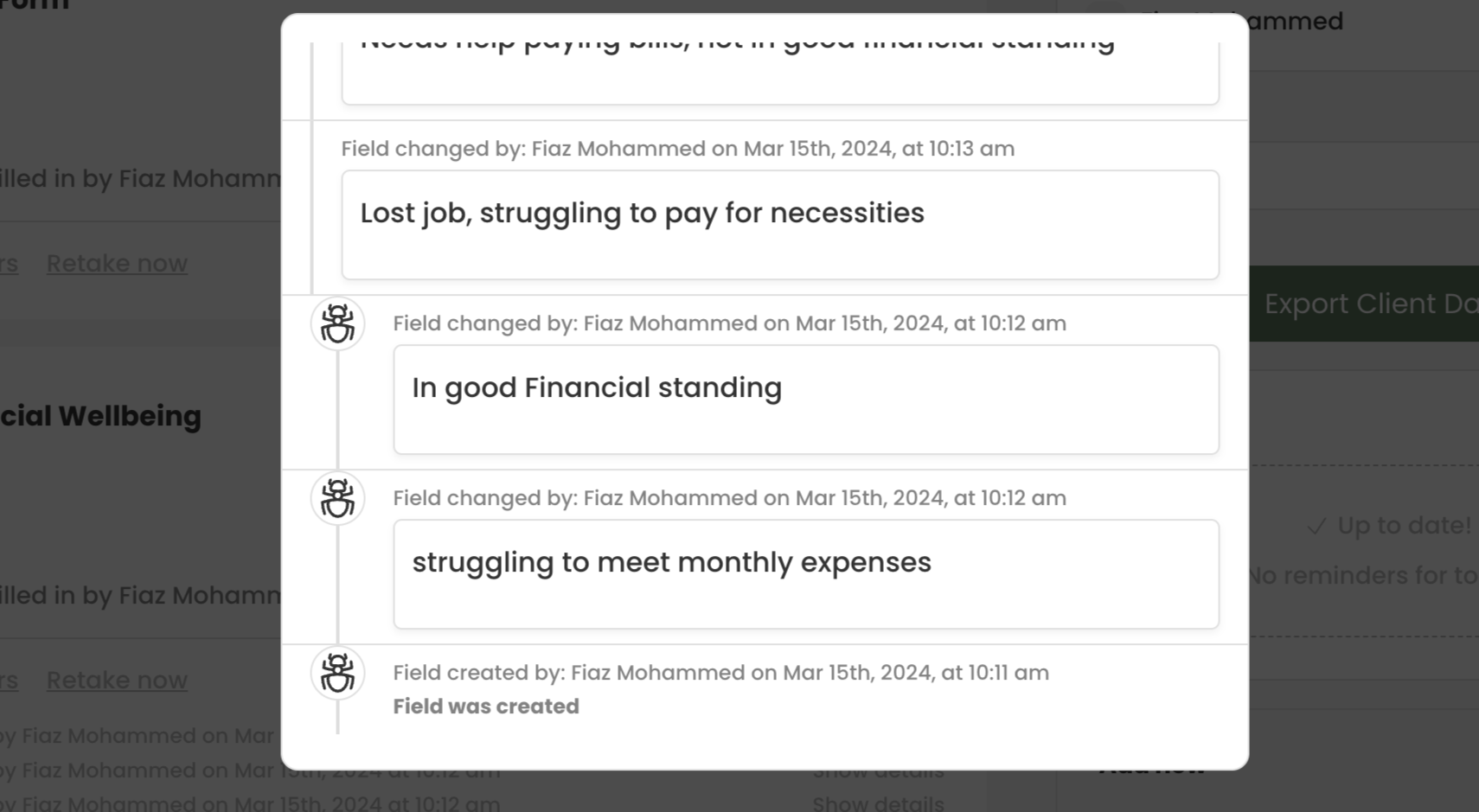
Step 2: To view more historical data, click Show History and then Show Details.
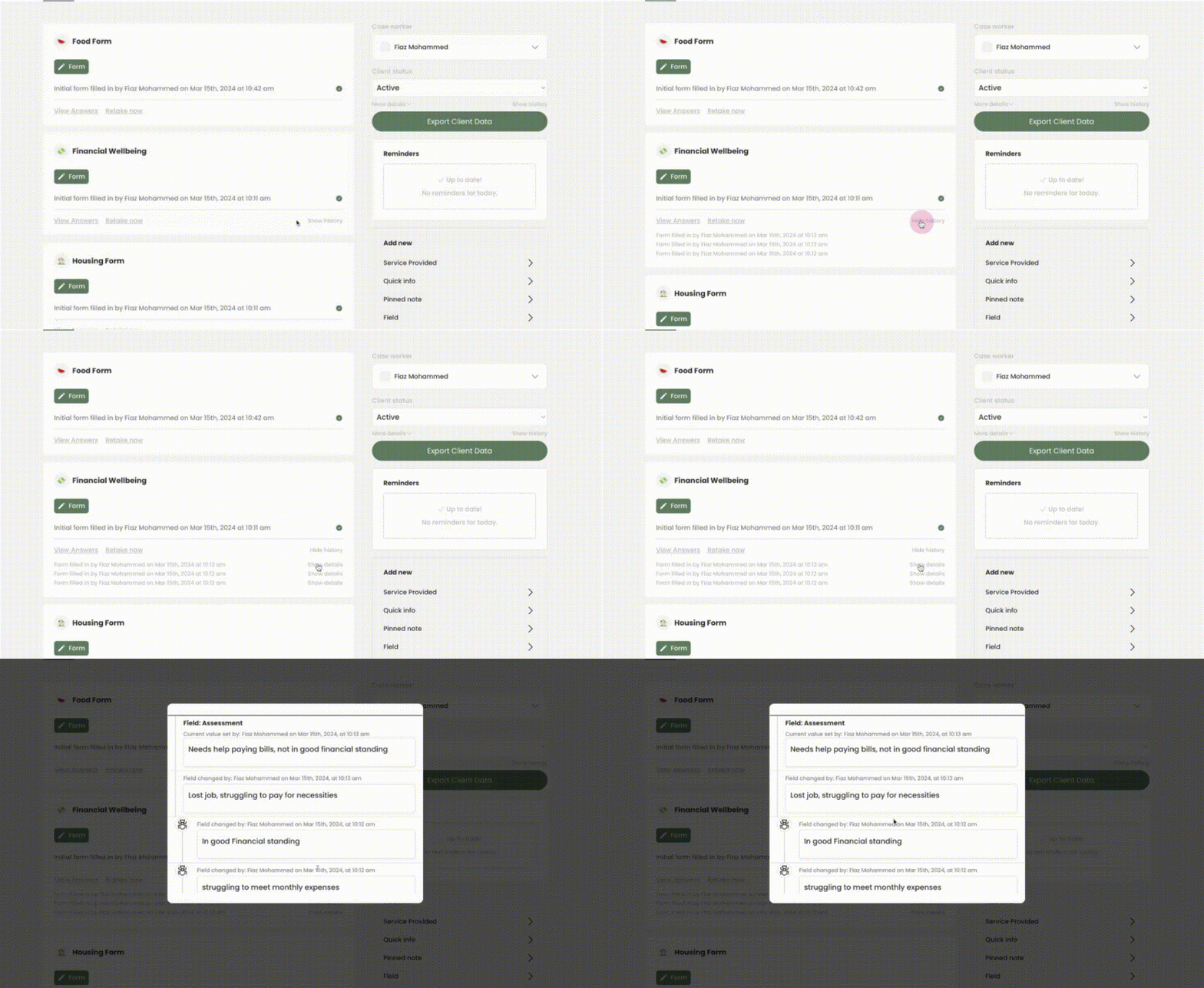
Step 3: This will display all history of this form for the client.
With these steps, it's easy to add forms, retake forms, and check history for forms for clients using Transform.