Welcome to a tutorial on how to edit a client profile page Transform. This guide will take you through the steps needed to search for a client, access their profile, and make changes to their information.
Step 1:
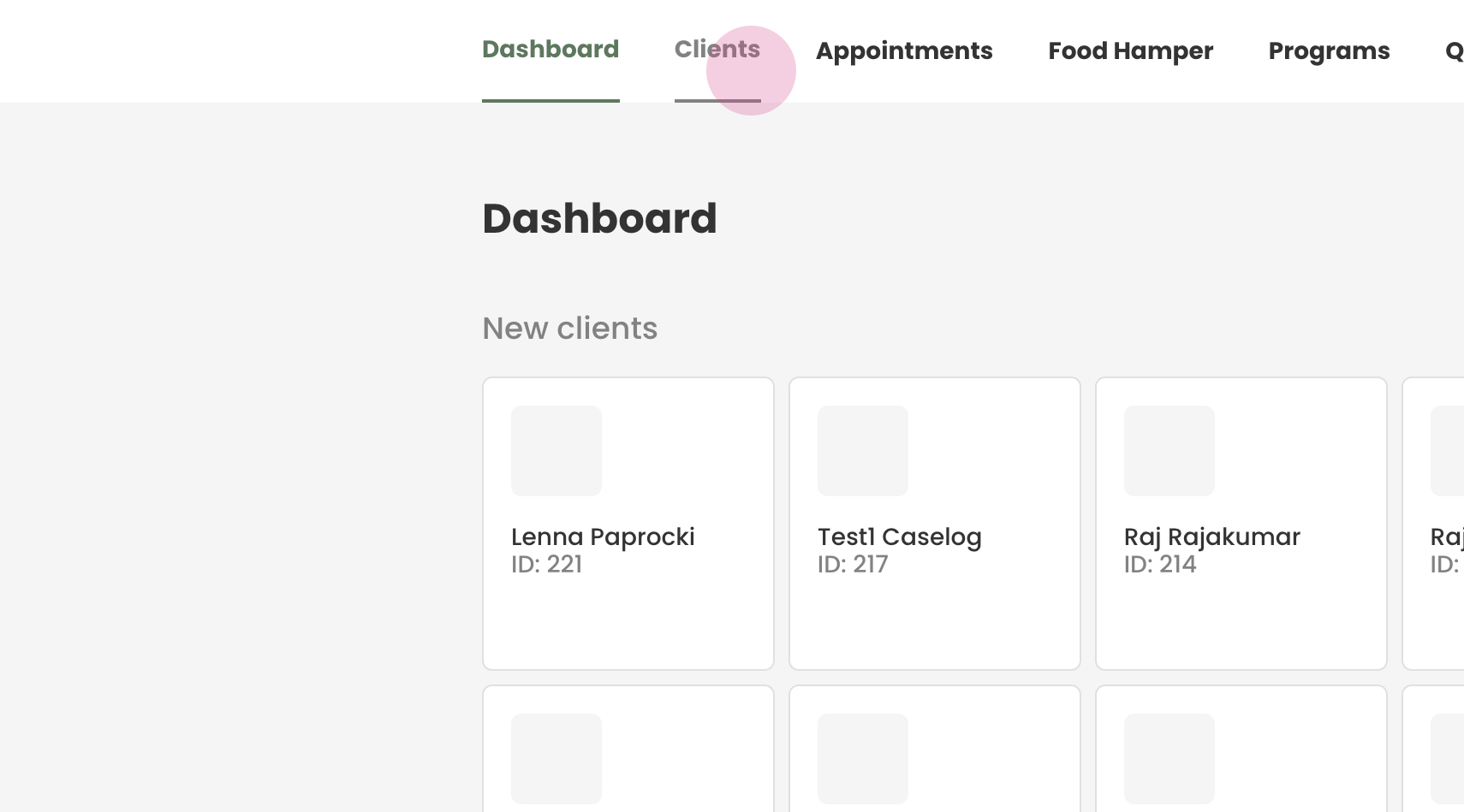
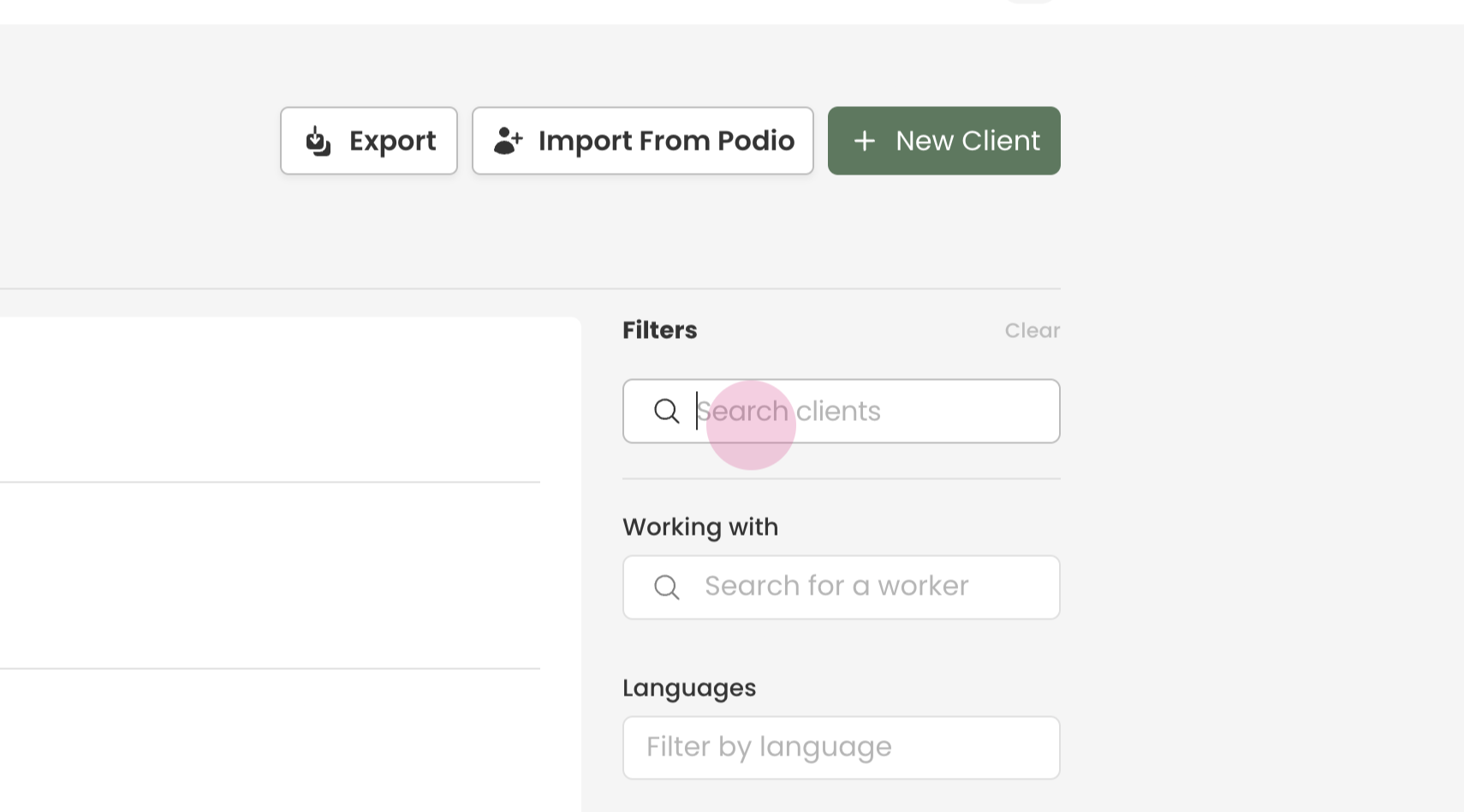
Begin by searching for the client. This can be done by navigating to the client tab and utilizing the search box.
Step 2:
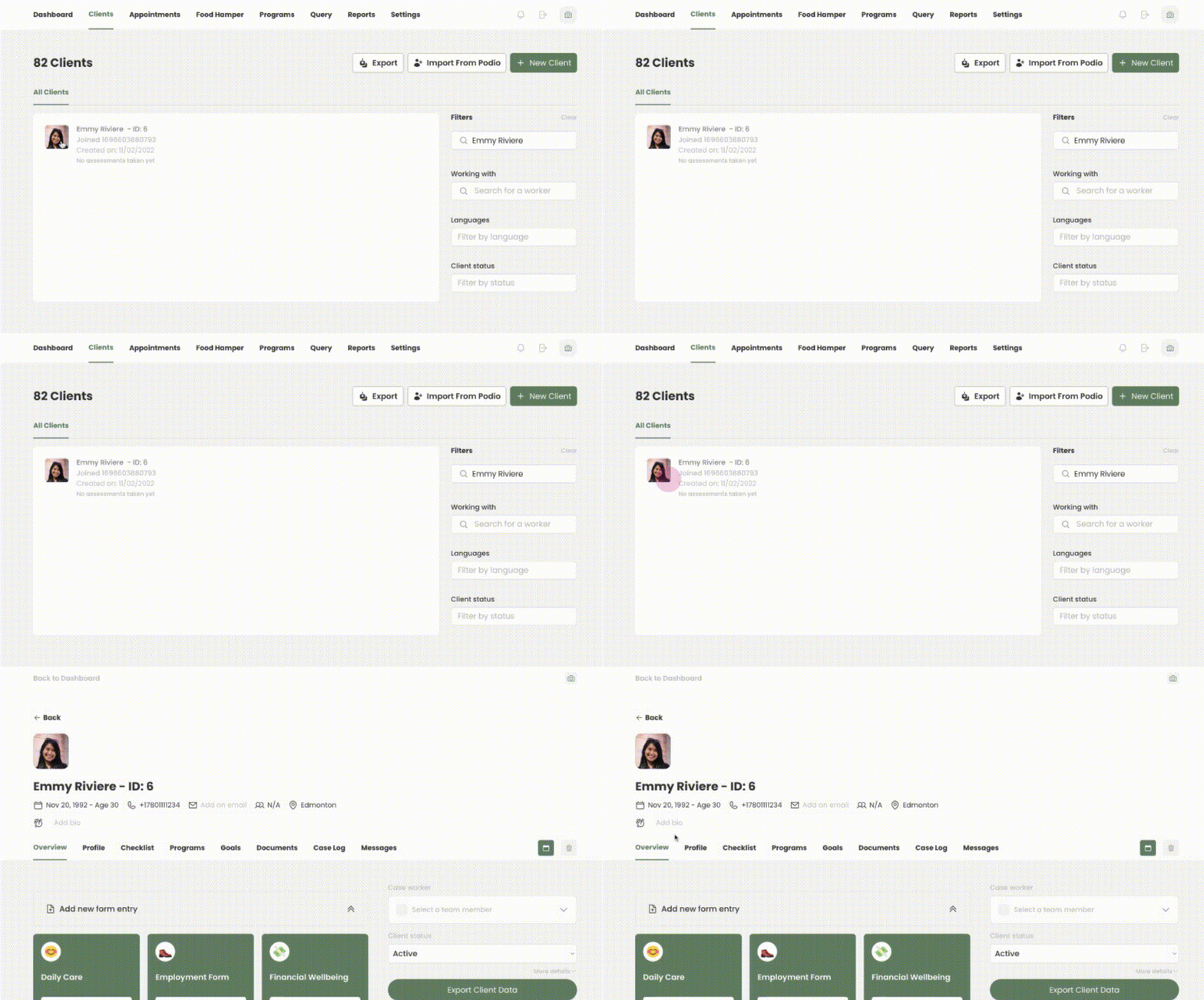
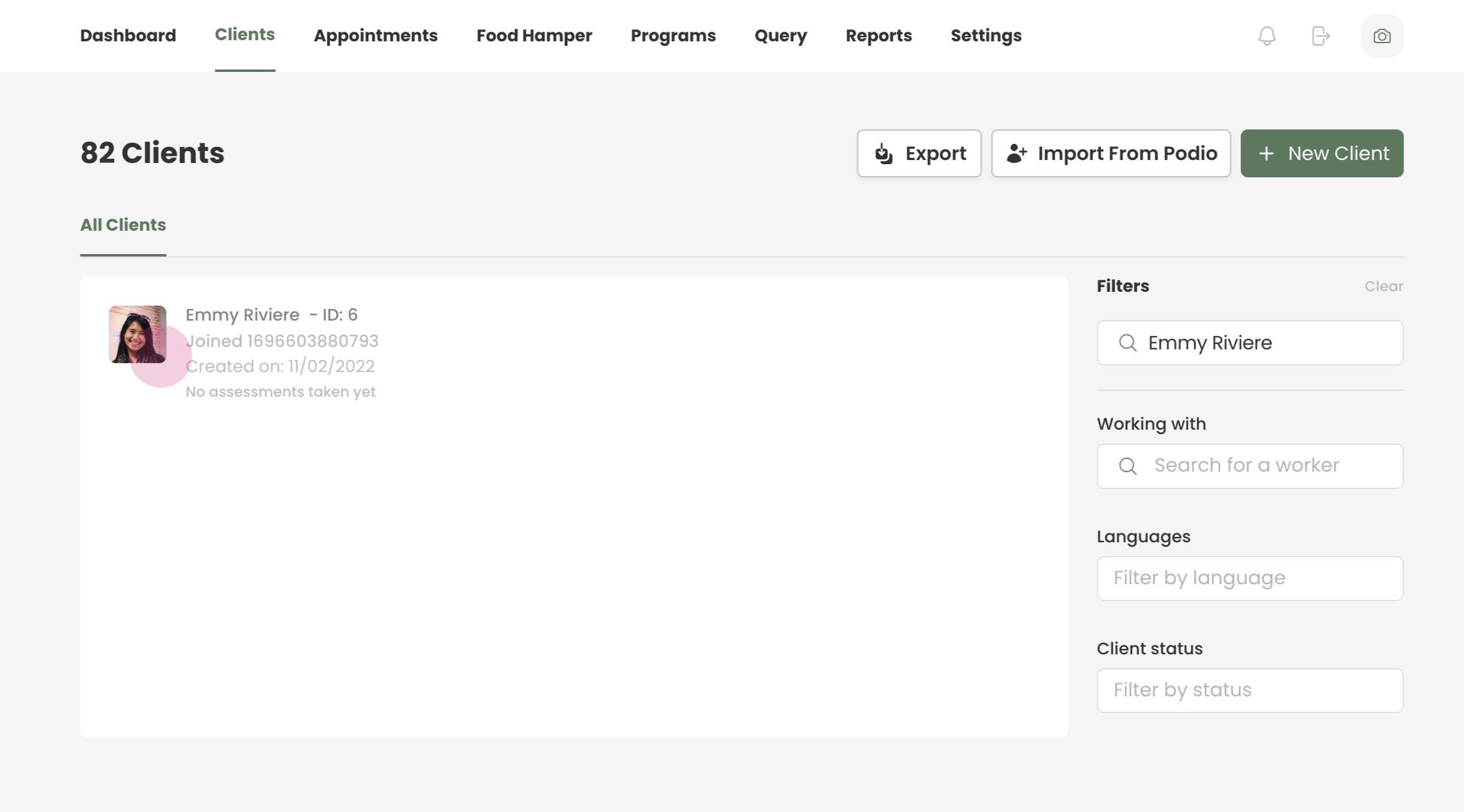
You have the option to search for your client by their first and last name or their Transform ID. Once you've entered the relevant details, press enter/return to execute the search and select the client.
Step 3:
Once the client is selected, proceed to their profile.
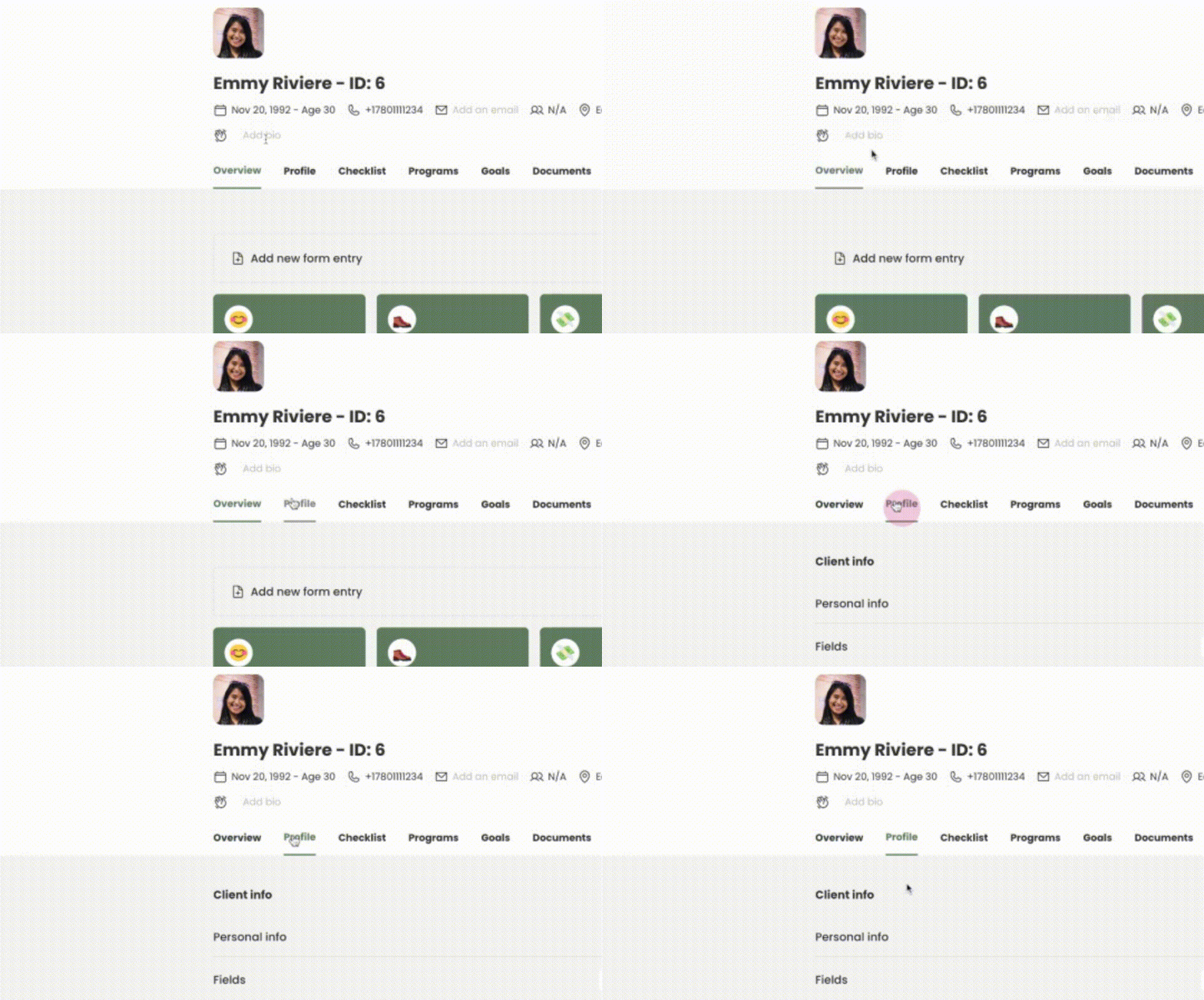
Step 4:
In the profile, click on 'personal info'.
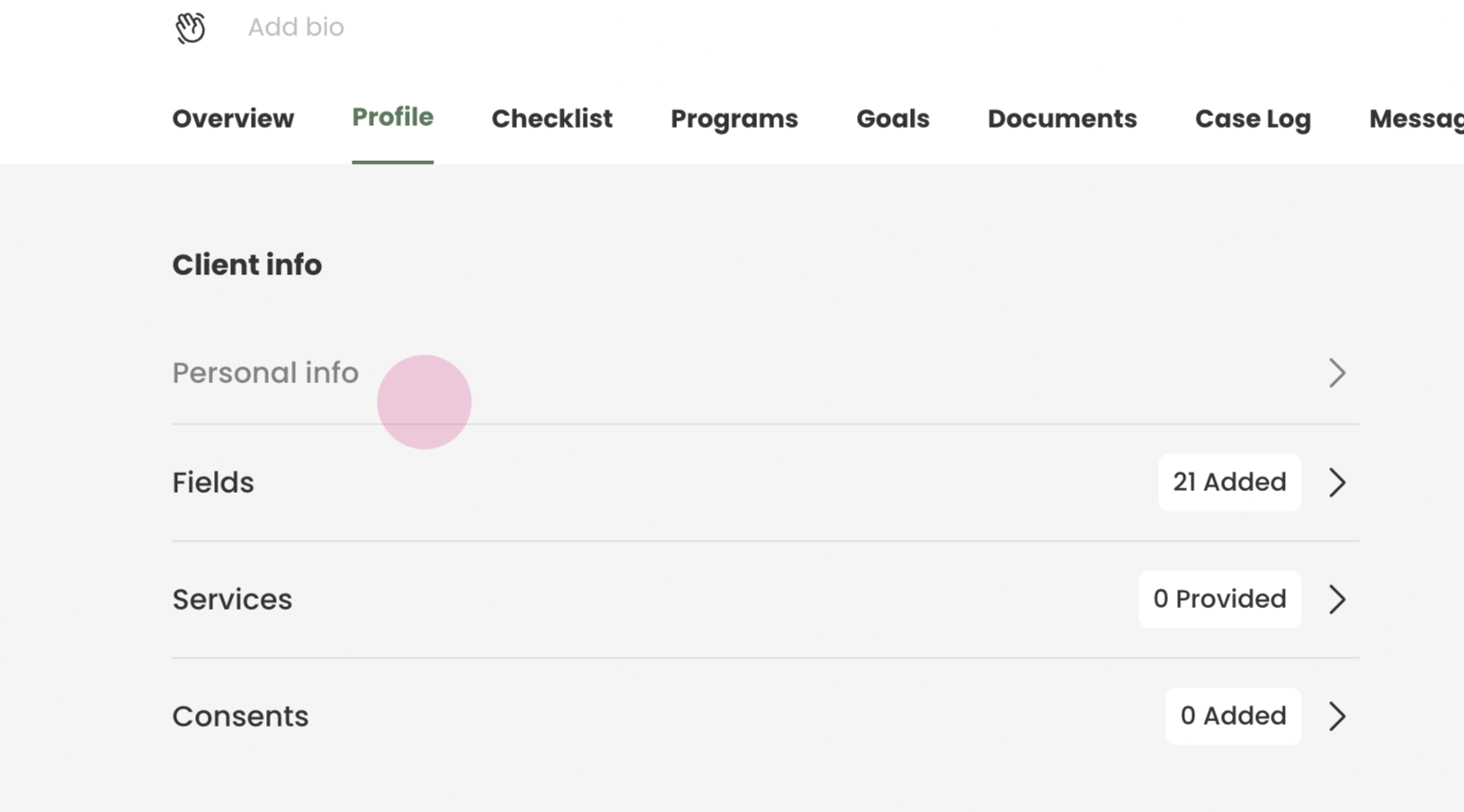
Step 5:
Upon clicking, you will be able to view all the profile information. You can edit any of the fields as per requirement. The changes will be auto-saved.
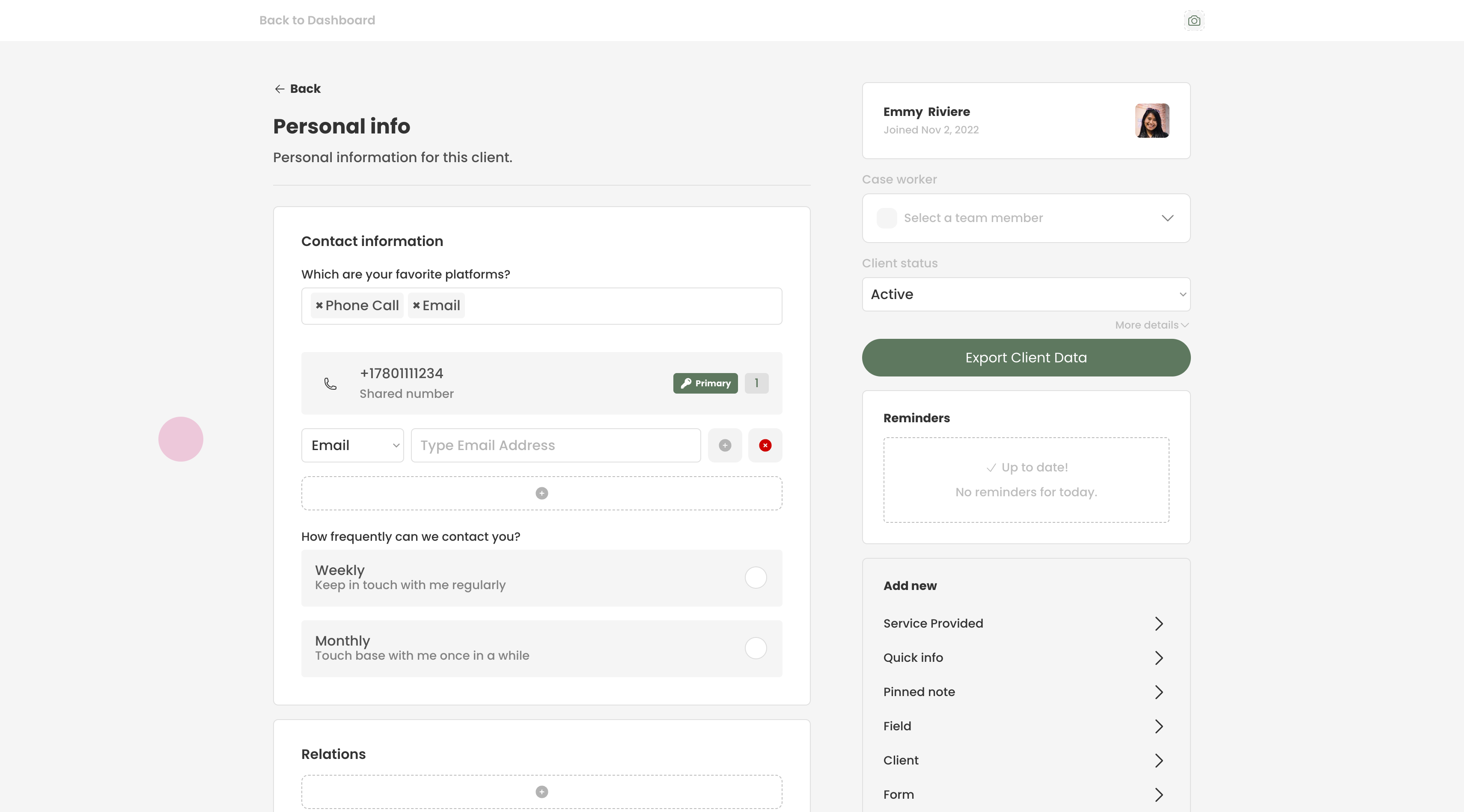
Step 6:
For example lets change Emmys address.
Clear the old home address and input the new one.
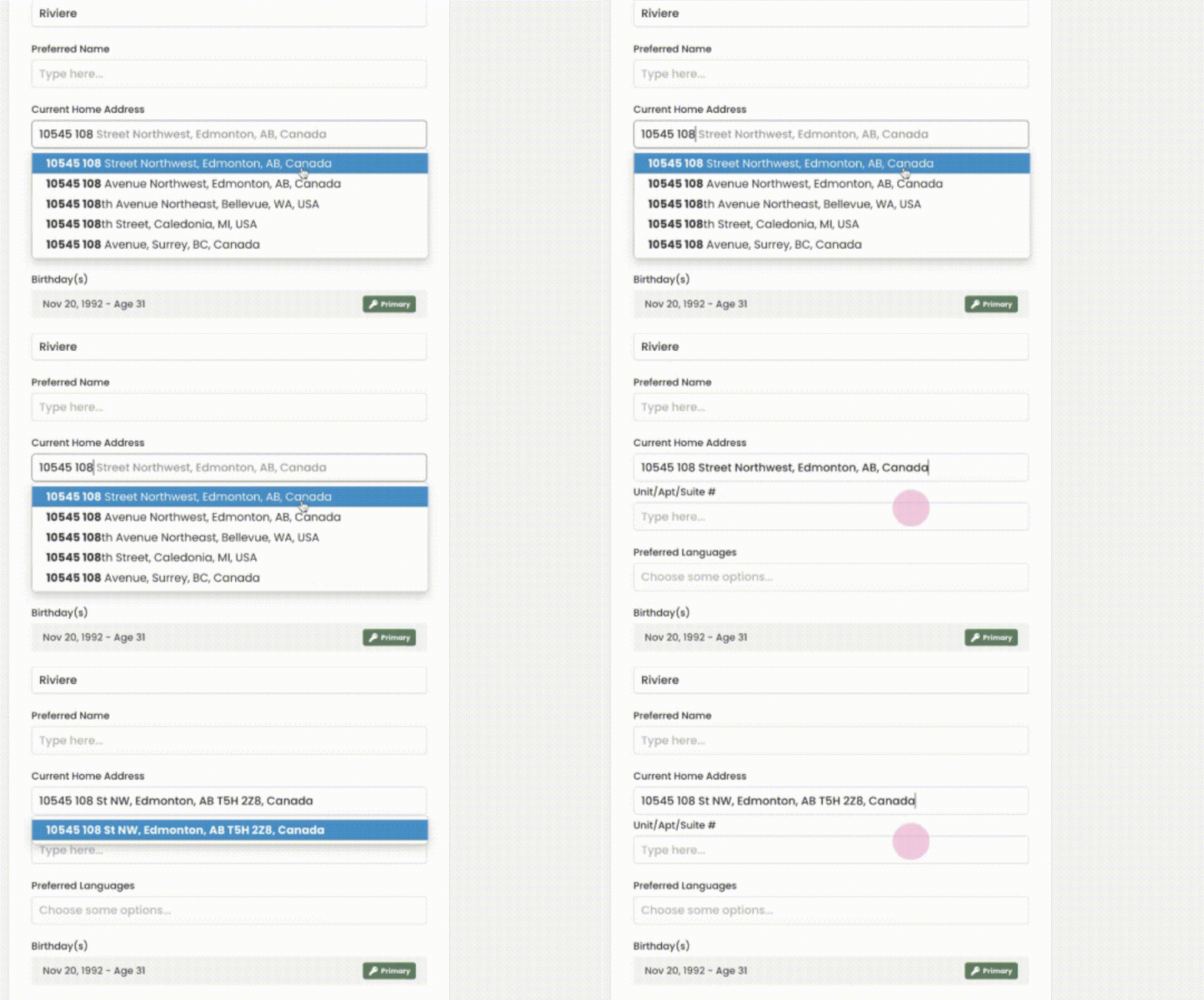
Step 7:
Once the new information is entered, it will auto-save to the client's profile. You can then navigate back to the dashboard.
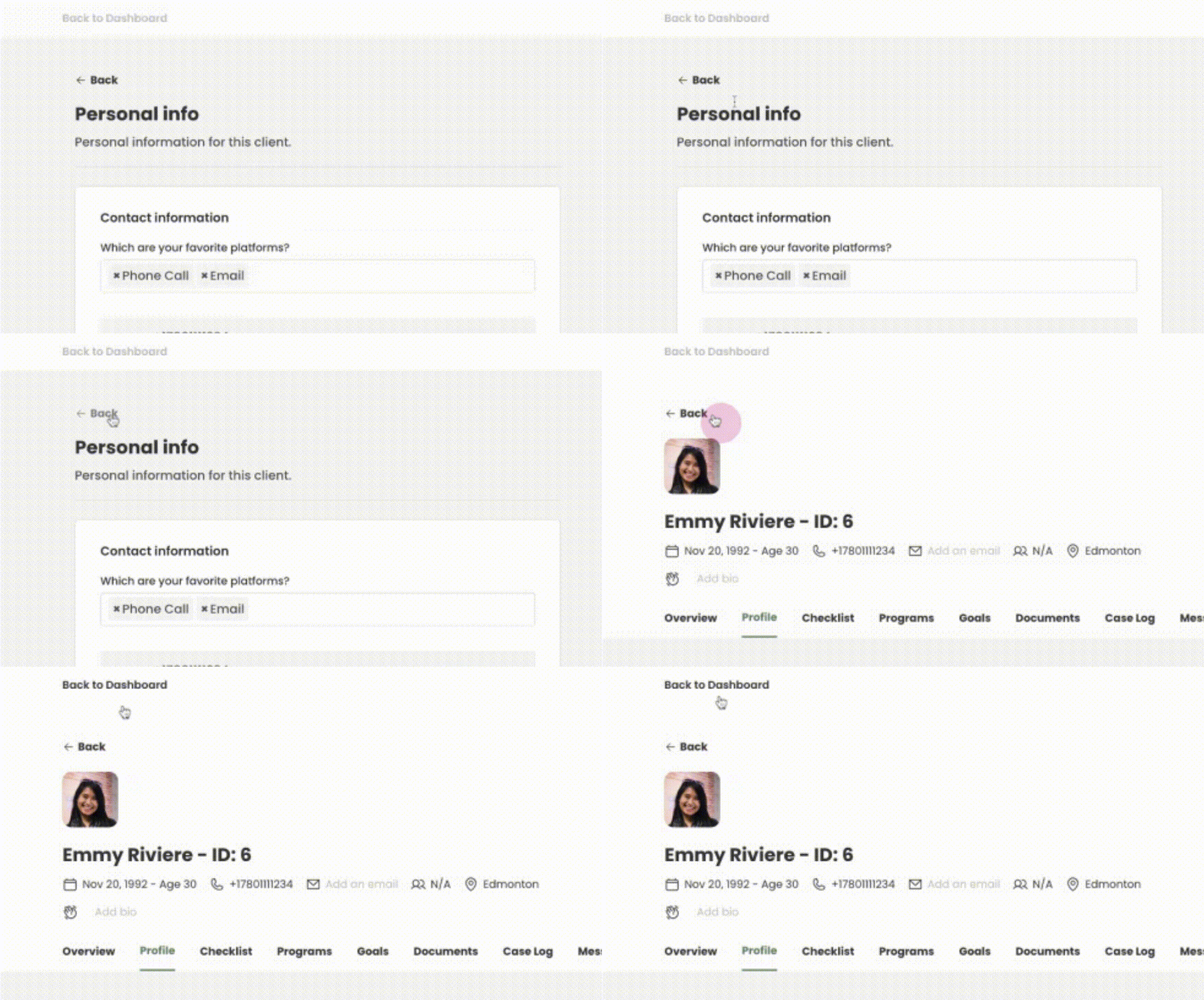

You have successfully edited the client's profile on Transform. The edited information should now be updated and visible on the client's profile page.