Easily export a complete list of everyone actively enrolled in a program. This guide walks you through each step to generate and download your participant report.
Step 1: Go to the Reports tab.
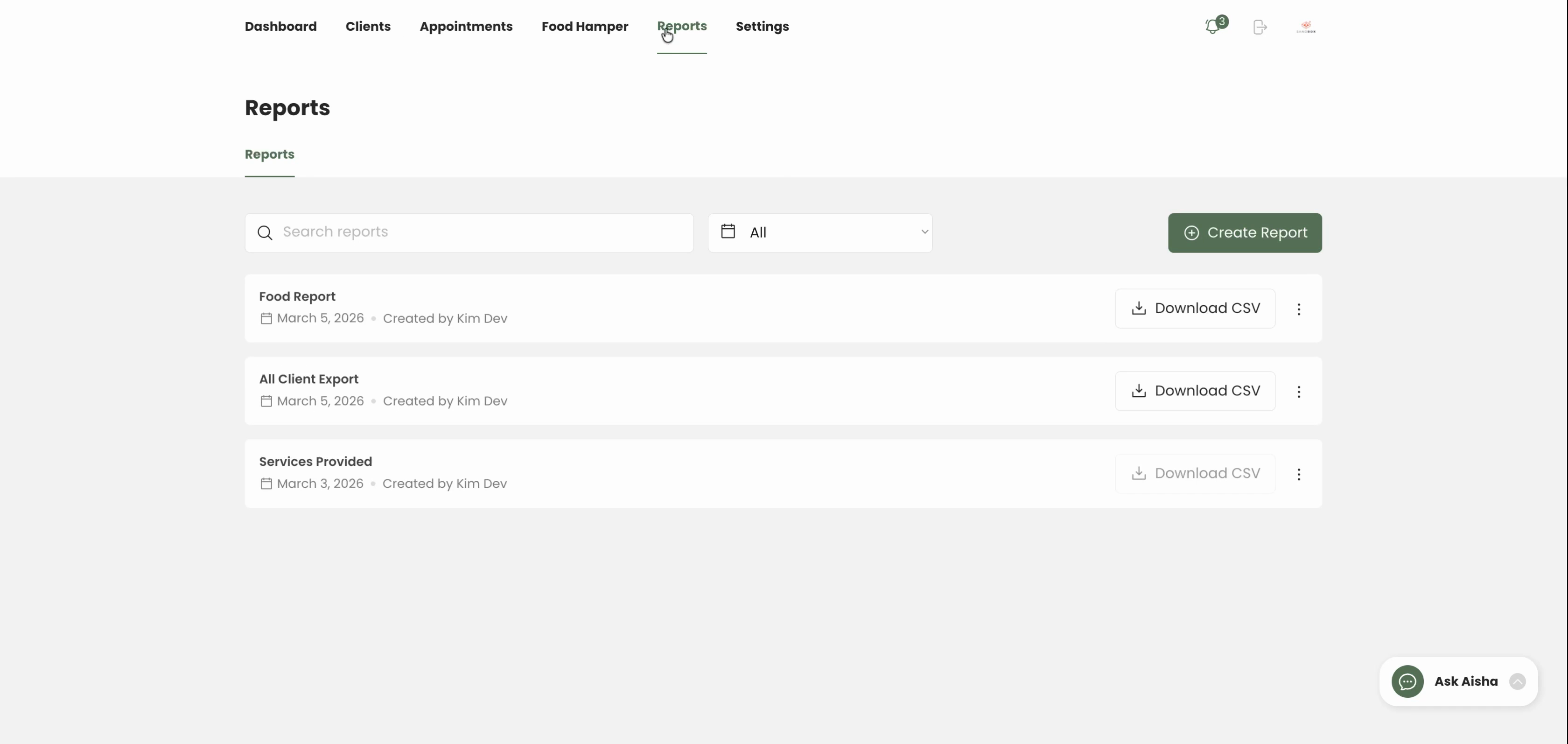
Step 2: Click Create New Report.
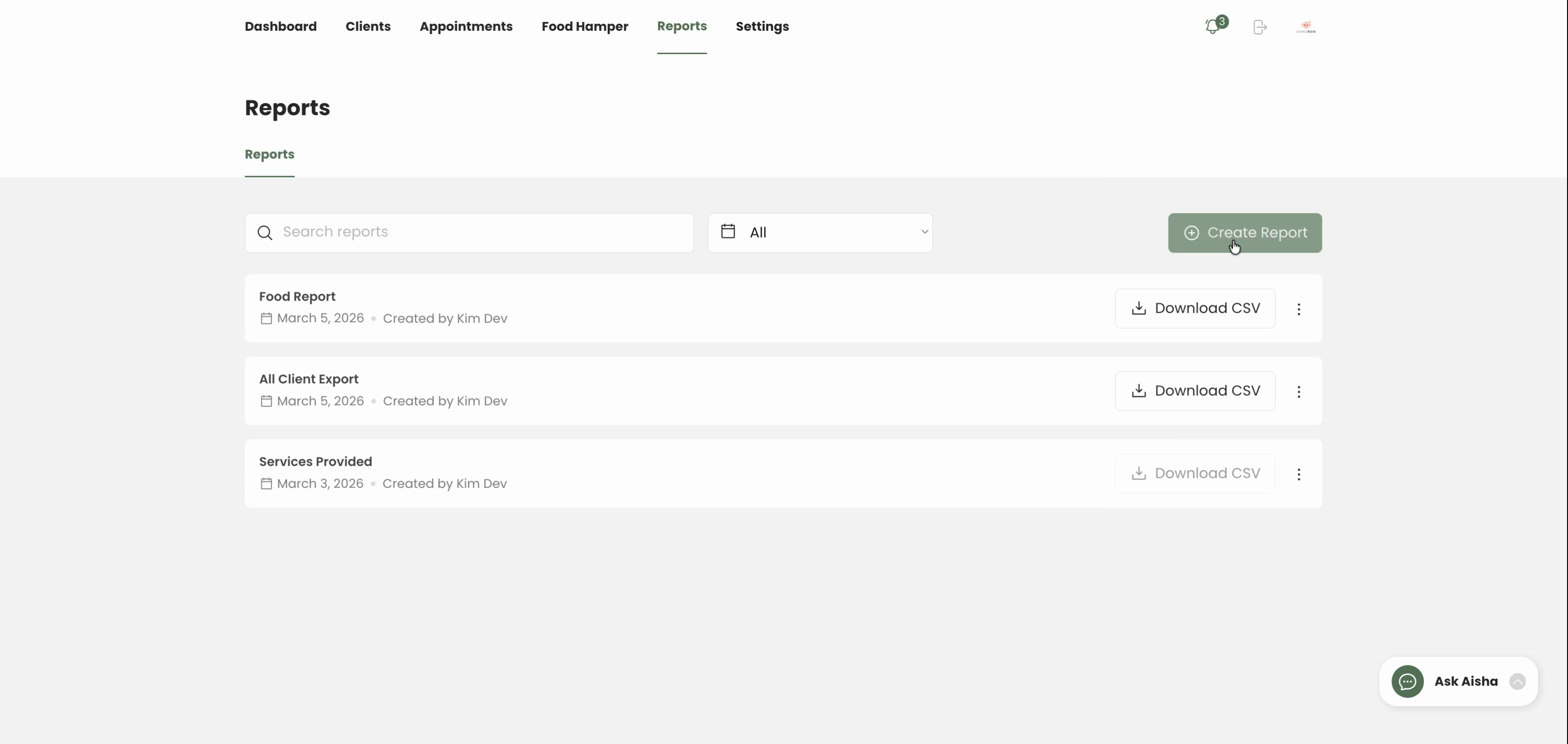
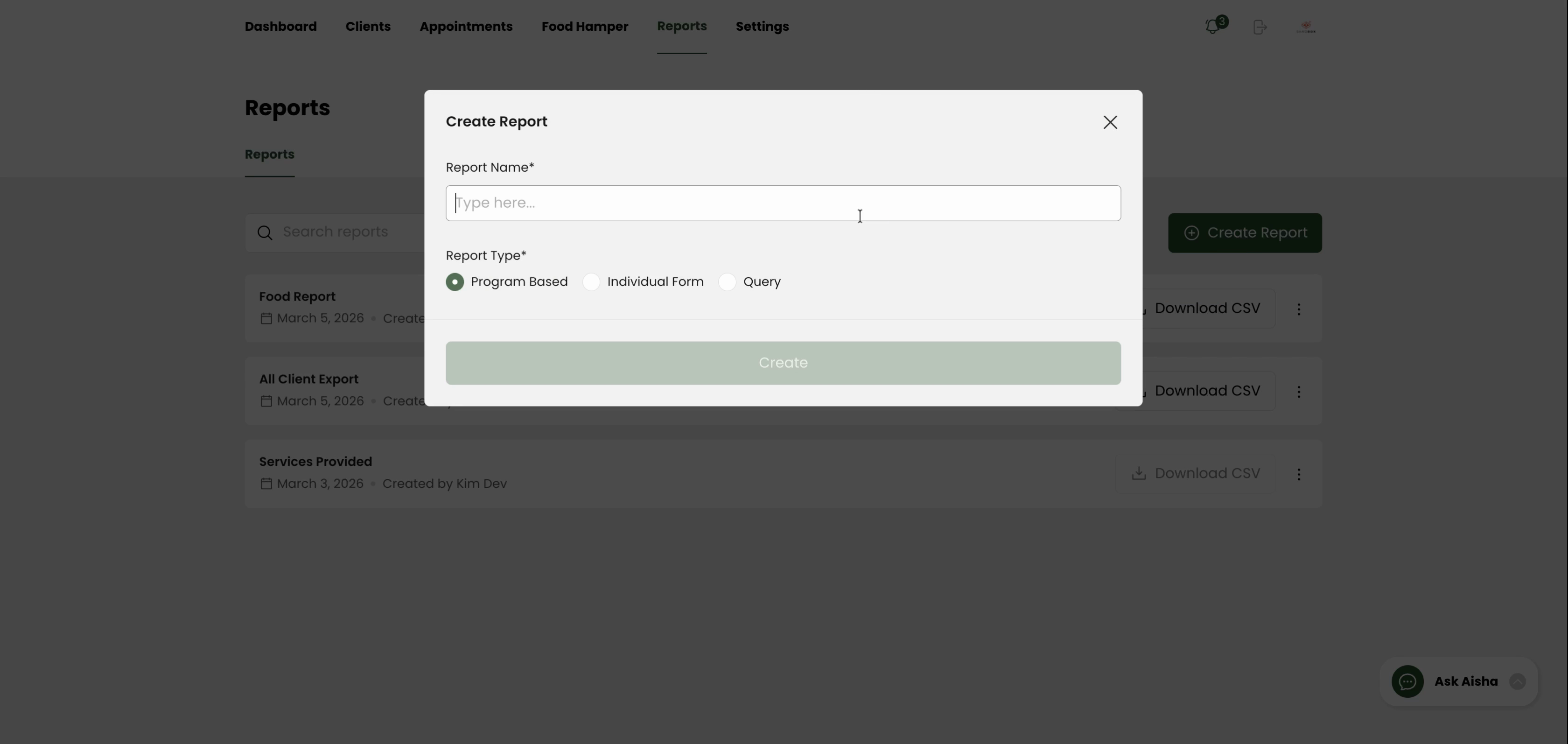
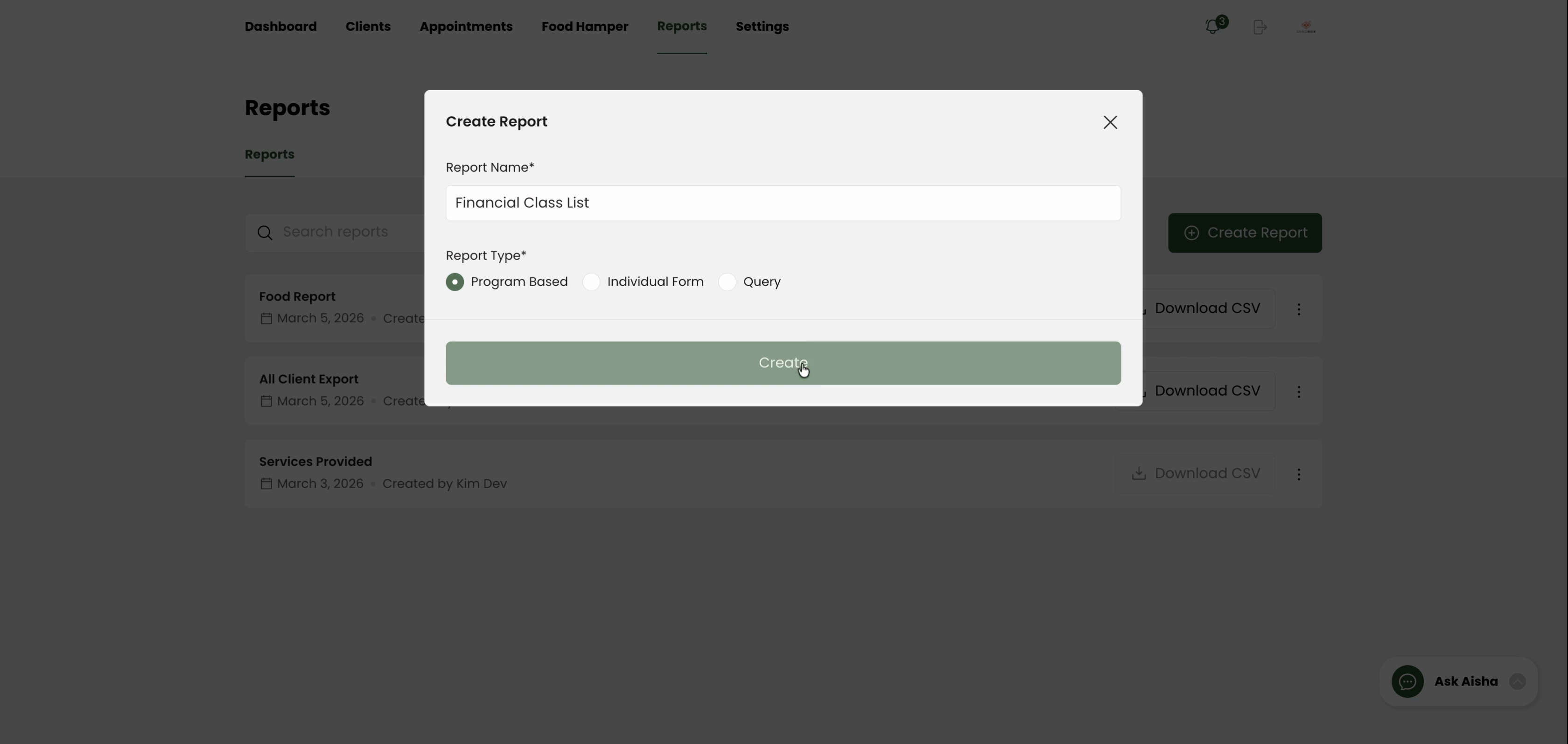
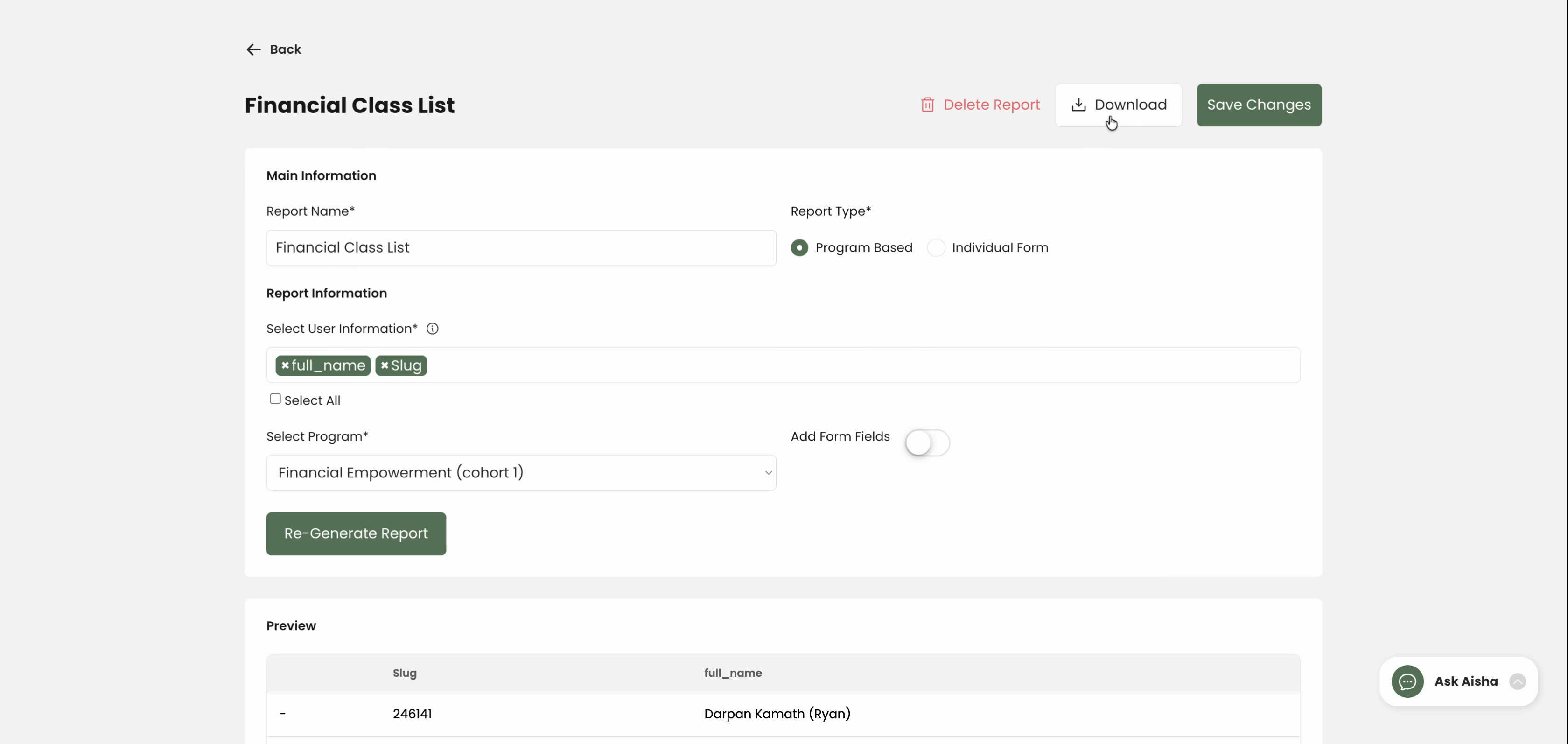
Step 3: Enter a descriptive name for your report.
Step 4: Under Report Type, select Program-based.
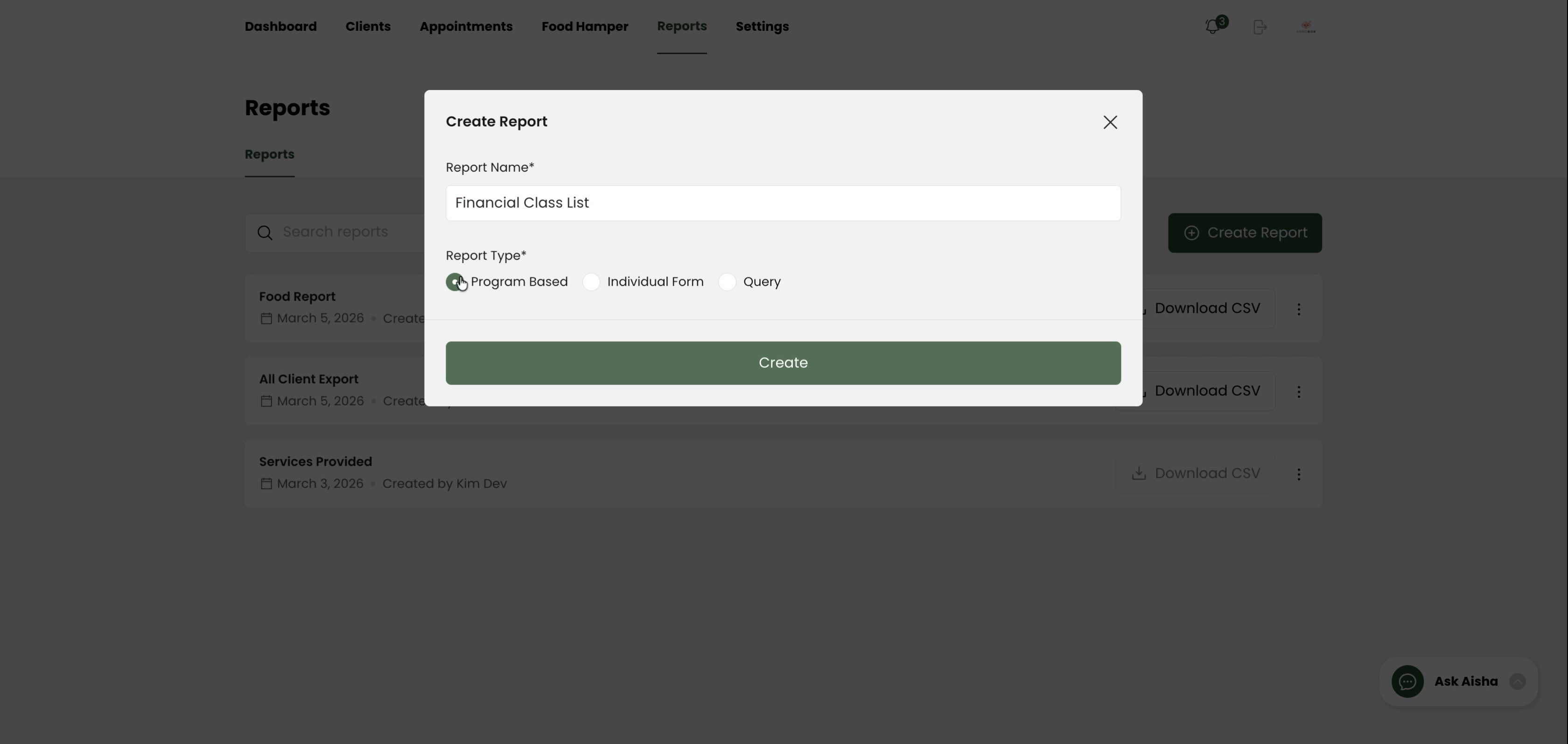
Step 5: Click Create to continue.
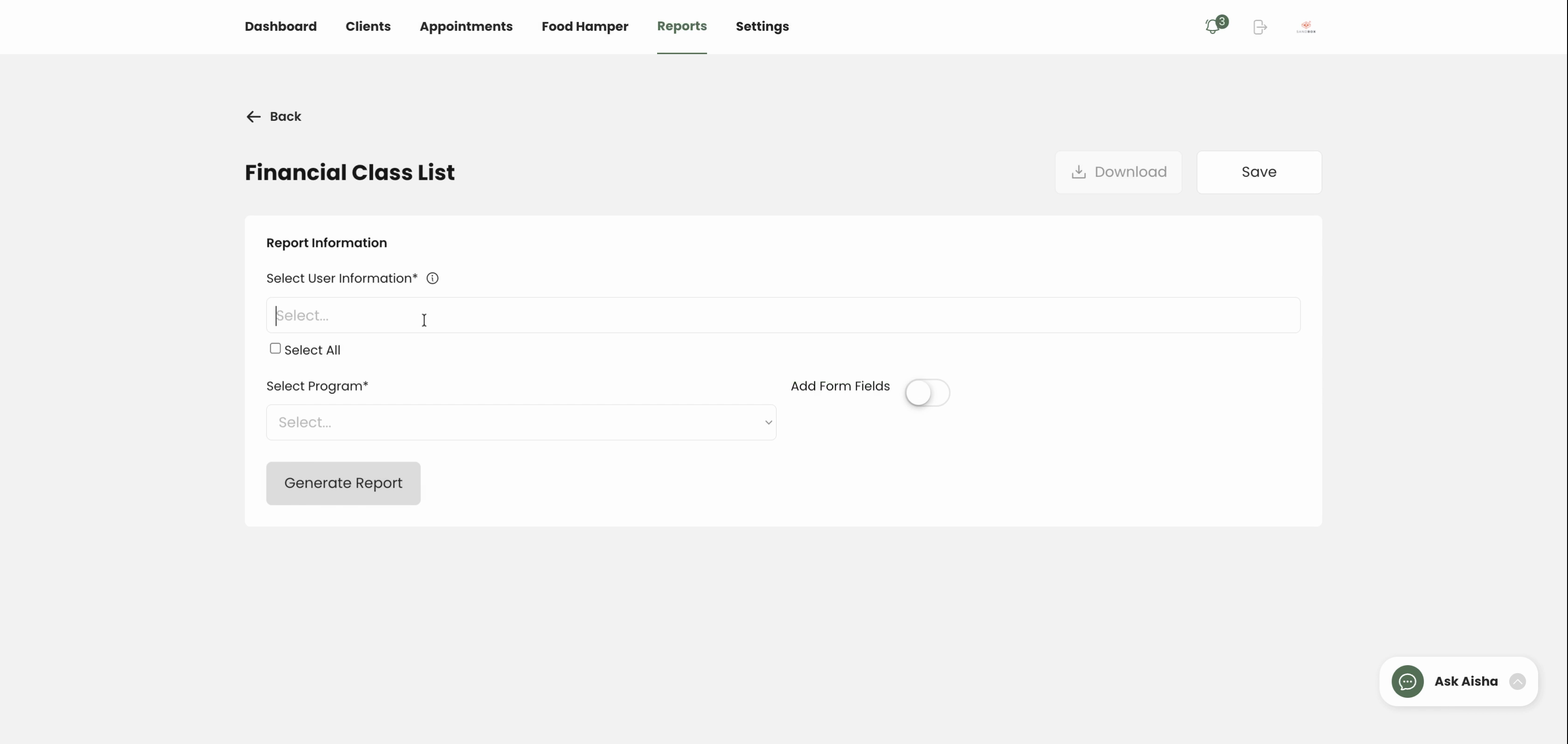
Step 6: Choose the user details you want in your export—like Full Name and Client ID.
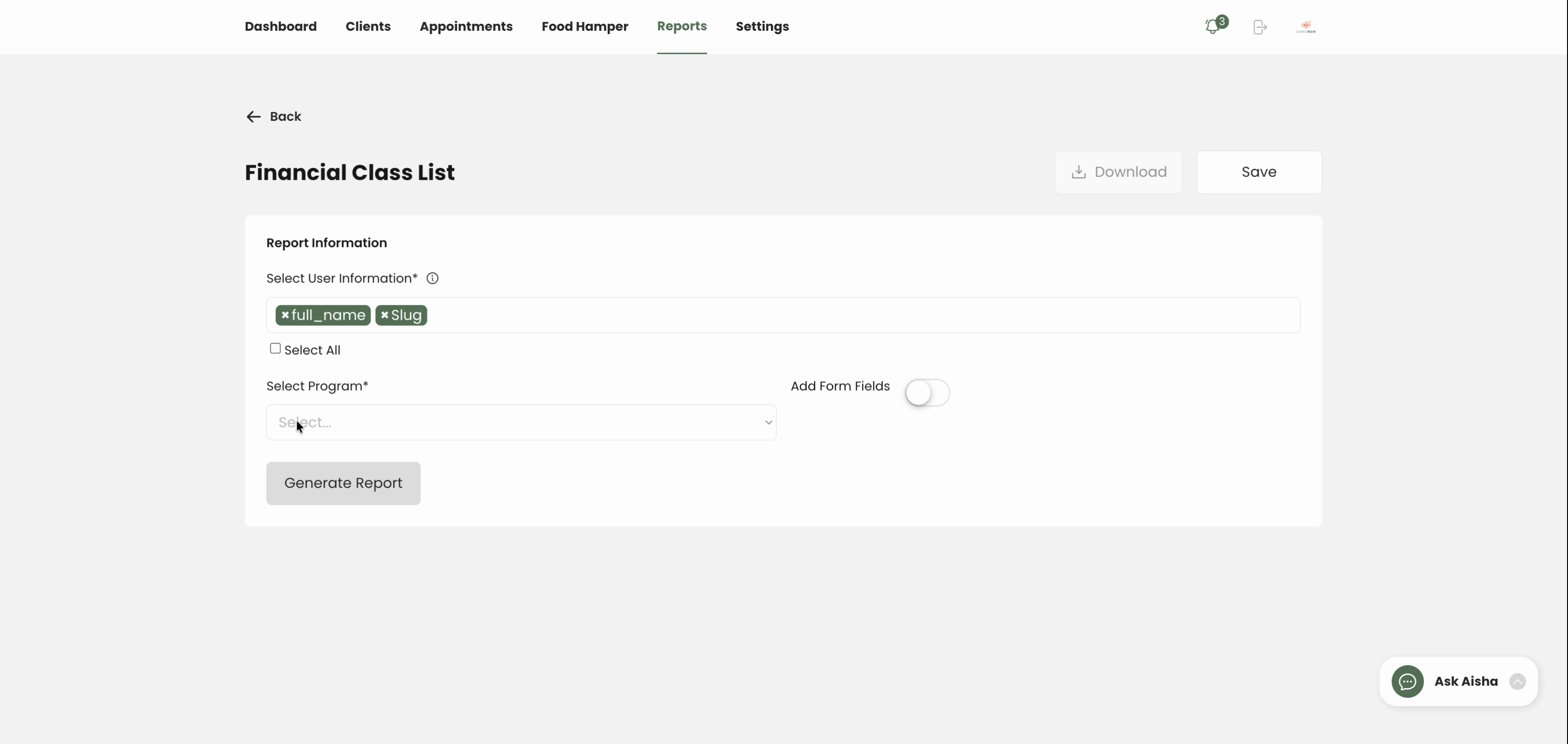
Step 7: Select your desired program to pull the list from.
Step 8: Click Generate Report.
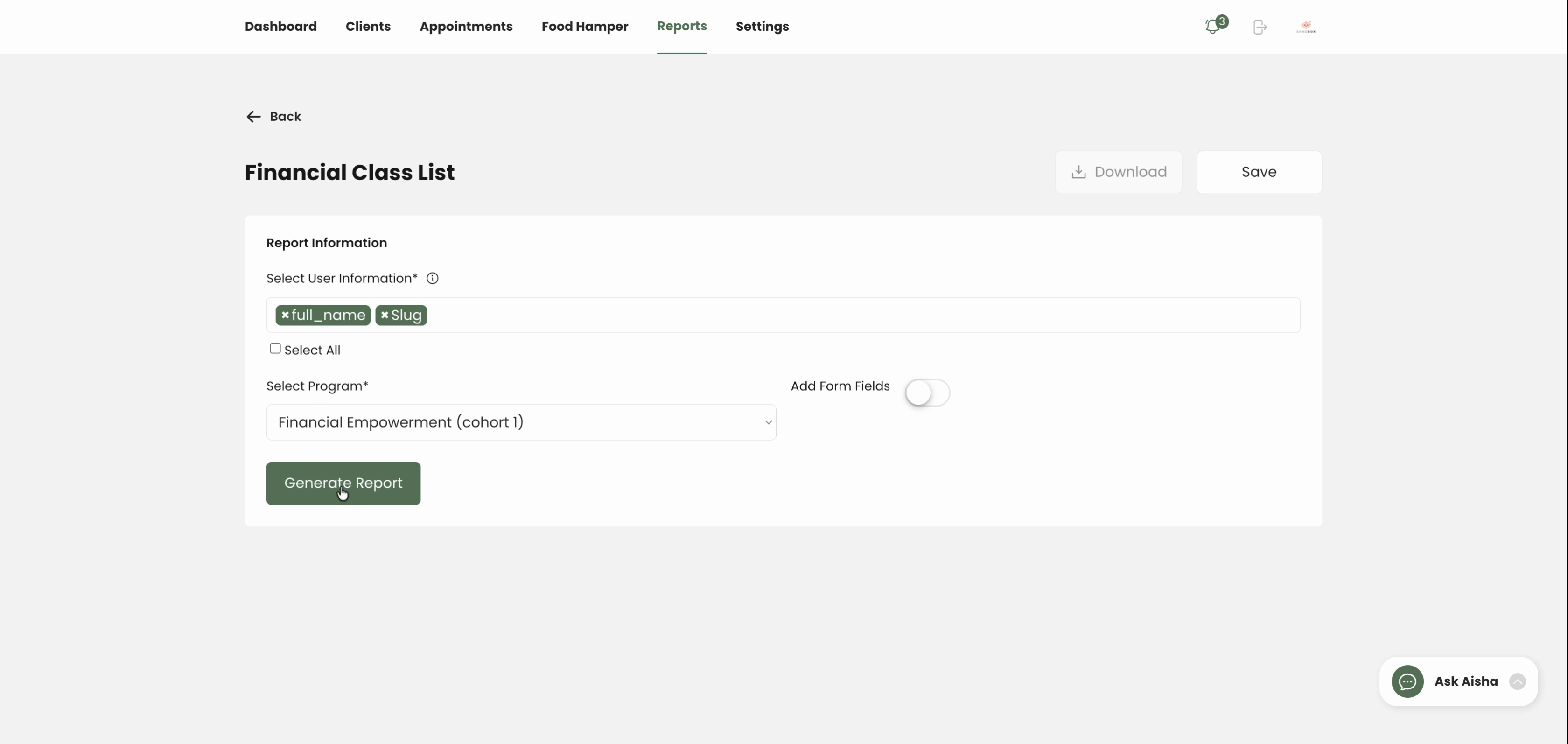
A preview displays all clients currently active in your selected program.
Step 9: Download the report to use your list however you need.
Exporting active participants ensures you always know who’s enrolled and helps you keep your records up to date. Repeat these steps whenever you need a fresh list for your programs.