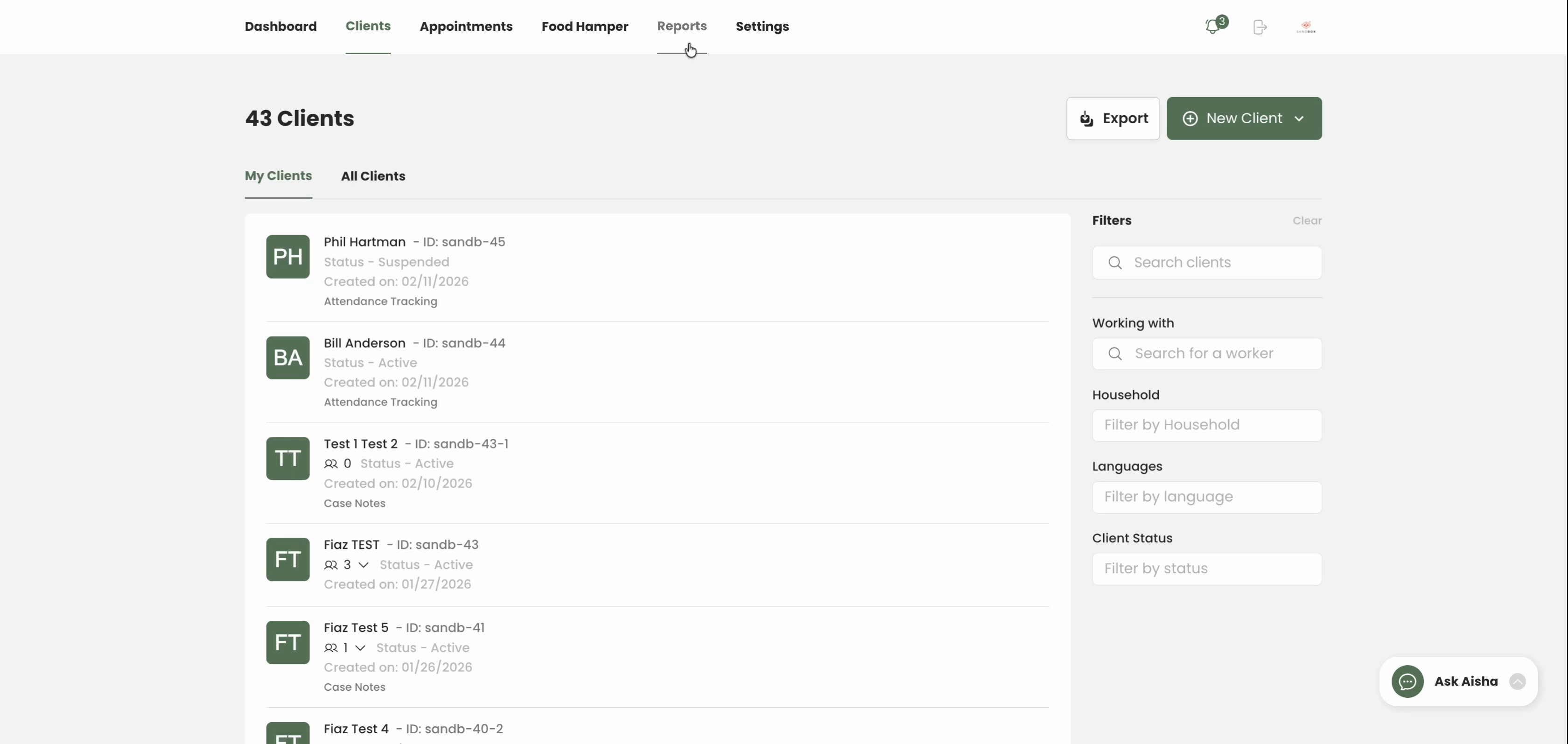
Step 1: Go to the Reports tab.
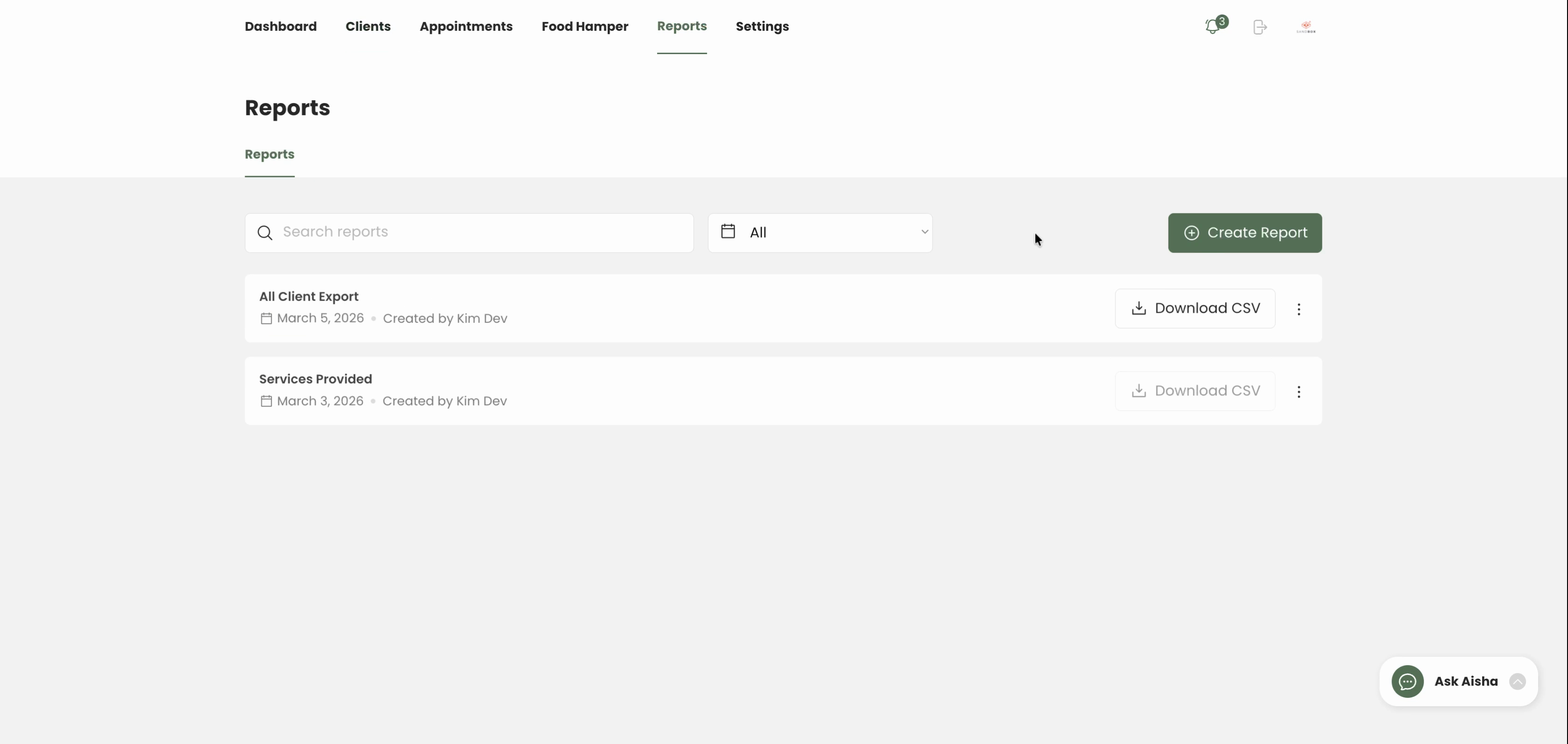
Step 2: Click Create Reports.
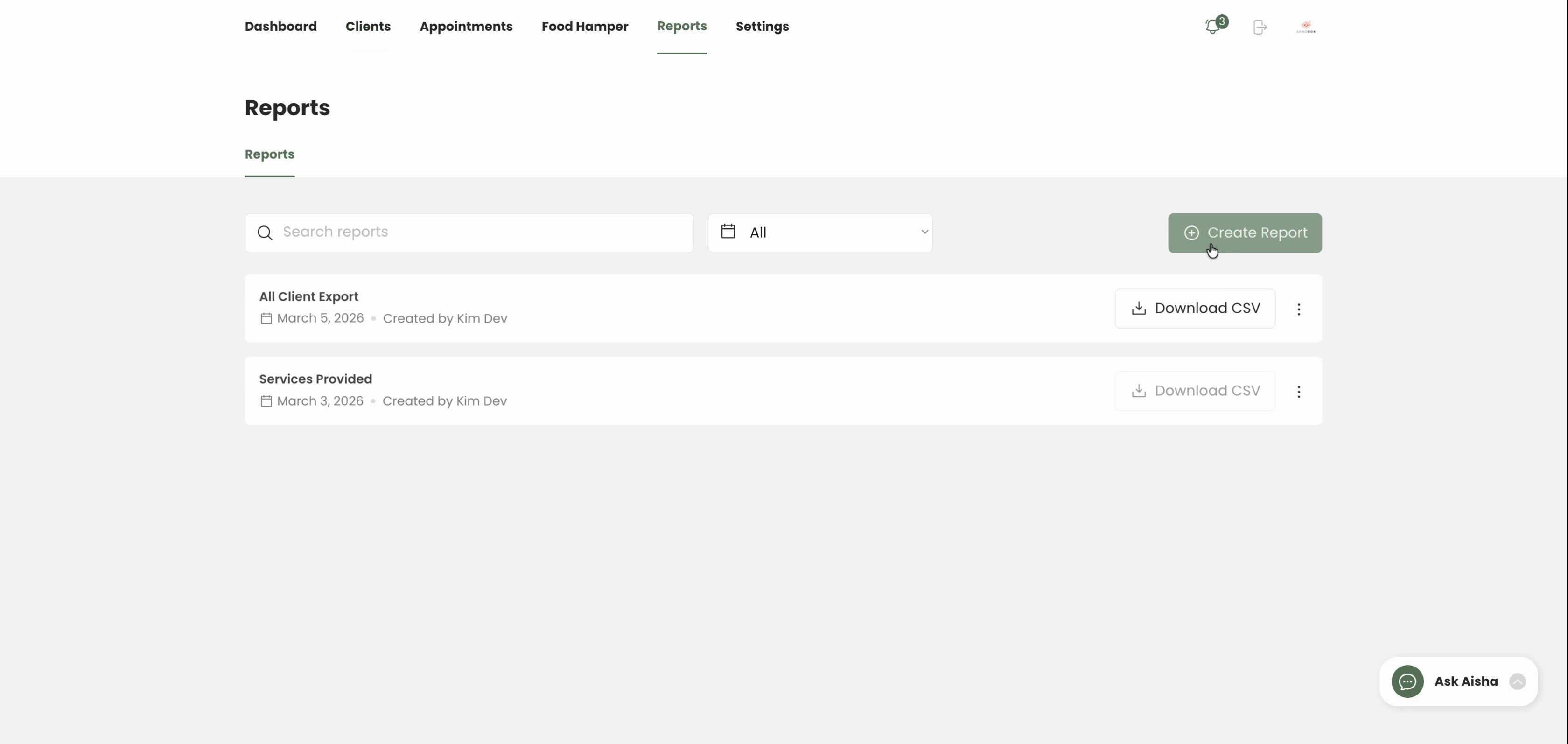
Step 3: Enter a Report Name that helps you identify this export. For Report Type, choose Individual Form.
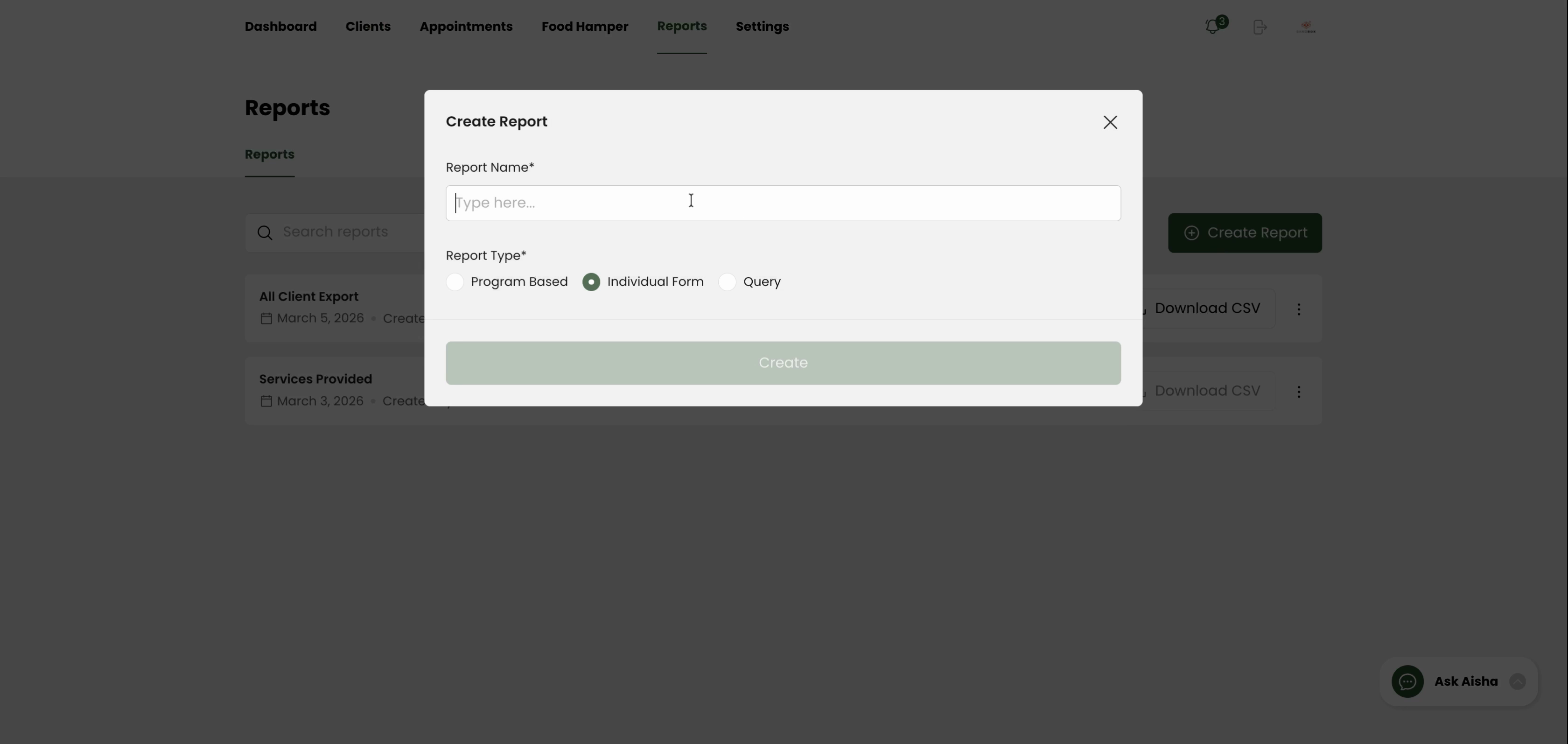
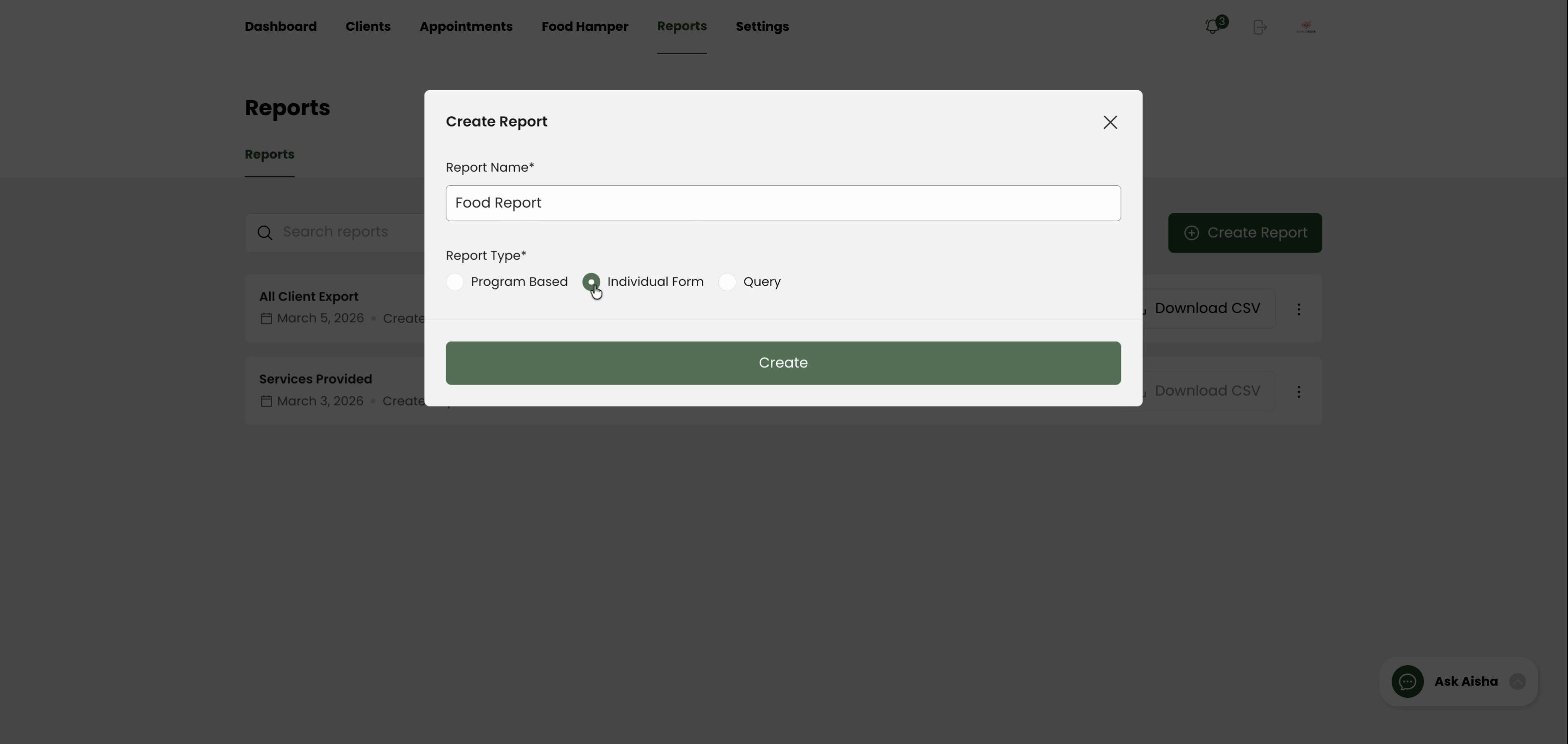
Step 4: Click Create to build the report configuration.
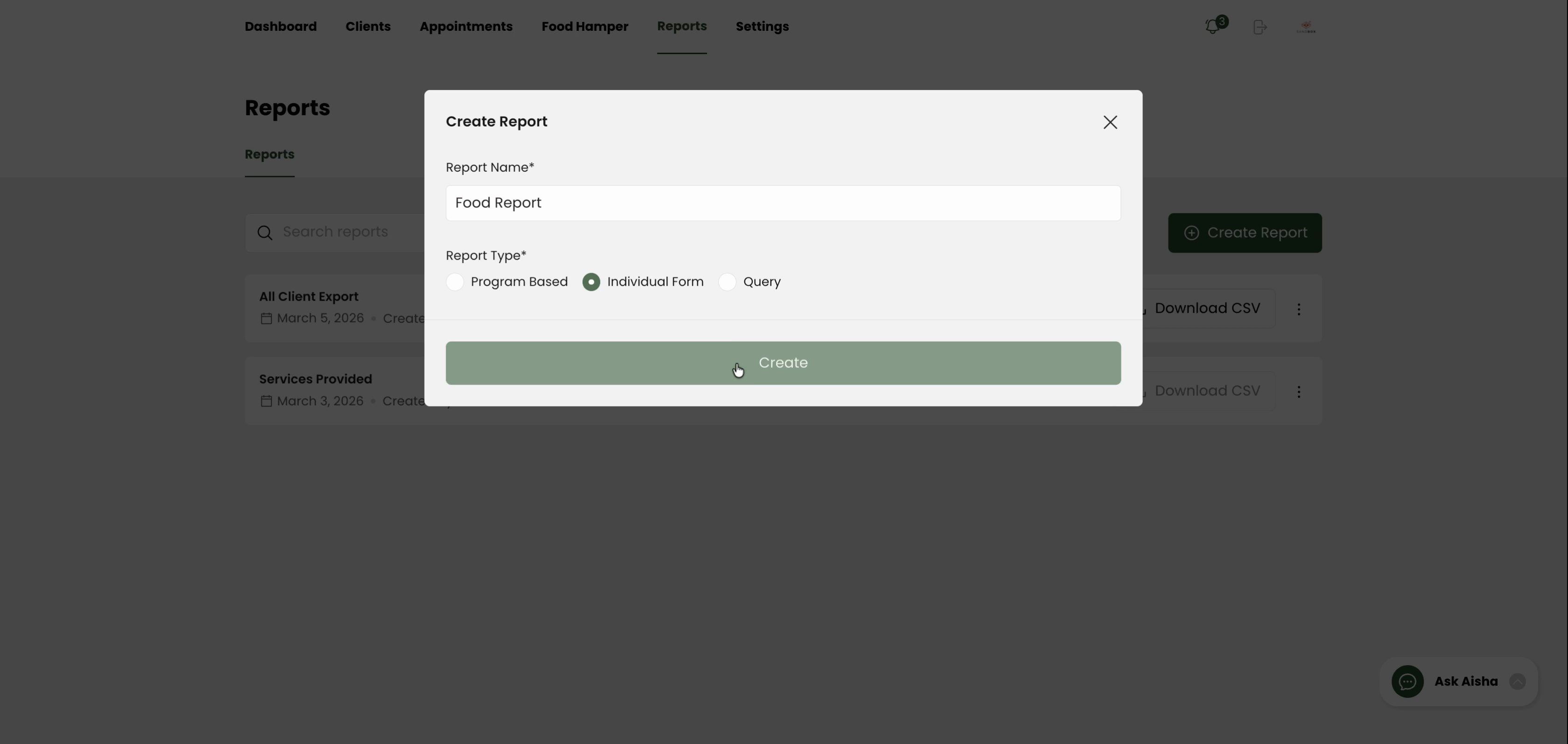
Step 5: Under User Information, select the client information fields to include in your export.
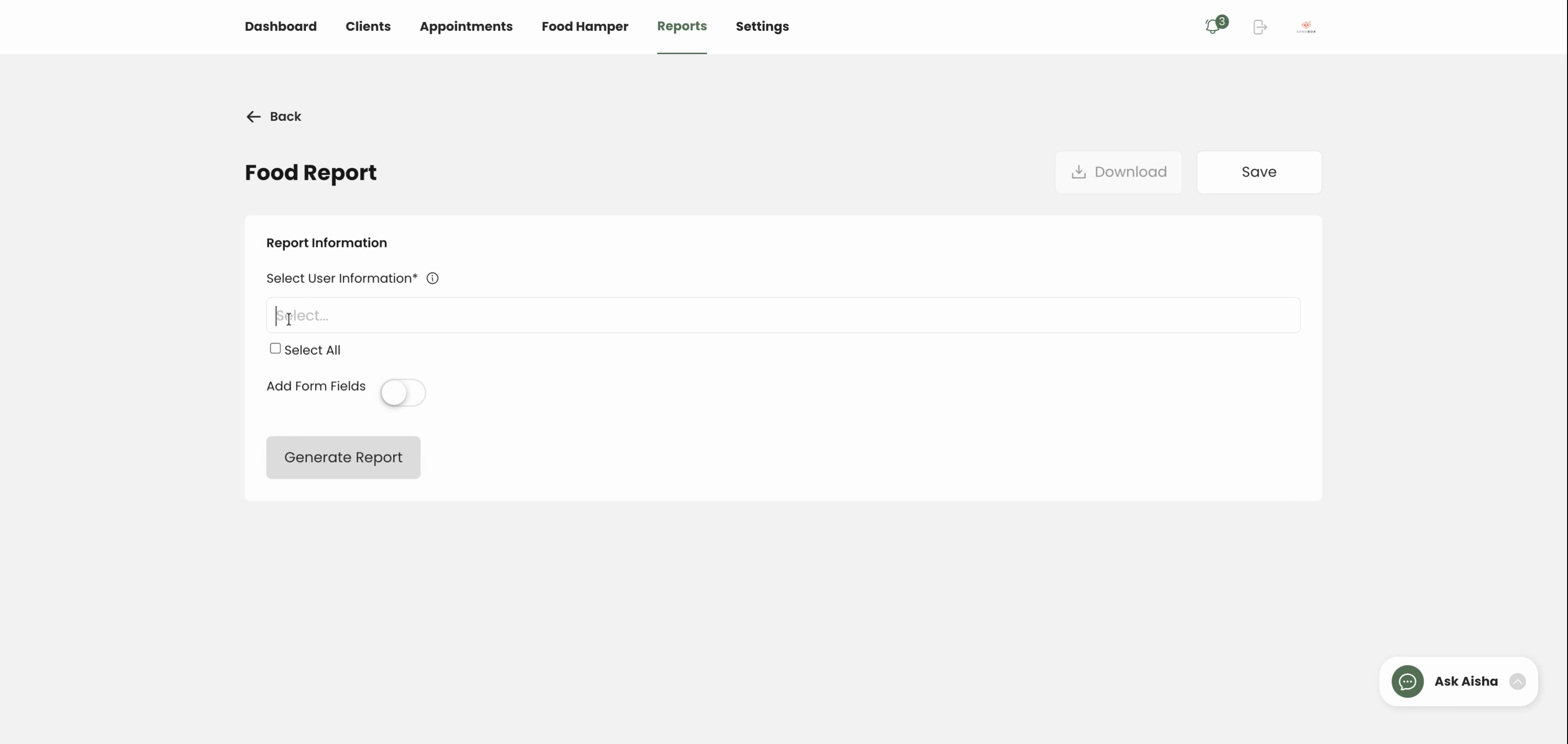
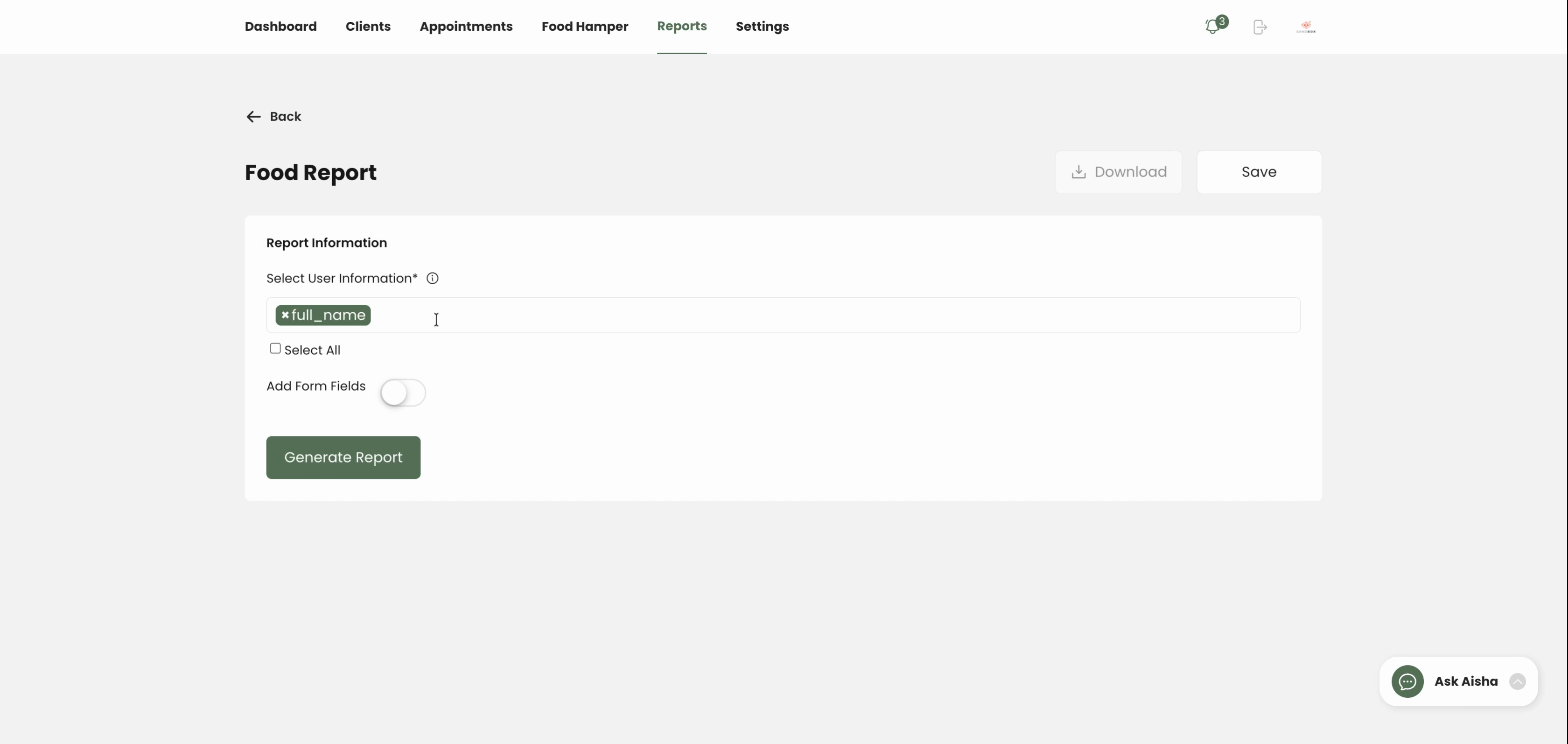
Step 6: Toggle on Add Form Fields. Pick the form you want to export data from.
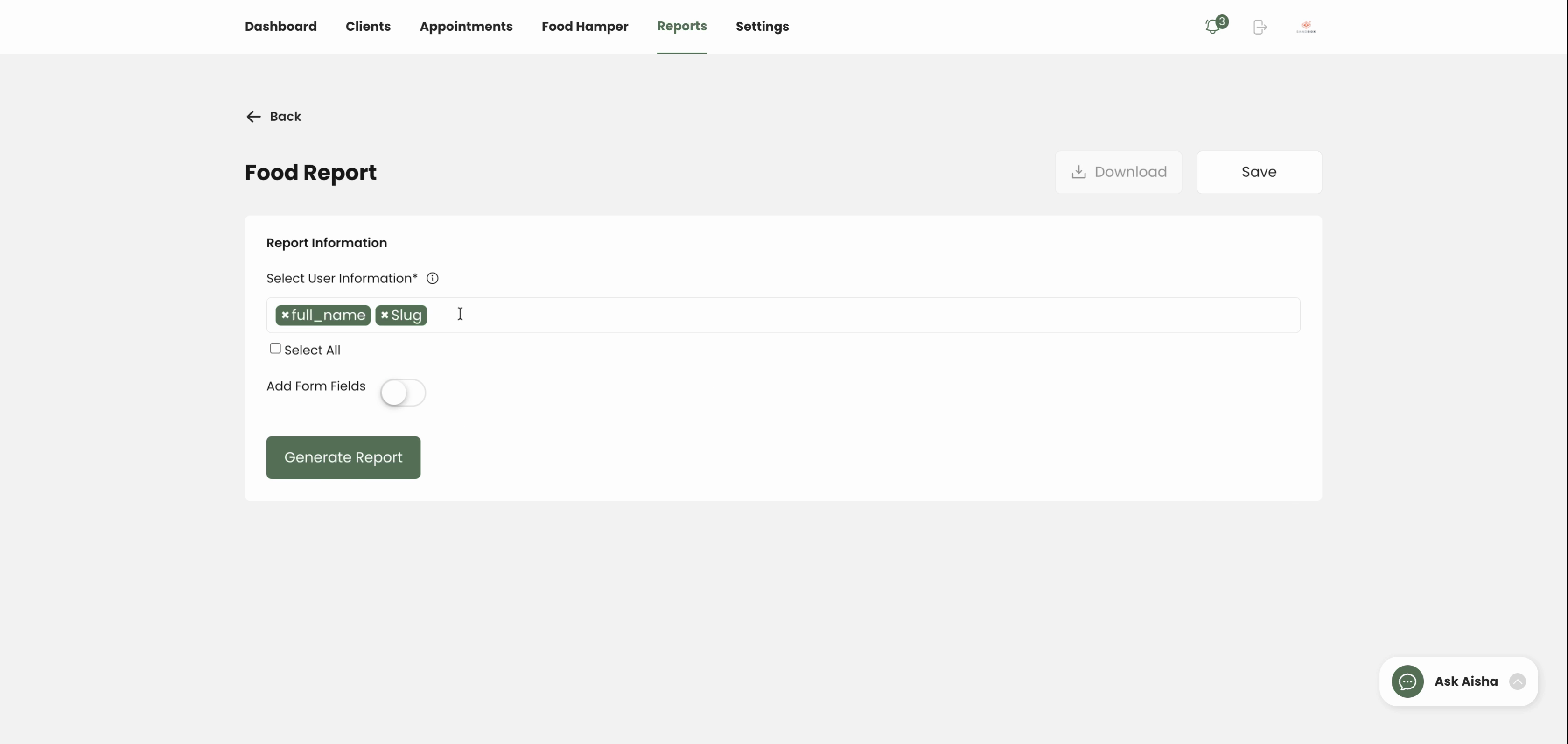
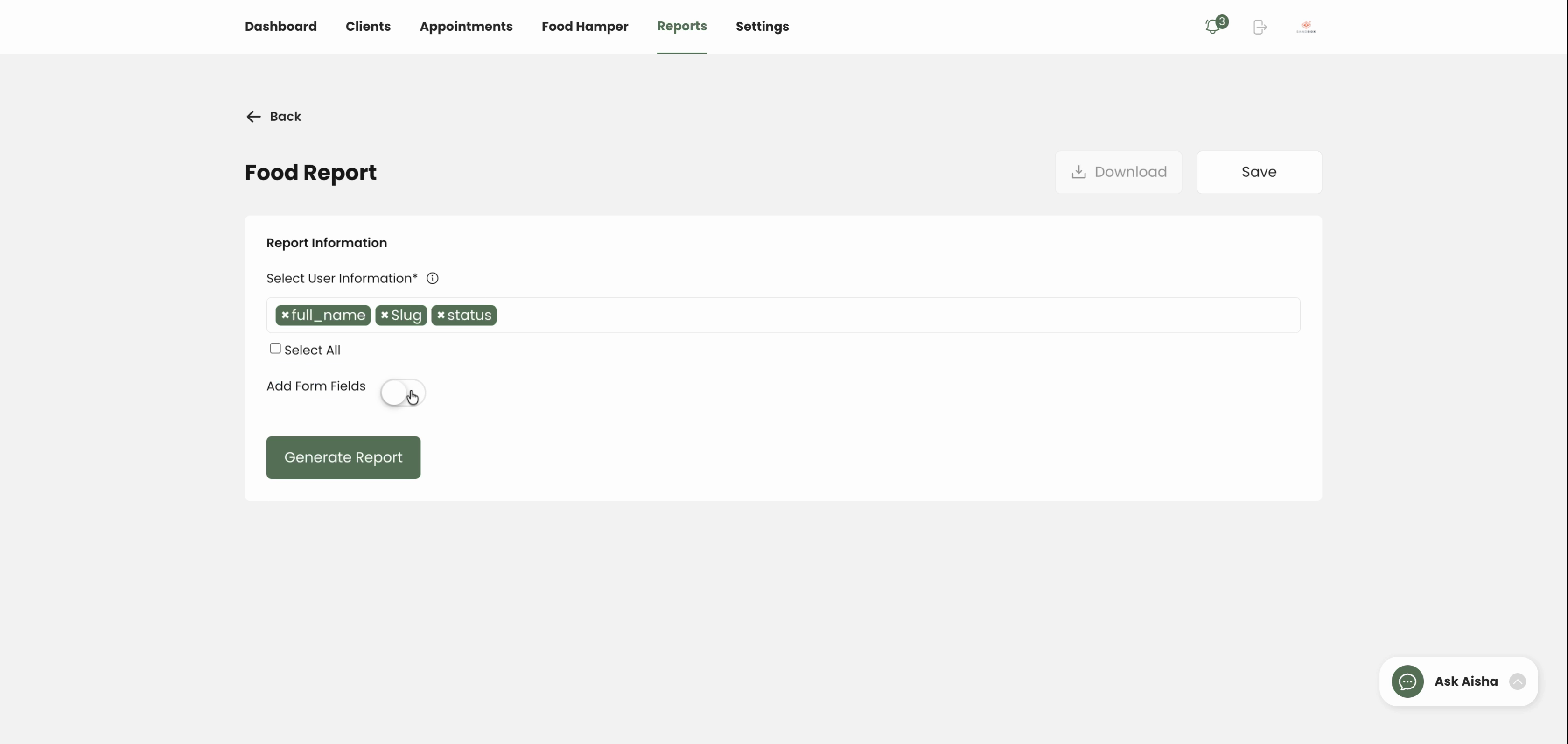
Step 7: Check the boxes for each question you want in the report. Use Select All if you need the entire form.
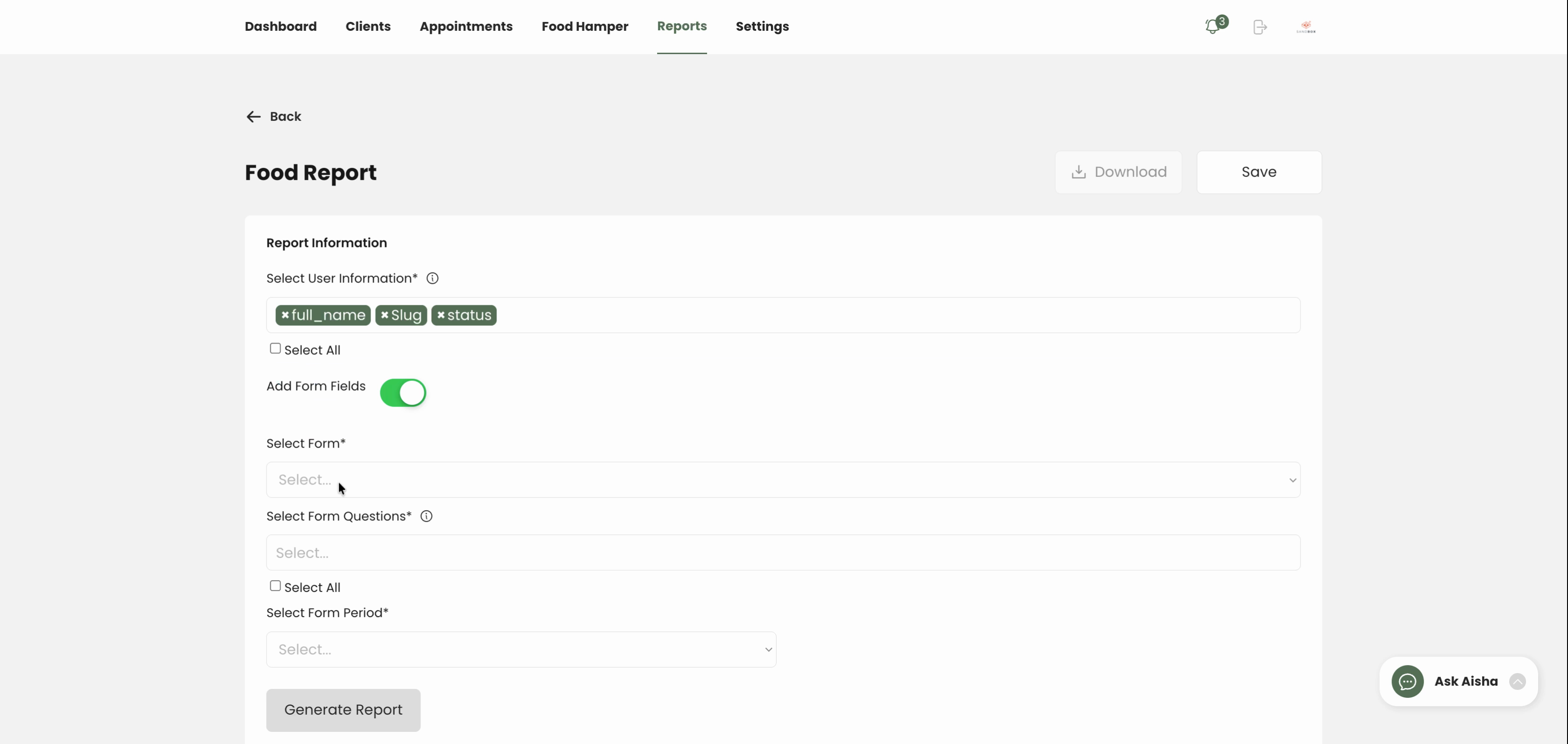
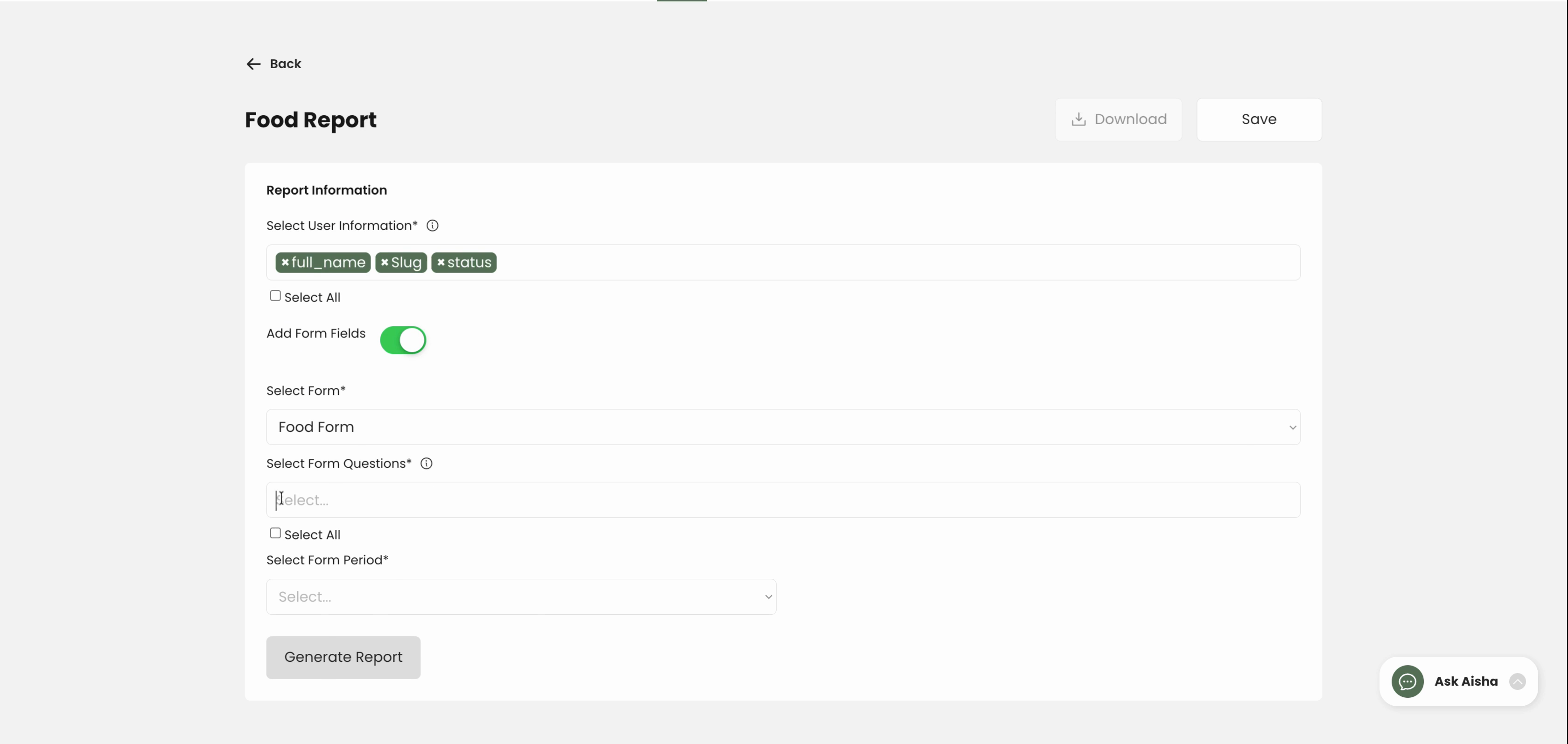
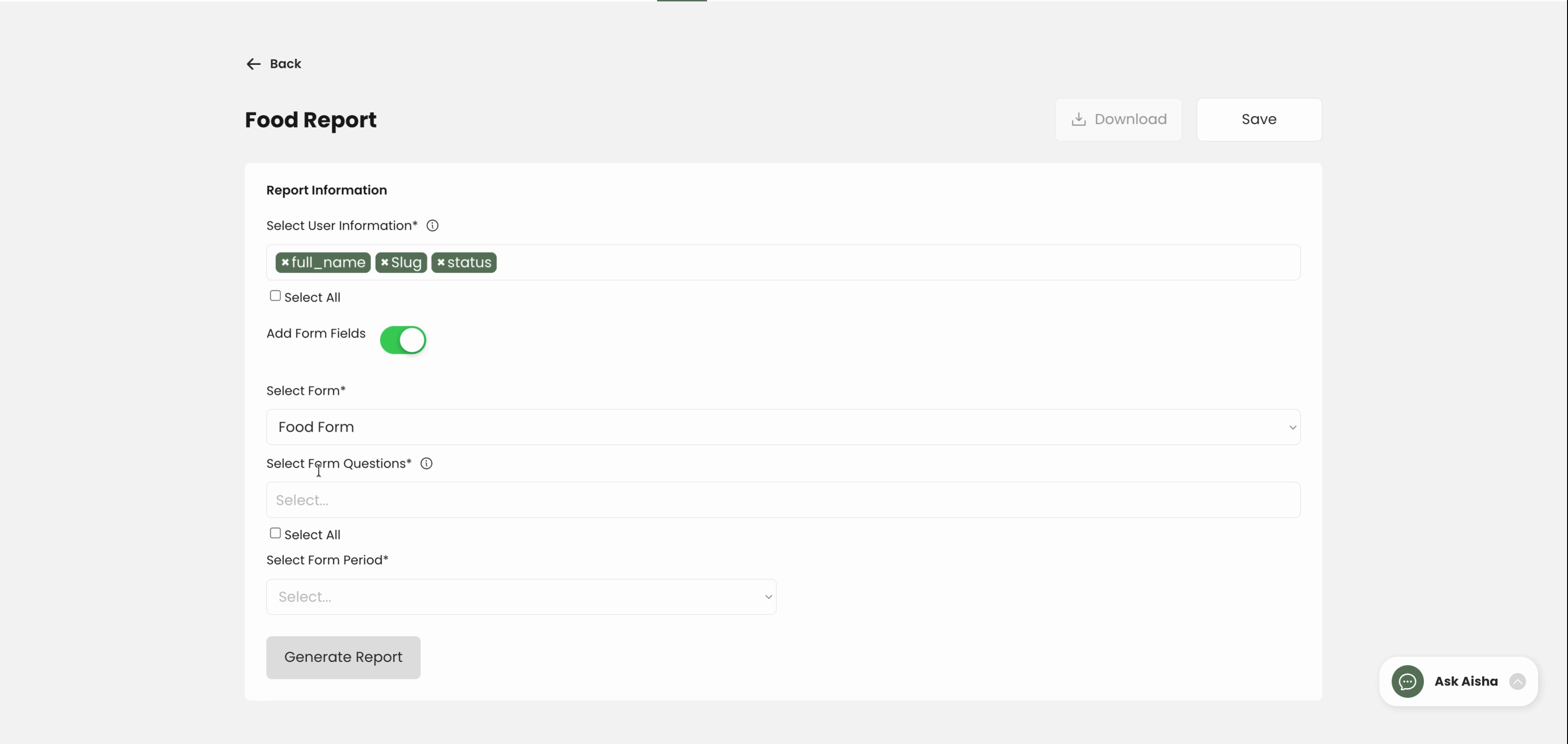
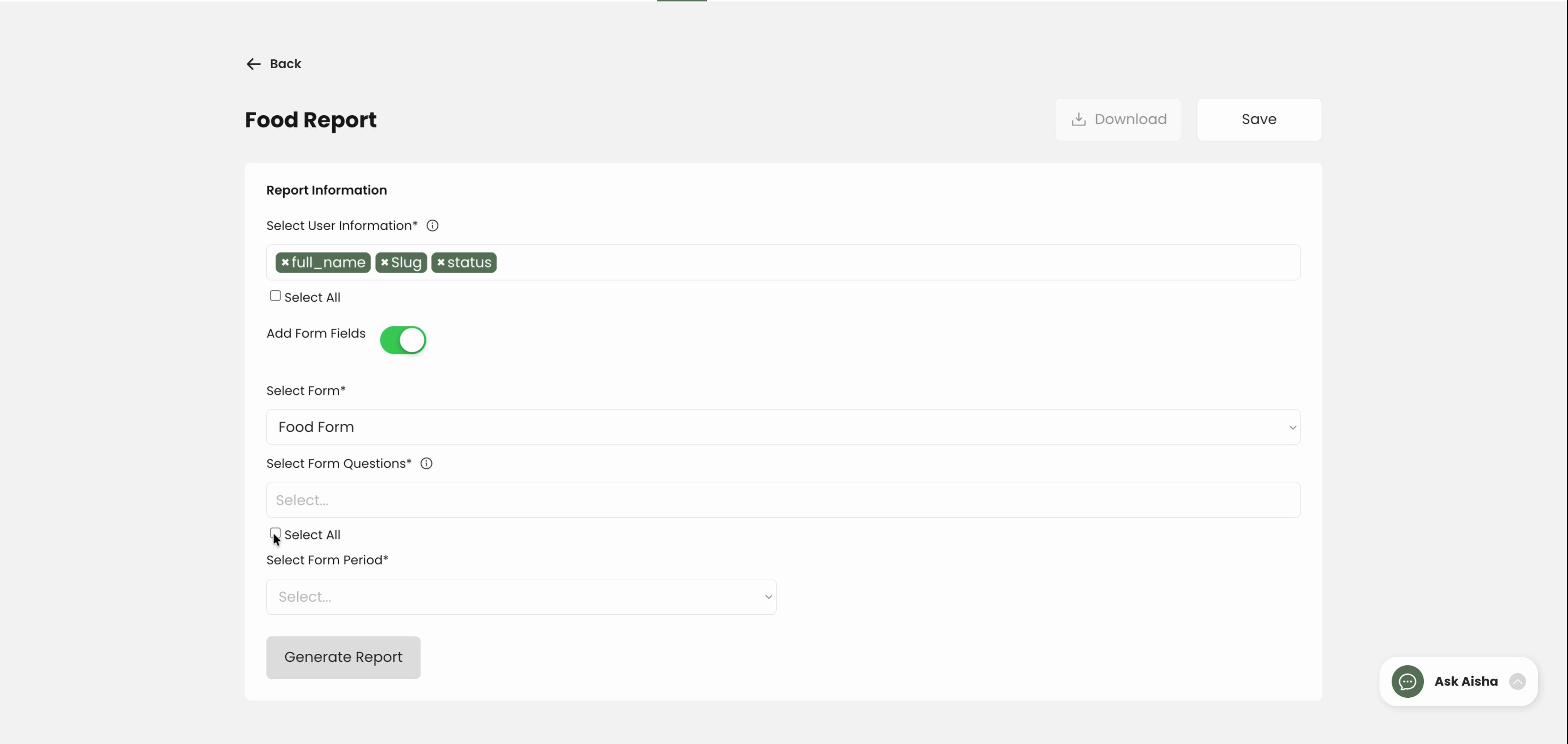
Step 8: Choose your reporting period. Select All Time, or set a custom date range if you're looking for specific submissions.
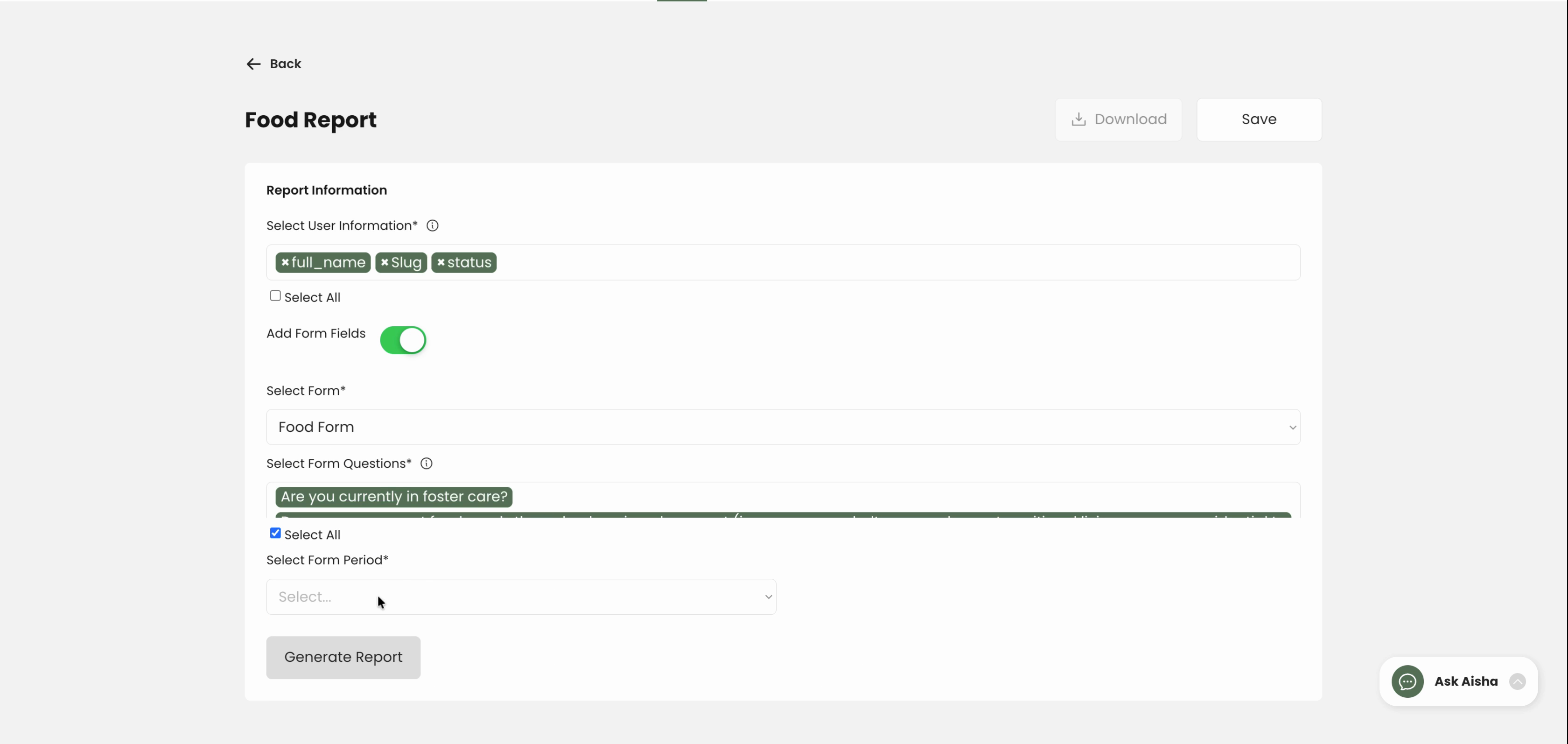
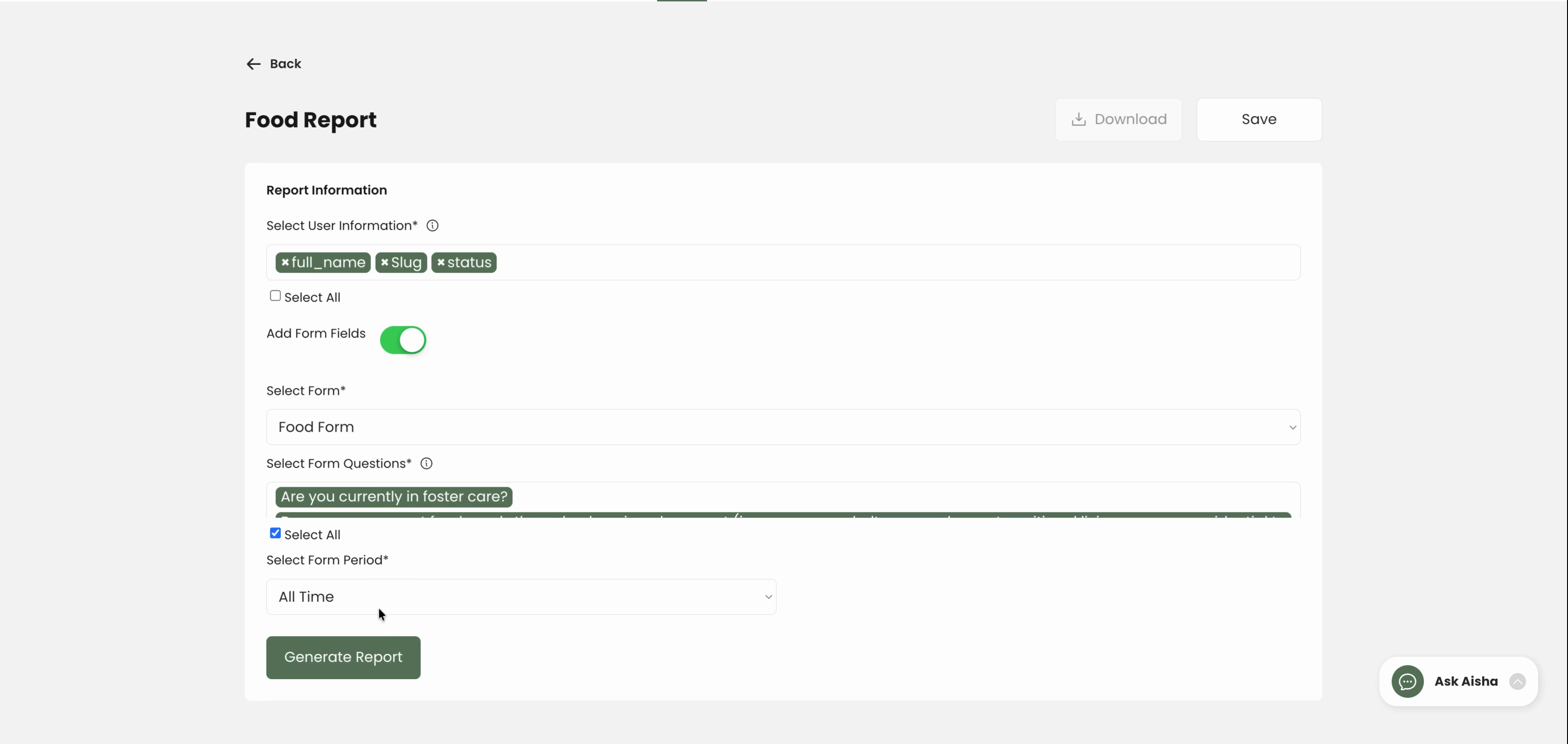
Step 9: Click Generate Reports to preview your selections.
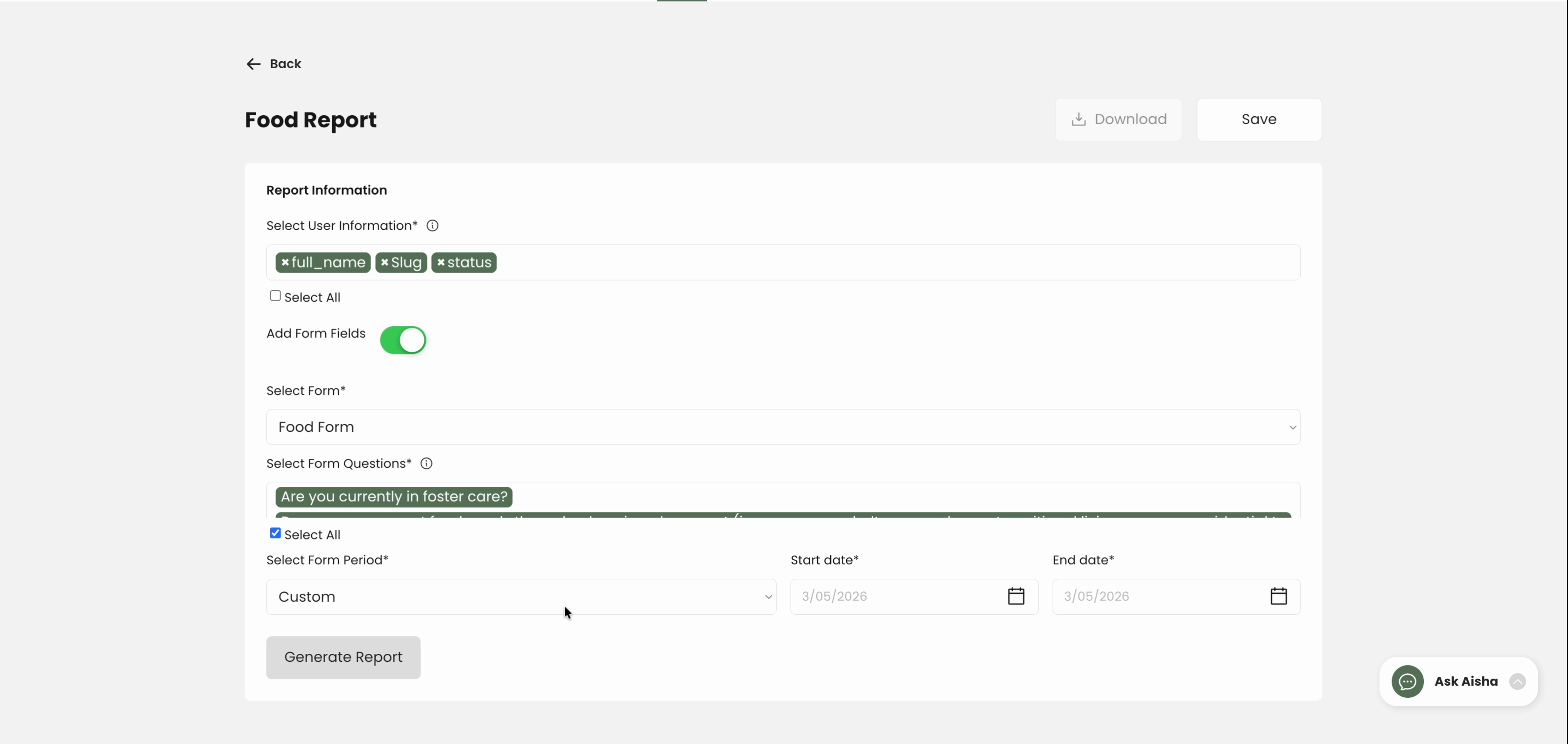
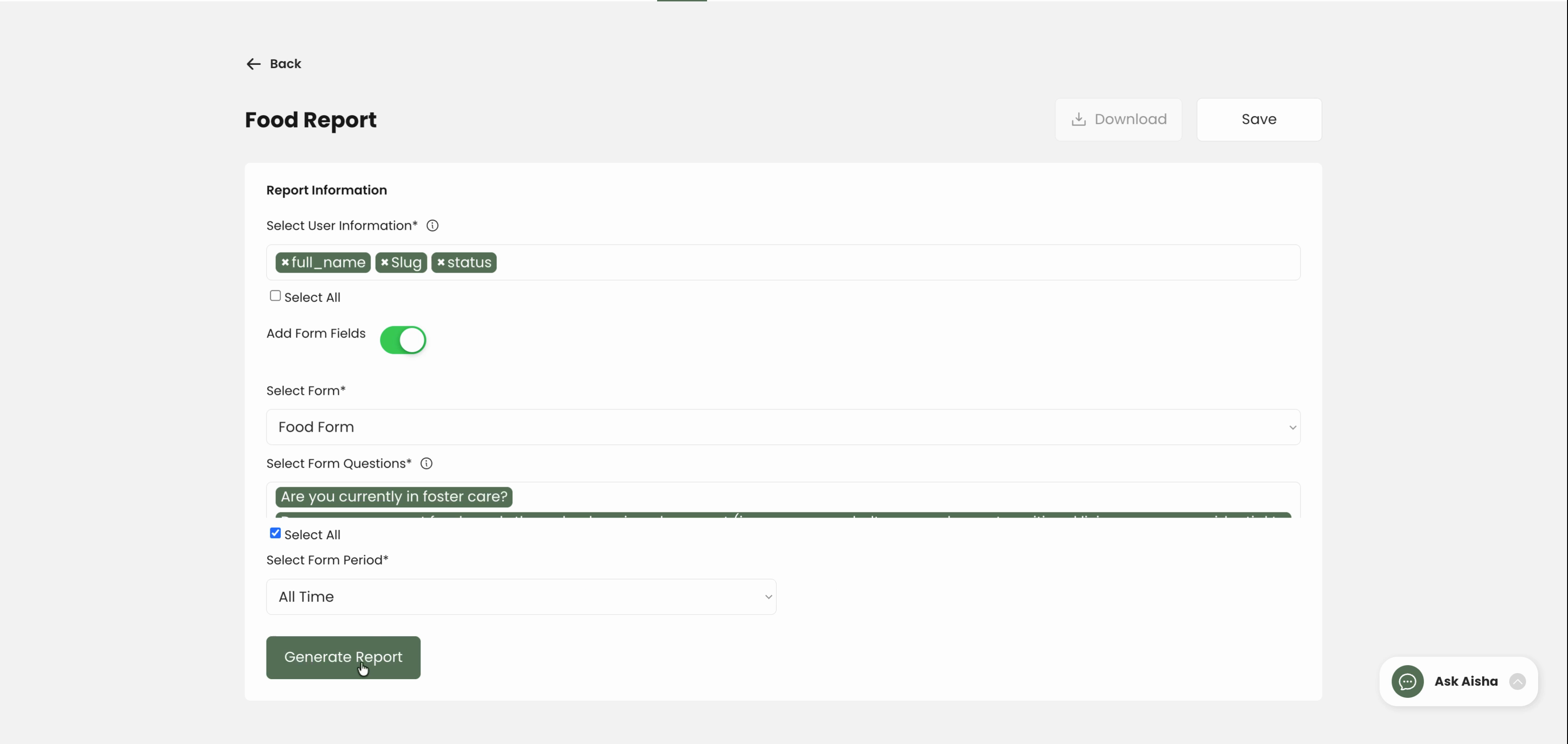
Review the preview. If you want to adjust fields or questions, make changes now and regenerate.
Step 10: Hit Download to export your completed forms as a CSV file.
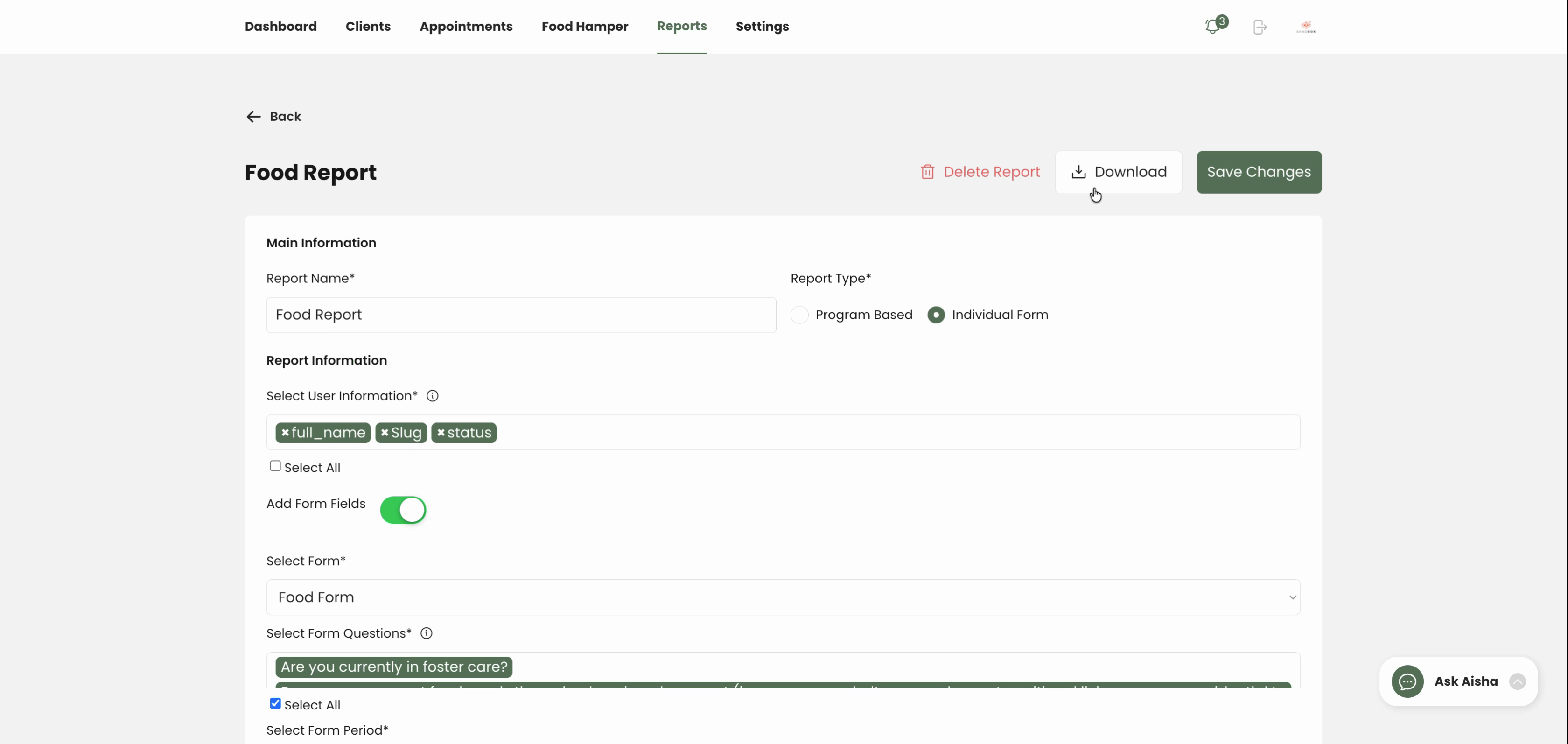
Exporting reports lets you analyze or archive form responses with all necessary details. Tweak fields and filters for the exact data you want—then download and share as needed.