Exporting client form responses from your program helps keep your records organized and makes data review easy. This guide shows the exact process, step by step, as demonstrated in the current workflow.
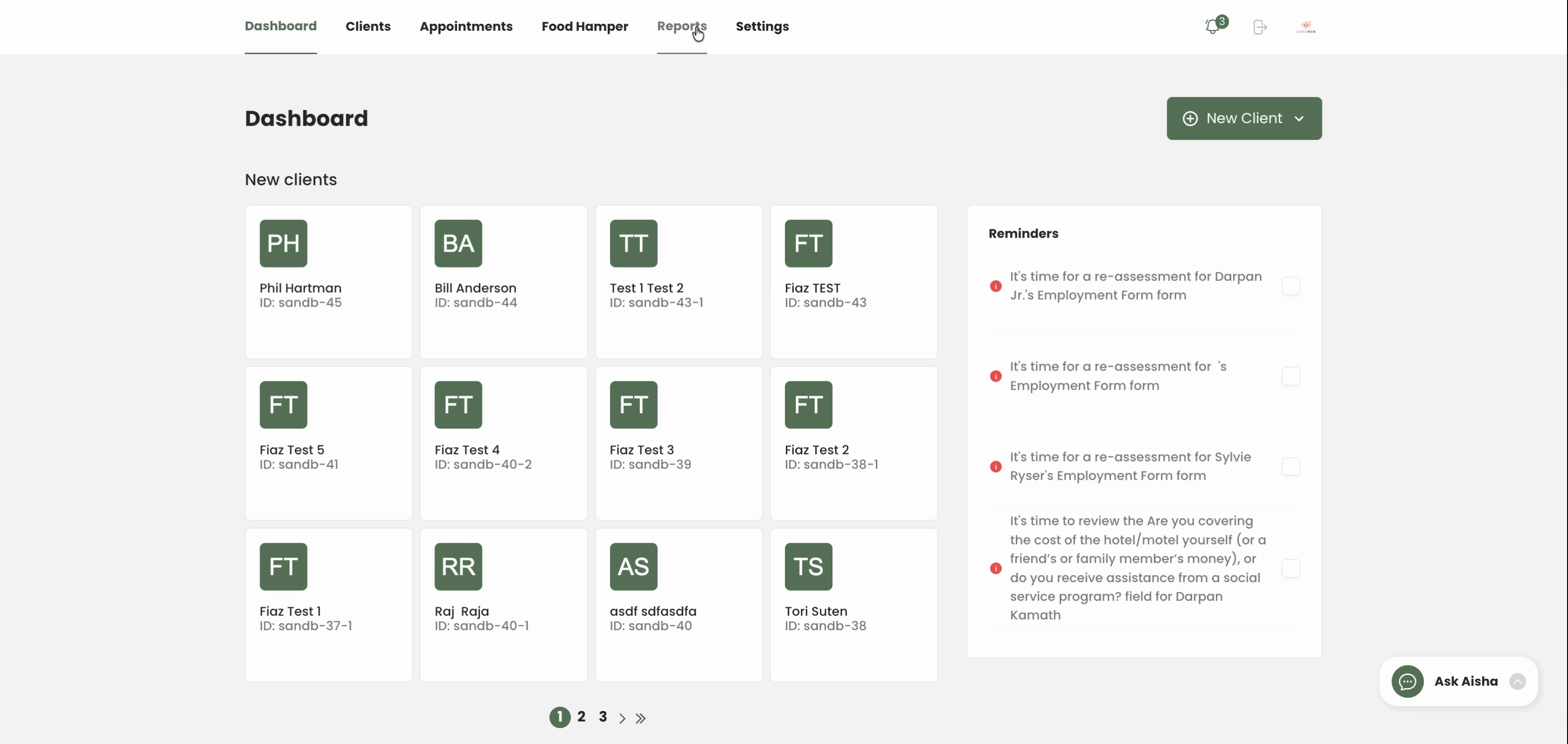
Step 1: Click the Reports tab.
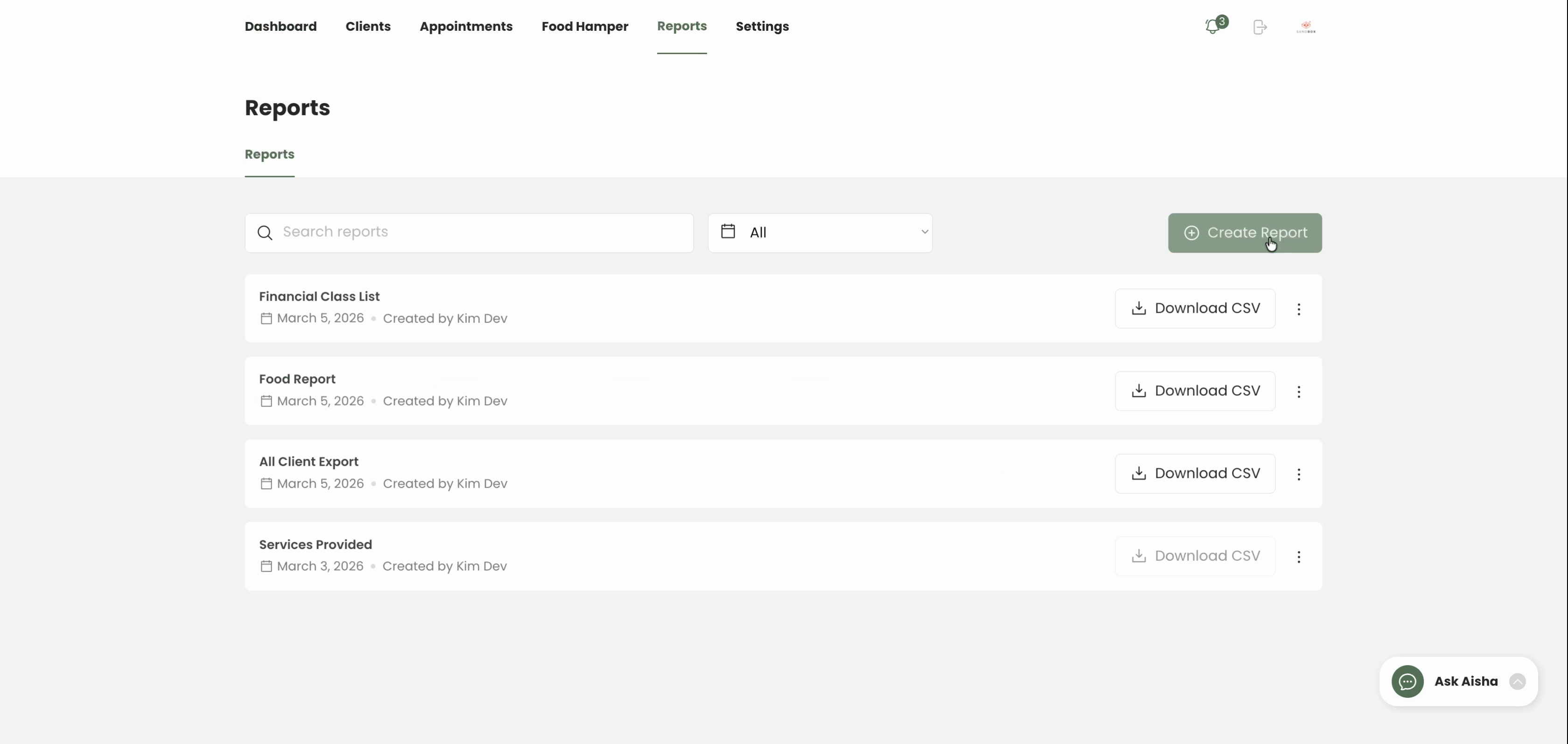
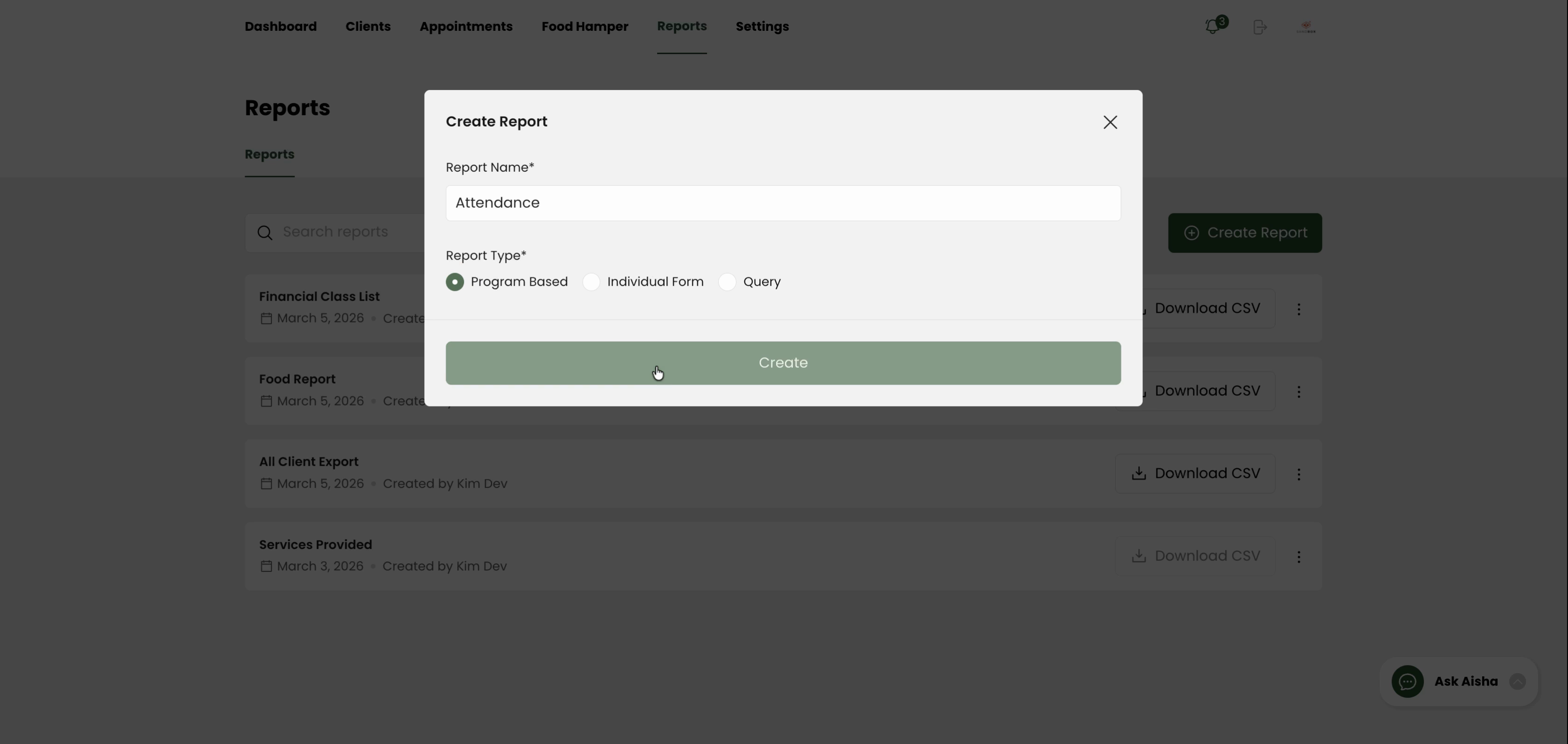
Step 2: Select Create Report.
Step 3: Enter a name for the report.
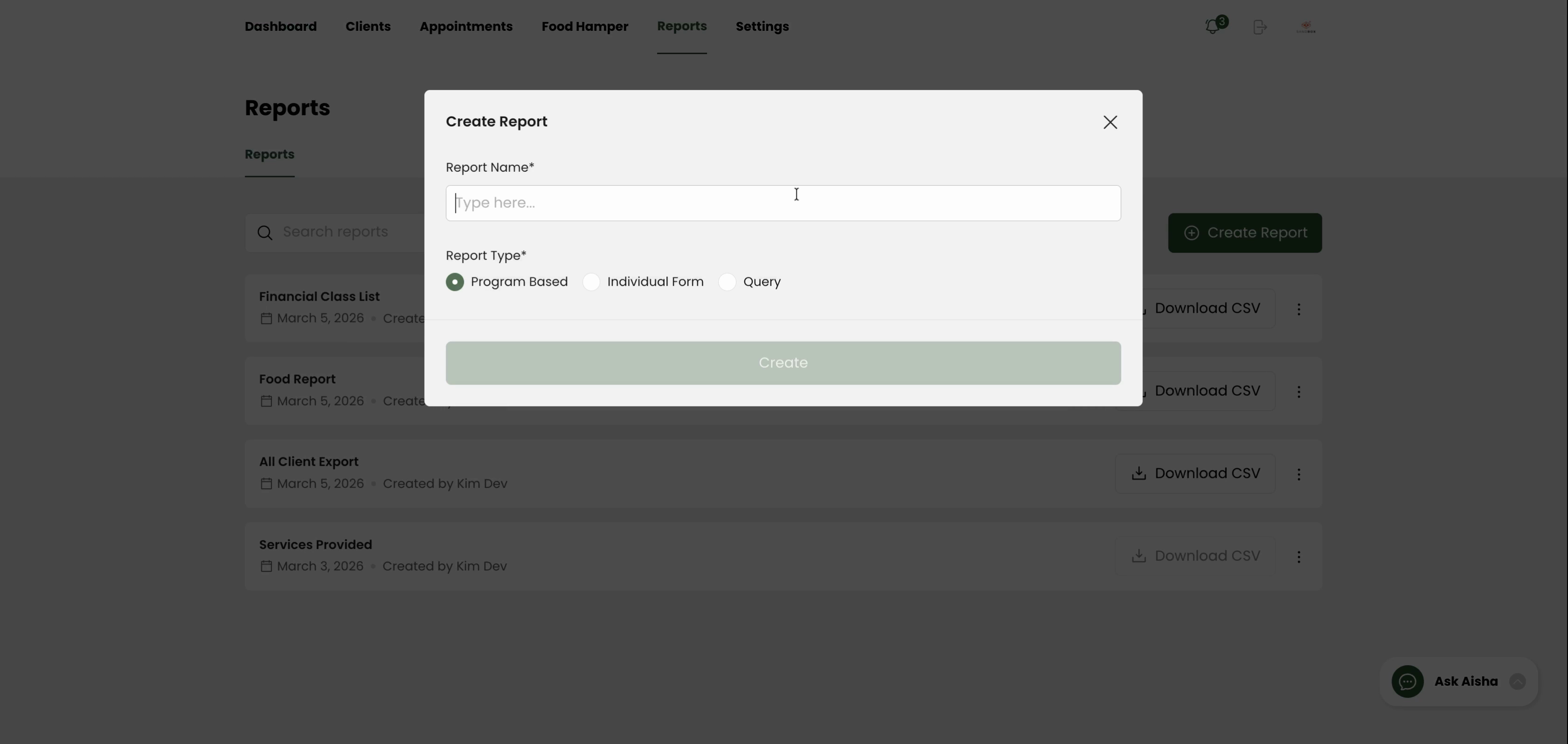
Step 4: Set the report type to Program-based.
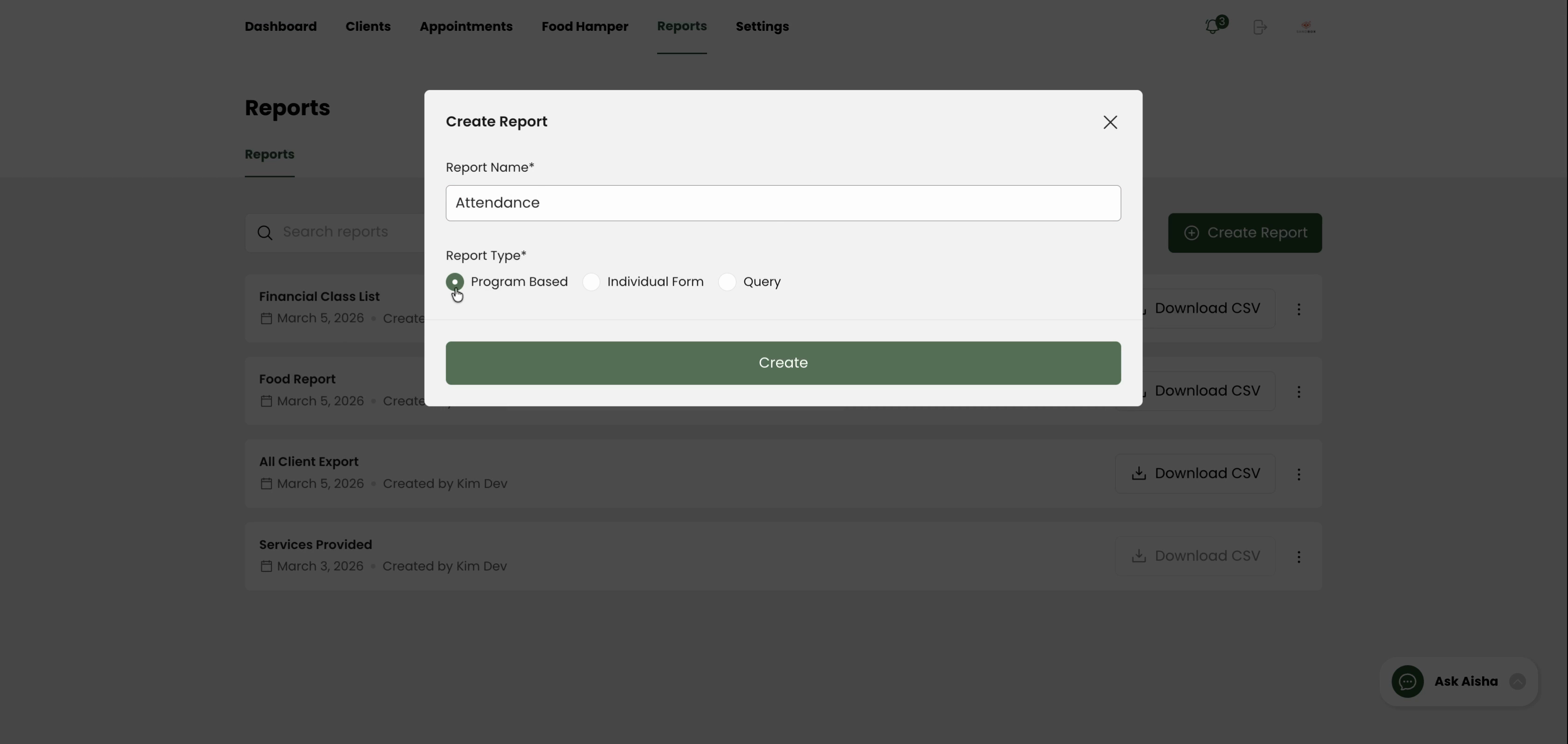
Step 5: Click Create to proceed.
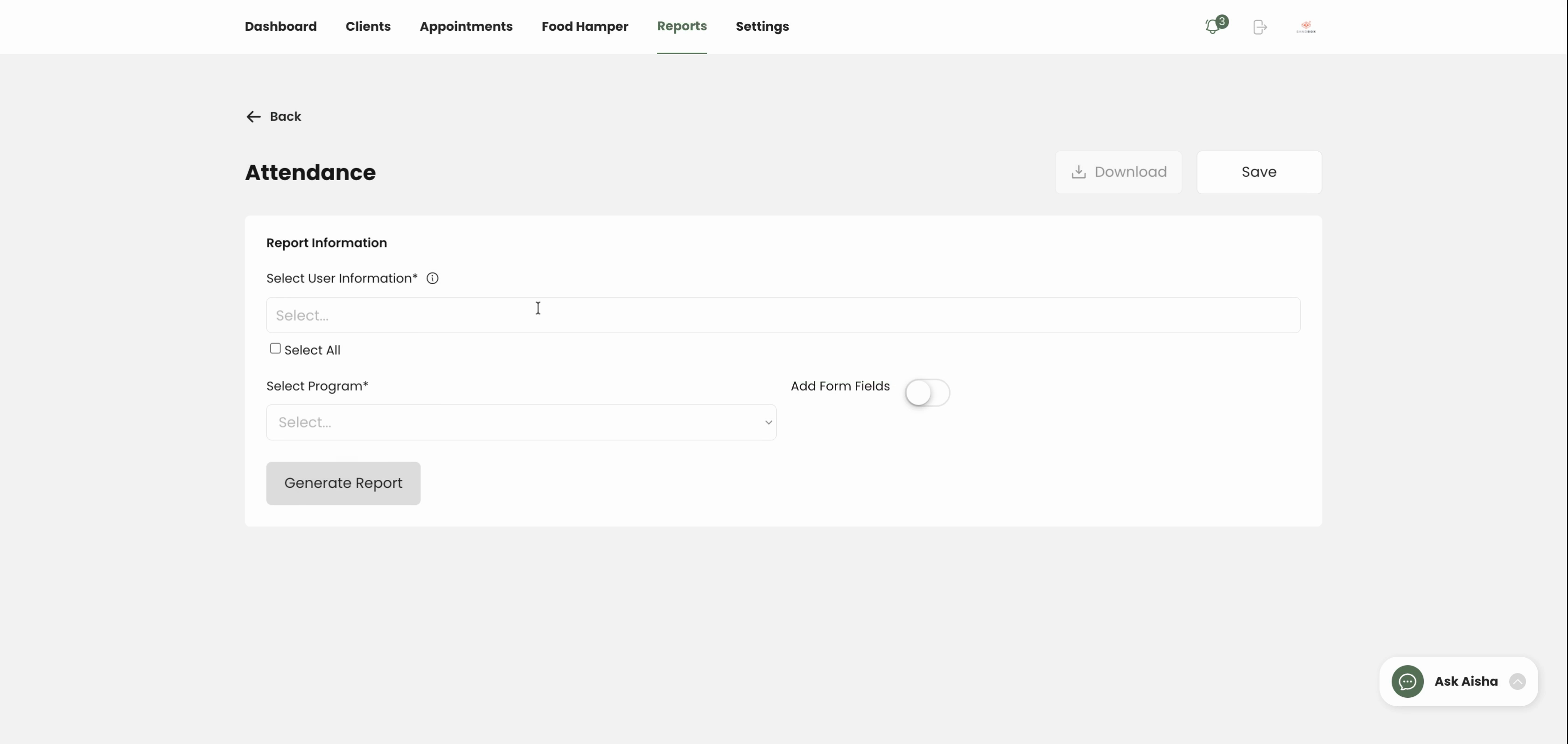
Step 6: Under user details, check Client Name and Client ID to include these columns in your export.
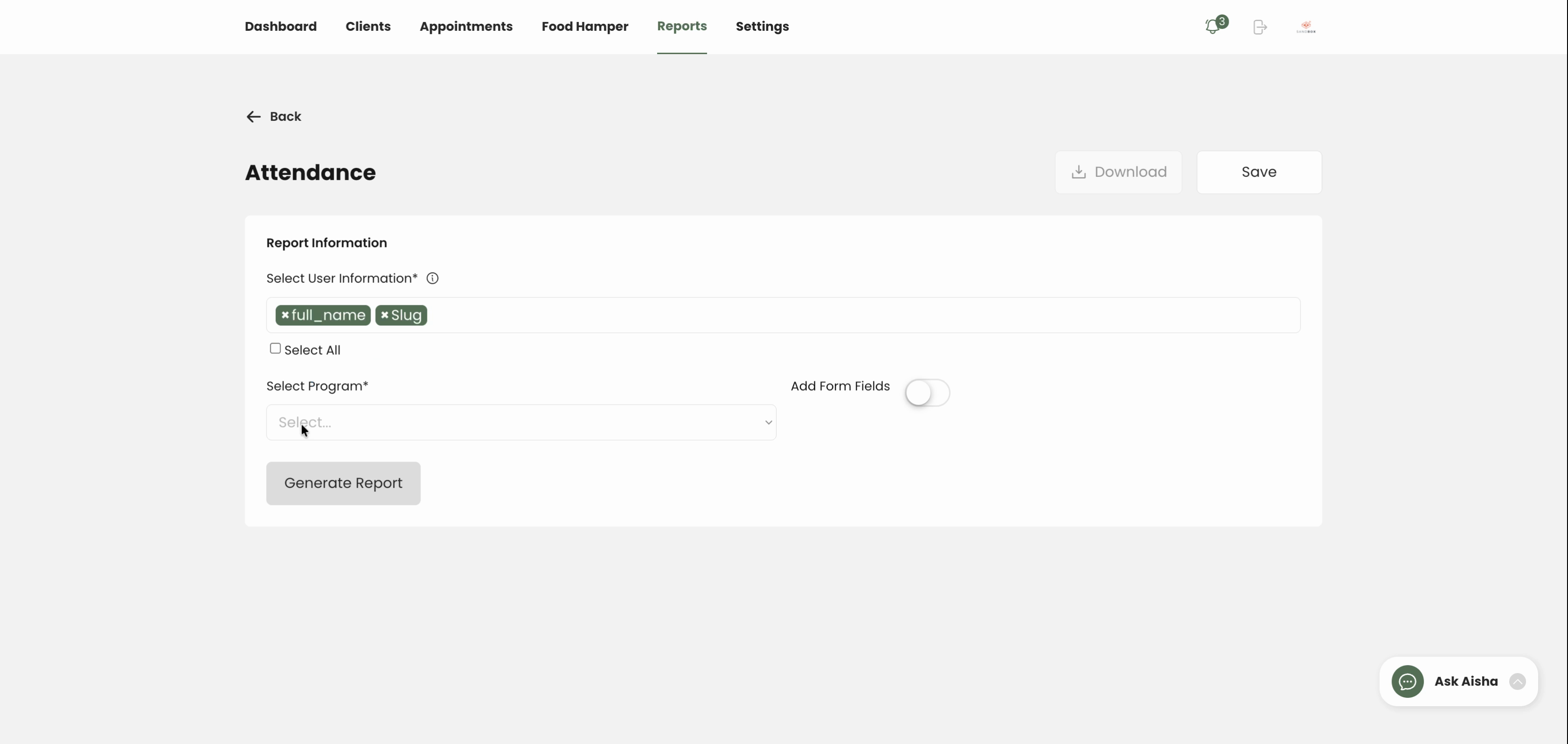
Step 7: Select the program for your report and click Add Form Fields.
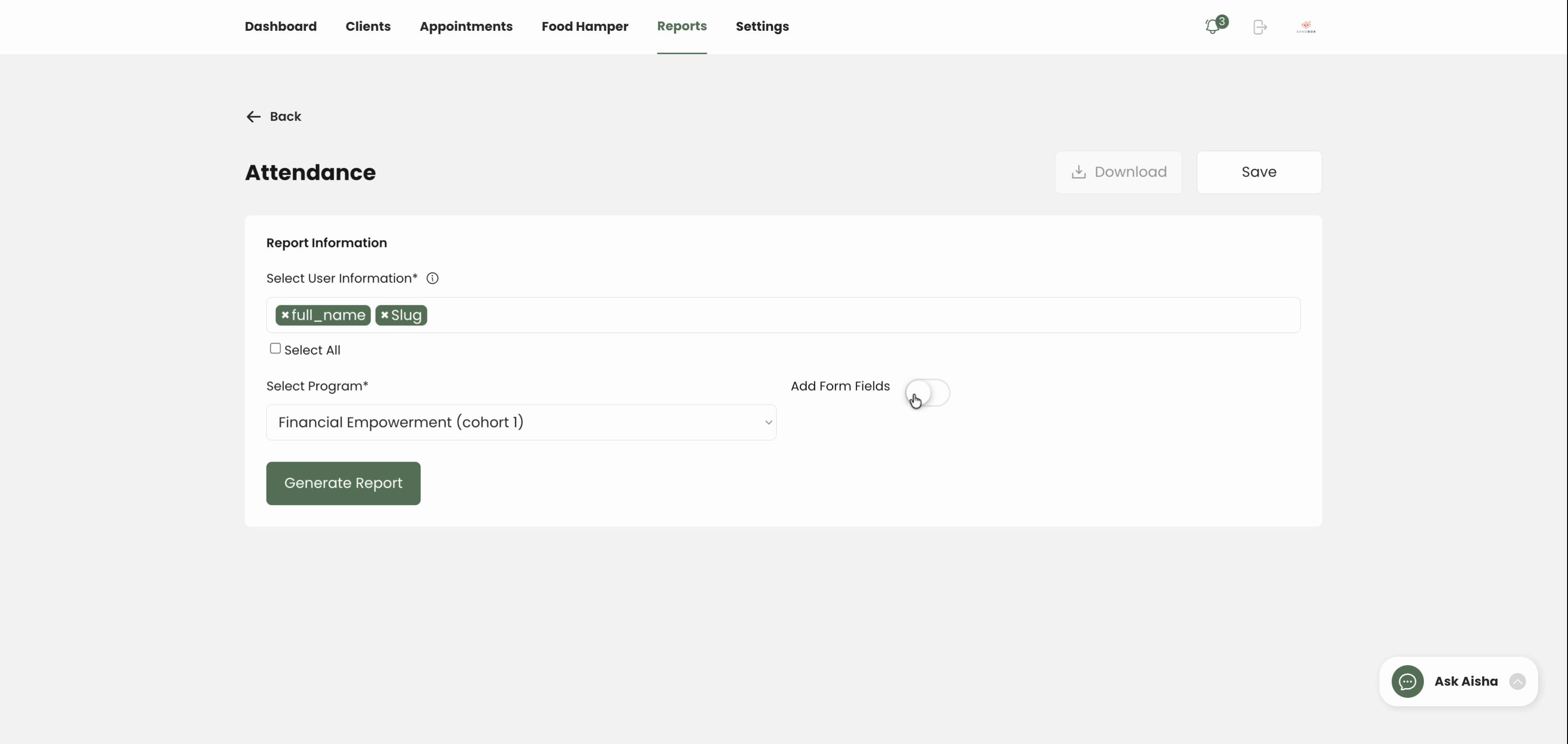
Step 8: In the list of available forms, add the Attendance Tracking form.
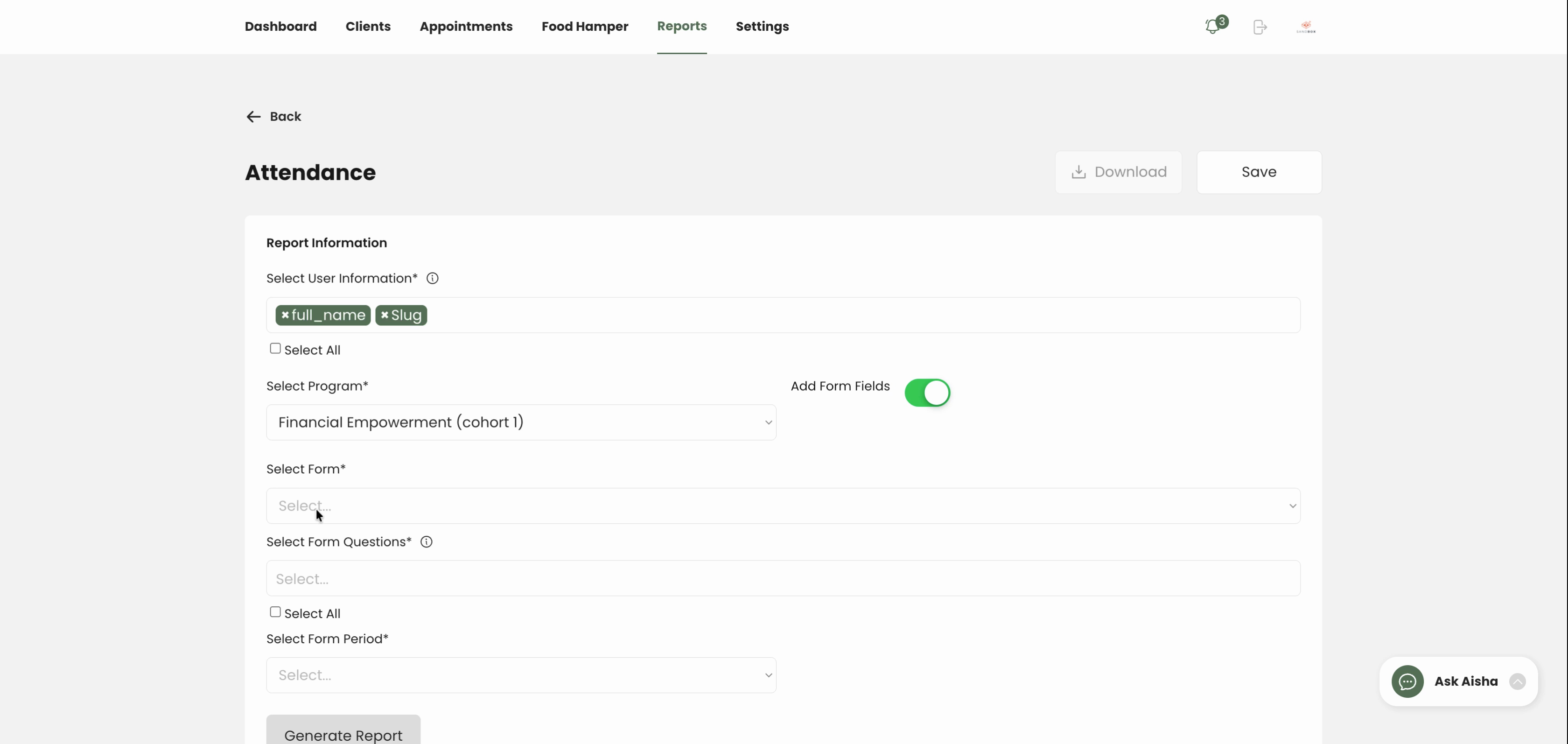
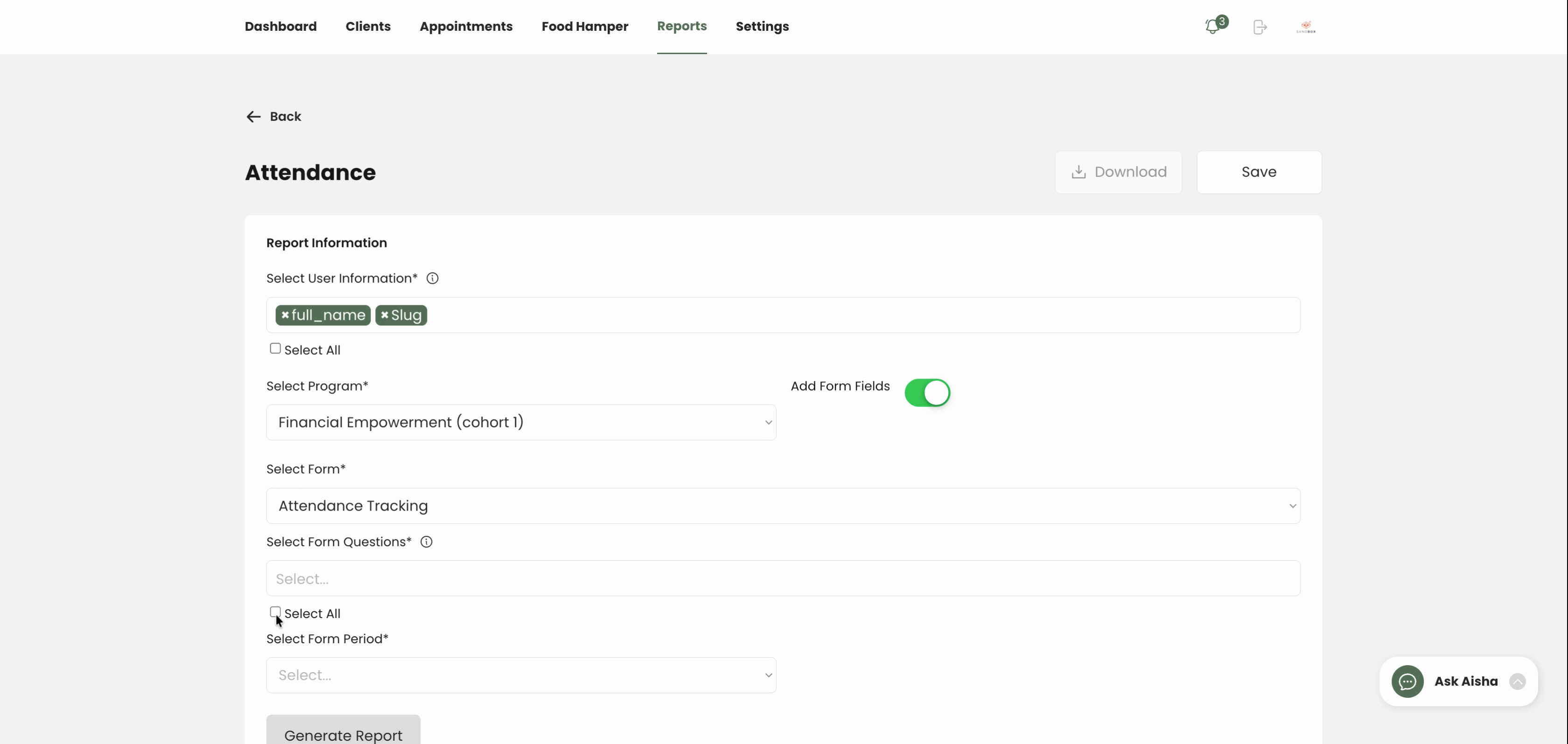
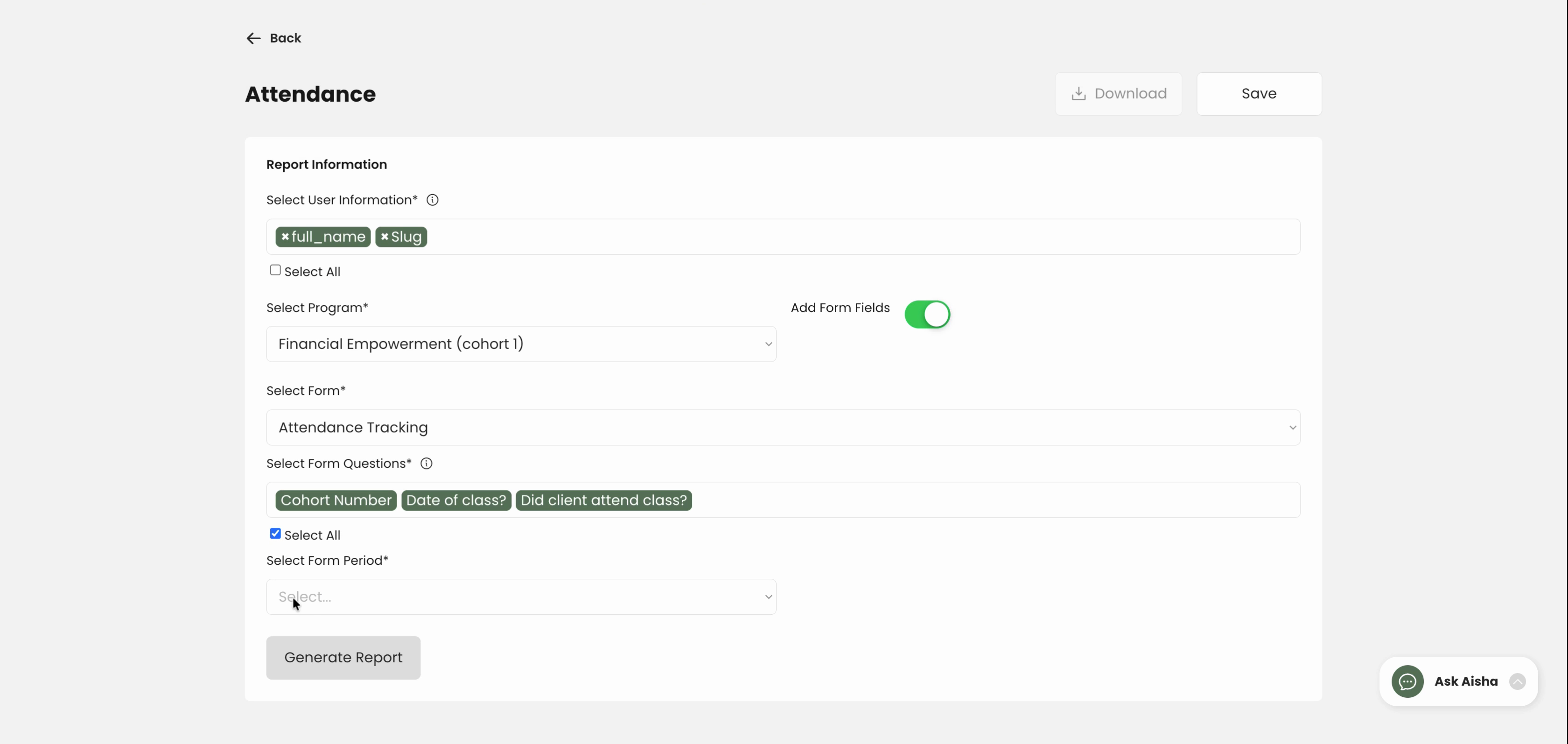
Step 9: Select the questions from the attendance tracking form you want to export. Use Select All if you want every question.
Step 10: Under the period menu, specify your desired reporting timeframe, or set it to All Time.
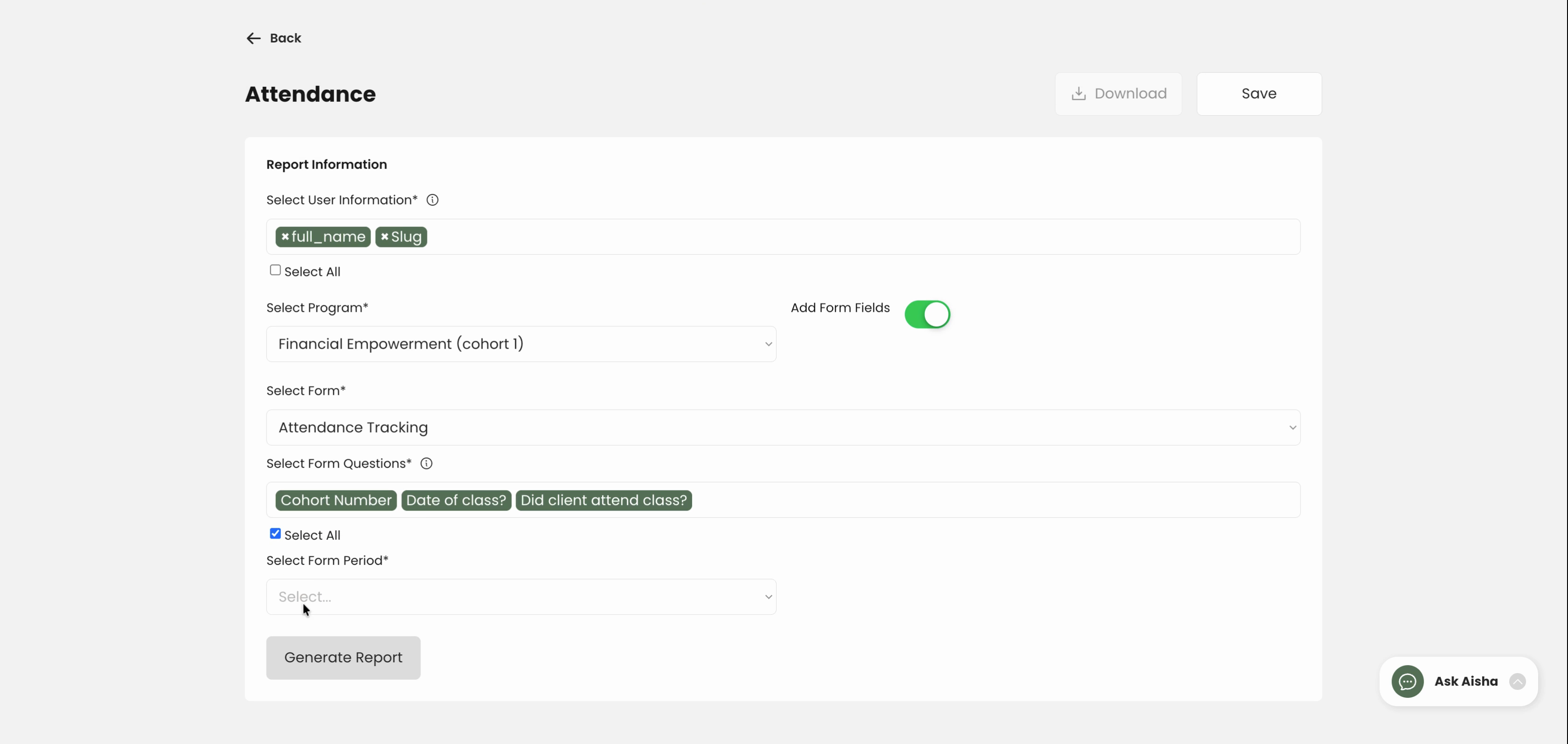
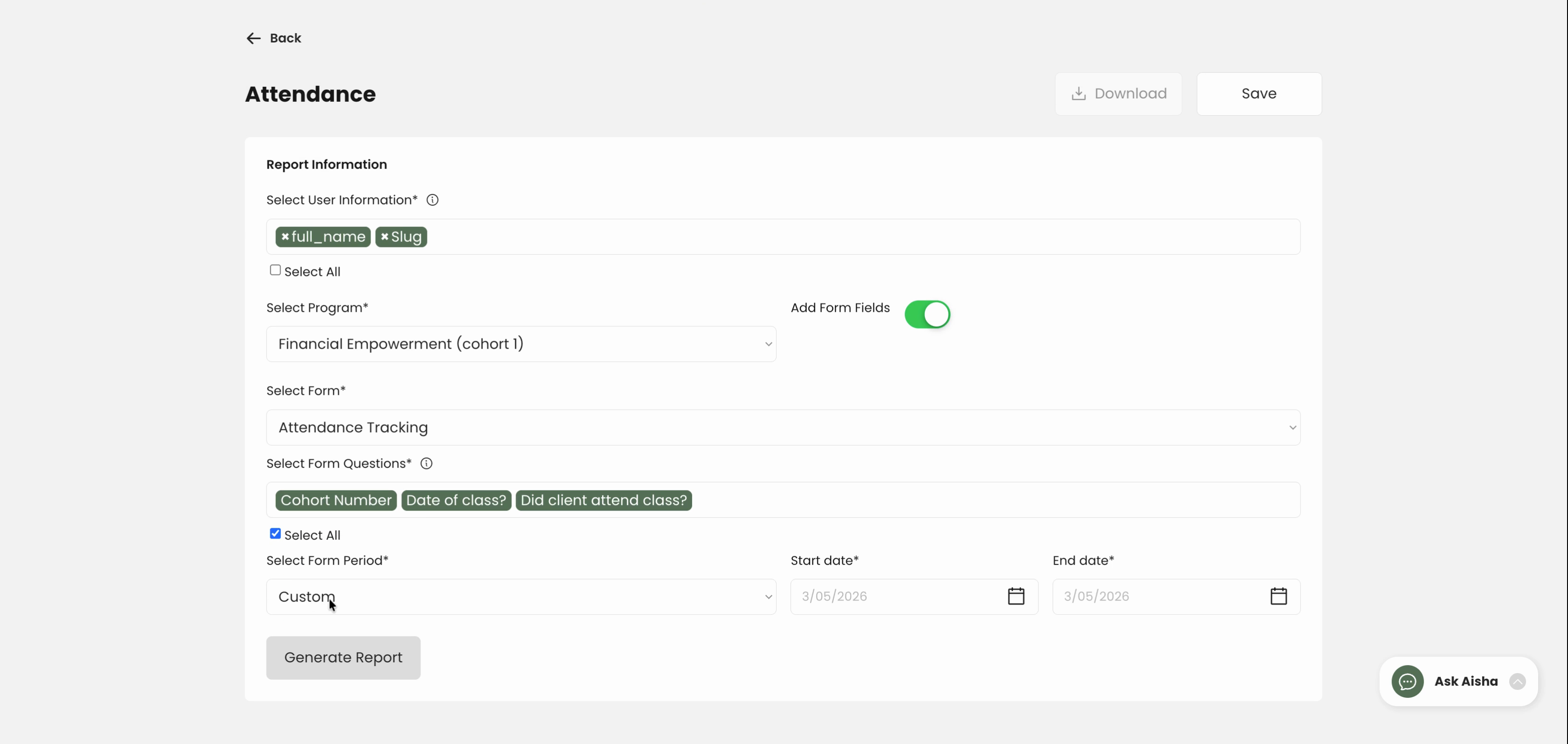
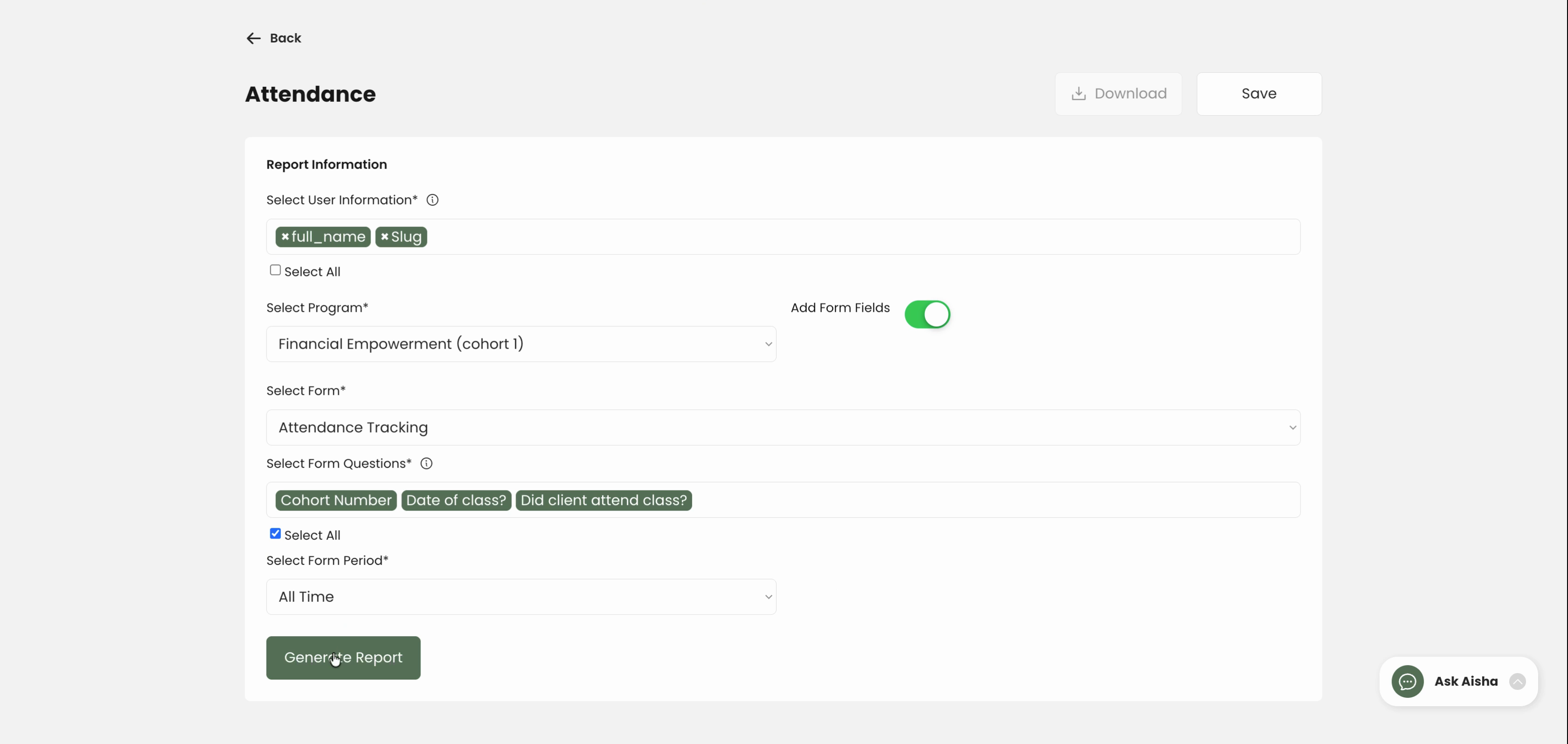
Step 11: Click Generate Report. The resulting report will show all clients enrolled in your selected program who've completed the attendance form, with their responses shown in the table.
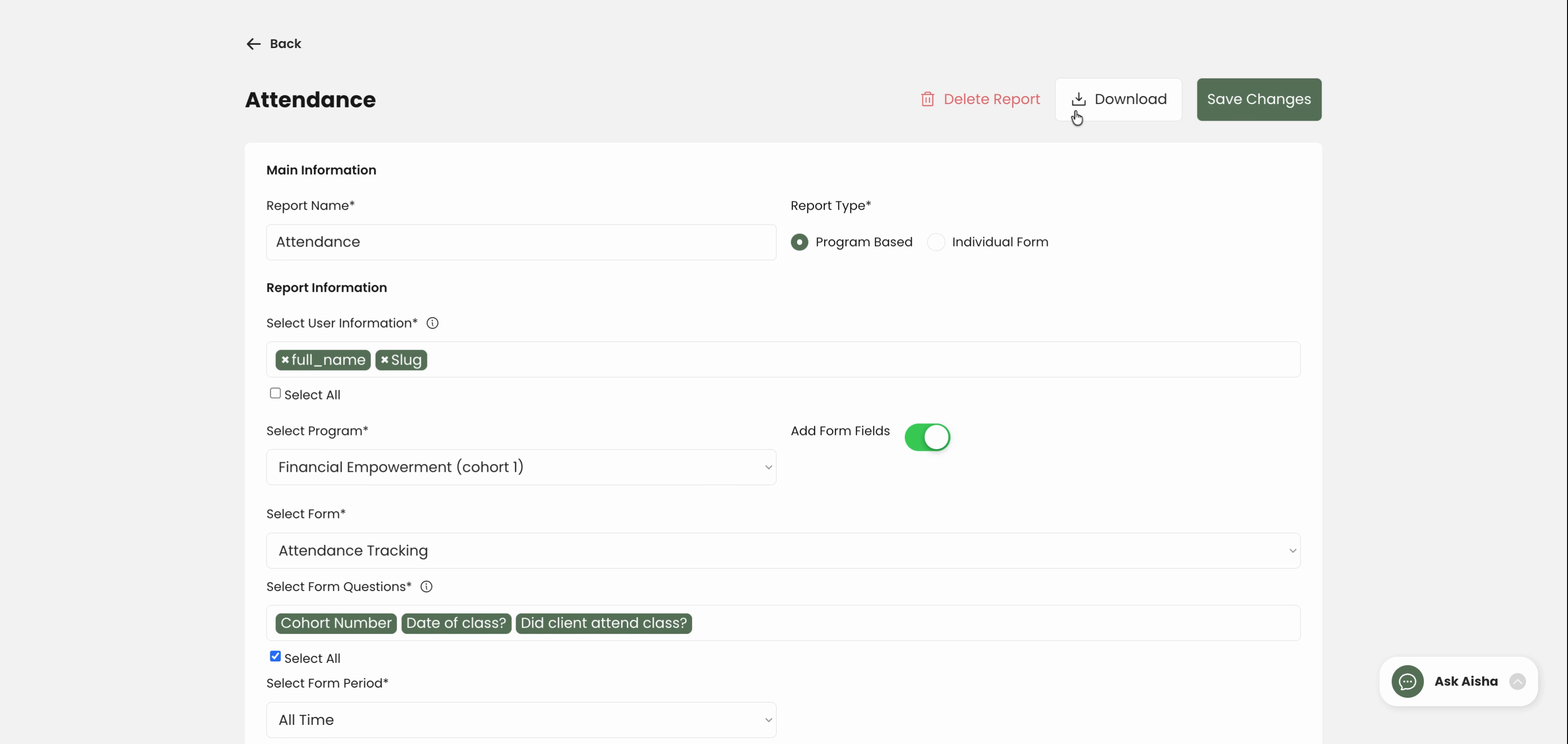
Step 12: Download the responses as a CSV file by clicking the export icon. The file saves directly to your computer for easy review or sharing.
Exporting form responses is an efficient way to access exactly the data you need—organized, complete, and ready for analysis or follow-up. Follow these steps every time you want an updated export from client programs.