The Query Reporting Tool makes it easy to build custom reports and find insights in your data. Whether you want stats on services provided, client profiles, or appointments, this tool helps you ask targeted questions and filter results efficiently.
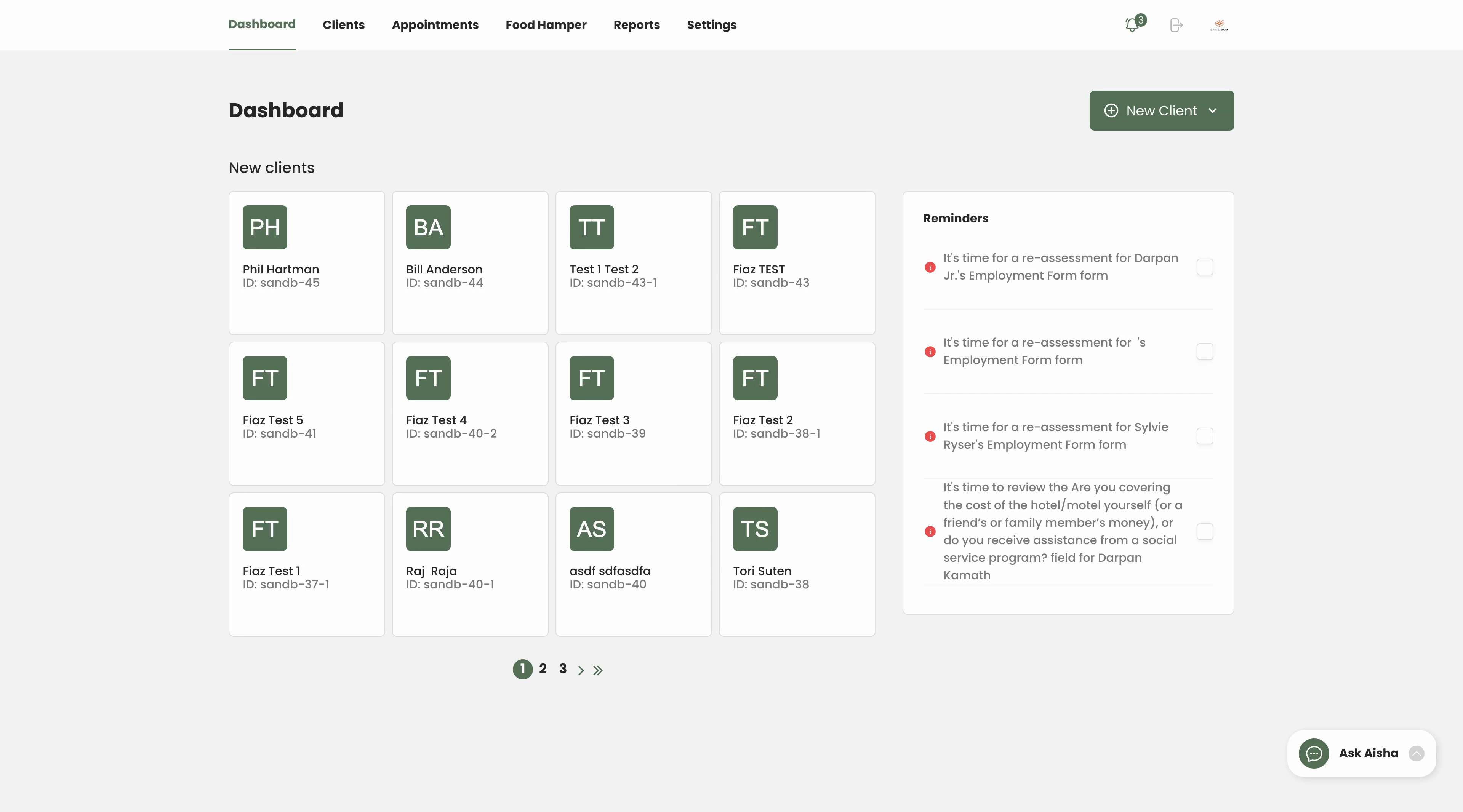
Go to the Reports tab at the top of the screen.
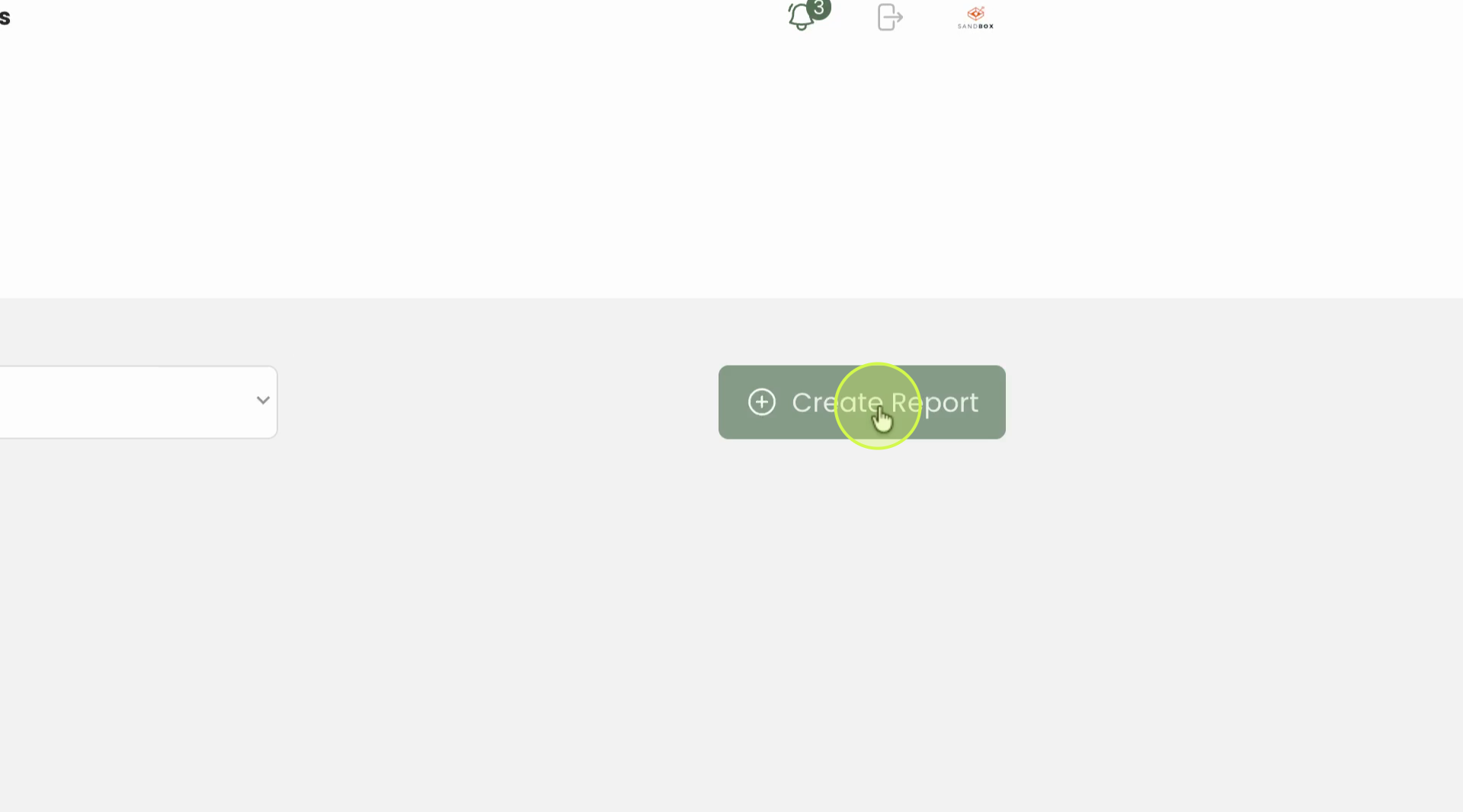
Step 1: Click Create to start a new report.
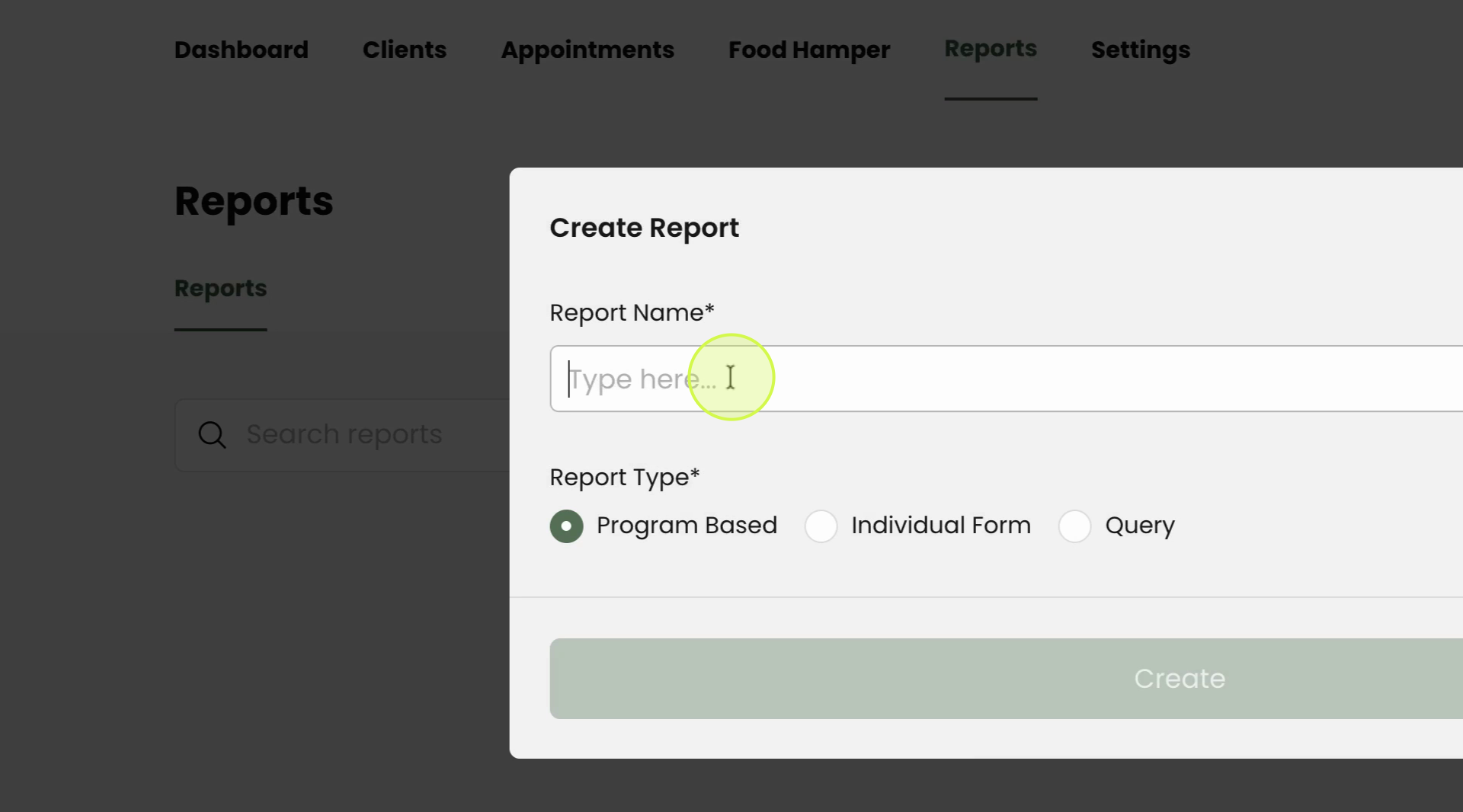
Step 2: Name your report. For the Report Type, select Query Report to run a data query.
Step 3: Click Create to confirm and open the new report.
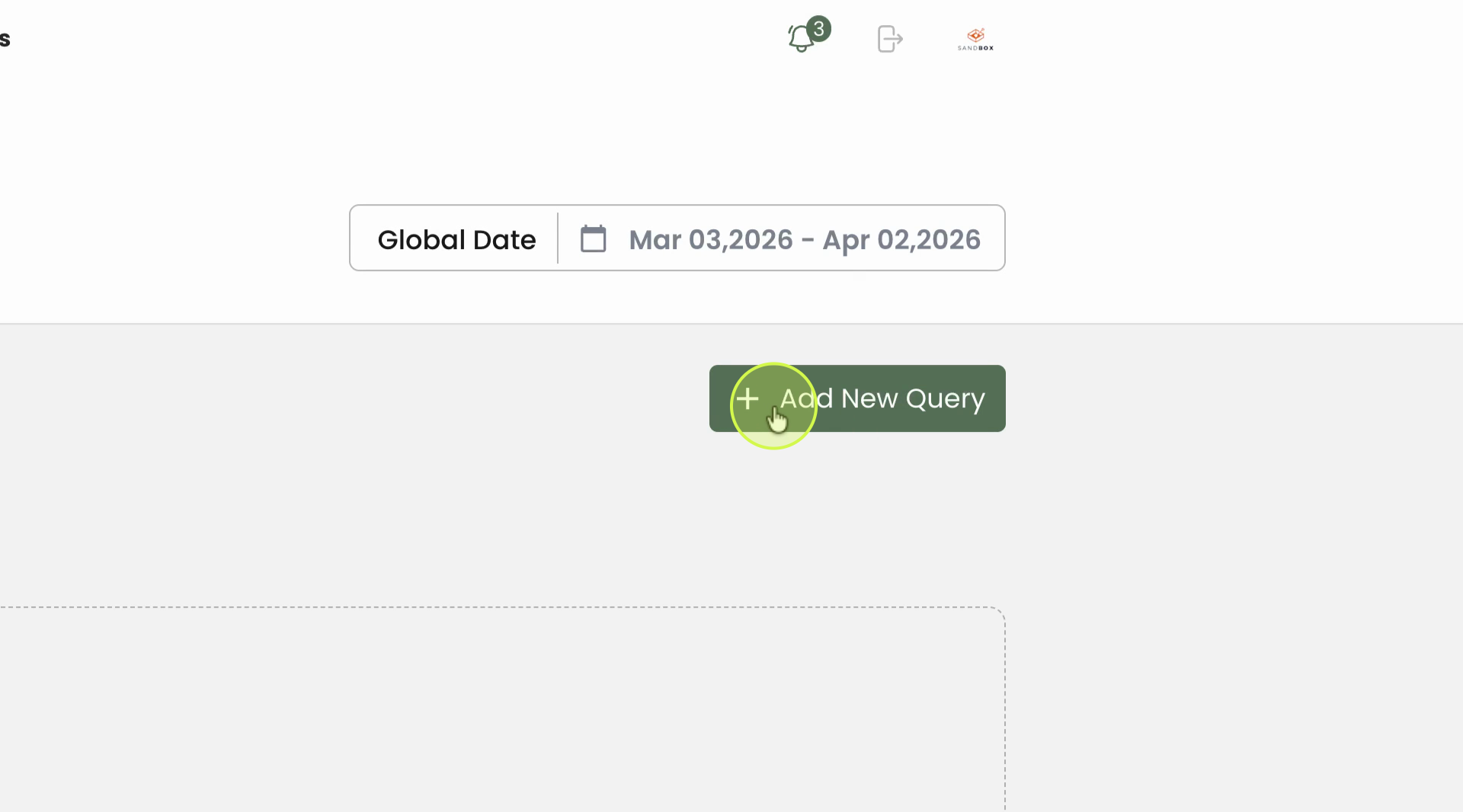
Step 4: Click Add New Query. Extend the query and give it a name.
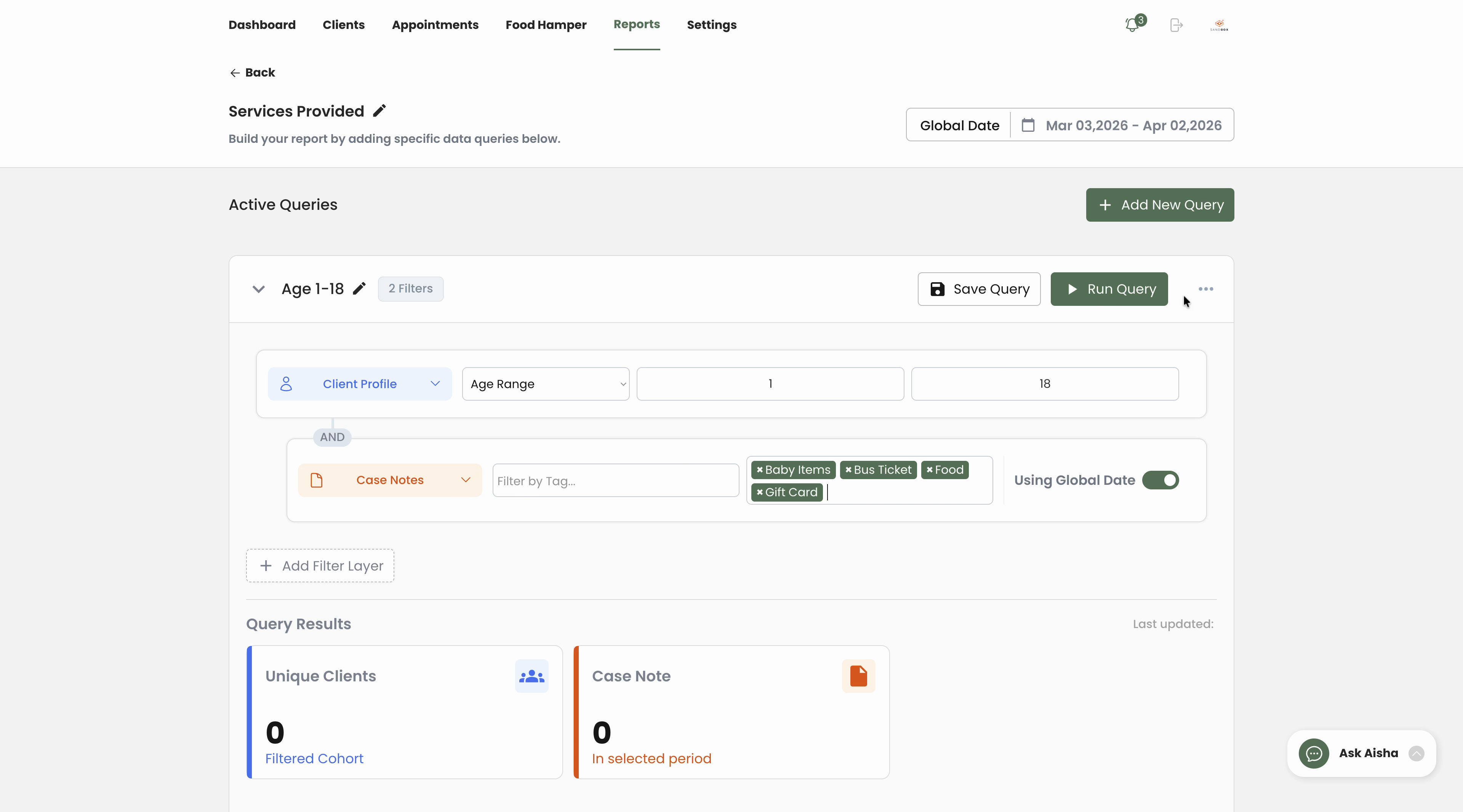
Step 5: Set your filters. For example, to build a report on services for ages 1 to 18:
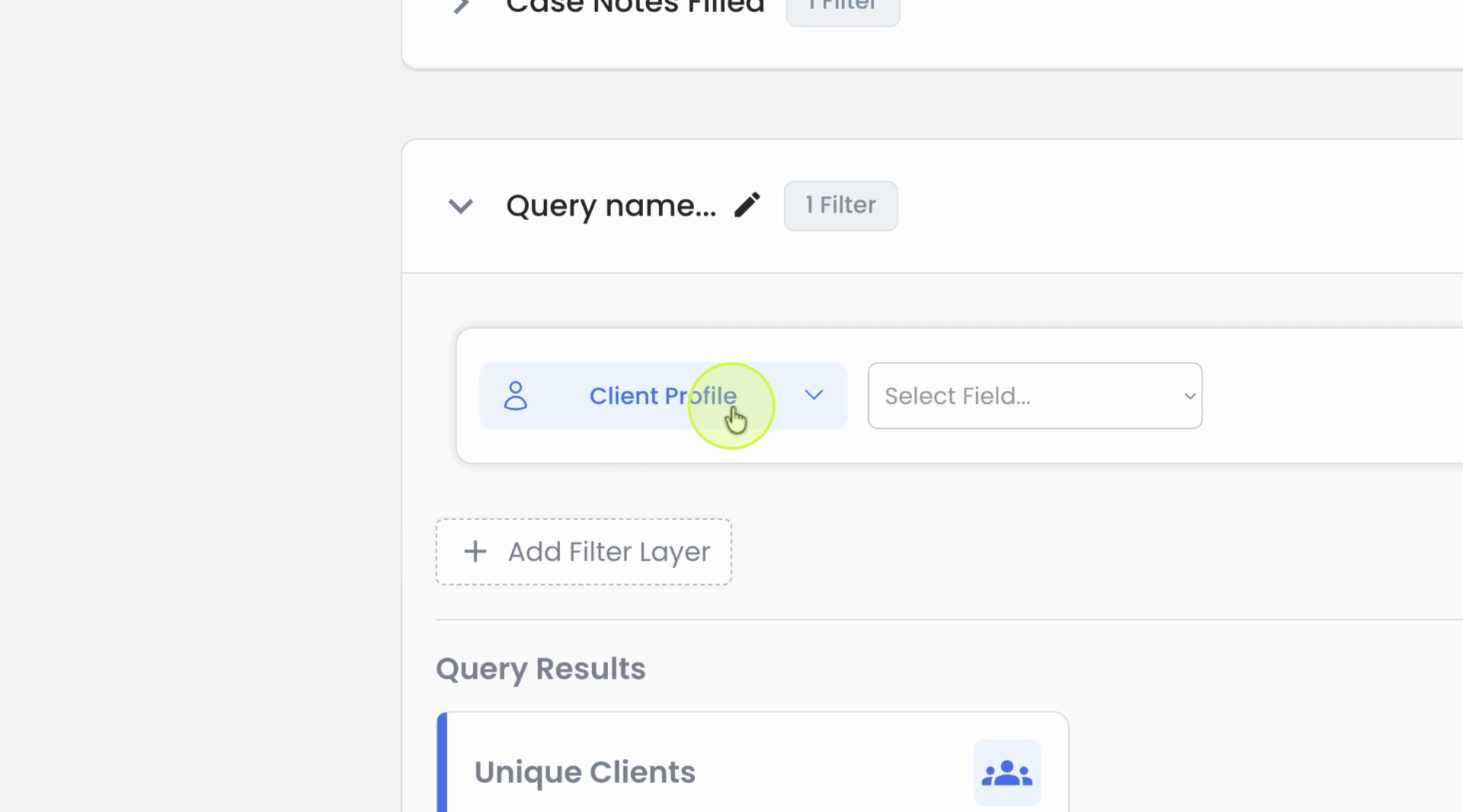
Add a filter from the Client Profile for age and select the desired range.
Add another filter for Case Notes. Choose items like baby items, bus tickets, food, or gift cards to track specific services.
Click Run Query to get your results. See unique clients served and case notes filled during the selected age range.
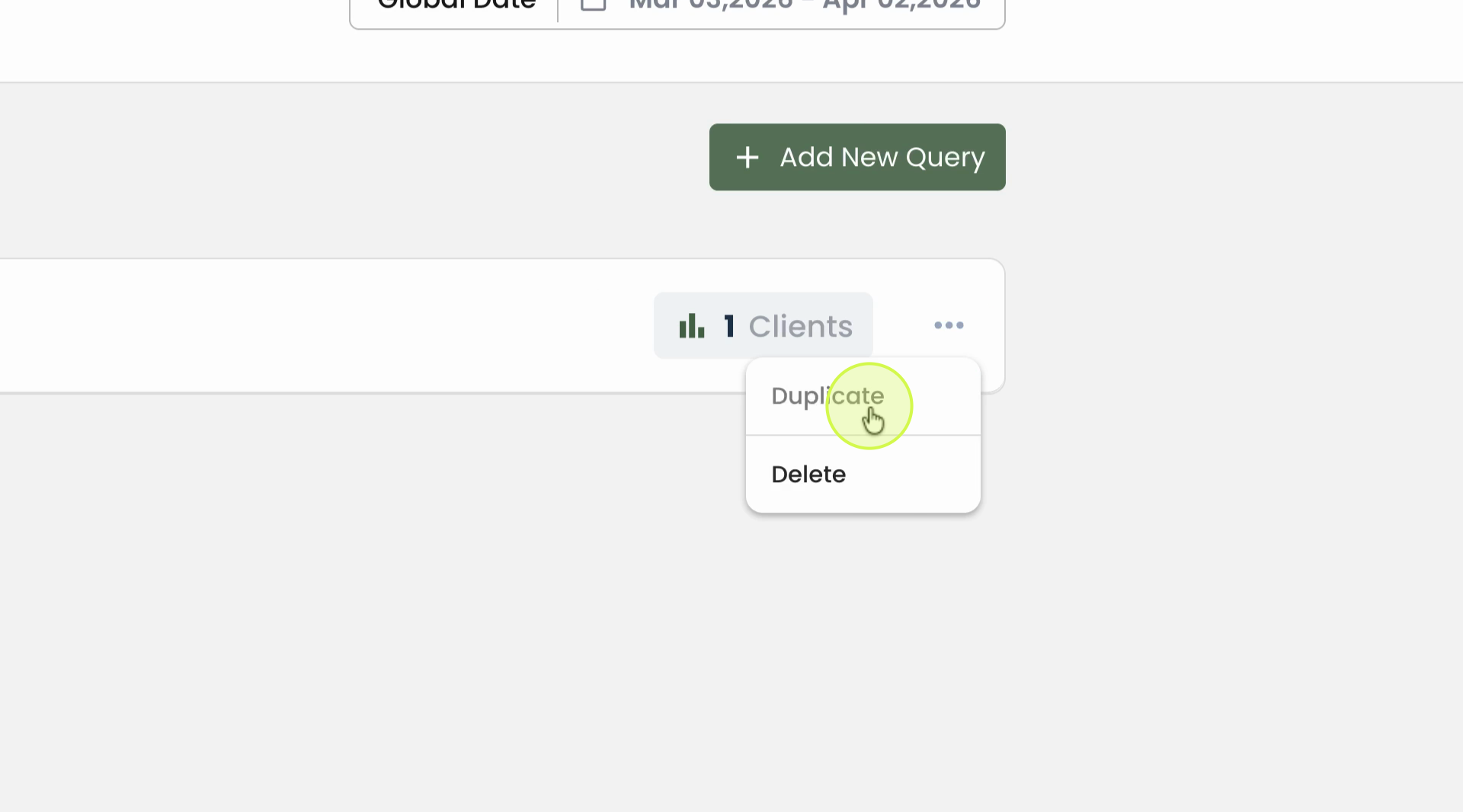
Step 6: To compare other groups, duplicate your query, adjust the filters (like changing age range to 19–65), and run the query again.
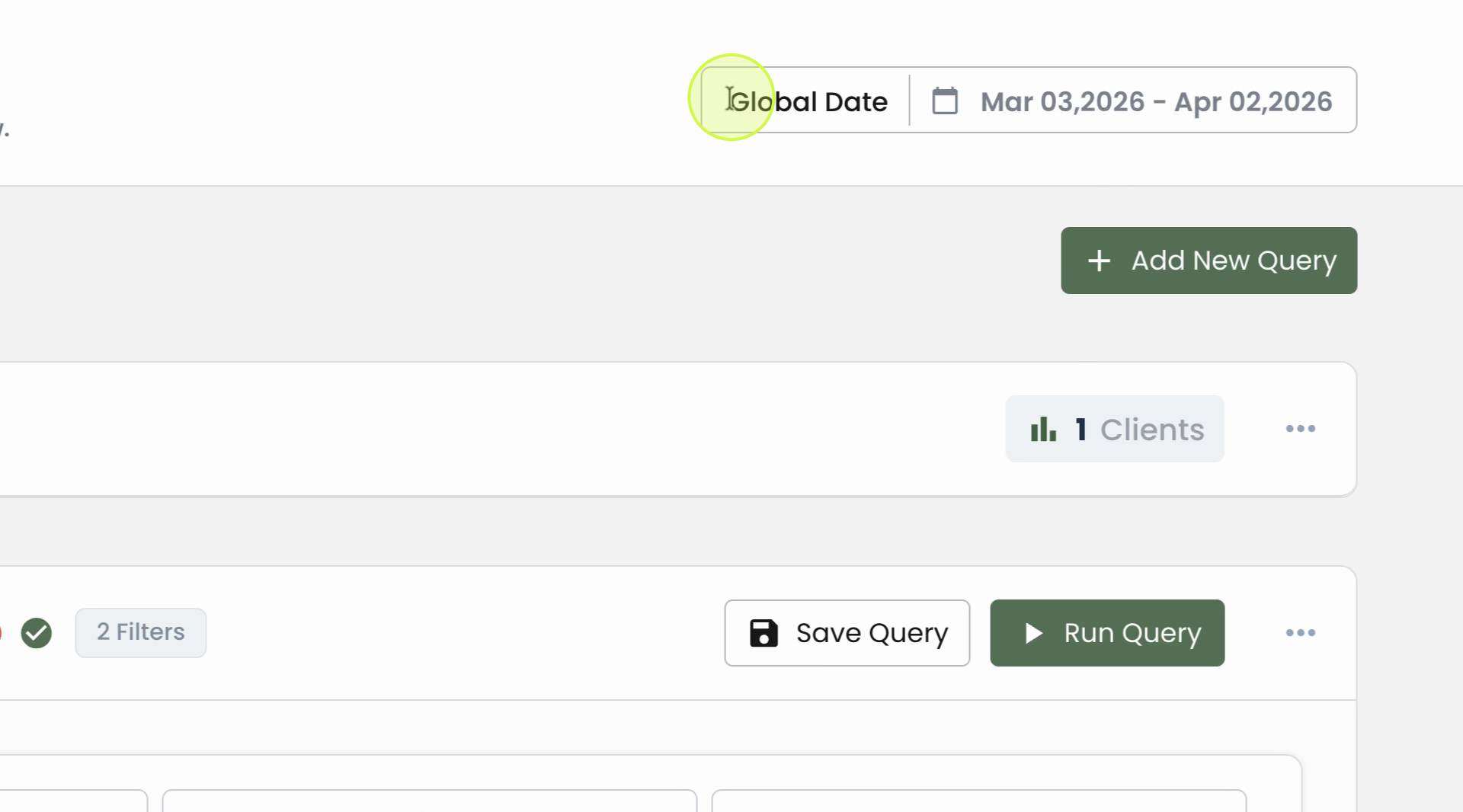
Step 7: Adjust the reporting period. Use the global Date Range at the top for all queries, or turn it off to set a custom date range for an individual query.
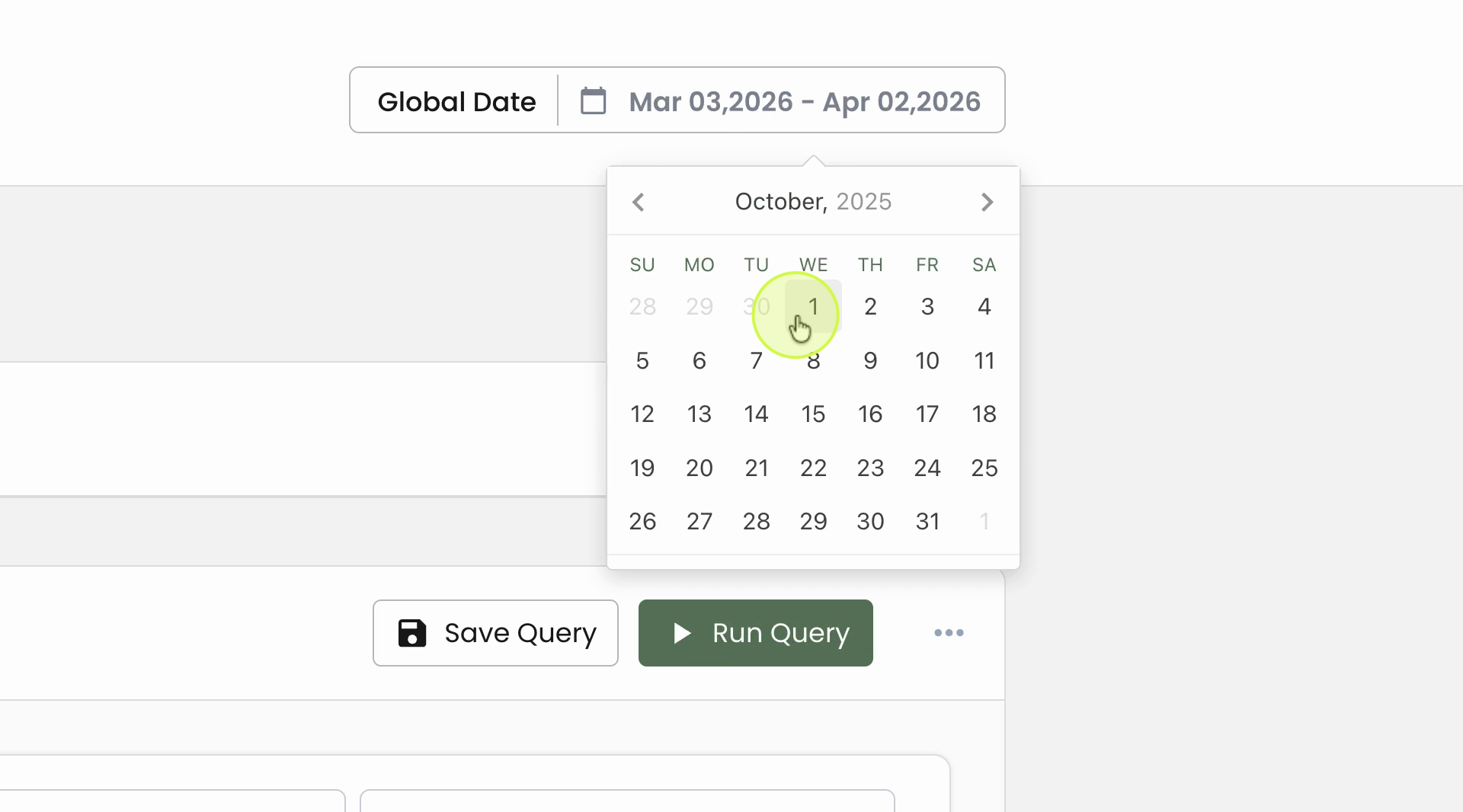
Step 8: Choose your desired dates and run the query to see updated results for the selected timeframe.
Step 9: Add more queries to explore data, such as by gender or custom questions. Use filters from the Client Profile to find clients matching specific characteristics.
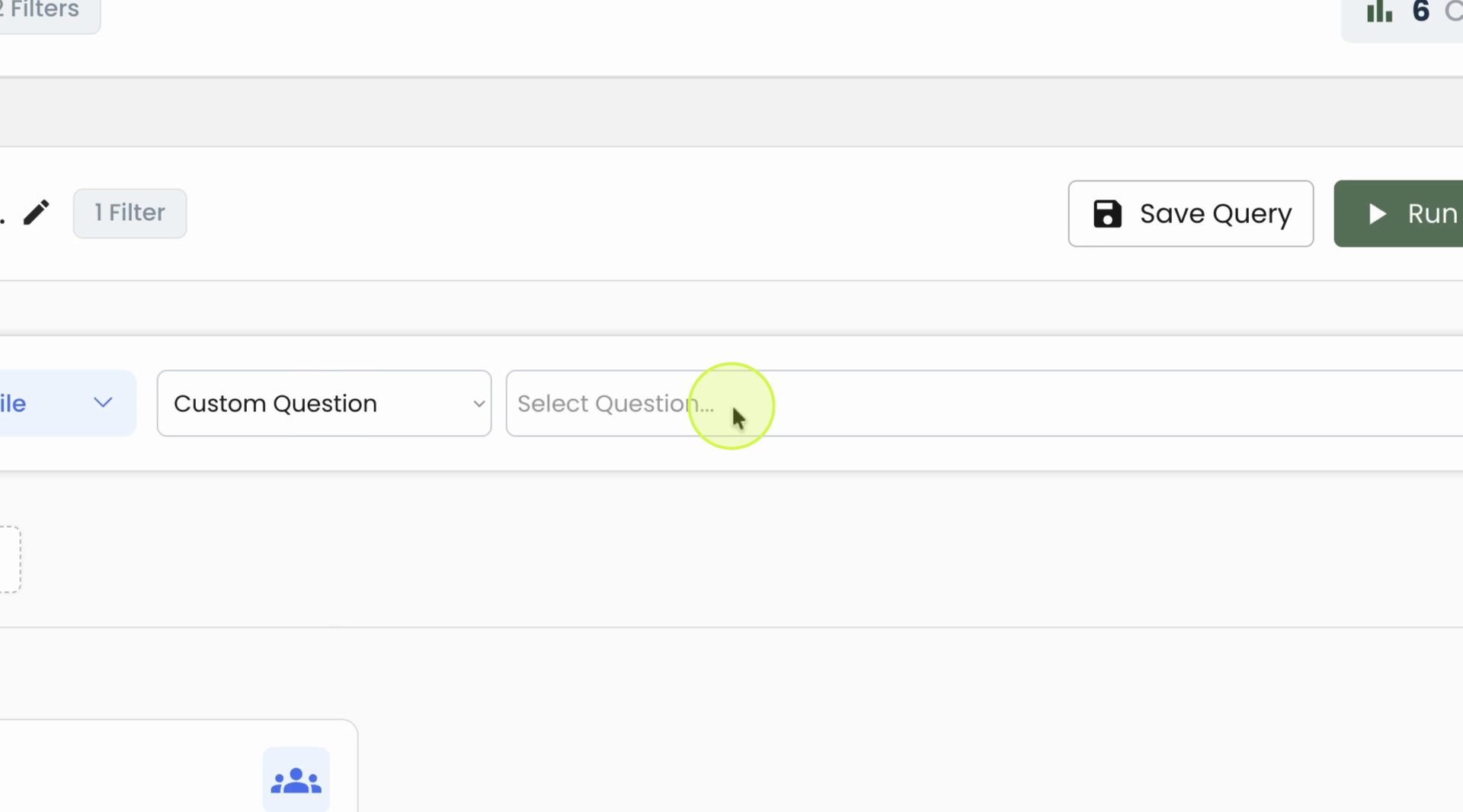
Step 10: Explore advanced options:
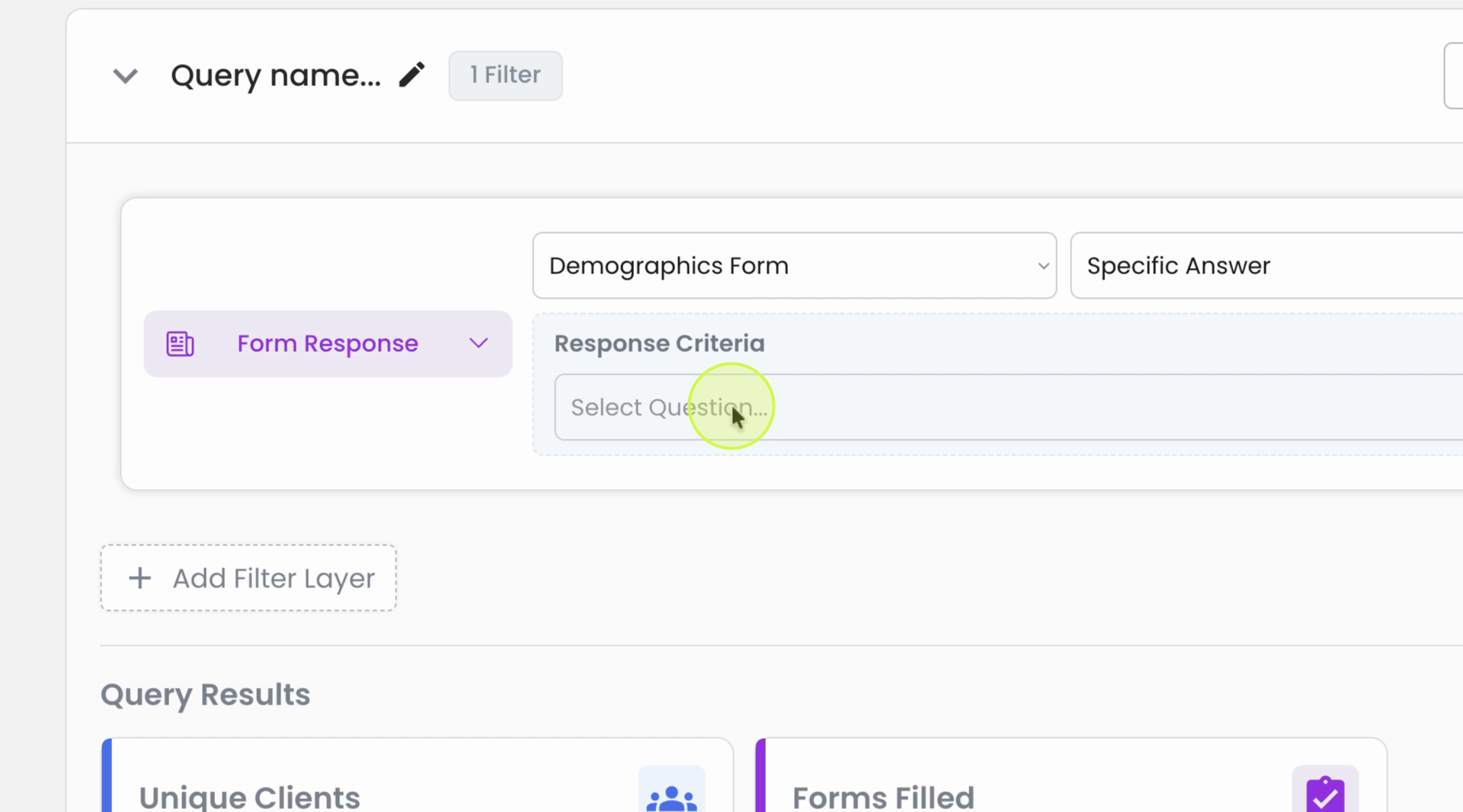
Filter by Form Responses, searching for clients who filled out certain forms or responses.
Filter by Program Enrollment to see clients who were active, newly enrolled, or exited programs in your date range.
Choose Primary, Secondary, or Count Families to group results by client role or family unit.
Filter by Appointments, such as food hamper pickups, internal appointments, and more.
Combine multiple filters to drill down as needed.
Step 11: For form-based reports, search specific submissions or answers. When you select an answer, you’ll get additional criteria options to refine your search. Run the query to see detailed results.
The Query Reporting Tool gives you powerful flexibility to track services, analyze populations, and demonstrate your organization’s impact. Experiment with different queries, filters, and date ranges to answer key questions and tailor your reports to your needs.